
Introduction
This article provides a detailed explanation on how to measure the cut and fill volume in a selected area.
By comparing the reference topography data with the target shape, it is possible to determine the excess or deficiency of soil volume relative to the target shape.
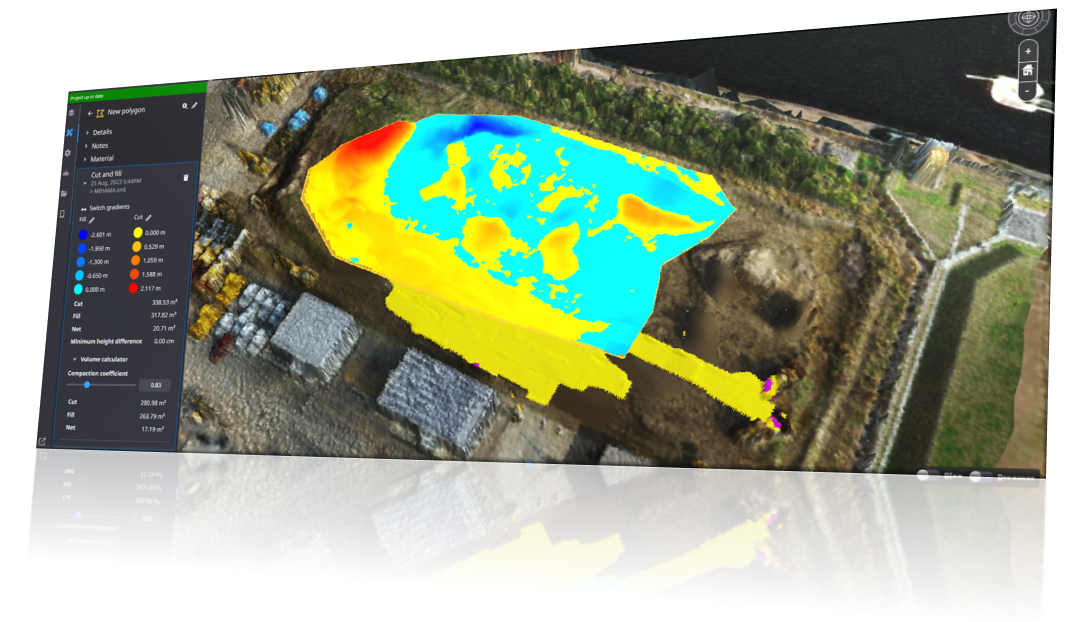
Procedures and Explanation
1. Click on the measurement icon in the side panel

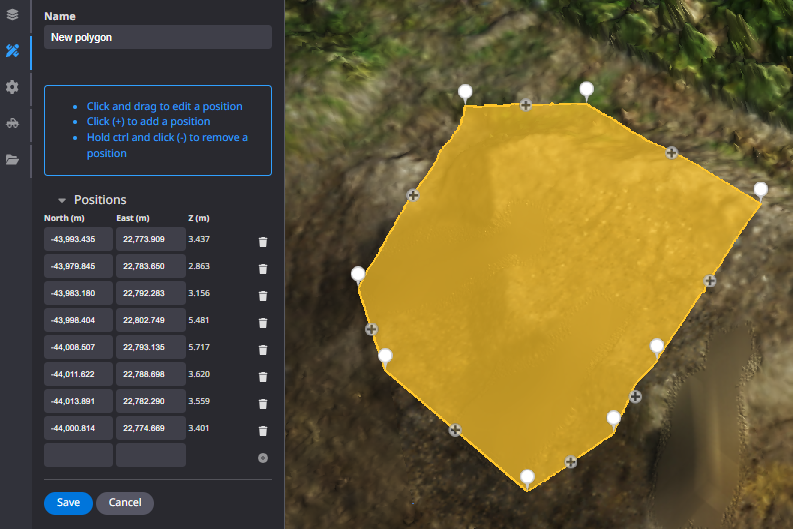
2. Select "Polygon" or "Site" from the annotations.
Polygon: Measurement tool for a partial area
Site: Measurement tool for the registered design data area
Annotations

”Polygon" and "Site”

Left mouse click to enclose the desired area, right mouse click to exit and "Save".
Click here to customize annotation information

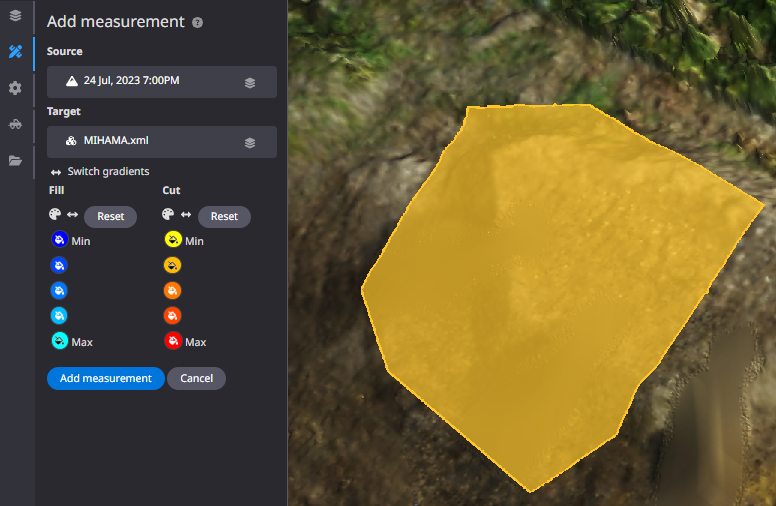
3. Click "Add new measurement".

4. Select "Cut and fill".

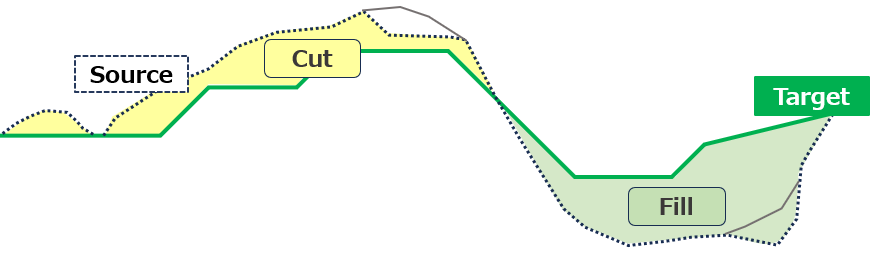
5. Confirm the "Source" and "Target".
Calculations are performed based on the selected "Source" and "Target".
Soil volume is calculated using a single representative point on a 50 cm mesh.
Supplemental: Image of the source (selected terrain) and target (design data)
use case : preconstruction
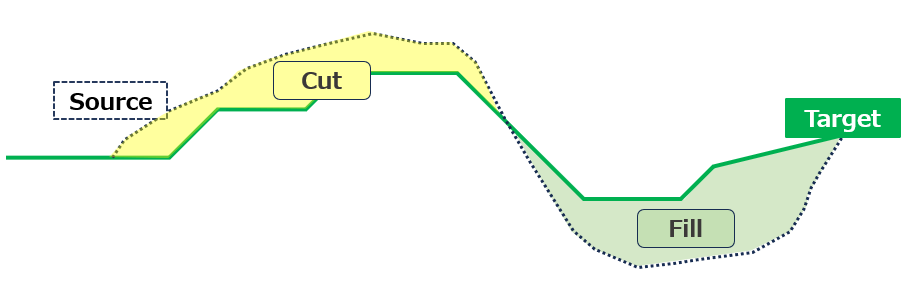
Use case : working 【create the stock pile after dig and dig the fill area for work】
6. Click "Add Measurement

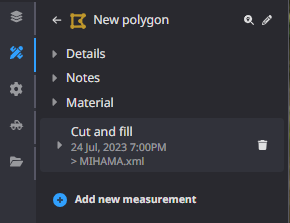
7. The calculation results will be reflected in the tab of the created polygon.
If the heat map is not displayed, click the "▶" button to display it.
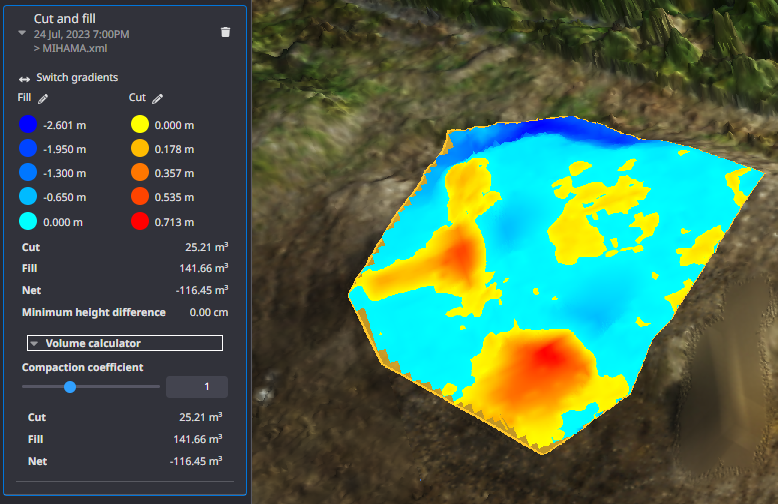
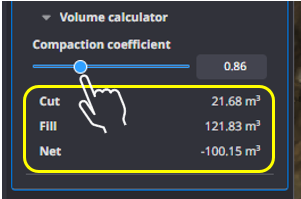
Compaction coefficient can be set and soil volume can be calculated as an optional function.
Supplementation
If you want to customize the threshold and color information of the measurement results, click here.