
Use this to draw a flight plan on SC Dashboard and import it into the drone controller to survey the area within the boundary.
The plan is created automatically. The user then sets the desired flight parameters, such as altitude and speed.
Option1
Required Software
Free Online: https://tool-online.com/en/convert-to-kml.php#
Follow the steps below
-
In SC Dashboard using the Annotation function draw a Polygon of the desired area then Export the annotation

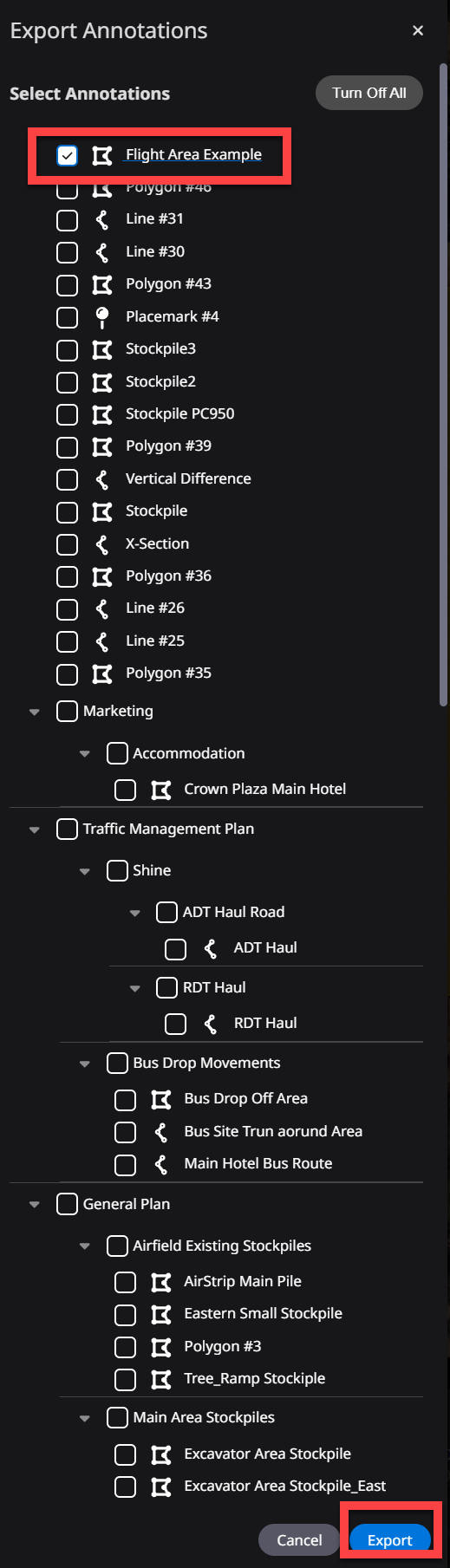
Make sure to only have the one Polygon Annotation selected
-
Select Region & Coordinate Reference System i.e. Australia & GDA2020/MGA Z56
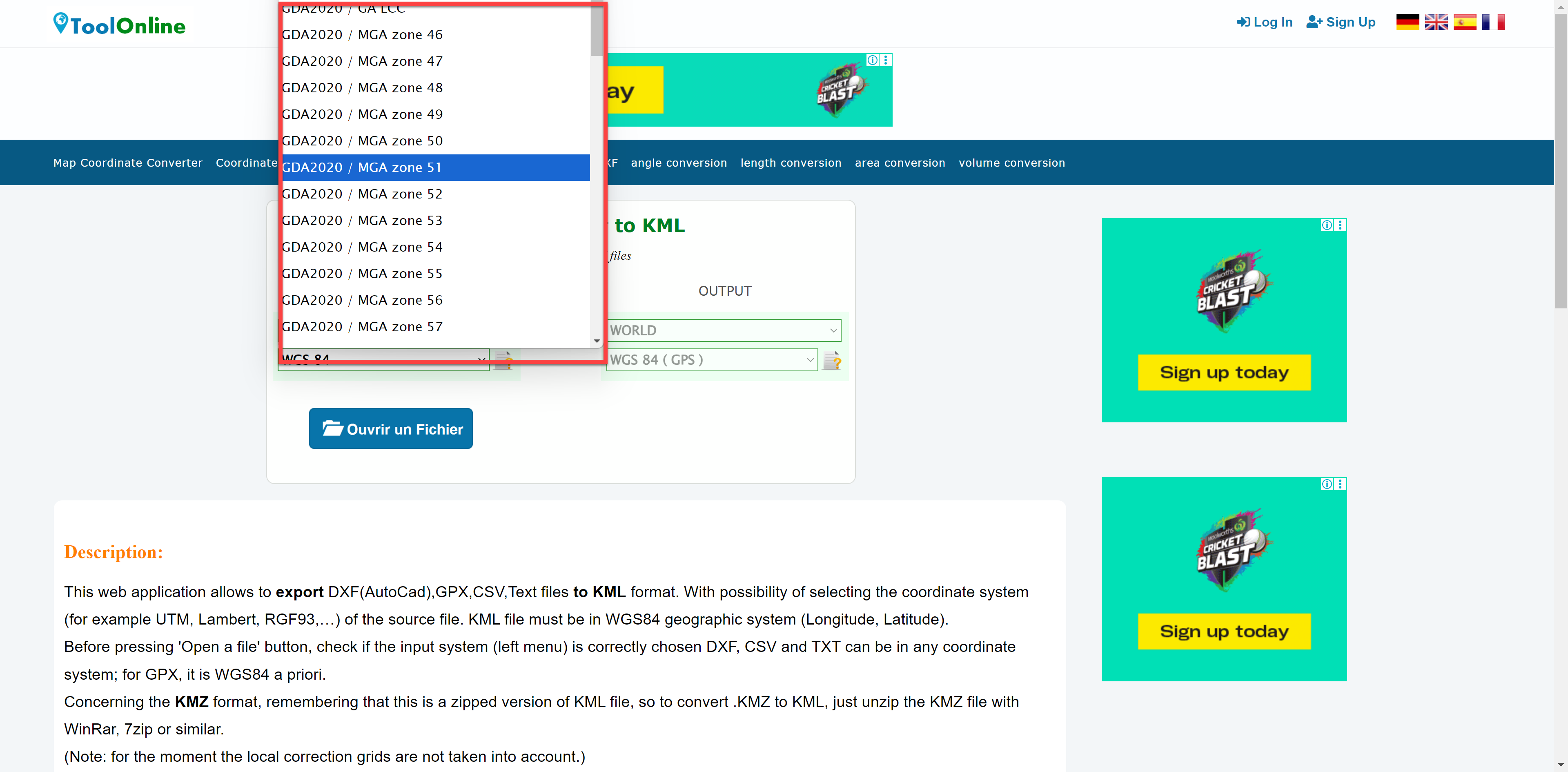
-
Import DXF file
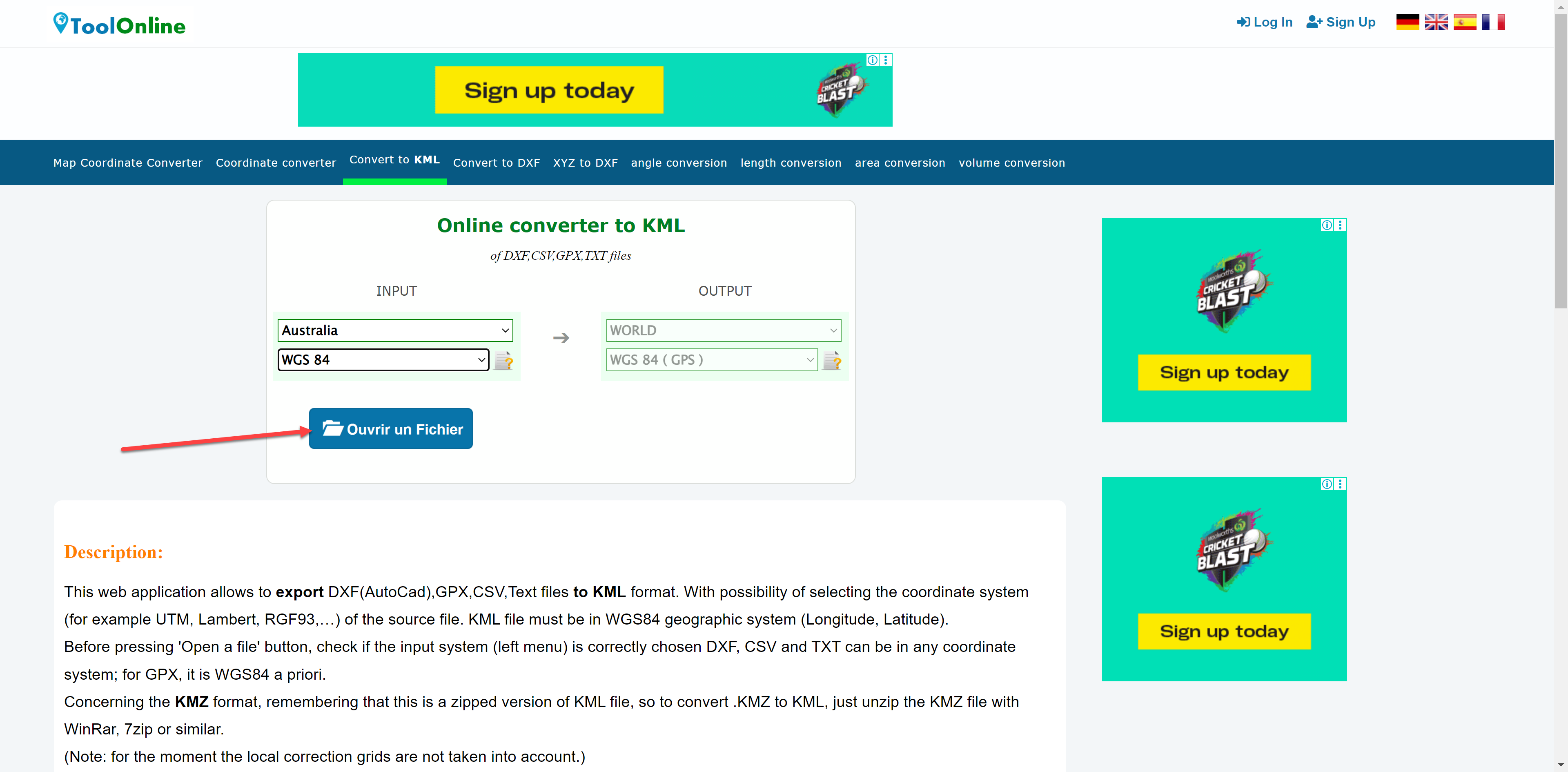
-
Download KML
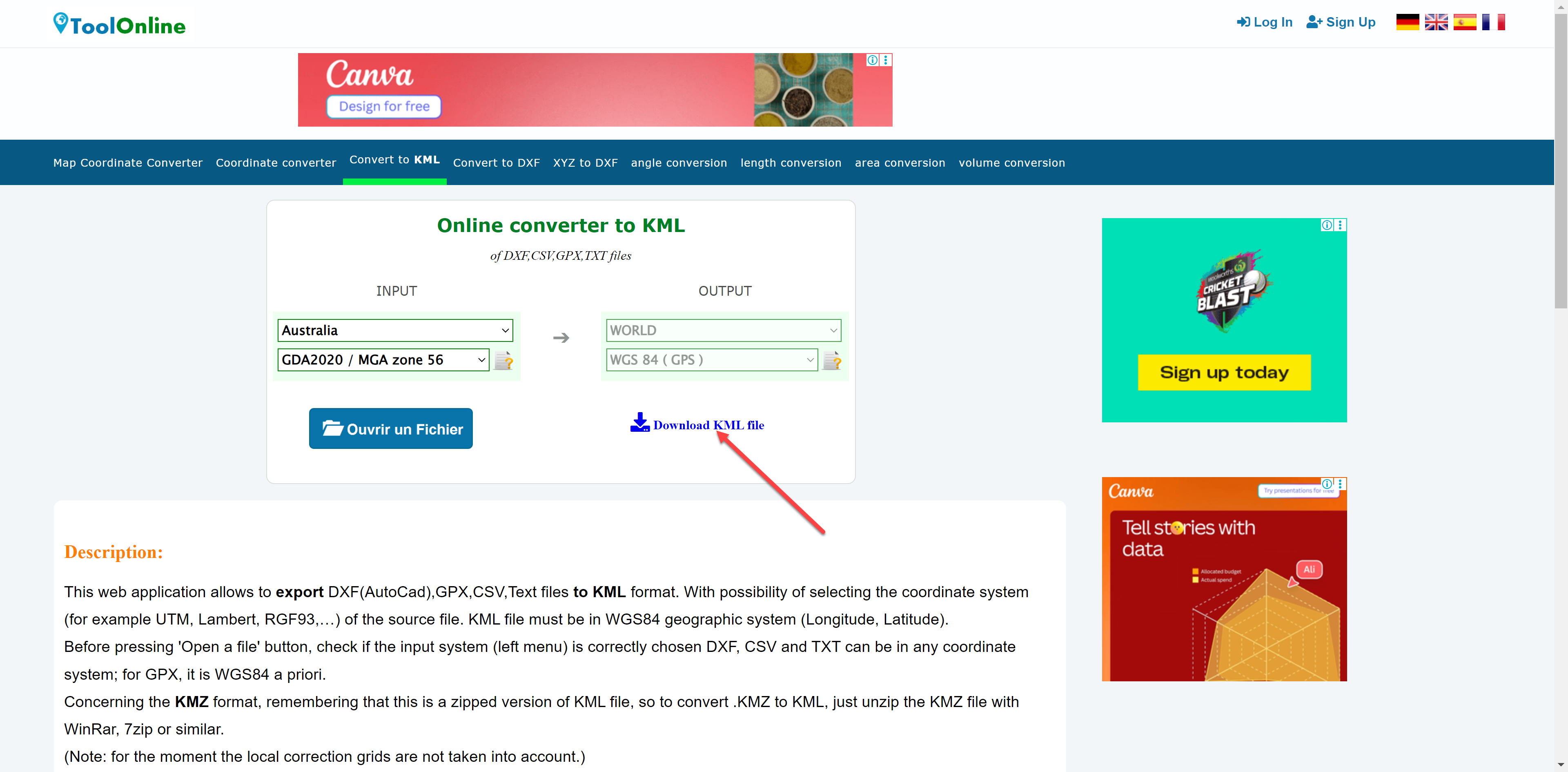
Do a quick check. See Confirm KML File at the bottom of this page.
To import into flight controller place the kml file in the DCIM/KML folder.
Option2
Required software
Download & Install: Google Earth & QGIS (https://qgis.org/download/ )
Follow the steps below
-
In SC Dashboard using the Annotation function draw a Polygon of the desired area then Export the annotation
Make sure to only have the one Polygon Annotation selected
-
Open QGIS with a Blank Project
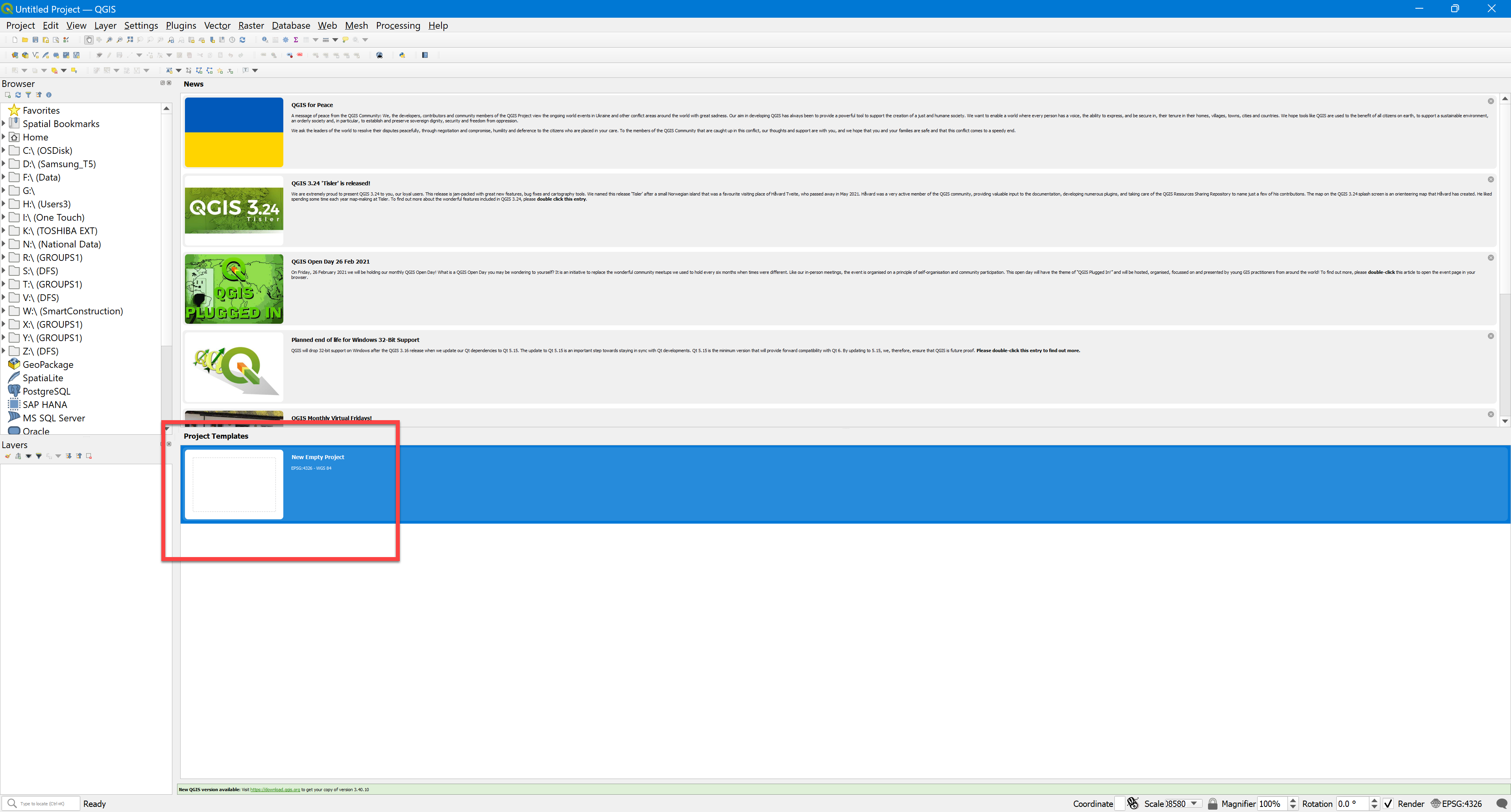
-
Drag & Drop the DXF file into QGIS. Select “Add Layers”
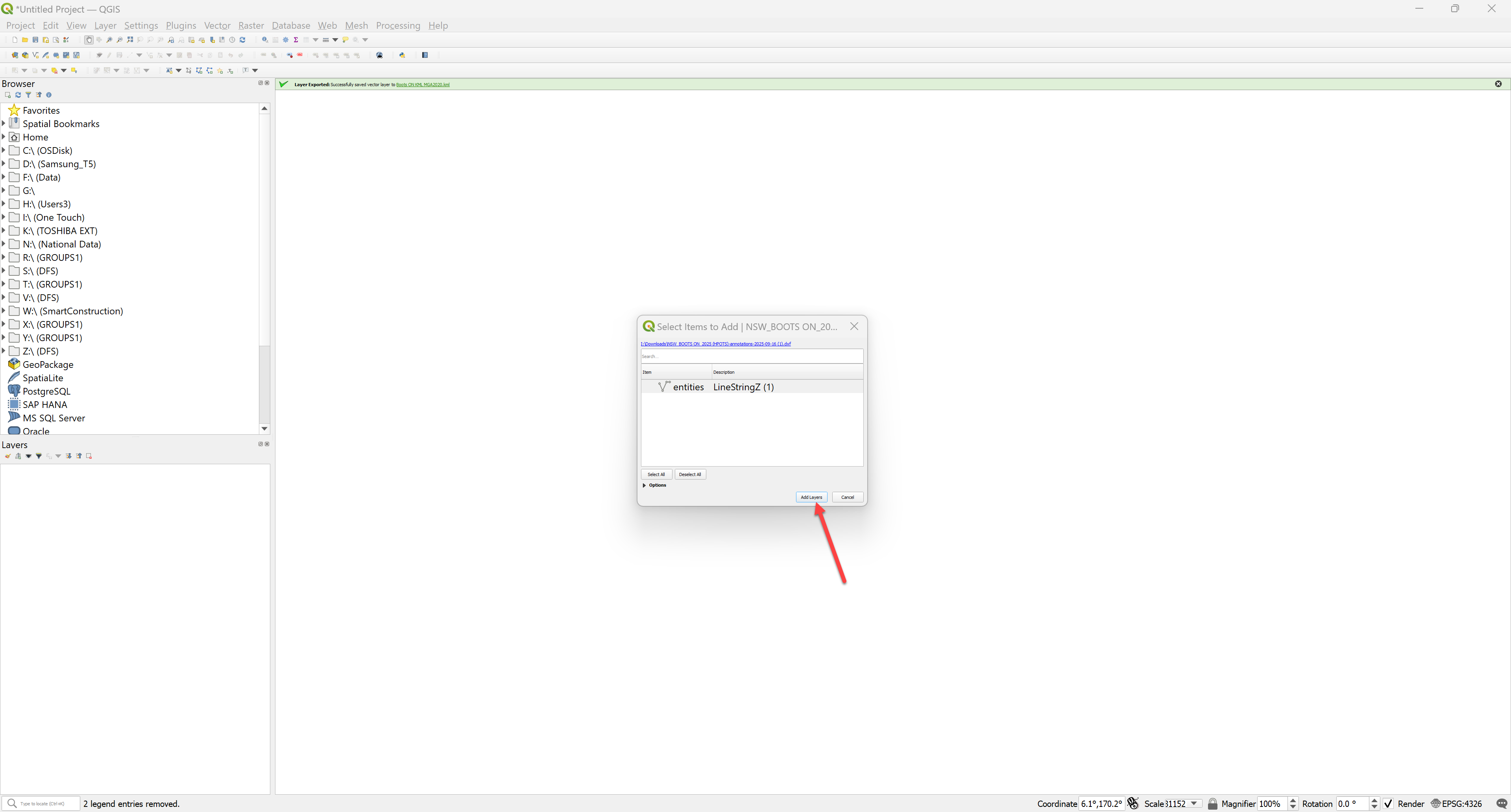
-
Set the Coordinate system by 1. selecting EPSG on the bottom right corner 2. Type the EPSG code or Name 3. Select the CRS
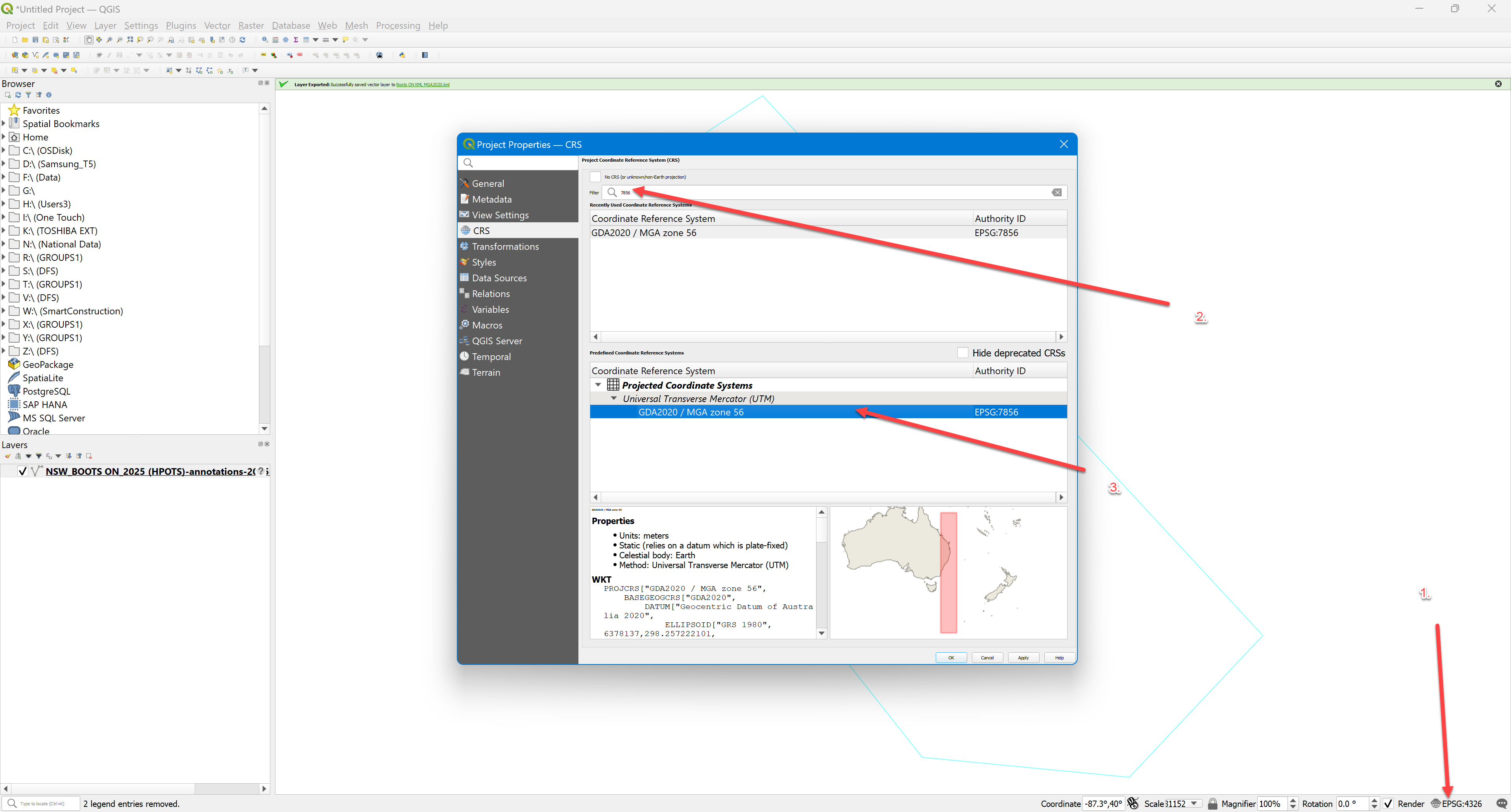
-
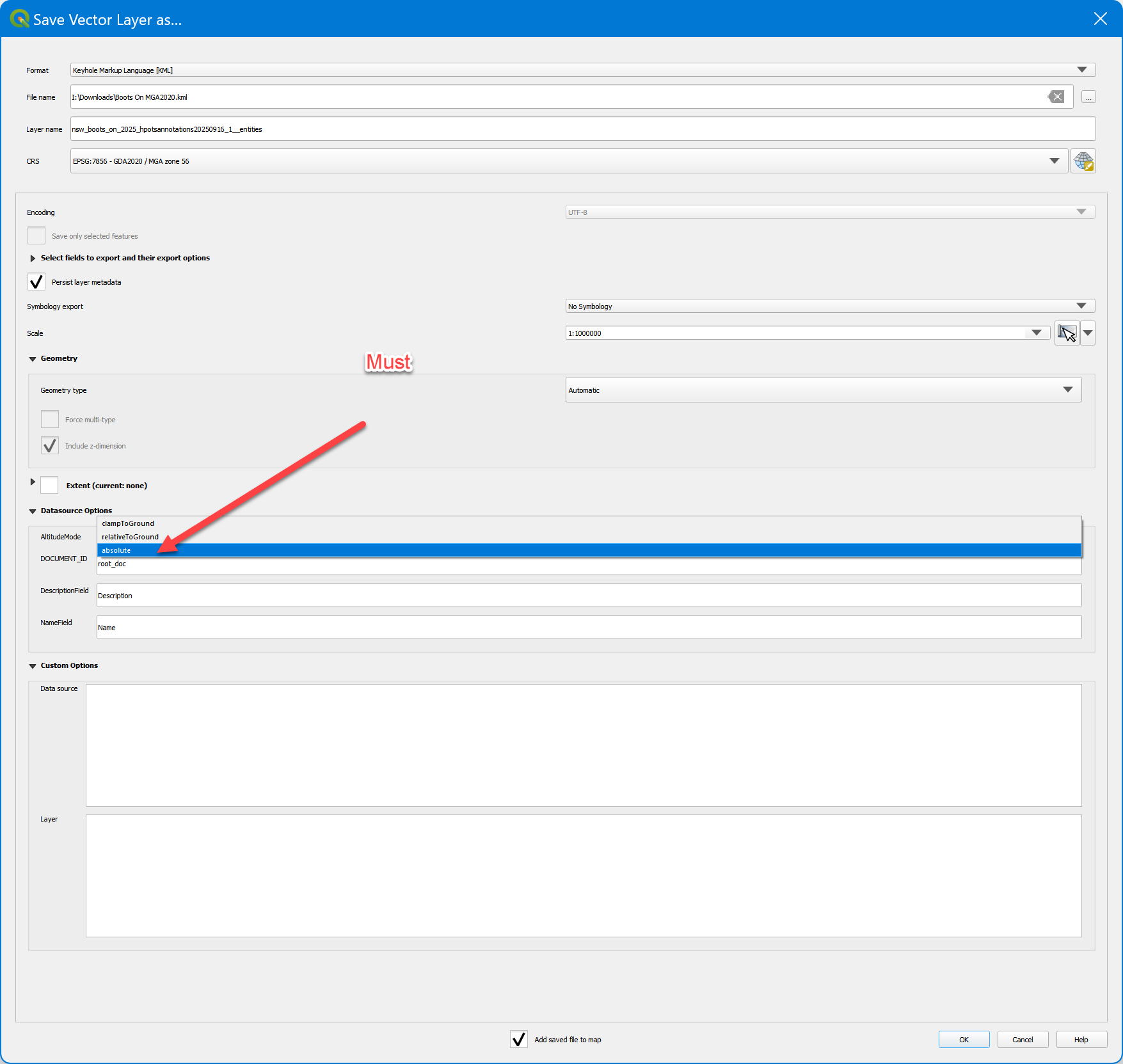
Select then right click the layer and select KML, Name & location to save the KML file. Further down “Datasource Option” you MUST Select “absolute”
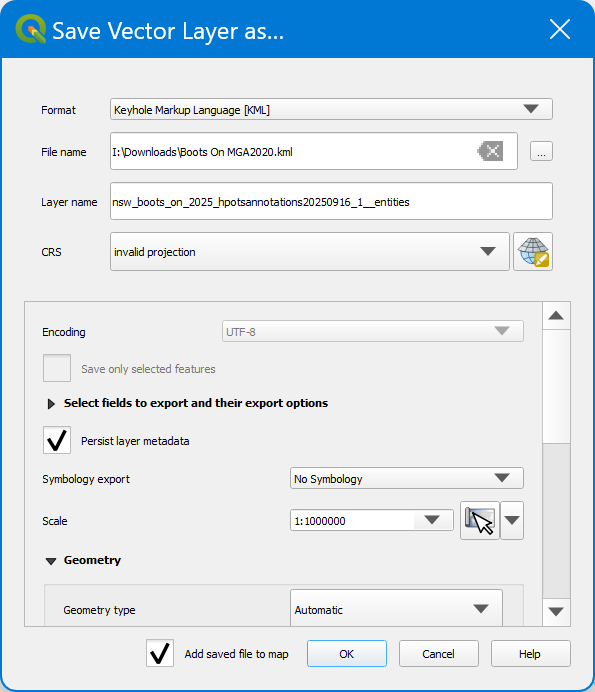
Confirm the KML Polygon is accurate by Importing the KML back into SC Dashboard
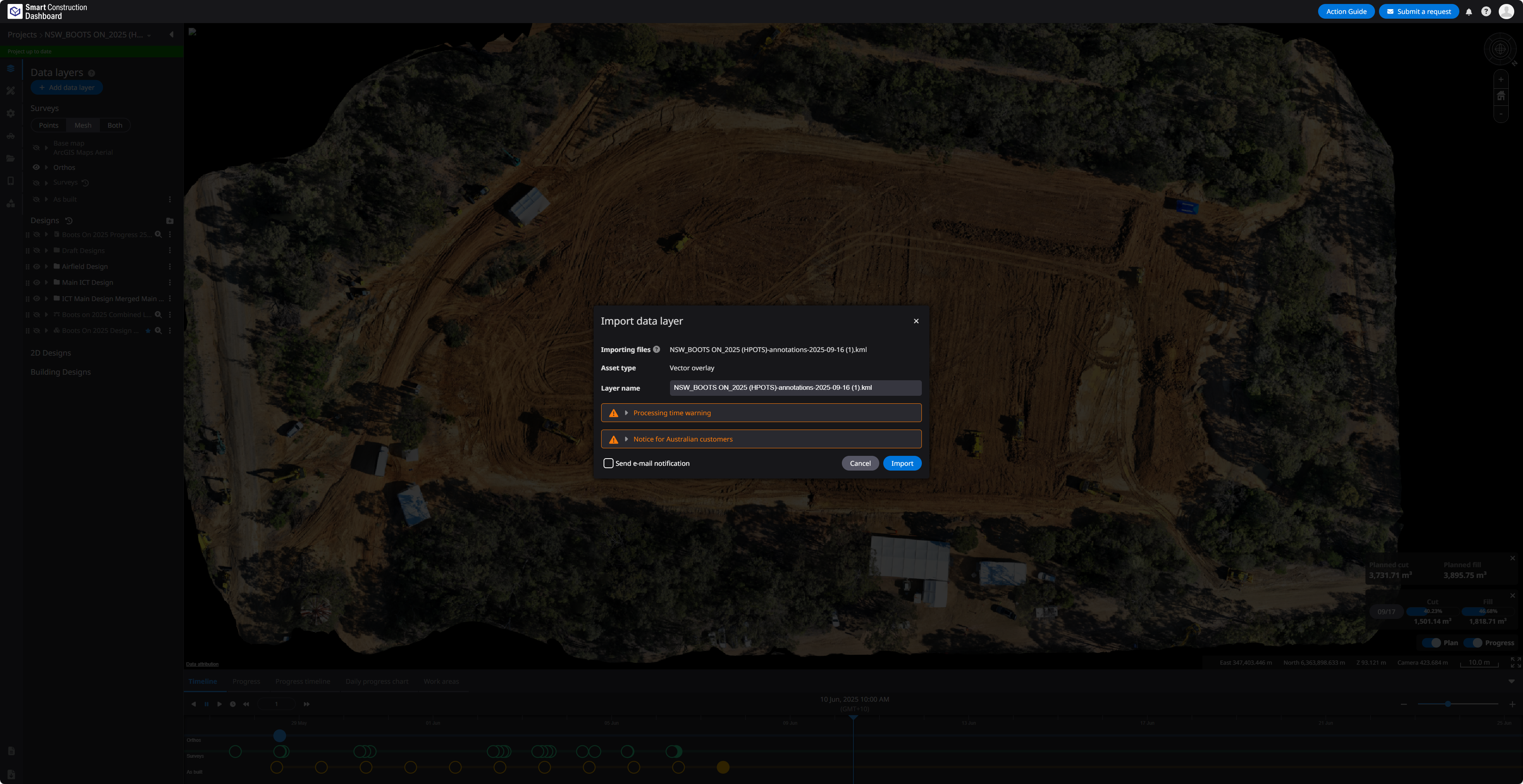
Make sure to “Clamp” the KML so it is correctly projected.