Introduction
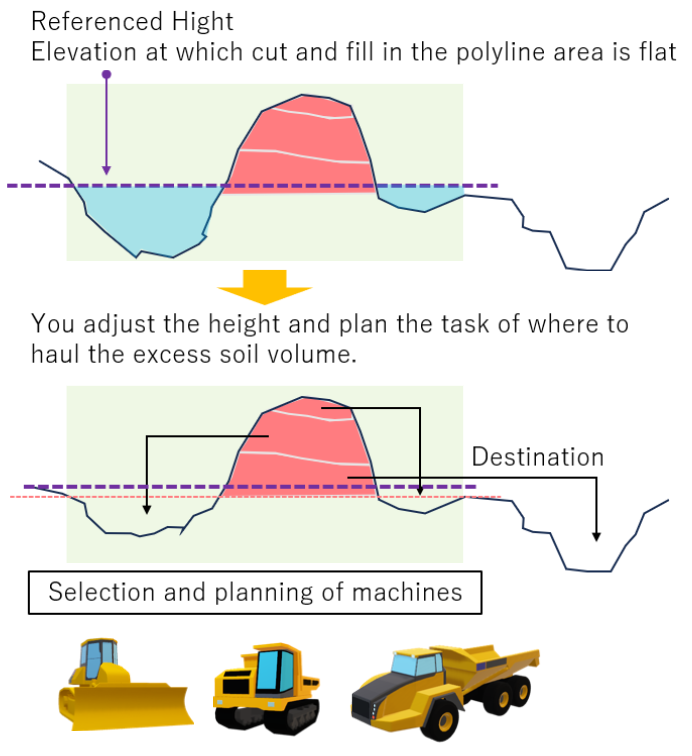
This article provides a detailed explanation on how to set up the calculation of elevation values that result in a cut-and-fill soil volume of ±0 within a selected range.
Calculating the elevation at which the amount of soil to be cut within the selected area is ±0 allows the excess soil volume to be calculated at the same time.
Procedures and Explanation
1. Click on the "measurement icon" in the side panel.

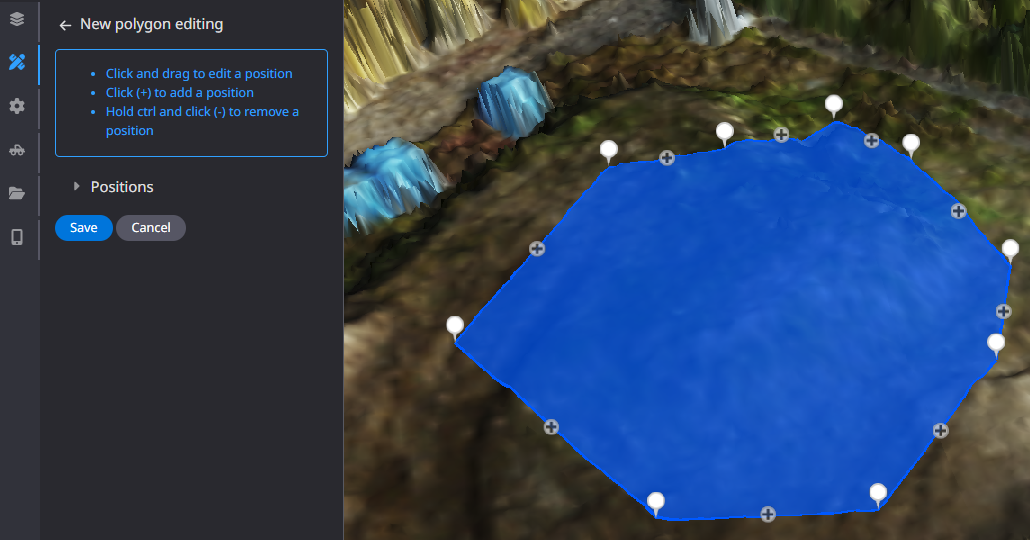
2. Select "Polygon" from the annotations.
The "Polygon" is a measurement tool for a partial area.
”Annotations”

”Polygon”

Left mouse click to enclose the desired area, right mouse click to exit and "save".
Click here to customize annotation information.

3. Click on "Add new measurement".

4. Select "Reference volume."
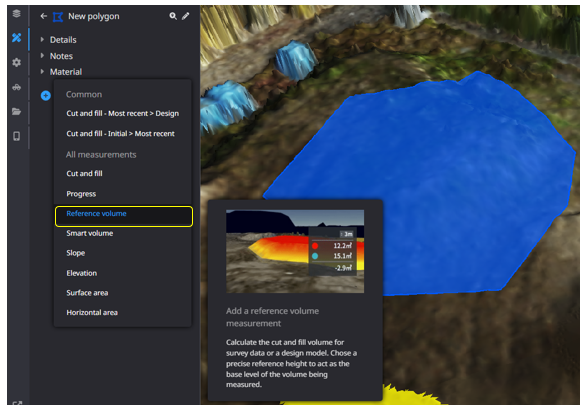
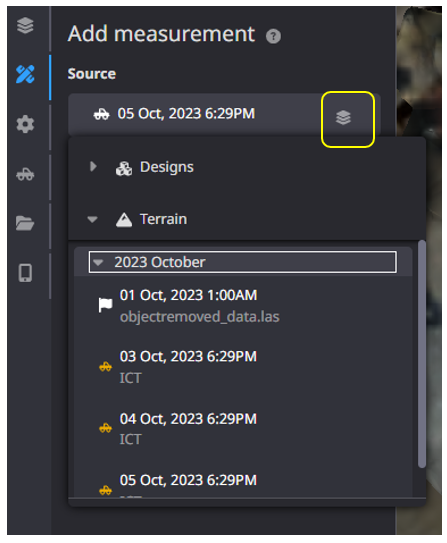
Select the reference data from "Source" and click "Add measurement".
Choose the measurement data to be used for calculation from the "Terrain" item
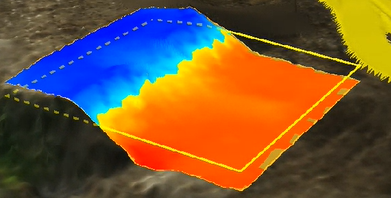
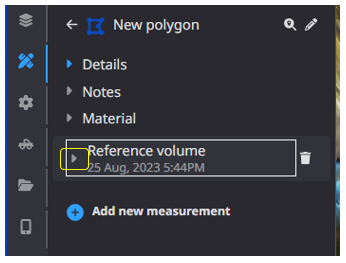
5. The calculation results will be reflected in the tabs of the polygon you created.
Click ▶ to display the heat map.
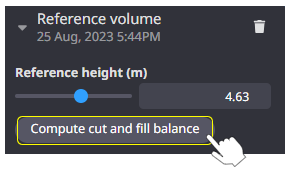
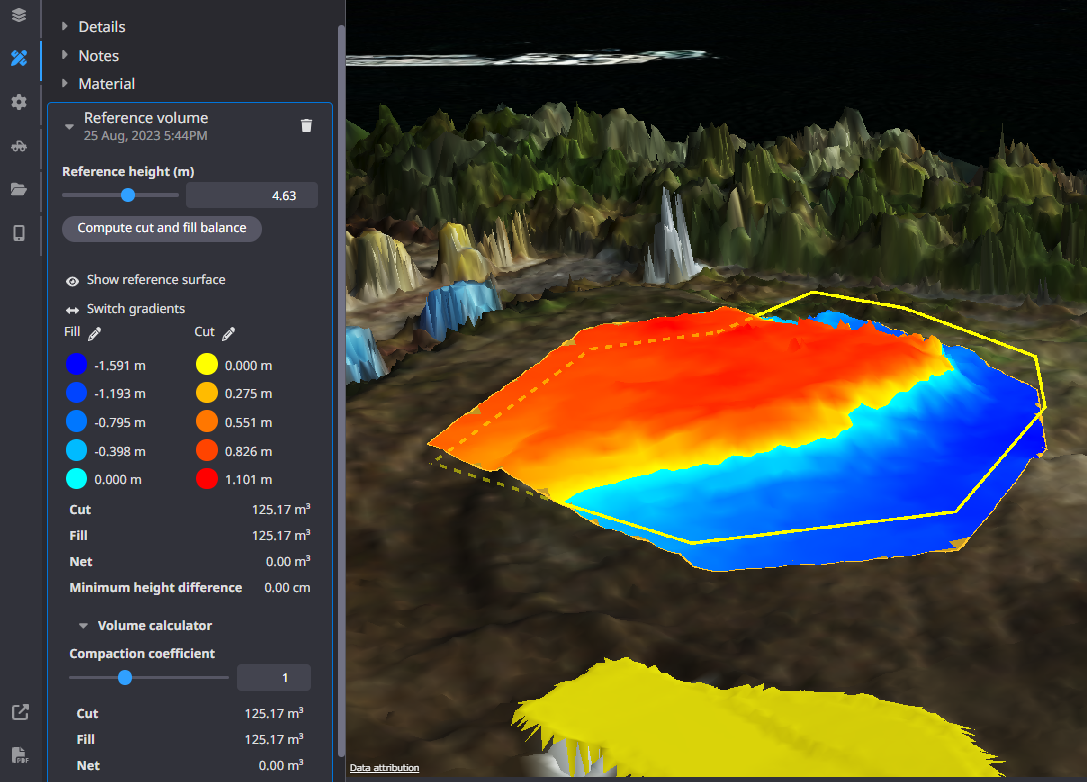
6. Clicking on "Compute cut and fill balance" to set the amount of soil cut and fill to zero within the selected area.
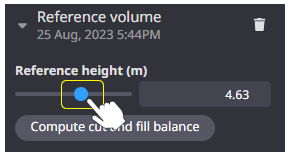
By manipulating the "Reference height" bar, you can calculate the amount of excess soil that will be generated at any elevation value.
"Compute cut and fill balance"
”Reference height”
Supplementation
Before transporting the excess volume of soil at a given elevation, it is possible to consider the machine model based on the distance to be transported.