
Before starting work, it's necessary to prepare the project file, control point file, surface files, machine setting file, etc. which are required for accurate levelling of a jobsite.
On “File” menu, you can input, output, and set the project file, control point file, layers, point data file, surface files, and work data which are used for 3DMC.
Pocket-3D is an application software for GNSS specially designed for land survey. By inputting the survey points, design surface data, alignment data, etc. in advance, you can easily navigate to survey points or cut positions or check the cut/fill amount easily while watching the screen.
When using a project file for Pocket-3D or another application, export that project file to USB memory or the internal memory of the control box.
Project Files
Project file (*.tp3) is a jobsite file which contains the files of all types such as the control point file, layer, point data file, surface file, etc. which are handled by 3DMC.
The project file is used together with 3D-Office or Pocket-3D made by TOPCON CORPORATION. Also, you can use the same setting in common by importing this file into the internal memory of the control box of another construction machine.
When importing a project file from USB memory to internal memory of the control box and setting it as a current work, perform the following procedure.
If the following files are contained in the project files, those files are also imported. See: Komatsu GX55: How to Import a Project File
-
Control point file (*.gc3)
-
3D surface files
-
Alignment file (*.rd3)
-
TIN data file (*.tn3)
-
Plane surface file (*.pl3)
-
Linework data file (*.In3)
-
Point data file (*.pt3)
Control Point files
The control point files (*.gc3) contain the control points (coordinates of N, E, and elevation) and localization data (coordinates of latitude, longitude, and elevation).
The control point files are necessary to 3DMC and usually are contained in the project files. You can import the control point files individually from a USB stick to the control box. (See: Komatsu GX55: How to import Control Point Files).
Layers
The layers are attributes of the point data or the line work data. The layers of 3DMC contain the point data or the line work data.
Linework data (*.In3) is an aggregate of polylines (line segments), and is used to display buildings, curbs, sidewalks, boundaries, etc. with polylines (line segments) and use them as landmarks for operations. You can convert the linework data into Surface when using.
Usually, layers are contained in the project files. However, you can import them separately from a USB stick to the control box as well.
Point Data
Point data file (*.pt3) is used to record the coordinates of the points measured in position check or travel record (Topo survey). See Komatsu GX55: How to Register Point Data
Surface File
Types of surface files

|
Plane surface file/ Sloping plane surface file (*.pl3)
|
|
Crown road surface file (= Alignment file) (*.rd3)
|

|
TIN (Triangular mesh) data file (*.tn3)
|
See Also:
-
Komatsu GX55: How to import Surface Files
-
Komatsu GX55: How to create a Flat Surface File
-
Komatsu GX55: How to create a Sloping Surface File
-
Komatsu GX55: How to create a Crown Road Surface File
-
Komatsu GX55: How to create a Triangulated Surface from a Topo Survey File
-
Komatsu GX55: How to create a Surface File after reflecting raise or lower amount of an existing Surface
-
Komatsu GX55: How to create an Alignment File of subgrade on an active alignment
Active File
When selecting a surface file to be used on an actual jobsite (TIN data, Plane Surface file, and Alignment file), once imported to the control box, this file then needs to be activated by pressing “Active > Surface, then select the file to activate it.
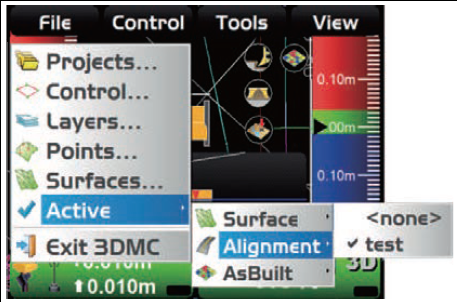
Note: importing the Surface File onto the control box does not automatically activate it. You must perform the above action of pressing “Active > Surface, then selecting the file to activate it. for more information see: How to Activate Files