
To use intelligent Machine Control (iMC) it is necessary to prepare the project file, control point file, surface files, machine setting file and any other file required for accurate levelling of the jobsite.
Project file format must be in the Topcon preferred .tp3 format and should contain some if not all other file types such as:
-
Control point file (.gc3)
-
Alignment file (.rd3)
-
TIN data file (.tn3)
-
Linework data file (.In3)
which are compatible with the onboard 3DMC software application.
When importing a project file from USB to the control box and setting it as current work, perform the following procedure:
-
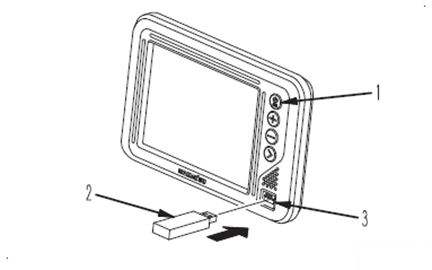
Insert USB that contains the project file into control box, as shown.
.tp3 project file must be on the root directory of the usb (not in a folder) for the Software to see it
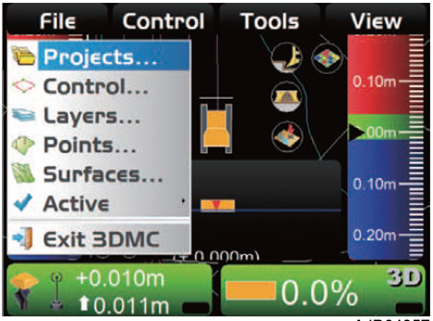
2. Press the power button to reveal the main menu
3. Press File, then select Projects...
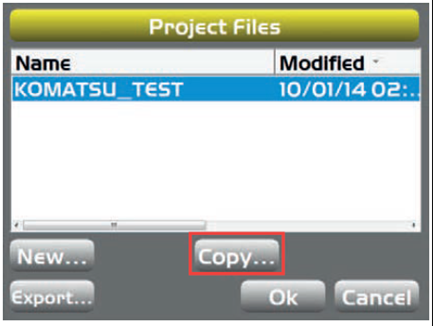
4. On Project Files screen, press Copy...
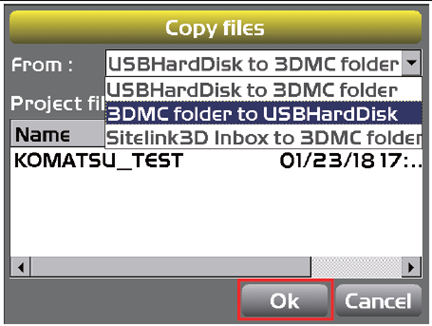
5. On Copy files screen, select USBHardDisk to 3DMC folder.
6. Now select the project file to be imported onto the machine, and press Ok
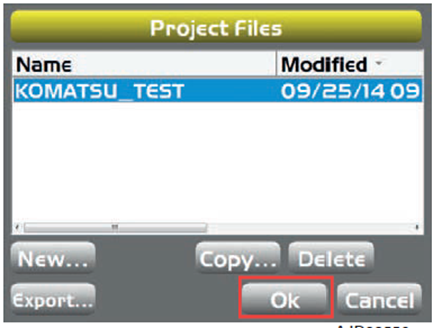
7. On the Project Files screen, select the imported file, and press Ok.
NB: Once project file is set a current project, you must active the surface. See: How to Activate Surface and Alignment Files (iMC Dozer)
Comments:
-
If a project file has already been saved on the control box you can simply select the one you want to use.
-
When reading the Project files obtained from the Sitelink3D server, select “Sitelink3D Inbox to 3DMC folder”