Source: D61EXi-24 Operation and Maintenance Manual P4-50
As-built data is surface information collected by the intelligent machine after each pass of that particular surface.
As-Built Mode
Toggle As-built mode by selecting the shortcut icon shown:

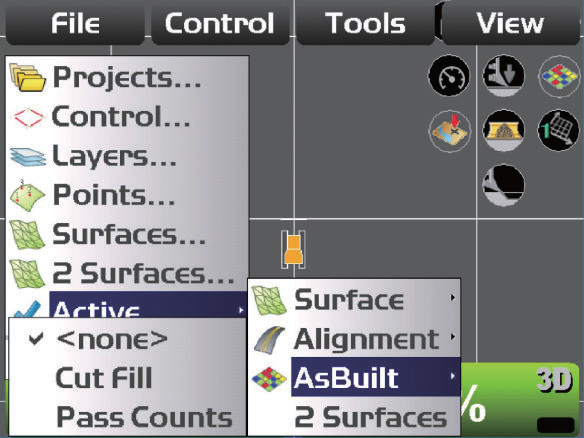
Select desired view of As-built in File > Active > AsBuilt.
Three options are available:
-
Cut Fill - current terrain of the position where the machine passed is displayed by colour according to the cut/fill amount (distance) from the design surface. Allows operator to see where digging or raising ground level work is required.
-
Pass Counts - position where the machine passed is displayed by colour according to the number of times the machine has passed. Allows for checking the places and numbers of tamping.
-
None
Start As-built surface updates by selecting the shortcut icon shown:

Stop As-built surface updates by selecting the shortcut icon shown:

Setting As-built Control Options
in As-built control… menu, As-built data settings can be configured.
Managed by Sitelink3D server
Control box will read the as-built data from the server
Local as-built only
Control box manages the as-built (internal memory). Addition/deletion of the locally managed as-built surface can be performed.
Adding As-built Surface
-
Press power ON/OFF to display the main menu
-
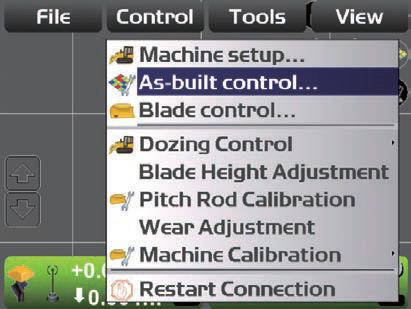
Control > As-built control…
-
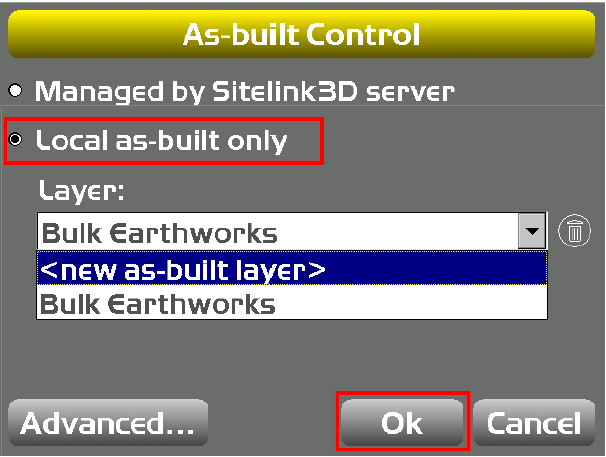
In As-built control menu, ensure Local as-built only is selected
-
Select <new as-built layer> and Ok
-
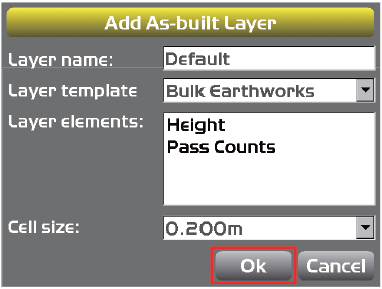
Enter layer name and cell size of the As-built surface and press Ok