3rd May 2024 Release - New Functions & Bug Fixes

#

Content

Target Function

Overview

1

New Feature

Data layer

For the display of as built on the 3D map, it is now possible to set the normal and highlighted display colors as desired. This makes it easier to check the scope and progress of the construction.
For the display of as built on the 3D map, it is now possible to set the normal and highlighted display colors as desired.

Abstract

  • Previously, the display color on the 3D map was specified according to the type of as built(manual import, automatic linkage from ICT construction equipment, automatic linkage from3DMG). With this modification, users can now set the display color for each type as they wish.

  • In addition, the highlight color on the 3D map when the mouse hovers over the relevant as-built item on the data layer or timeline can now also be set as desired.

  • The above modifications have enabled the as built to be presented appropriately.

  • How to use this function:

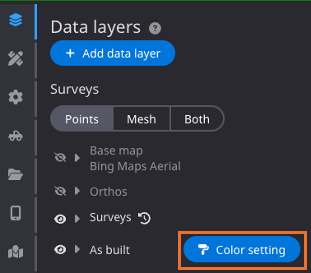
  1. In Data layers, click on the 'Color setting' button (*new) to the right of 'As built'.

    image-20240506-053814.png


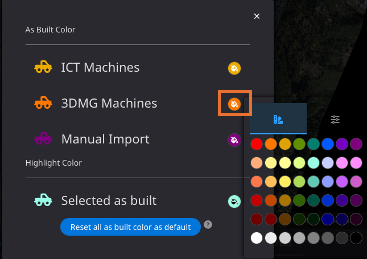
  2. The menu below is displayed, click on the color edit button for the color you want to change, and change the color.

    image-20240506-053836.png


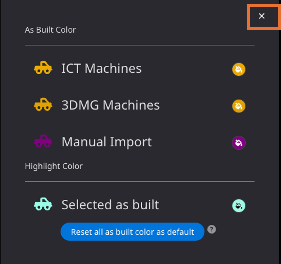
  3. To finish editing, click the ✗ button in the top right corner.

    image-20240506-053908.png


  4. The colors set on the 3D map will now be applied.
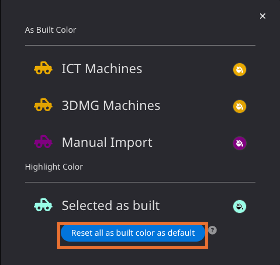
    *If you want to return the color settings to the default settings, click the Initialise color settings button

    image-20240506-053930.png


2

Others

Support

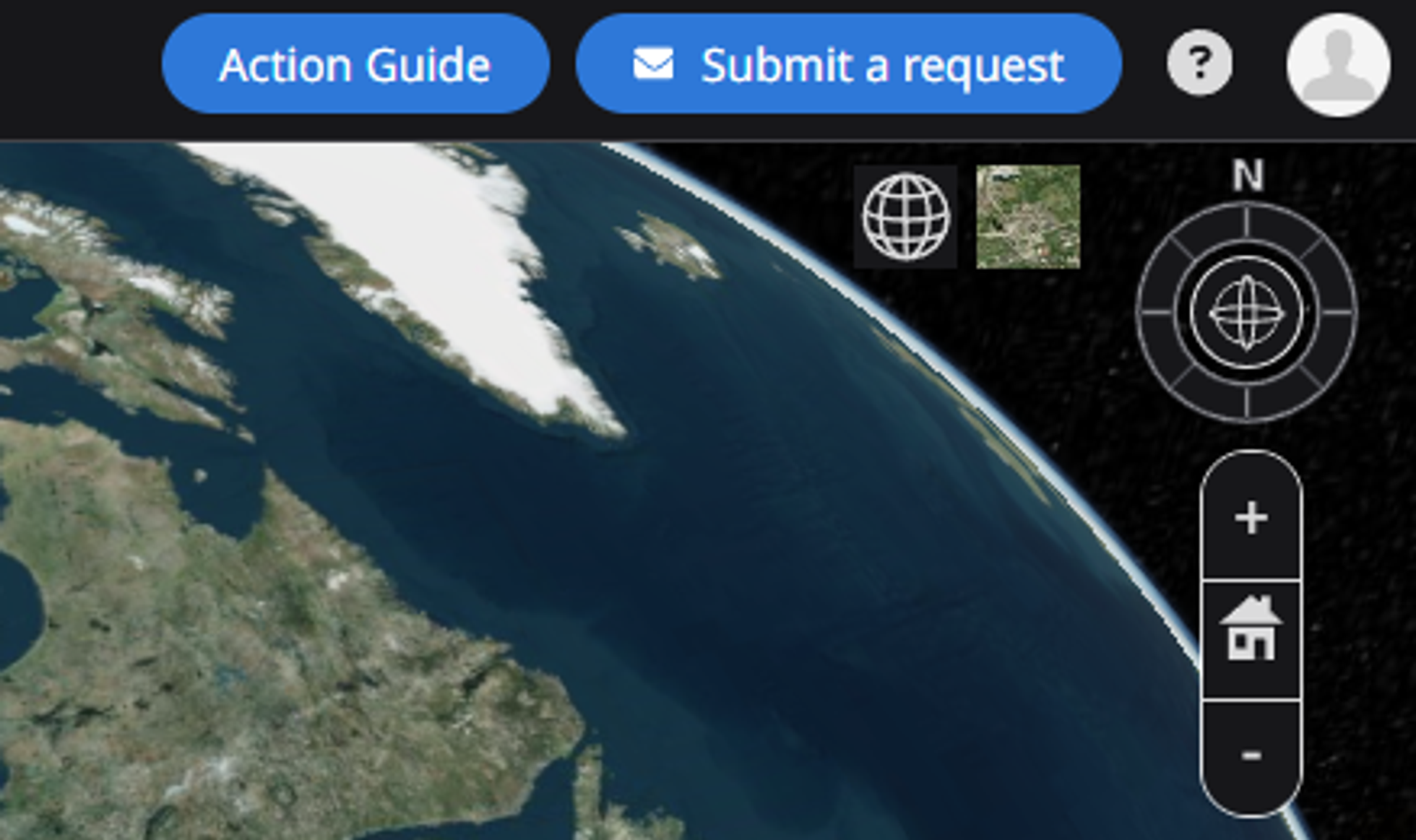
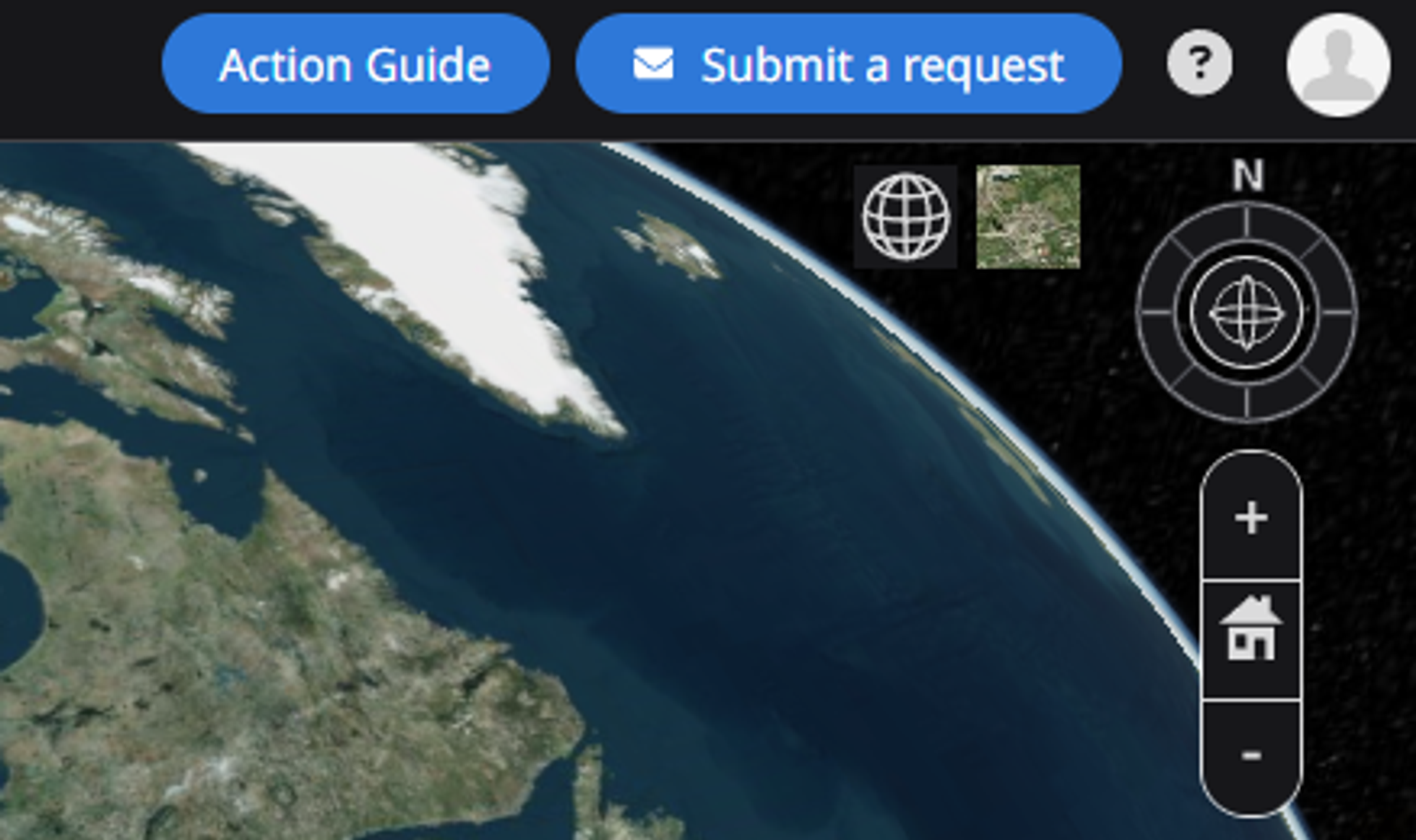
We have placed links to the “Submit a request” and Action Guide in the header bar. Customers can now easily access product information.

Create “Submit a request” and “Action Guide” links in header bar

Abstract

  • Links to “Action Guide” and “Submit a request” are placed in the header bar.

  • Customers will be able to easily search for information or contact us.

How to use this function:


Action Guide

  1. Click "Action Guide" button.

    image-20240506-060544.png


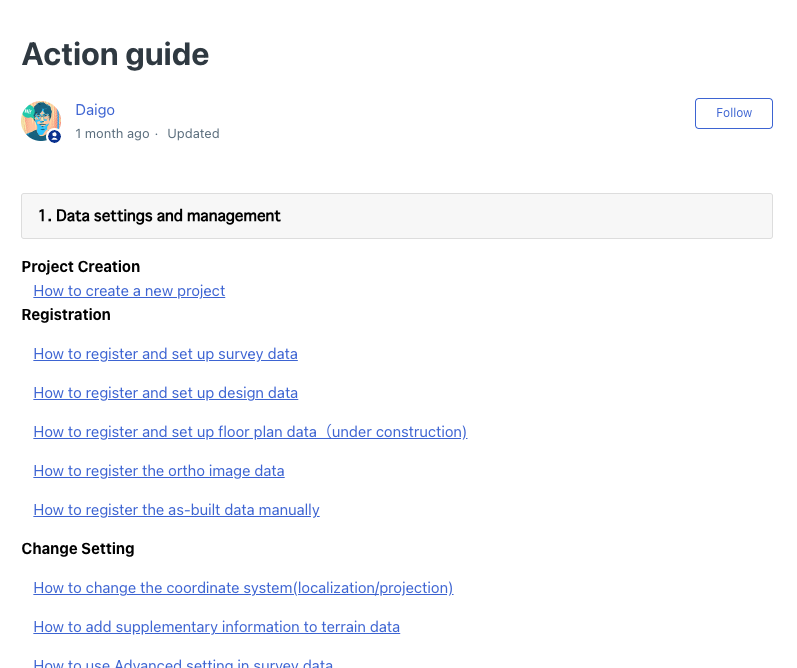
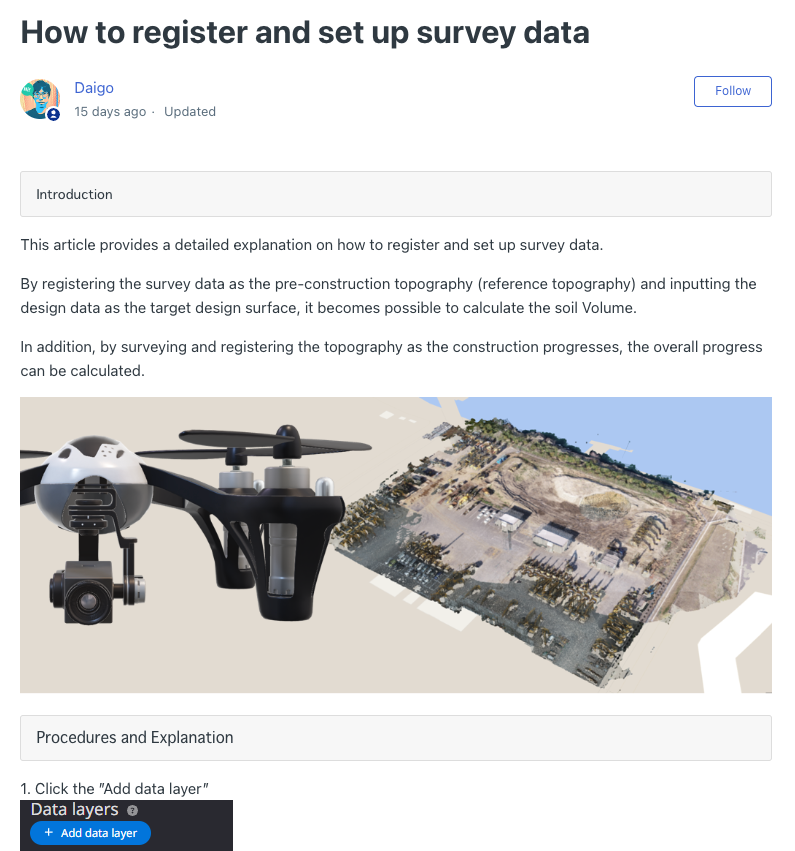
  2. You will be redirected to the support page, where you can check the items you wish to view and click on them.

    image-20240506-060557.png


    image-20240506-060614.png

    Submit a request

  3. Click "Submit a request" button.

    image-20240506-060651.png

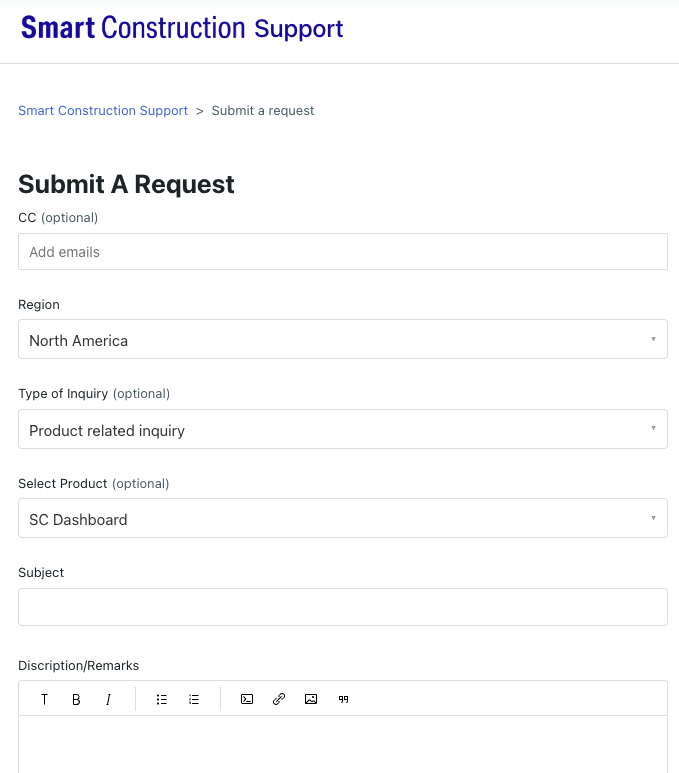
    2. You will be redirected to the support page. Please fill in and submit the request form

    image-20240506-060710.png


3

Bug fixes

Data layer

When downloading sublayers contained in a design file as LandXML, the wrong sublayer was sometimes downloaded. This has been fixed and now downloads correctly.

4

Bug fixes

Data layer

When registering a design file that contains multiple sublayers, the parent design itself can be set as the target design. Fixed so that only sublayers can be registered as the target design.