|
# |
Content |
Target Function |
Overview |
|---|---|---|---|
|
1 |
Improvement |
Measurement |
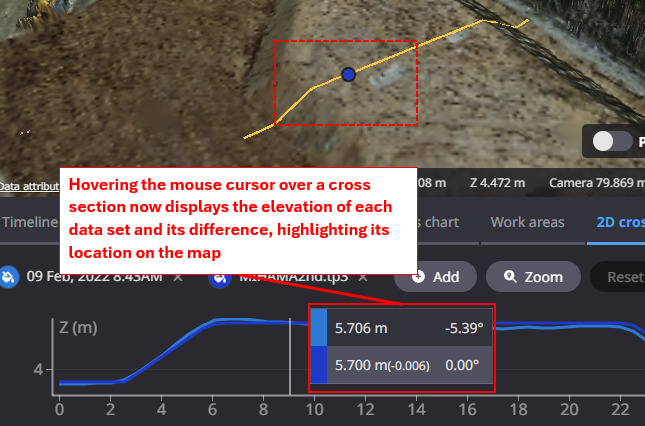
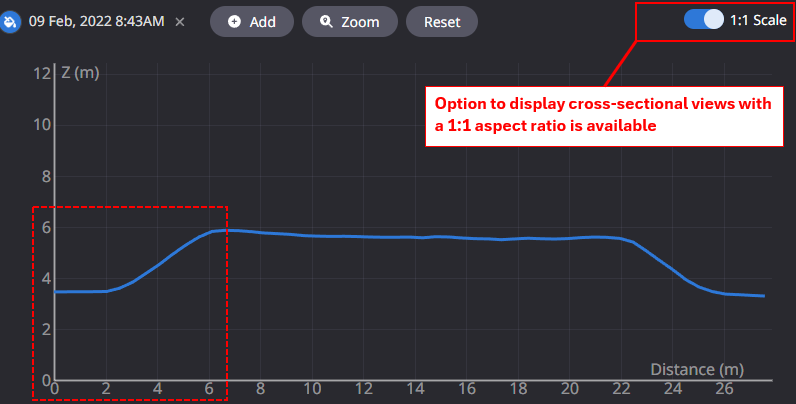
2D cross-sectional views of Measurement feature have been improved for better visibility.
|
|
2
|
Others |
Data layer |
When registering a TP3 file containing multiple layers as design file, the layer names in the file were not displayed on the Dashboard. This has been improved so that the layer names in the file are displayed on the Dashboard. |
|
3 |
Others |
Measurement |
When creating a new annotation, the annotation naming rule has been improved as follows.
|
|
4 |
Bug fix |
Data layer |
After displaying a particular project for several minutes, thebrowser would close unexpectedly. This has been corrected sothat it can be displayed correctly. |
|
5 |
Bug fix |
Data layer |
When registering a file, the animation showing the progress of the upload did not work correctly. This has been corrected to show the progress of file uploads. |
|
6 |
Bug fix |
Data layer |
When downloading a design file containing multiple layers in LandXML format, the layer names were not set in the downloaded file name. |
|
7 |
Bug fix |
Data layer |
If the survey data to be registered did not have CRS information, the registration process was taking extra time. The process has been reviewed and corrected so that it can be read at the sam espeed as normal files. |
|
8 |
New Feature |
Export Data |
Annotations created in Smart Construction Dashboard can now be exported as DXF data. This is expected to facilitate data linkage to your CAD system. Target annotations: Placemark, line segments, polygons, arrows, and text input. *Note: If multiple annotations are checked in a single output, each annotation will not be downloaded as a separate file, but will be output as one integrated file.
|