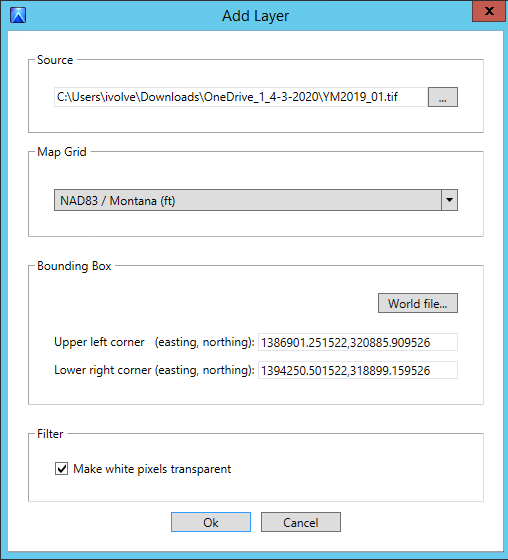
To add new map layers, you can import map files in any of the supported formats.
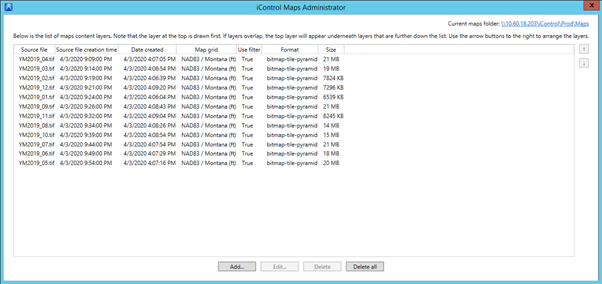
You are responsible for checking that the layers are in the correct order.
To add a new map layer, complete the following steps:
-
In the Maps Administrator, click Add.A Windows Explorer window opens.
-
Select the file you want to import.
-
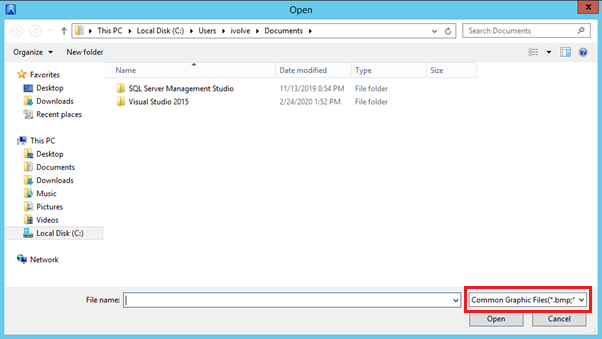
Select the correct file type in the drop-down menu in the lower right corner of the page.
-
Click Open. The Add Layer window opens.iControl determines the correct location for the map layer using georeference information in the map grid and the bounding box.
-
If the graphics file has an associated world file, iControl automatically loads the world file to provide the bounding box coordinates in the Bounding Box section. To select a different world file, click World file and select the required file.
-
In the Map Grid section, ensure the zone and units are correct.
-
Select the Make white pixels transparent check box so that white borders are removed from imported images.
-
Click OK to start the import.
Depending of the source file format and file size, the import can take several minutes.