-
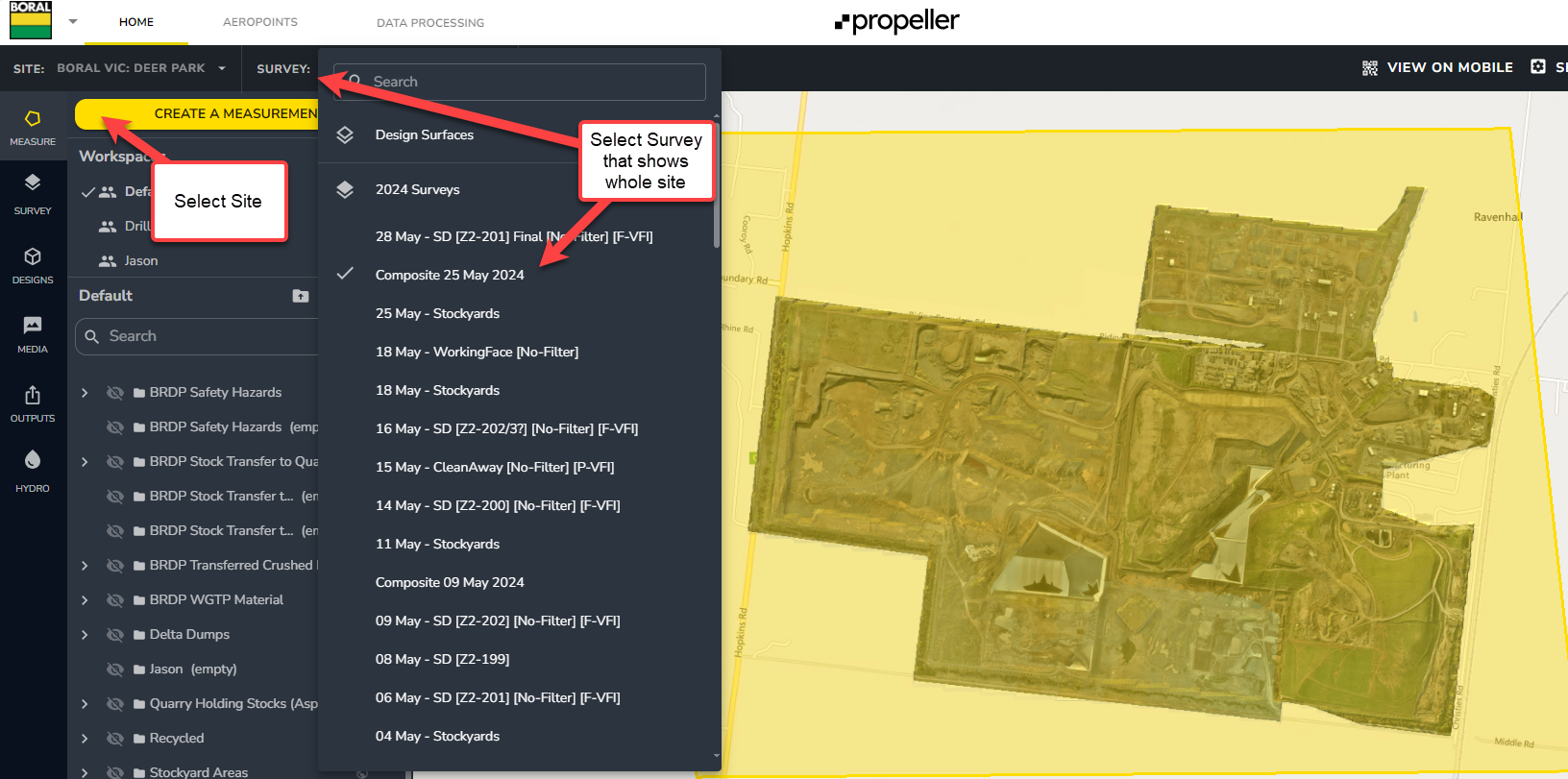
Open / Log into Propeller for site - select correct Site from top left - and select correct Survey (flight / date ) that shows the whole site OrthoPhoto
-
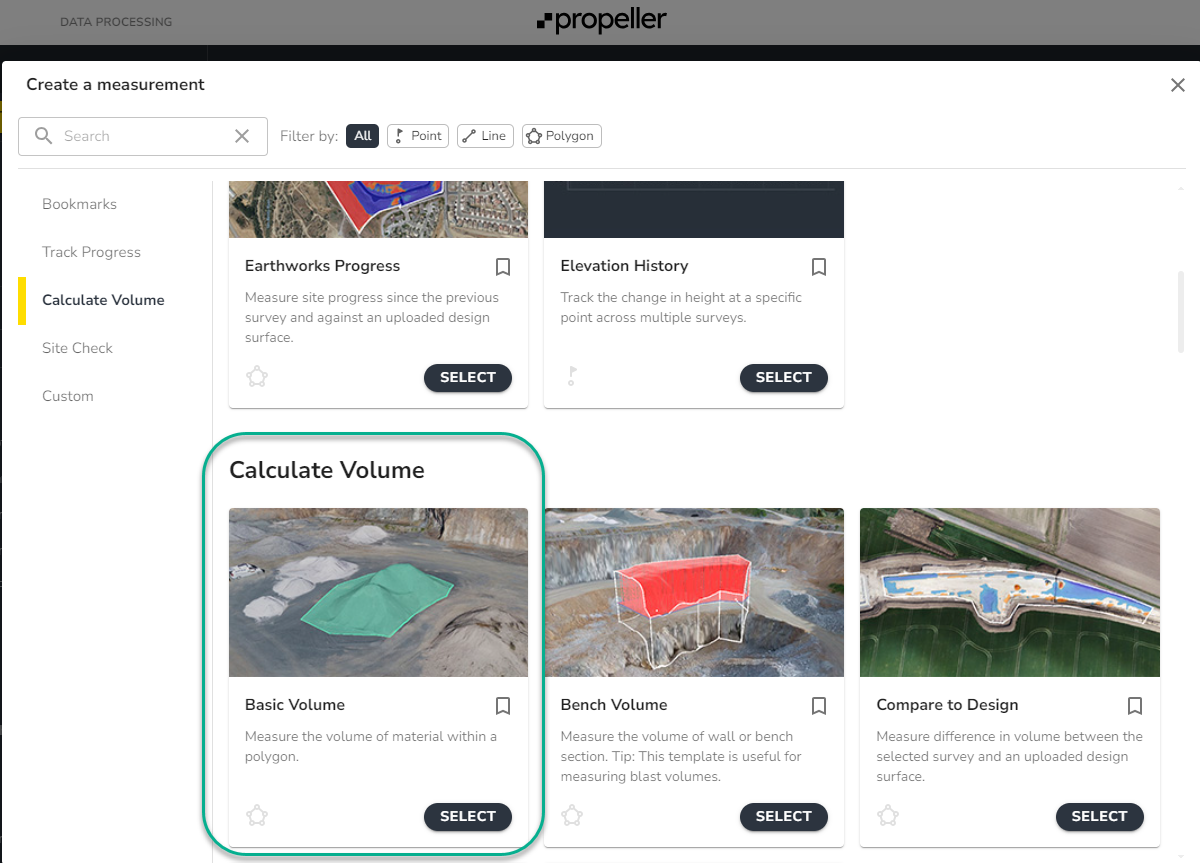
Select Create A Measurement - this will enable creation of an Area / Geofence that can be exported
-
Select Calculate Volume
-
-
-
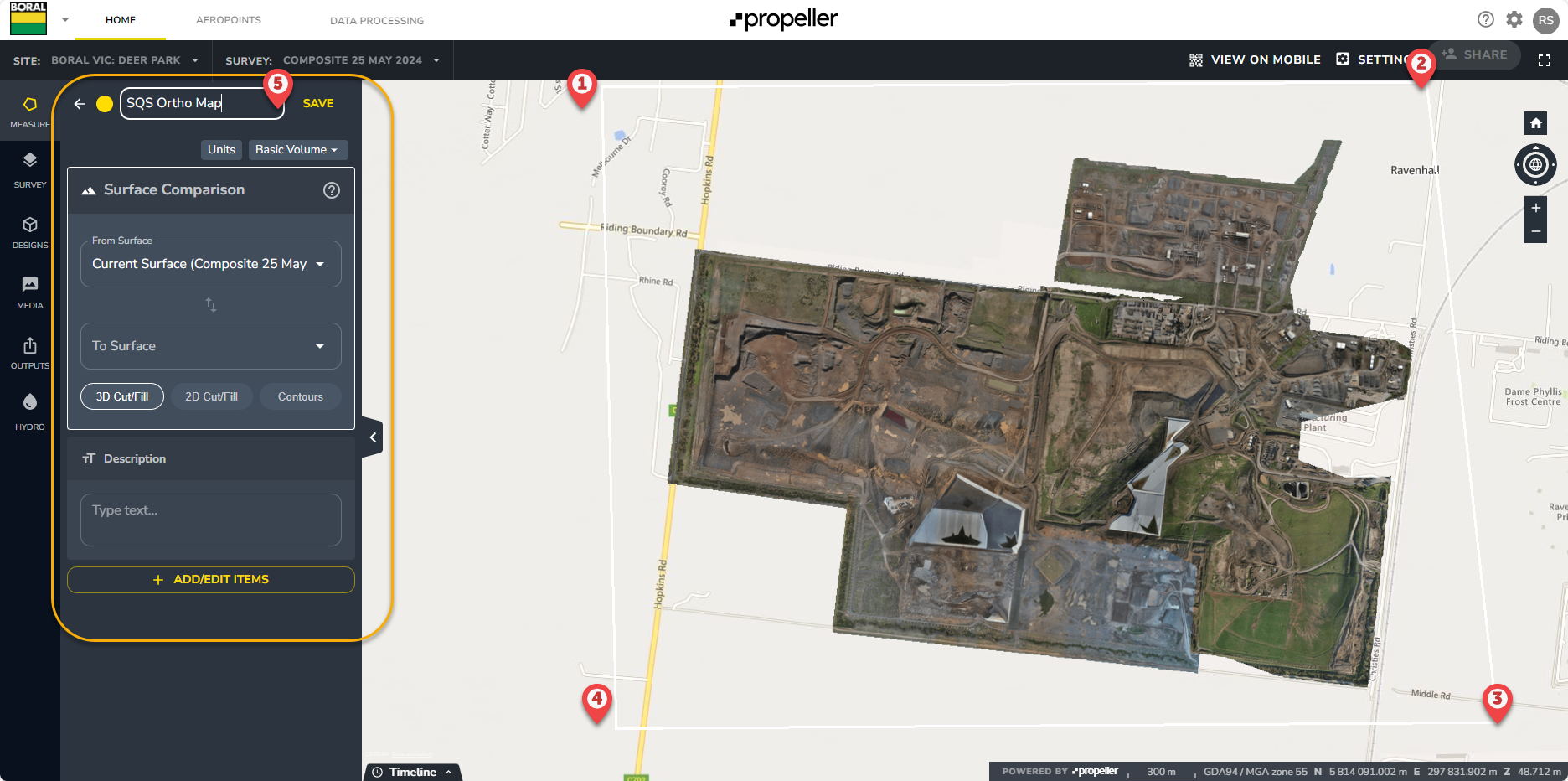
Select a box around site to create the Area / Geofence - and Name the Selection e.g. “SQS Ortho Map”
-
-
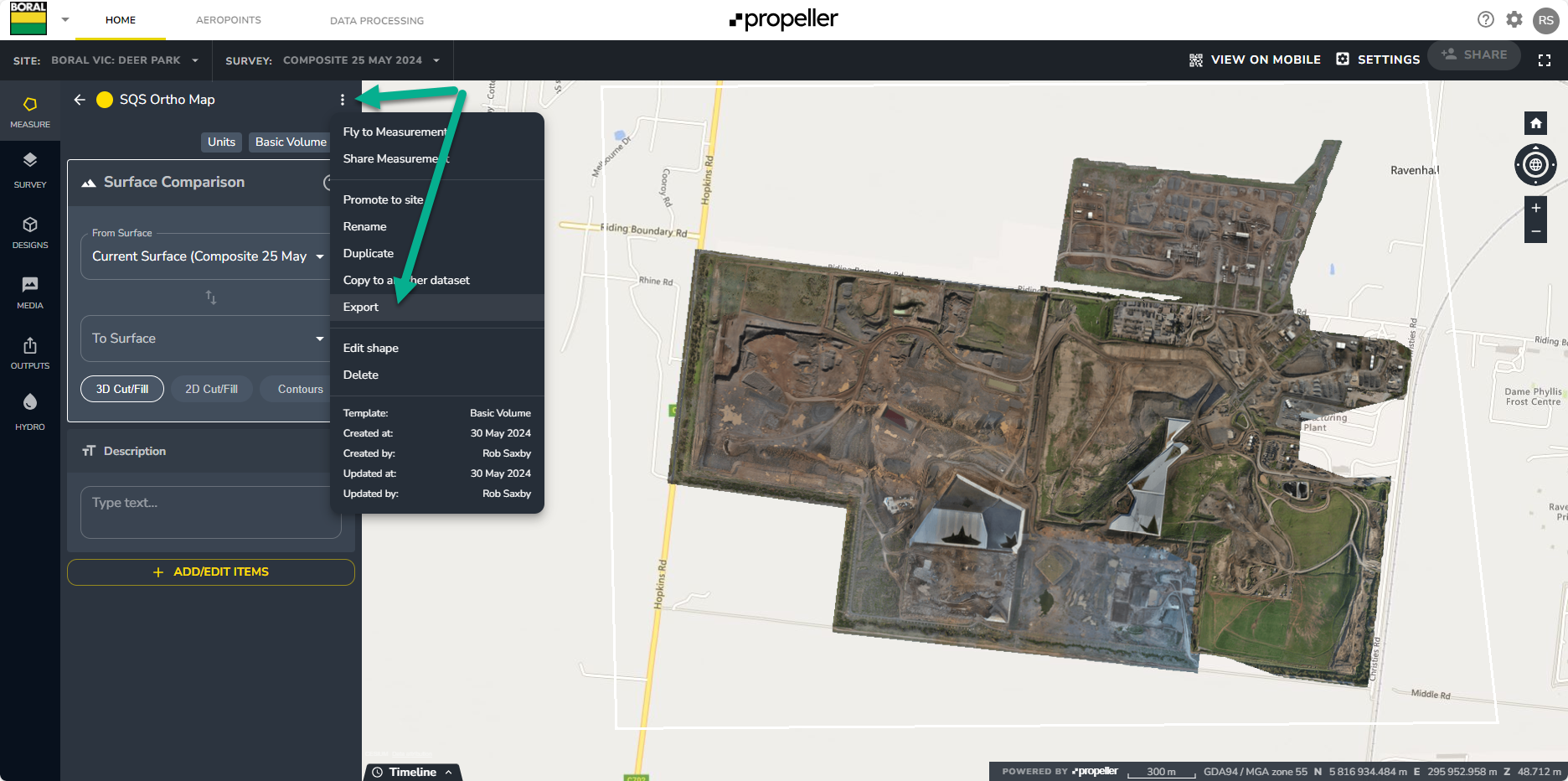
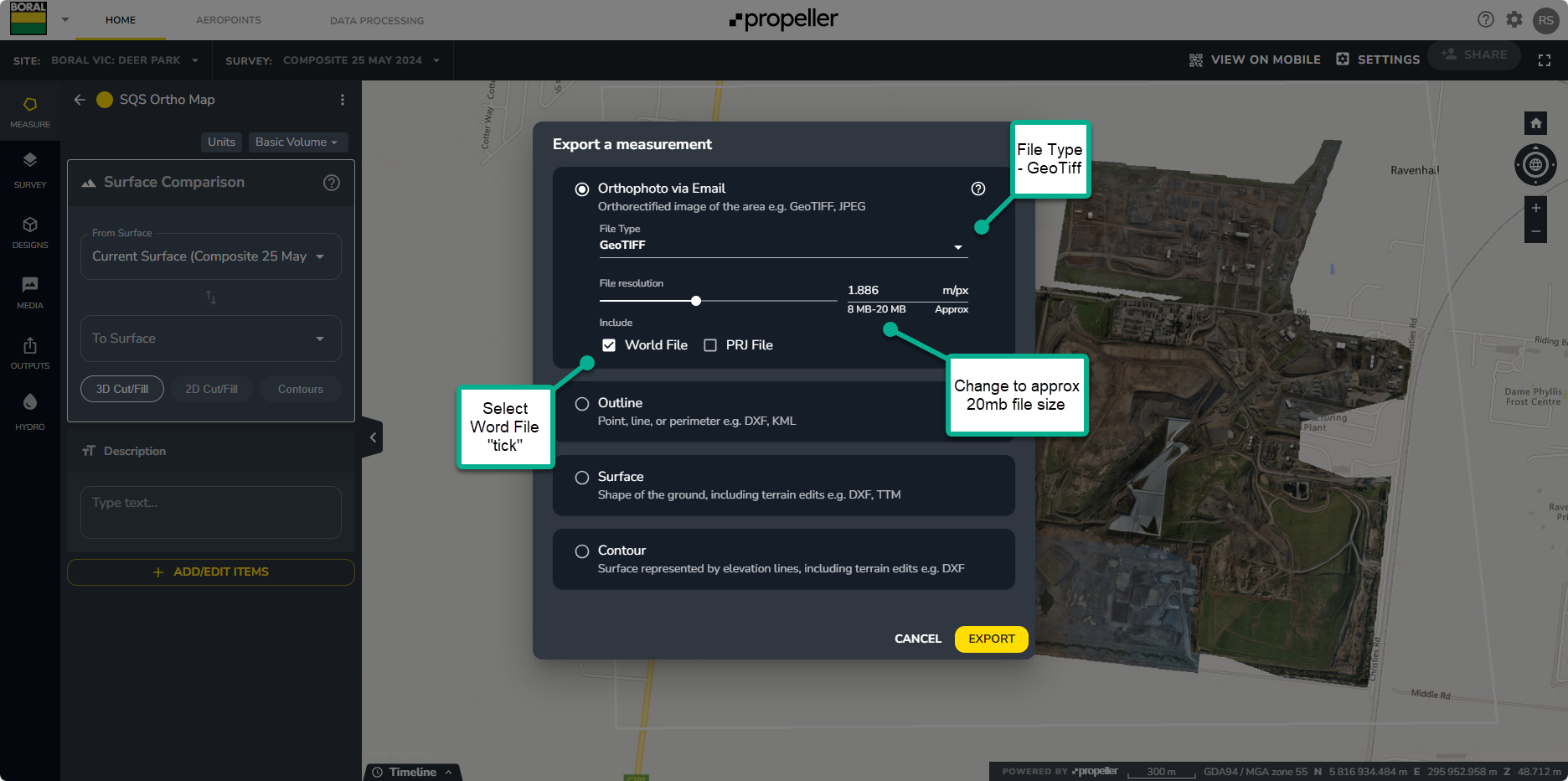
Select the 3 dot menu - and select Export
-
-
-
Select type - GeoTiff
-
Select word file “Tick”
-
Change map size to approx 20mb size
-
-
-
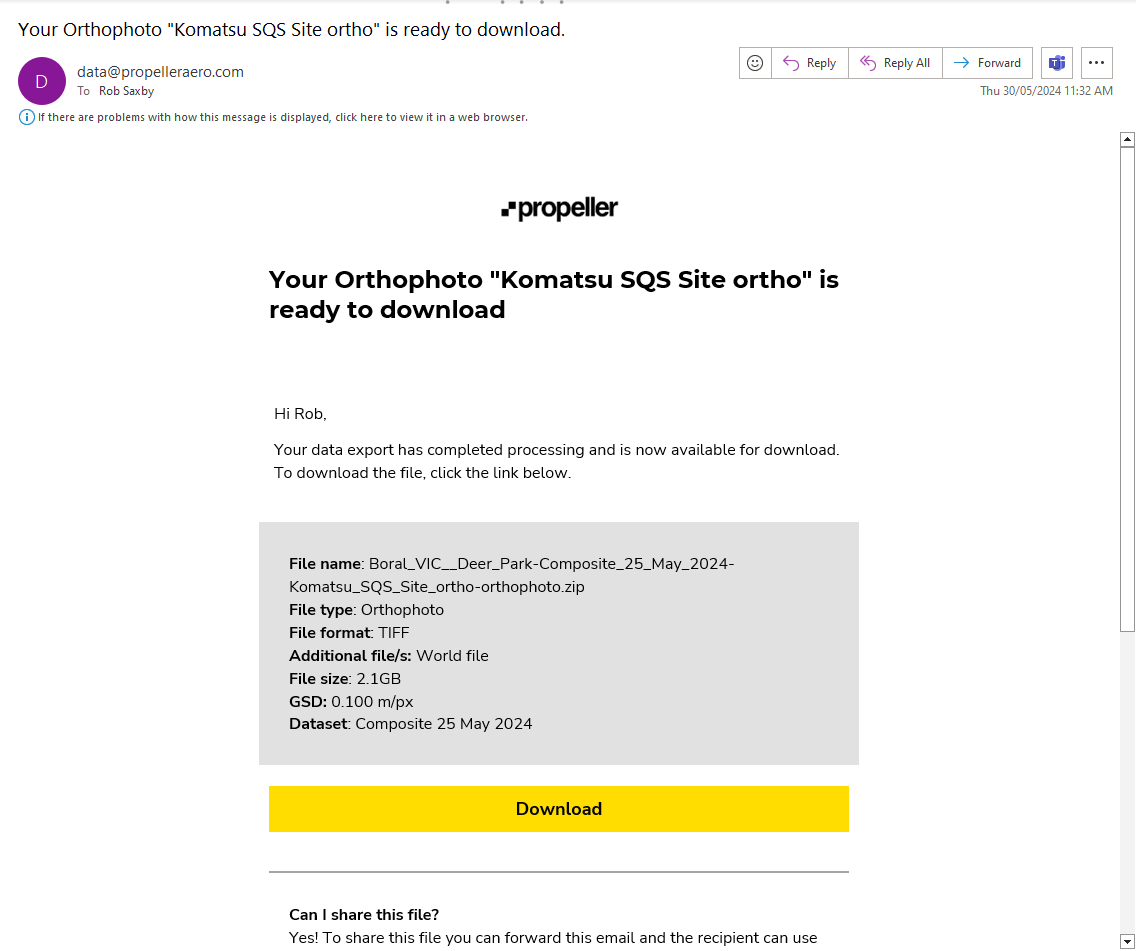
You will recieve an email as soon as your Ortho Photo is available for download
-
-
You can then scale this GeoTiff and upload to SQS using the following guide