
Set Edge to Drone Survey Mode
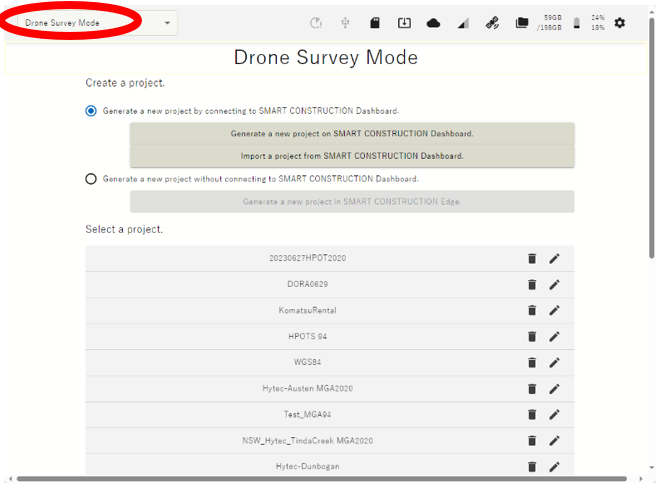
Before performing Self-Position using Network RTK, you must configure Network RTK account settings.
To use Network RTK, you will need to set your NTRIP account “NTRIP Not Included with your Edge” in “Settings”
-
Place EdgeBox on site on a tripod or fixed 5/8 thread bolt.
The main unit should be fixed securely.
Unsecure installation may incur data inaccuracy, error or failure and damage to the Edge.
Follow GNSS best practice & place the Edge in a open space with a clear view of the sky
-
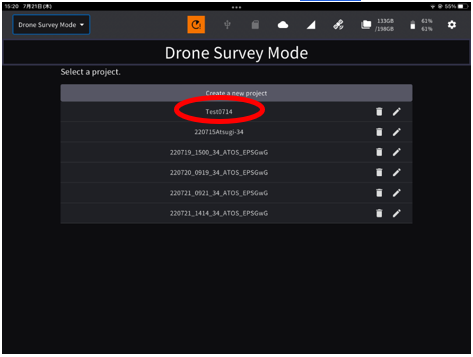
Launch the tablet app

If the project is not listed, create a new project.
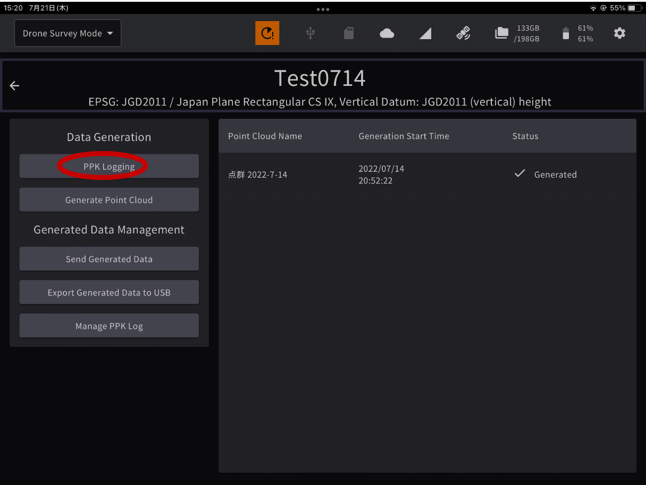
Tap “PPK Loggin”
The points you have previously set up or have used for localization will appear as a point list.
If you have set the EdgeBox on one of these points, you can just tap it to select it. (If not, go to 4.)
-
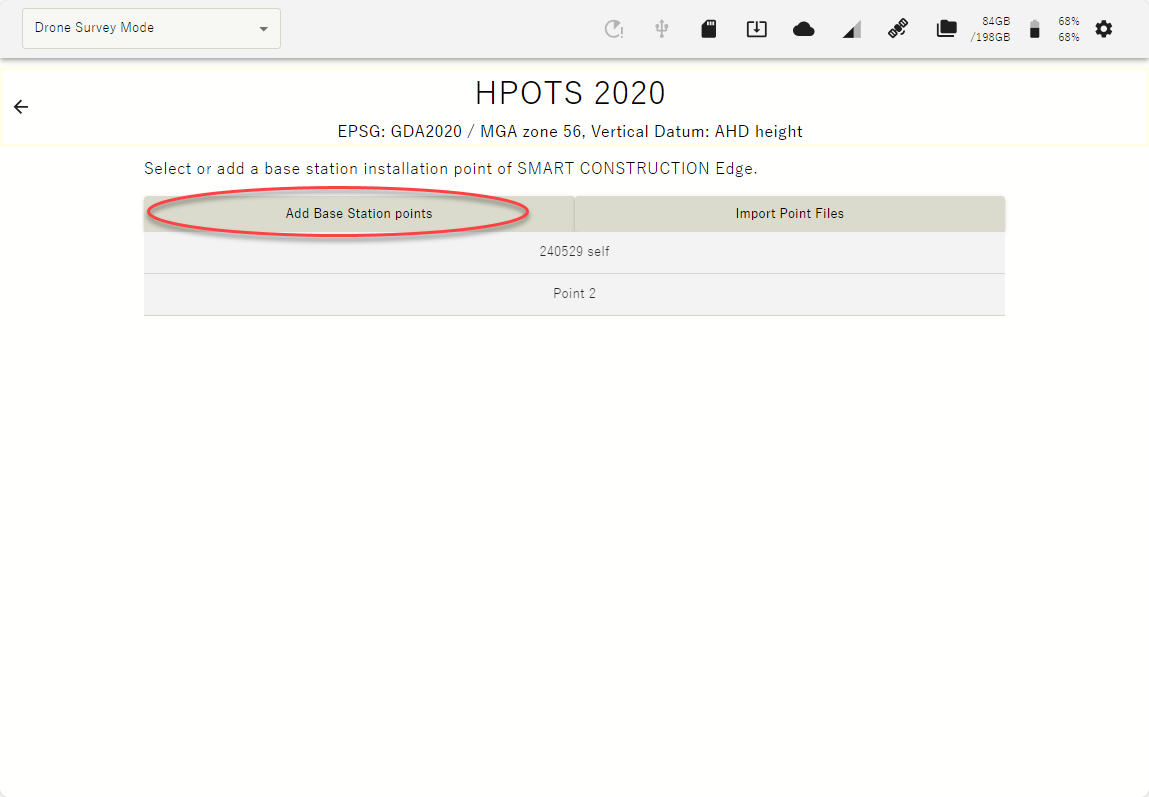
Tap “ Add Base station Points” to Self-Position OR you can import with a CSV file.
-
Enter a point name and tap “GNSS Positioning” check box
-
Select the network RTK service from the drop-down list and tap the “Execute Positioning” button.
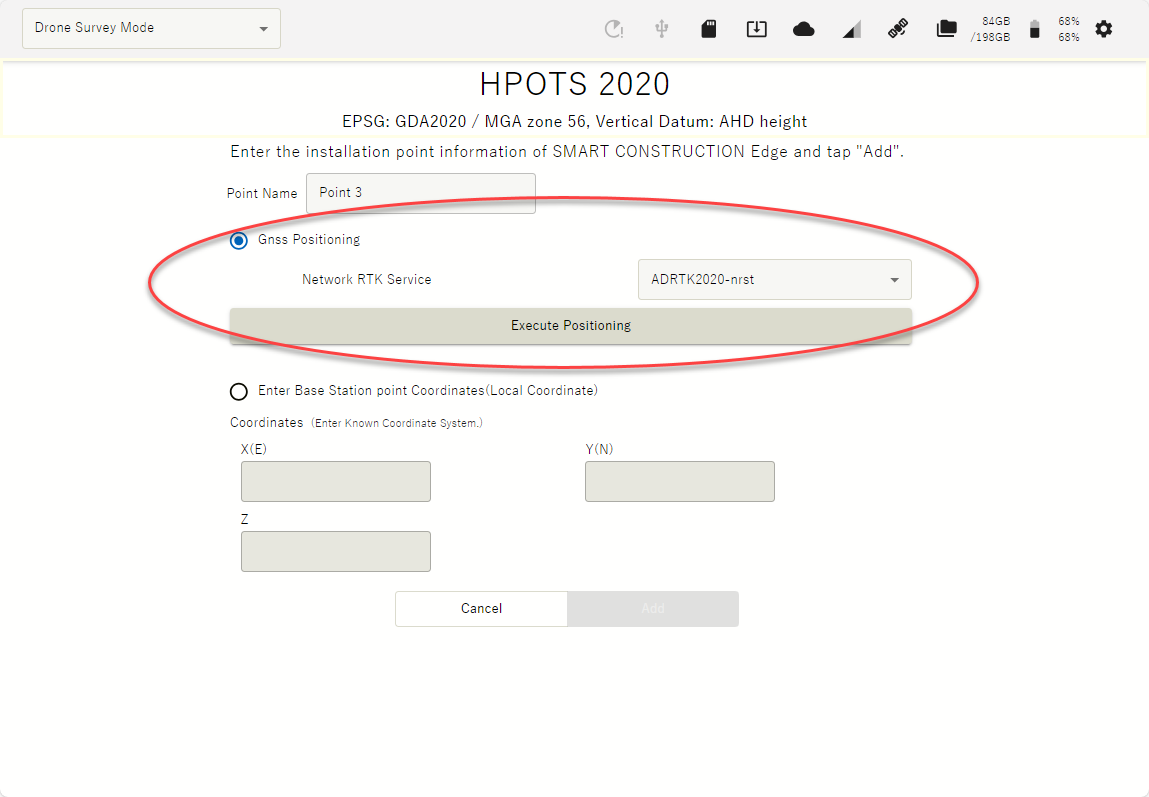
You can set the number of Epoch to measure. See basic settings.
Recommend 60 Epoch 
When the positioning is done, survey coordinates are automatically entered in the coordinates field.
-
Confirm that coordinates are entered in the coordinates field, then tap "Add"