
|
Date of Release |
FW Version |
|---|---|
|
8/05/2024 |
V5.11 |
|
16/07/2024 |
V6.7.1 |
|
01/08/2024 |
V6.9.2 |
|
19/05/2025 |
V9.3.3 |
|
02/07/2025 |
V9.11.5 |
|
14/01/2026 |
V10.5.4 |
Following the release of version 9.3.3, an update has introduced a new icon that empowers users to initiate updates at their convenience. This process will be completed in a single power cycle or restart.
How to update your Edge2 via LTE
-
Power on the Edge 2 and ensure it is connected to the internet.
It is advisable to use a wired LAN connection due to the data size may be large.
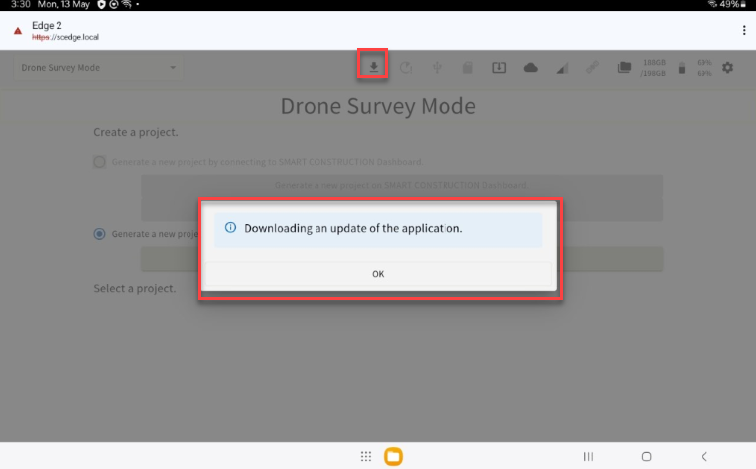
Software Download in progress notification will appear after a while.
-
Please allow the application to complete the download. In a stable network environment, like a wired LAN connection, the download should take about 30 minutes.
For LTE, it may take 1 hour or more.
By good internet connection, we mean a download speed of around 50Mbps.
If the internet connection is poor, the update may take around 3 to 4 hours, and in some cases, considerably longer.
-
When the download icon turns orange, perform a power cycle of Edge by turning it off and on again. The update will then be applied.
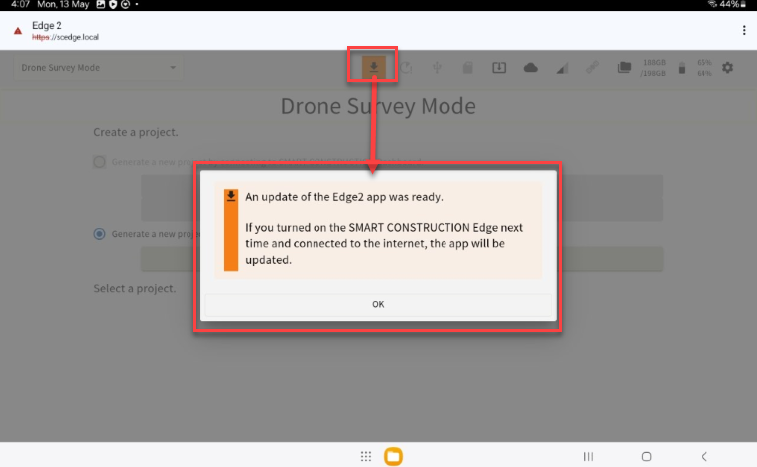
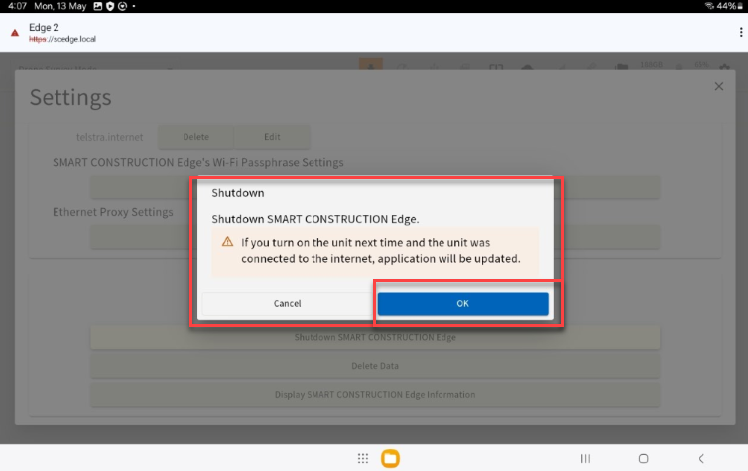
Press OK
-
Check the Firmware version. Go to the Settings screen -> SMART CONSTRUCTION Edge Device information, confirm that the FW version is the latest versionsUpdate Edge2 - Latest Software Version. If not, start over from (1). If it is, proceed to (4).
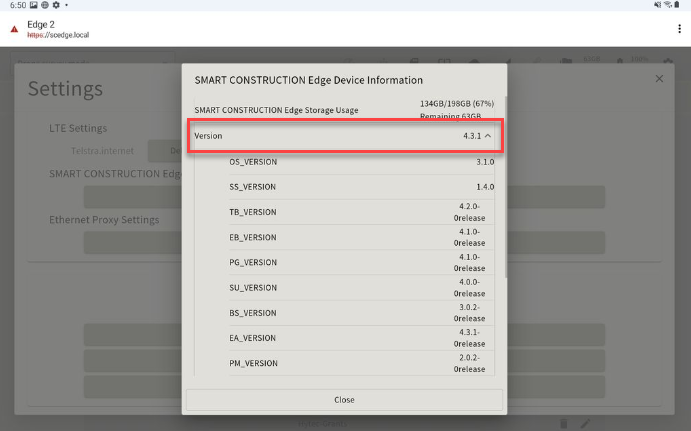
-
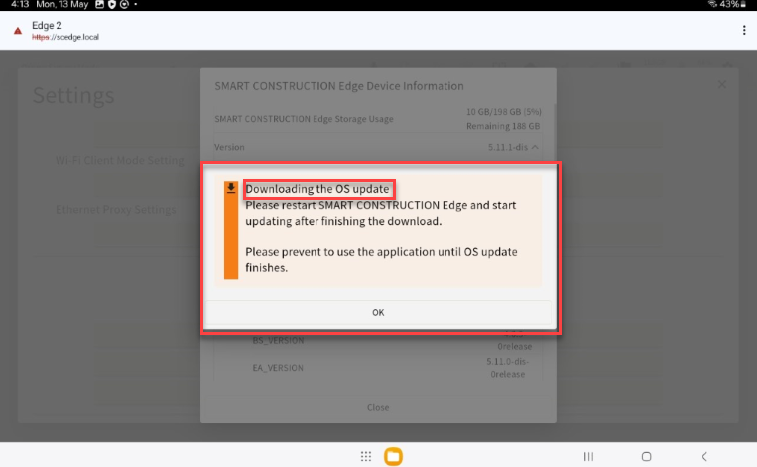
Please wait for 10min to see if there is a new OS. Please wait for the OS to finish downloading. In a good network environment 15 minutes for wired LAN connection, etc.; 30 minutes or more for LTE, etc.
-
Perform a power cycle of Edge, Turn power OFF/ON
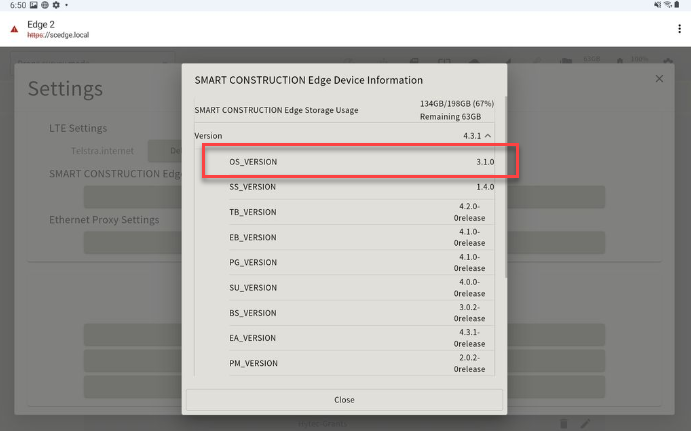
Check the OS version. Go to the Settings screen -> SMART CONSTRUCTION Edge Device information, Confirm that the version is the latest versions Update Edge2 - Latest Software Version. If not, start over from (4). If the OS Version is confirmed, you are done!
How to update your Edge2 via USB
Download the latest firmware from the URL below. Downgrading is not recommended
https://sc-edge2.zendesk.com/hc/en-au/p/firmware-download
2. After extracting the files, copy the three downloaded files to the root directory of the USB drive.
3. When you insert the USB drive containing the latest firmware into the Edge2, the update dialog shown below will appear. Select “Update via USB memory” and then tap “Update.”
-
A dialog box will appear indicating that preparation is complete, so please restart the computer. It will take approximately 5 to 10 minutes to install the update files.
※During the restart process, Edge2 must be online, as it needs to access the server due to system specifications. If it is not online, the update will not complete successfully.
※If you are using a Wi-Fi USB dongle to connect online:
Select “Reboot Later,” configure the dongle settings, confirm that the device is online, and then restart.
5.After restarting, wait until the green LED changes from blinking to solid (this takes approximately 5 minutes).
If the version number reflects an update after the restart, then the update has been successfully completed.