
Verify that the Status LED turns green and connect the tablet (Samsung as a default option) to the EdgeBox via Wi-Fi.
-
Tap “Wi-Fi” and select the EdgeBox SSID (Serial Number) from the available access point list; Example:ED2A*******
-
Enter your EdgeBox password (default : edge2-ap) in the password field.
-
Use MS Edge or Chrome to access SC Edge User Interface with the following URL: https://scedge.local
-
For Android you may have to allow access to the application by going to “Advance Setting” then “Allow”.
-
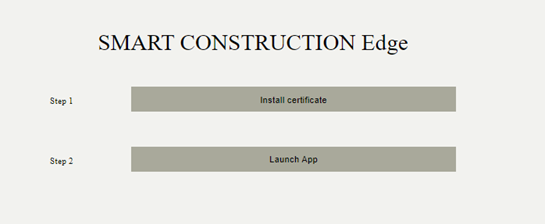
Press Launch App
For Android
-
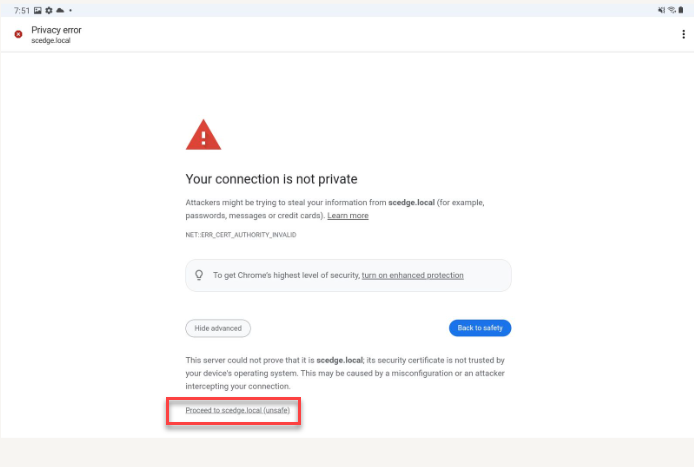
Press ”Advanced”
-
Press “Proceed to sc edged local”
For iPad
Install and configure certificate
-
From the tablet (iPad) home screen, tap the Safari icon and enter the following in the Safari address field
Tips
The following two-dimensional bar codes can be used to access to the URL above.

-
Tap "Install Certificate" on the screen.
-
Follow instructions on the screen to download it.
-
Return to the Home screen and tap “Settings” icon.
-
Tap on the displayed "Profile downloaded" message and follow the on-screen instructions to install
-
Tap General - About - Certificate Trust Settings in the settings screen to enable ##SC EdgeBox CA for Dev##.
Add a tablet app to your home screen
-
Start Safari on your iPad and access http://scedge.local.
-
Tap "Launch App"

-
After the top page of the App displayed, tap Share icon in Safari, then tap “Add to Home Screen”
An app icon will be added to the home screen, and you can start the app by tapping this icon next time.