-
Launch the tablet app

If the project is not listed, create a new project.
-
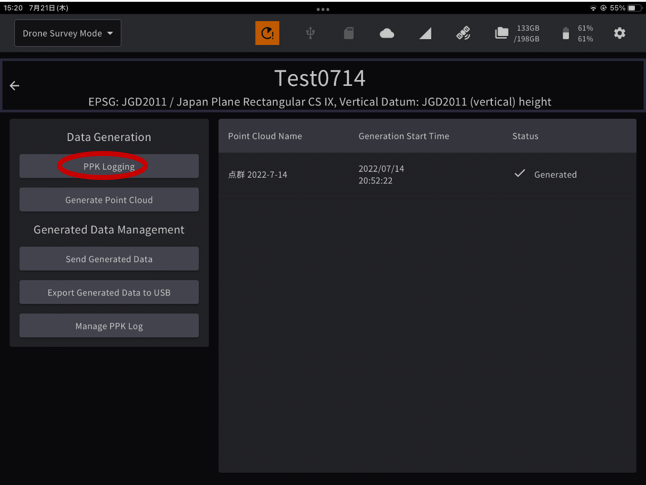
Tap “PPK Logging”
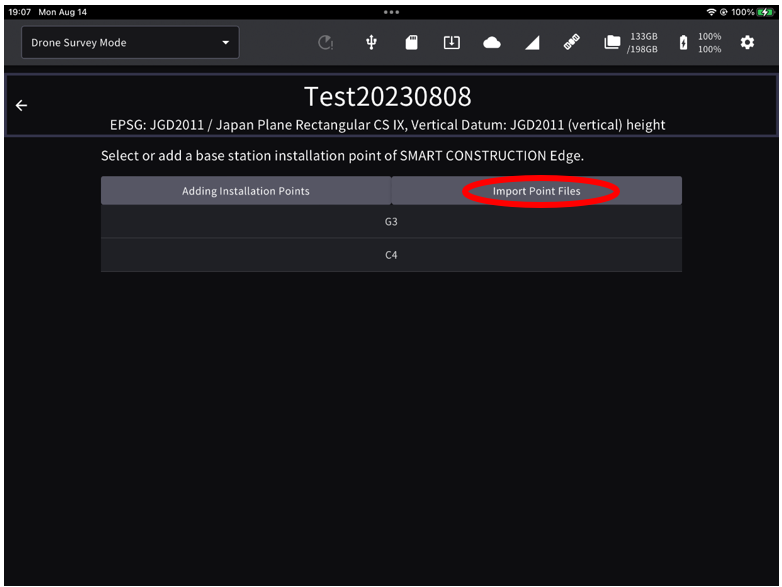
The points you have previously set up or have used will appear in the point list.
-
Tap "Import Point Files" to open the file.
Please prepare the point file in advance. The CSV file has to be int he root directory on a USB.
Select the control point file.
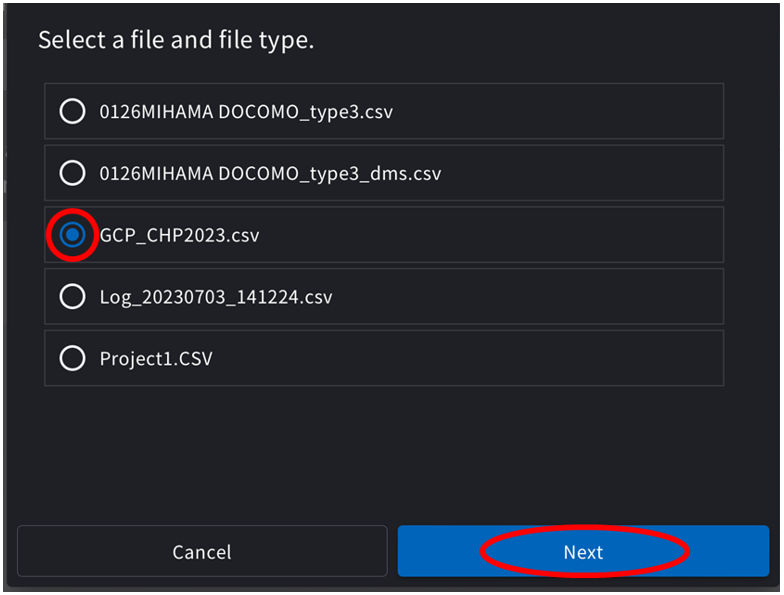
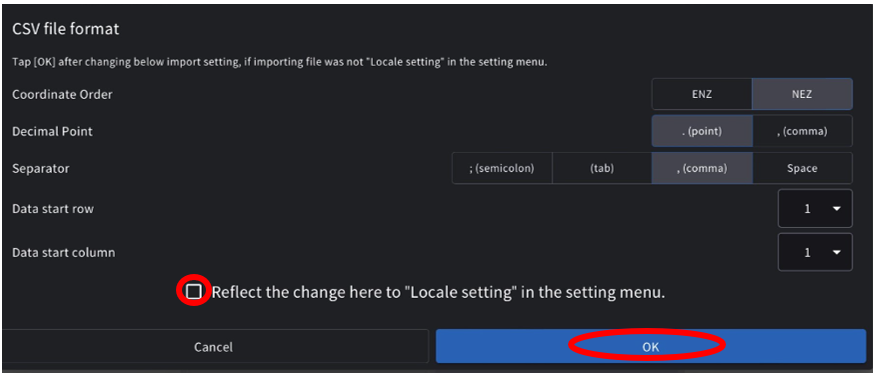
Set the file format parameter according to the file and tap “OK”.
-
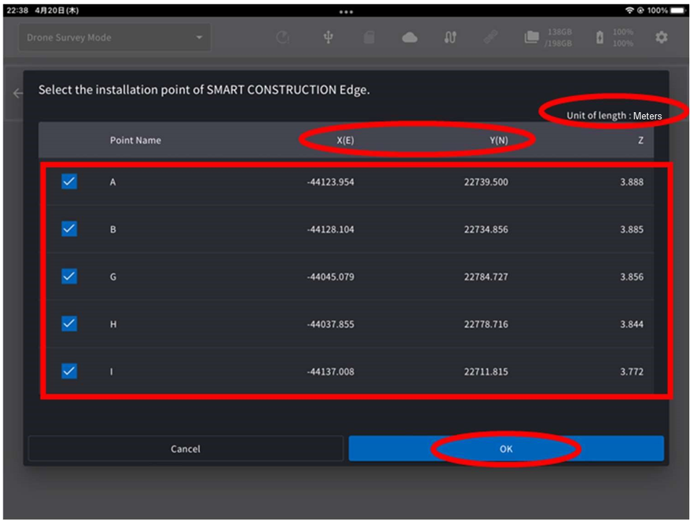
The contents of the imported localisation file are displayed on the screen.
Confirm the values are correct and aligned correctly, then tap “OK”.