
After flying the drone, insert the SD card containing photo data from the drone into the SD card slot of the EdgeBox.
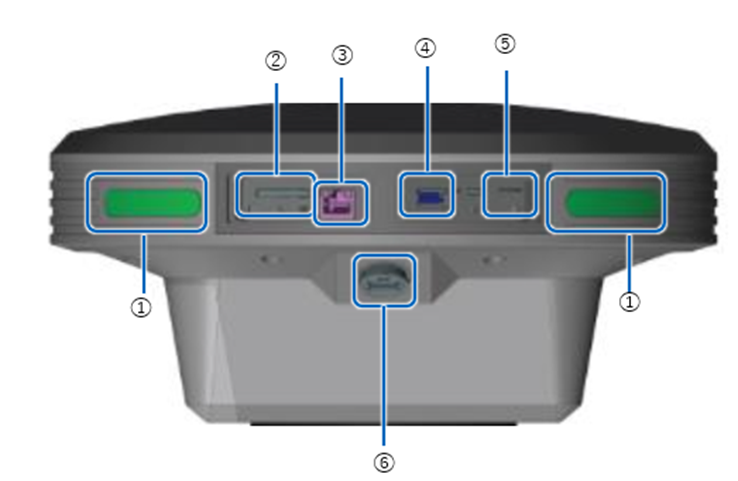
① Status LED
② SD card slot
③ Ether cable port
④ USB slot(USB3.0)
⑤ SIM card slot
⑥ Water-proof USB slot(USB2.0)
Before inserting the SD card, please check the direction and insert straightly. If you force to insert, may damage SD card or this product.
If insert wrongly and cannot take out the SD card, please contact Smart Construction Helpdesk. Please do not take out the SD card by inserting tweezers and so on, you may damage the product by short circuit.
-
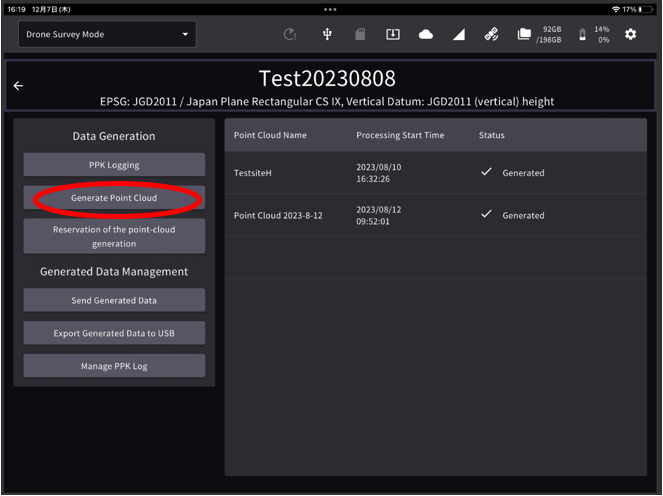
Tap the “Point Cloud Generation” button on the top screen of the project.
-
Enter the point cloud name and press OK.
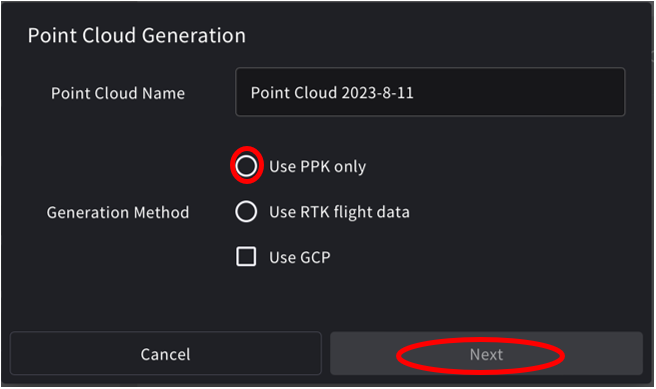
Ensure that "Use PPK Only" is chosen for PPK flight data, and "RTK" is selected for RTK flight data.
You can also improve the point cloud accuracy by using GCPs.
-
Tap the "Import Flight Data" button and select the drone data to upload to the EdgeBox from the displayed dialog.
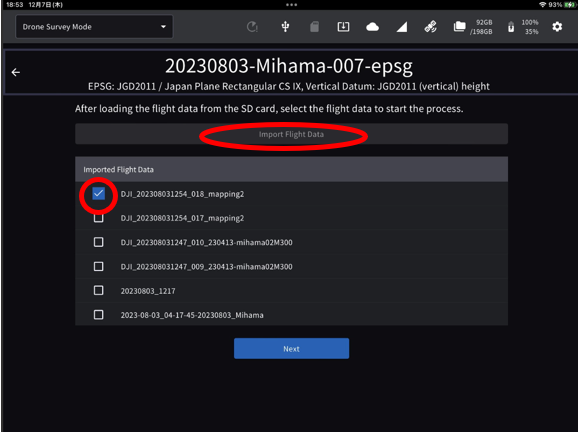
The imported data will be listed. You can also select and import multiple data.
-
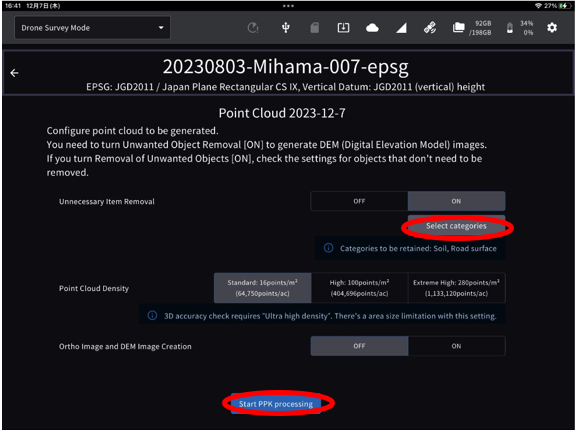
Check the flight data to generate point cloud from the imported data list and tap " Start PPK processing" button.
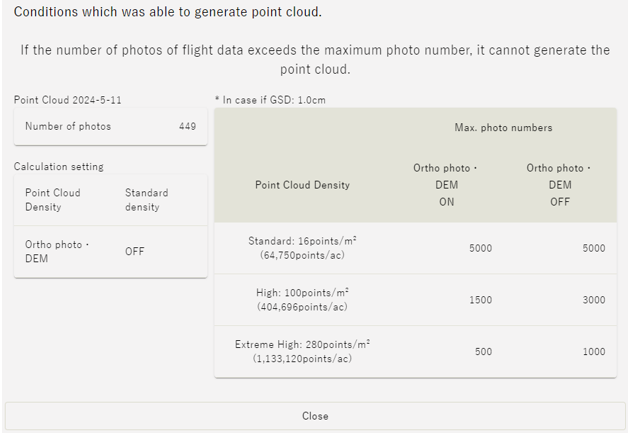
If you tap ''Conditions which was able to generate point cloud'' The number of photos loaded and the maximum number of photos processed at each density can be checked.
-
Unnecessary object Removal:
When you toggle ON, it removes unnecessary objects, such as buildings and vehicles, that are not needed for soil volume calculations.
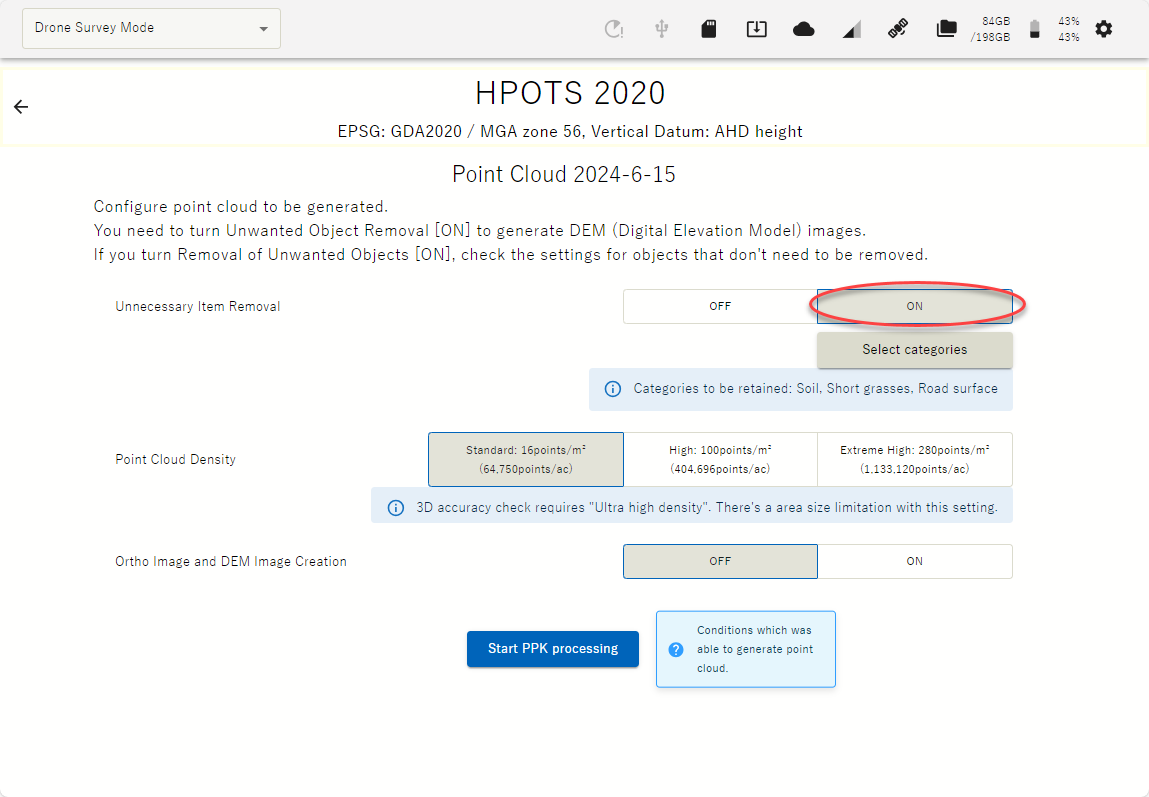
Additionally, you have the option to "Select Category" to keep other categories such as "Short Grass and Road Surfaces."
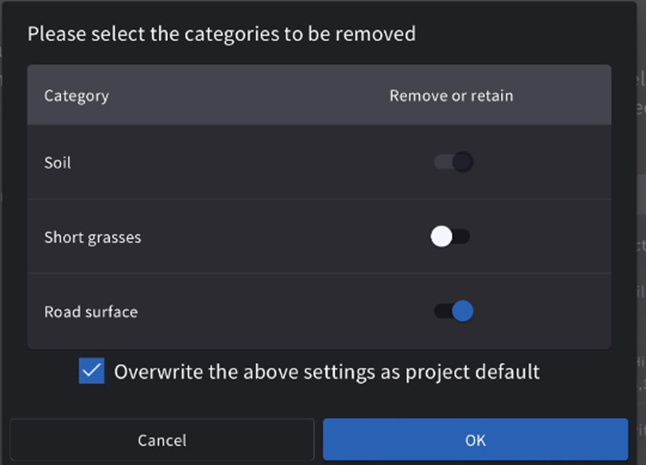
“Short grasses" can remove/retain all vegetation, and
"Road Surface" can remove/retain road surfaces, including concrete.
Point Cloud Density :Adjusts the density of the point cloud as required.
16ppm is recommended for most surveys
3D accuracy check requires Ultra high density. There’s area size limitation with this setting.
|
level |
density |
Maximum processing area |
|||
|
Point cloud + ortho +Unnecessary object Removal point cloud |
Point Cloud + Ortho |
Point cloud+ Unnecessary object Removal point cloud |
Point clouds only |
||
|
Ultra-high density |
280p/m2 |
5 ha |
5 ha |
10 ha |
10 ha |
|
High-density |
100p/m2 |
15 ha |
15 ha |
30 ha |
30 ha |
|
Standard density |
16p/m2 |
50 ha |
50 ha |
50 ha |
50 ha |
Ortho and DEM image generation:
Generate ortho (sky photo) and DEM (Digital Elevation Model).
If you do not turn on ortho generation, you will not be able to output an image showing the verification point positions on the ortho, which is the 3D accuracy check report material.
-
A dialog showing the PPK Fix rate will appear, check the rate and press "Next".
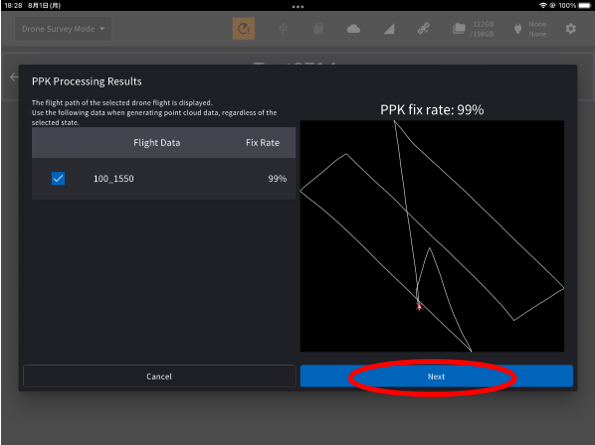
A low PPK Fix rate may affect the accuracy of the resulting point cloud. At the point where the red × mark on the drone flight route has a worse acquisition of the drone location. Please confirm and fly again if necessary.
-
The point cloud viewer screen shows up and the point cloud generation process starts. During this process, it is possible to switch to another window and perform the other work. You can check the generated point cloud by selecting it from the list on the project top screen.
To generate a Digital Elevation Model (DEM), both the Unwanted Object Analysis and Ortho Image Generation settings must be both ON.
If you turn off SMART CONSTRUCTION Edge during the processes below, the data could be corrupted, or the system doesn’t work properly any more.
Please turn off after these processes are done.
・Point cloud generation
・PPK logging
・Point cloud uploading
・Data exporting