On this page:
Load groups are additional tags that can be added to a load cycle to provide a higher level of granularity for load cycle data. These can be used to group loaders to easily sort them into separate categories, and provide additional context in reports.
Creating load groups
To create a load group:
-
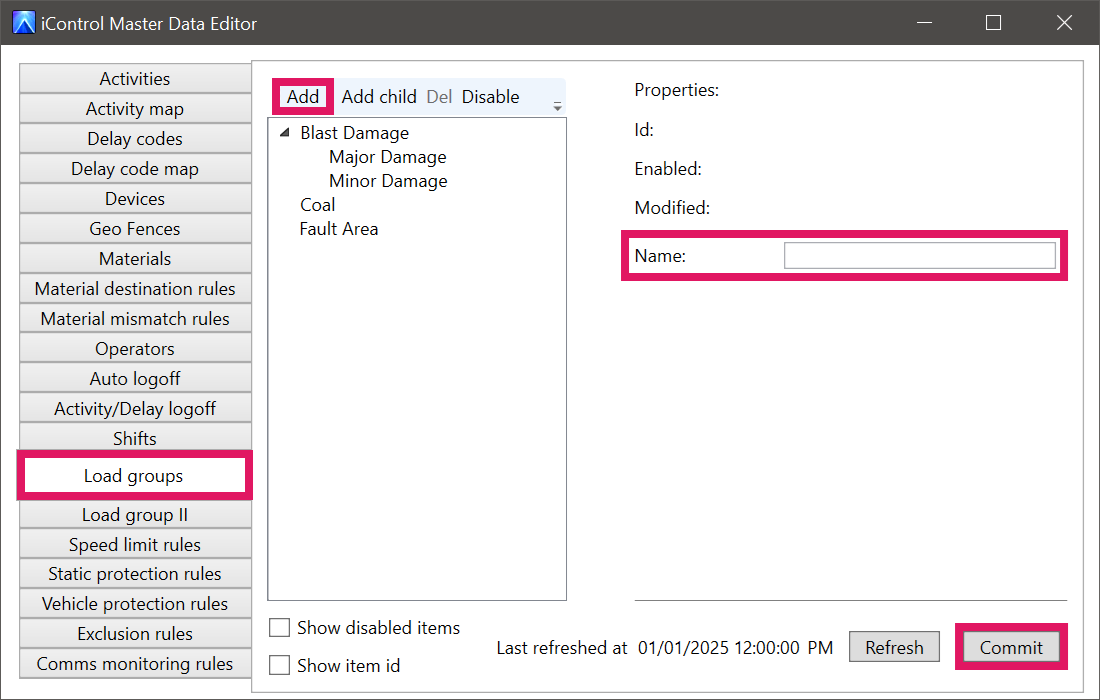
In the Master Data Editor, select the Load groups tab.
-
Click Add in the top-left corner of the load groups list, then enter a Name for the load group and click Commit.
Alternatively, to discard a load group before it is committed, click Refresh. This will clear any unsaved Load group.
You can also create child load groups following this process. To add a child load group:
-
Select an existing load group, then click Add child.
-
Enter a Name for the child load group and click Commit.
Alternatively, to discard a child load group before it is committed, click Refresh. This will clear any unsaved Load group.
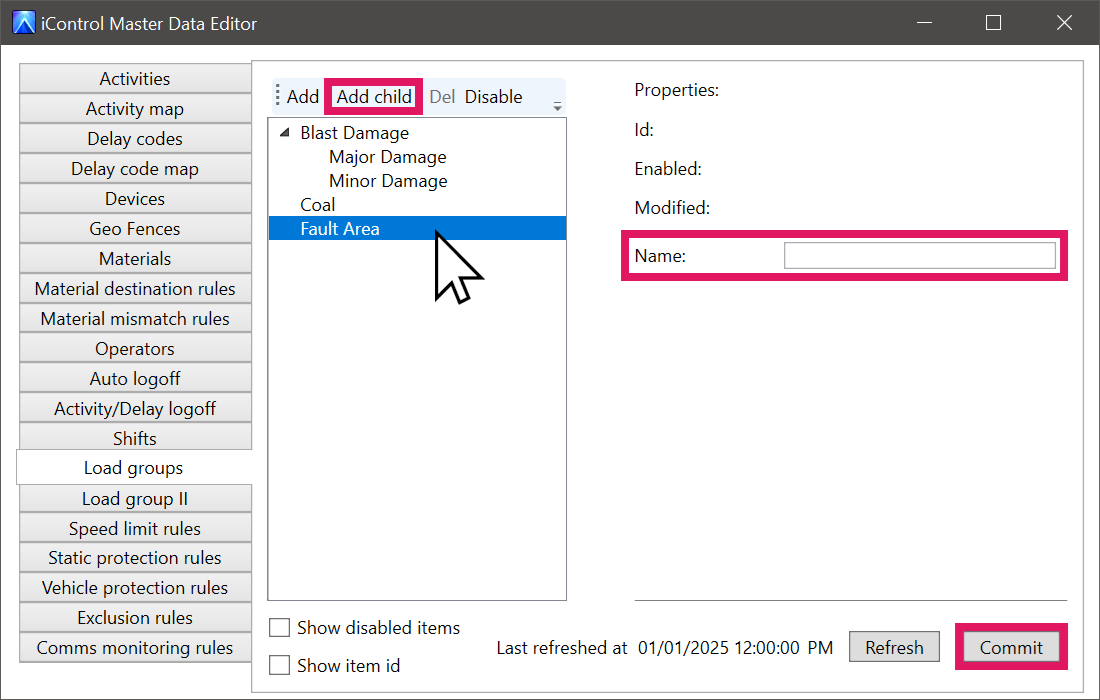
Each child load group is displayed beneath the parent load groups. These also appear as folders on an operator's iVolve display. (View the Folders section of the Selecting a load group topic for more information.)
Editing and disabling load groups
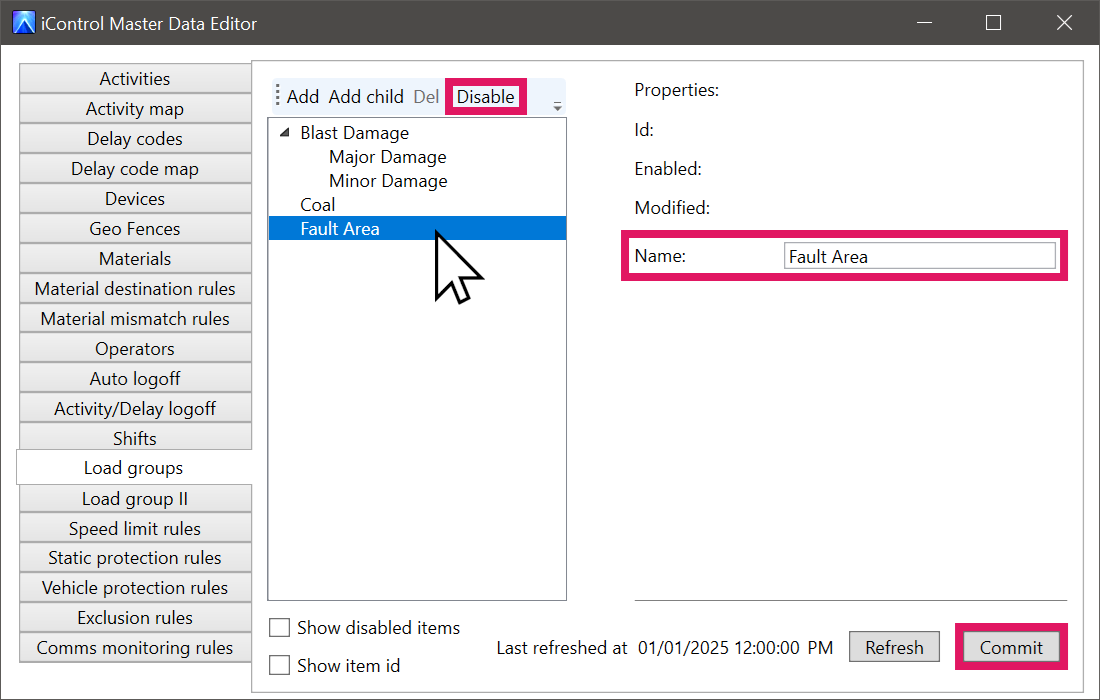
To edit an existing load group, select the load group, change its Name as needed, then click Commit.
Alternatively, with a load group selected, click Disable then click Commit to disable the load group. This removes it from the list, and prevents the load group from being viewed or used by operators on their iVolve display.
You cannot delete load groups, only disable them. To restore a disabled load group, select the Show disabled items check box beneath the load groups list, select a disabled load group, then click the Enable button at the top of the load groups list and click Commit.
Additional load groups
You can configure an additional set of load groups for increased granularity, however these will not appear on an operator's iVolve display. Instead, these can only be applied through the Data Editor in iControl.
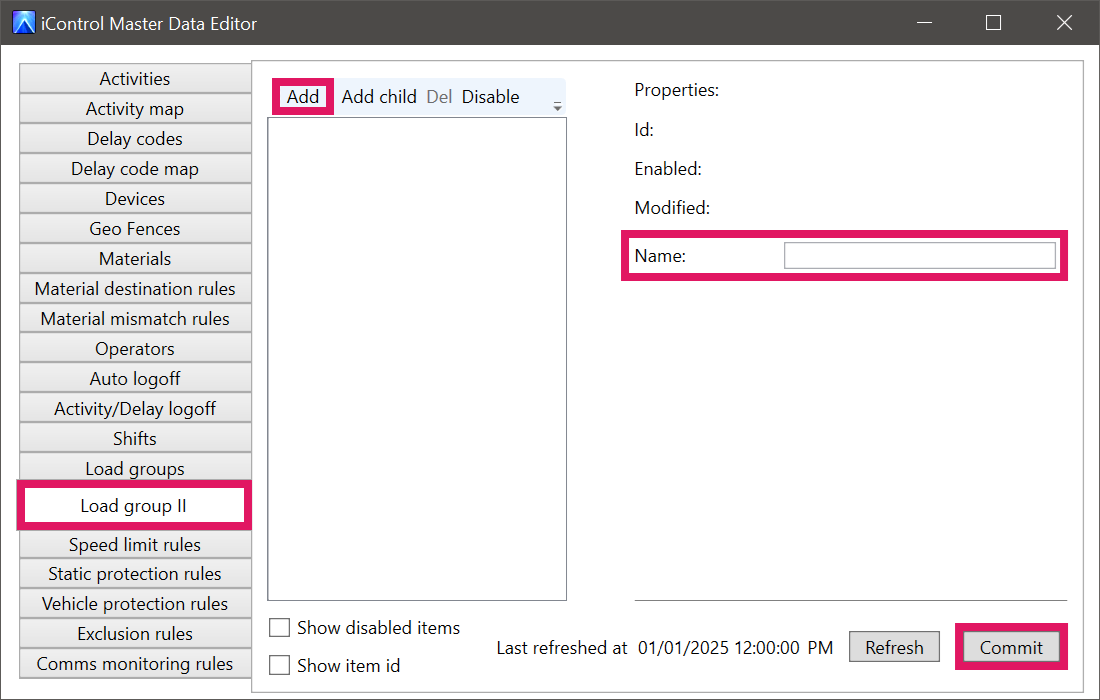
To create an additional load group, select the Load group II tab, then follow the same process as creating a regular load group.
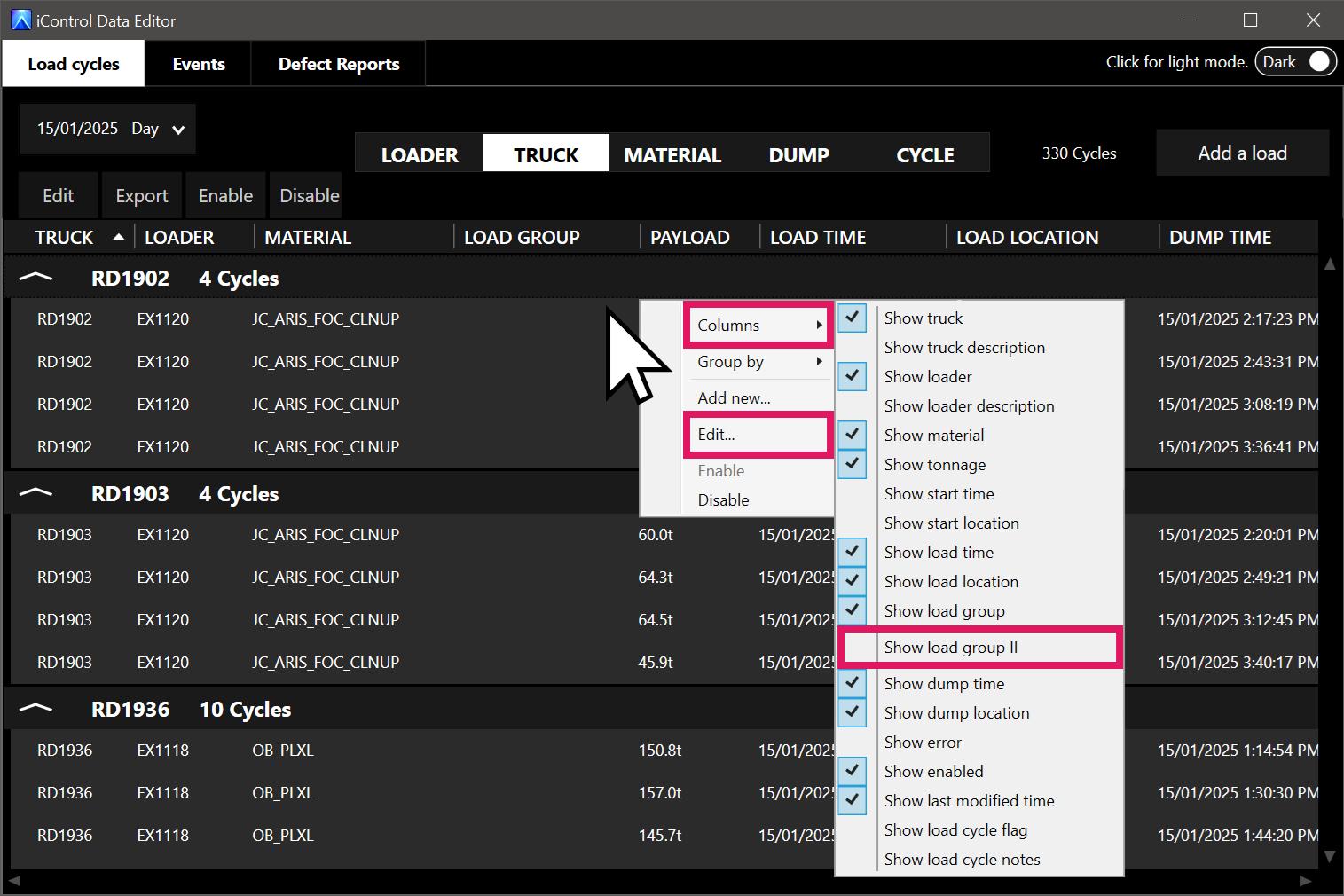
To view additional load group in the Load cycles section of the Data Editor, right-click on the list of machines, select the Columns menu, then select Show load group II.
To add an additional load group to a machine's load cycle, right-click a specific machine, then select Edit.
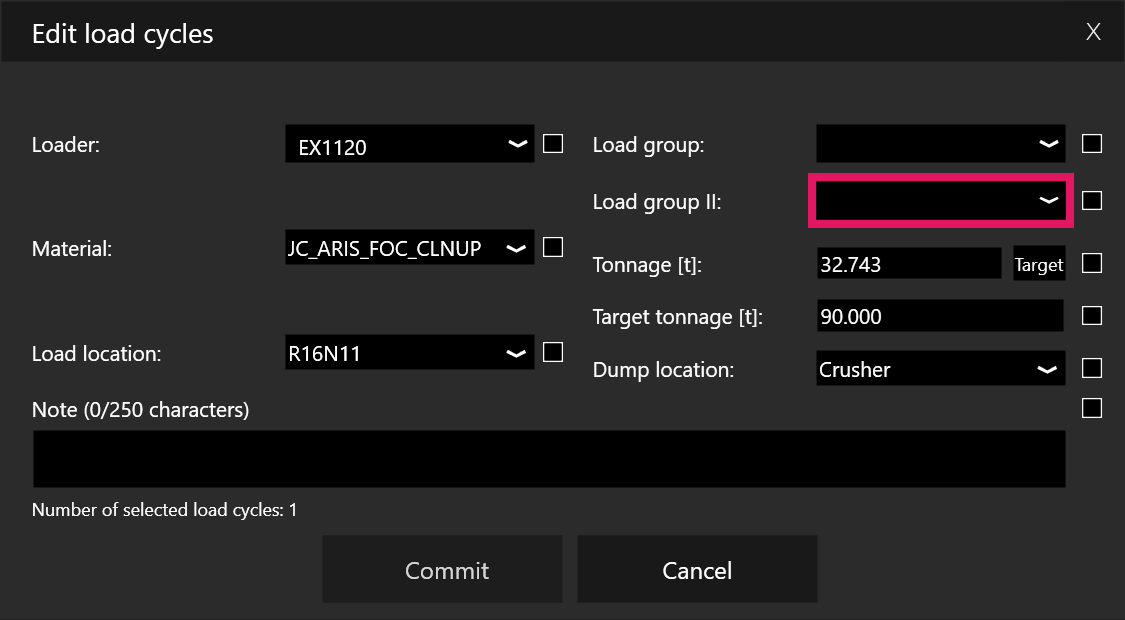
In the Edit load cycles window, select an option from the Load group II drop-down menu as needed, then click Commit.