If project file needs to be converted to tp3 first - Convert File using Magnet Office
By using SC Pilot Web for 3DMG it will automatically convert a .tp3 to .rpz and send a message to the operator to advise there’s a new file for them to download.
-
Select Smart Construction Pilot from the Portal

2. Log in to Using same credentials used to log into the portal
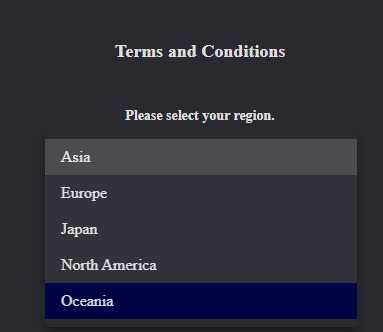
3. If its the fist time logging in Select ‘Oceania’ as the Region otherwise skip to step 5
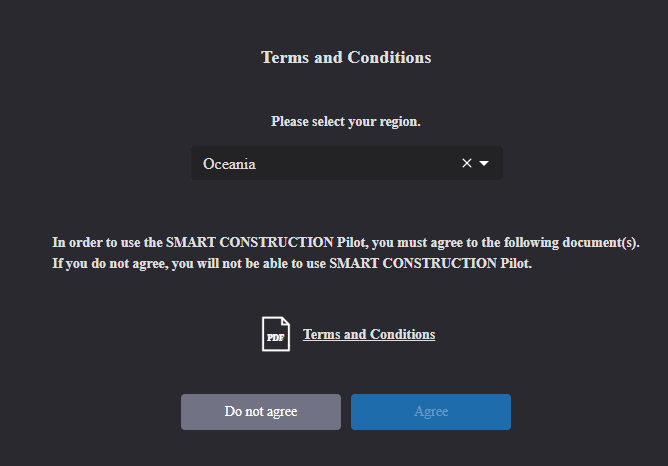
4. You must click on the “terms and Conditions” link in order to the agree button to become active.
Once downloaded - Click Agree
-
Click on the Jobsite Panel
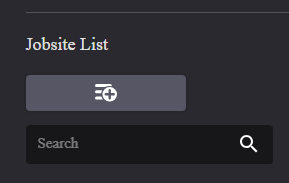
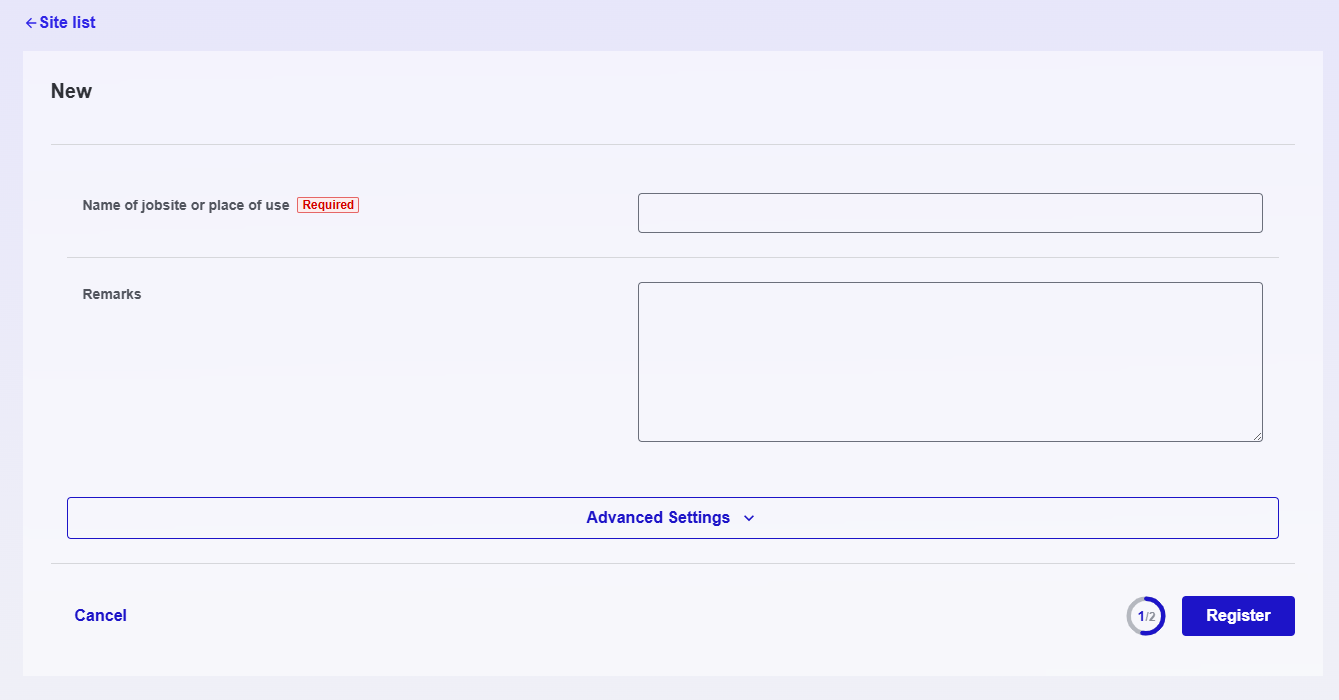
If a jobsite has not been added, click on the add button.
(If a jobsite has been added, skip to step 6)
Fill out the details for the new Jobsite
Note: use the advanced settings to set a more precise location for the jobsite or other details.
Click Register
Once finished registering the new site - close the tab and navigate back to Pilot Web.
-
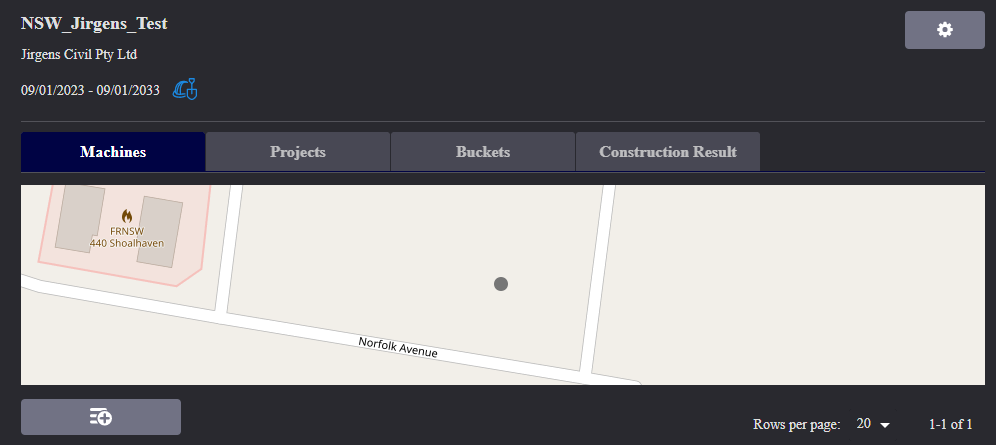
Click on the Jobsite you just created and add the machine by clicking

if machine is already added to the jobsite skip to step 8
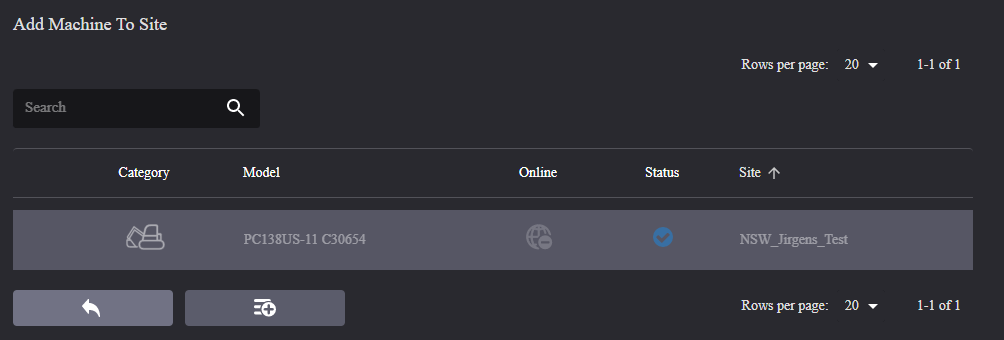
Note: Machine must be set up in SC Remote, rented to customer account and activated and machine controller must be registered for the machine to appear in the list. This is done by Komatsu
7. Select the tick-box next to the relevant machine/s and select

8. Select ‘Projects’ tab and select same button:

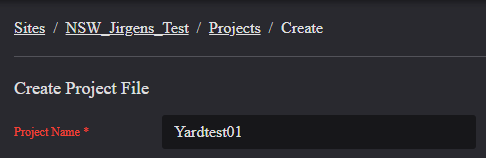
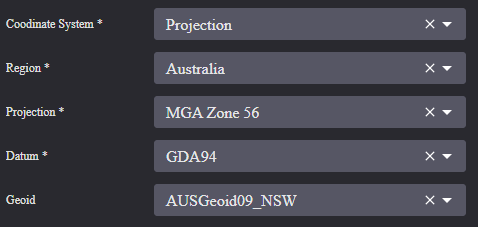
9. Select Project or Localisation - whichever the case may be and complete the rest of the information accordingly.
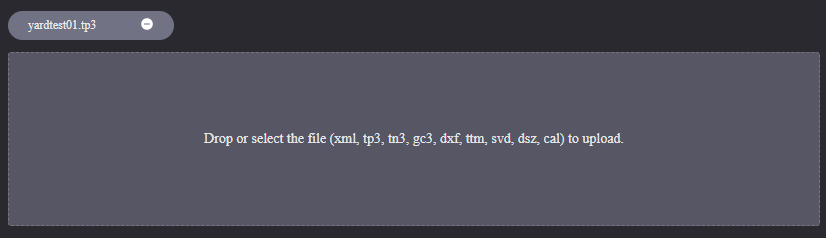
10. Import project file
11. Select the Machine to send project file to, then click Save: