
Your display can only view messages sent to your vehicle during your current shift.
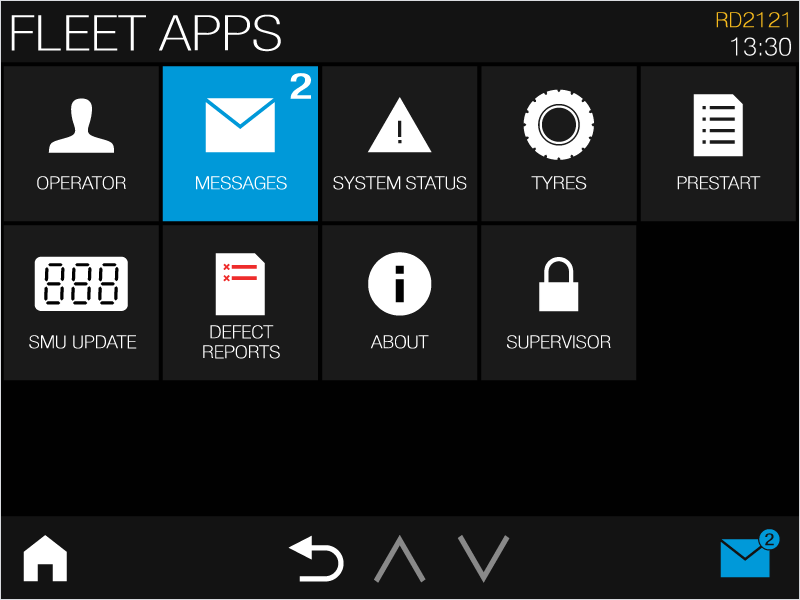
If you receive a message, a blue envelope icon will appear in your notification tray; the Messages tile in the Fleet Apps screen will also turn blue. Both notifications will also display your total number of unread messages.
If your message has been sent from the Messages app, the message can also display a banner over the screen and a notification tone, as well as several options for acknowledging and replying to this message.
For more information on this process, see the Acknowledging and responding to messages topic.
To access messages:
-
Tap the envelope icon in the bottom-right corner of your screen, or select the Messages tile in the Fleet Apps screen.
-
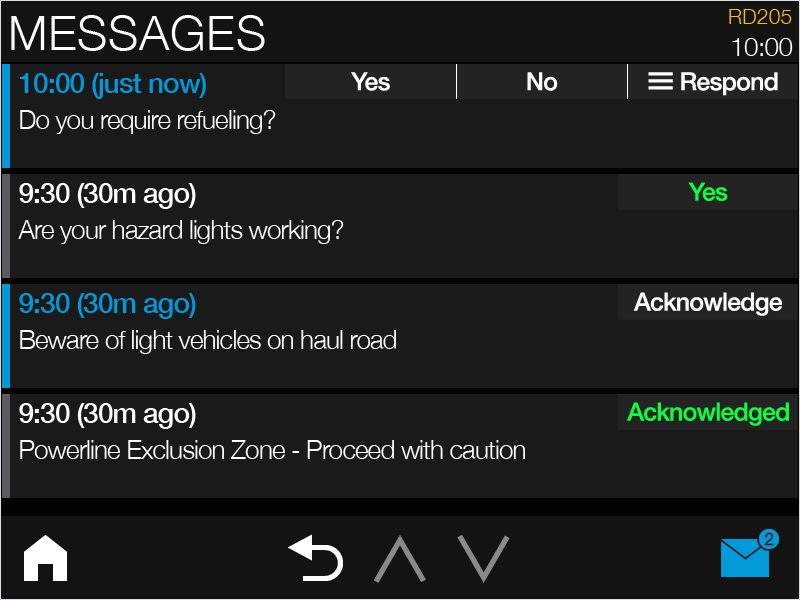
The Messages app displays all messages received during the current shift.
Unread messages display a blue highlight and headline text, with their response options shown in white text in the top-right corner of the message. Messages that have been read and replied to display a grey highlight and white headline text, with the selected response shown in green text in the top-right corner of the message.
If there are multiple messages, you can scroll with the up and down arrows in the bottom-centre of the screen. If these arrows are greyed out, then there are no additional messages to view.
Depending on the message that was sent, there can be several ways to respond. For these processes, see the Acknowledging and responding to messages topic.