You can send in-cab messages to operators from GoLine with the Messages app. You can create message templates with predefined messages, and send a message to one, several, or all machines on site.
You can also configure the colour of the message's header and text, set predefined responses for your operators to reply to a message, view a list of sent messages, and more.
To send a message:
-
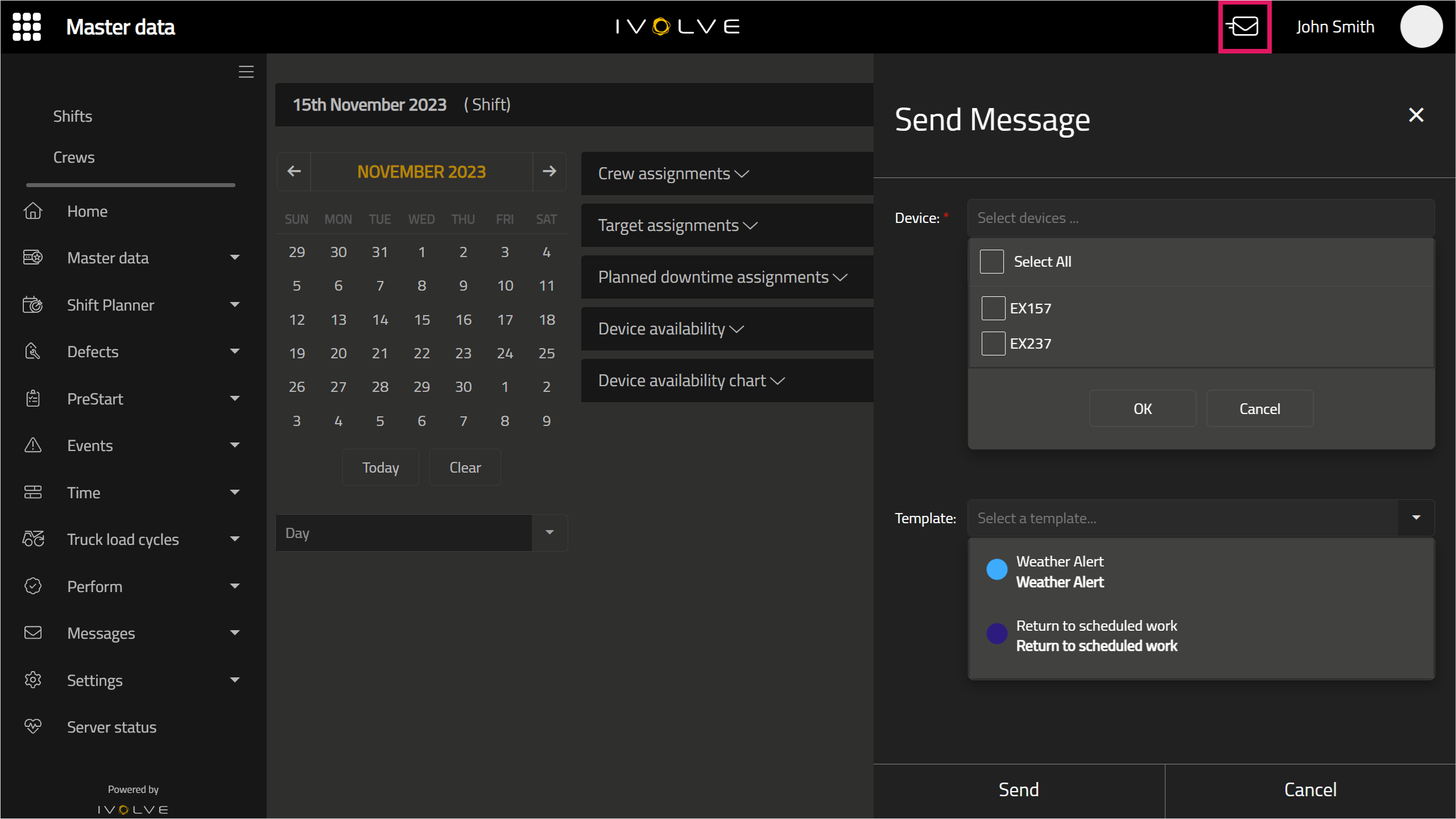
From any page in GoLine, click the Messages icon in the top-right corner of the screen.
-
In the Device field, select one or more machines, or click Select All to send the message to all machines, then click OK. You can also begin typing the name of a device in this field to automatically filter the device list.
-
Select a message template in the Template field.
This will open the Send Message window; each field in the Send Message window will automatically fill from the message's template. Though you do not need to edit these fields, you can edit them to customise the message as needed.
However, these fields can be locked when the message template is created, in which case you will not be able to edit them; in some cases, if a field is locked, it will not be displayed in the Send Message window.
For more information on locking and unlocking fields in a Message template, see the Creating and managing Message templates in GoLine topic.
-
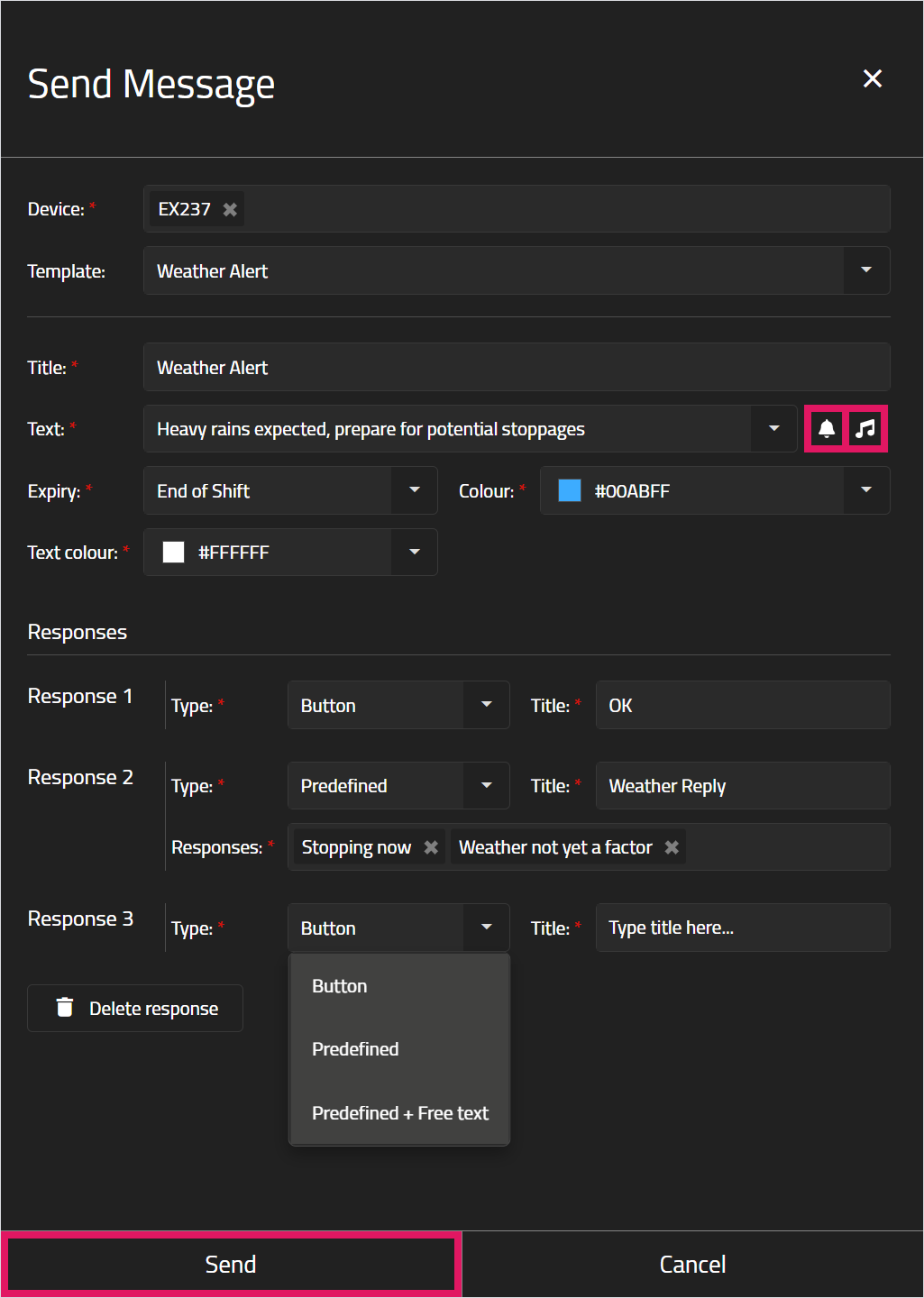
In the Send Message window, enter a Title and select a message from the Text drop-down field, or write your own custom message as needed.
-
Select a Colour and Text colour as needed. If the message is sent with a notification, the Colour field determines the colour of the banner that appears on the operator's iVolve display.
-
If the message template includes a tone and banner when the message is received, the bell and note icons will display next to the Text field. If the message template does not include a tone and notification, these icons will be crossed out.
The tone and banner cannot be edited here, and must be configured in Message templates.
-
Add or edit Responses as needed; if the message's template does not include any responses, click the Add Response button to create your own.
You can only add or edit Responses if the Responses field is unlocked in the message's template.
-
Click Send.