
-
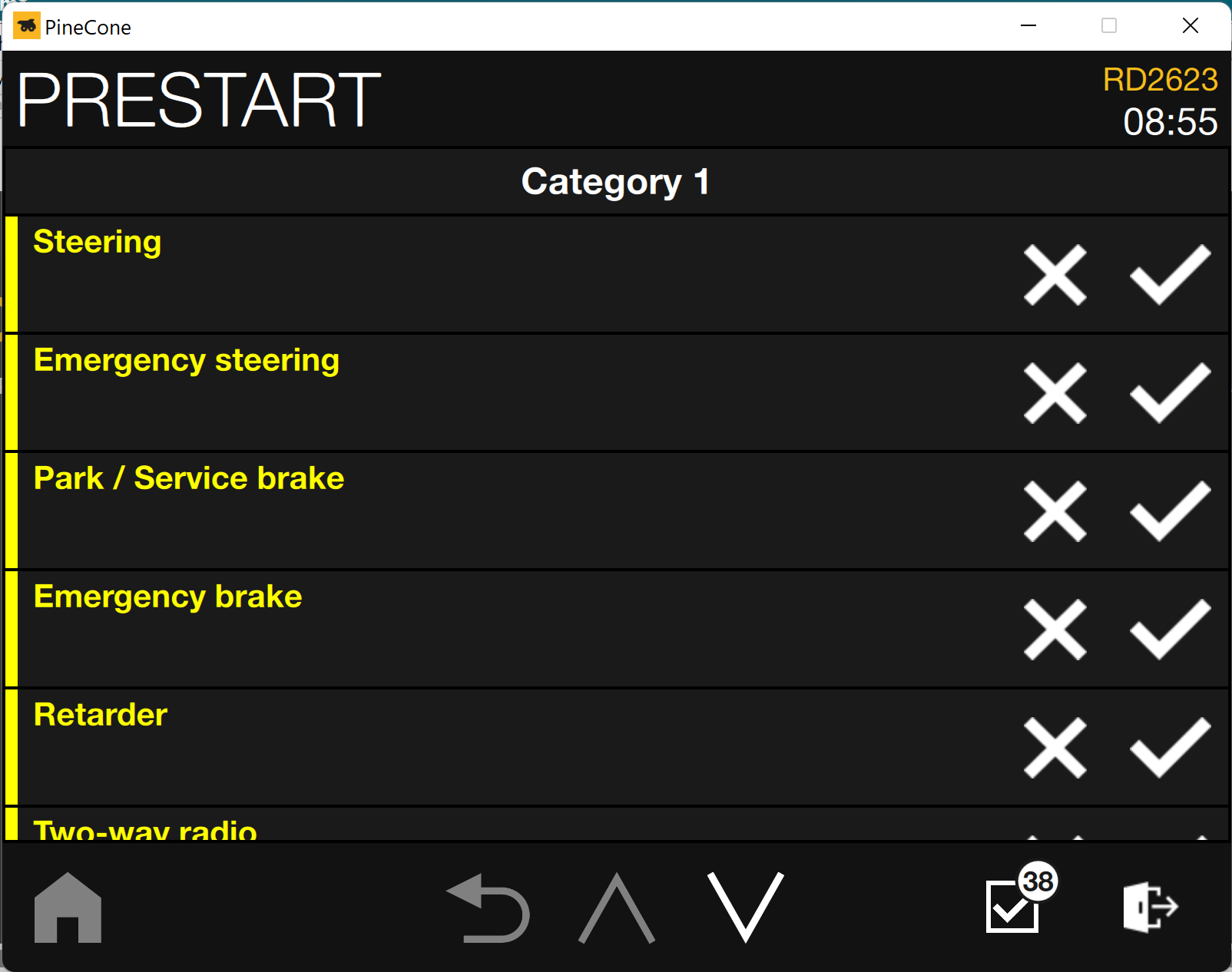
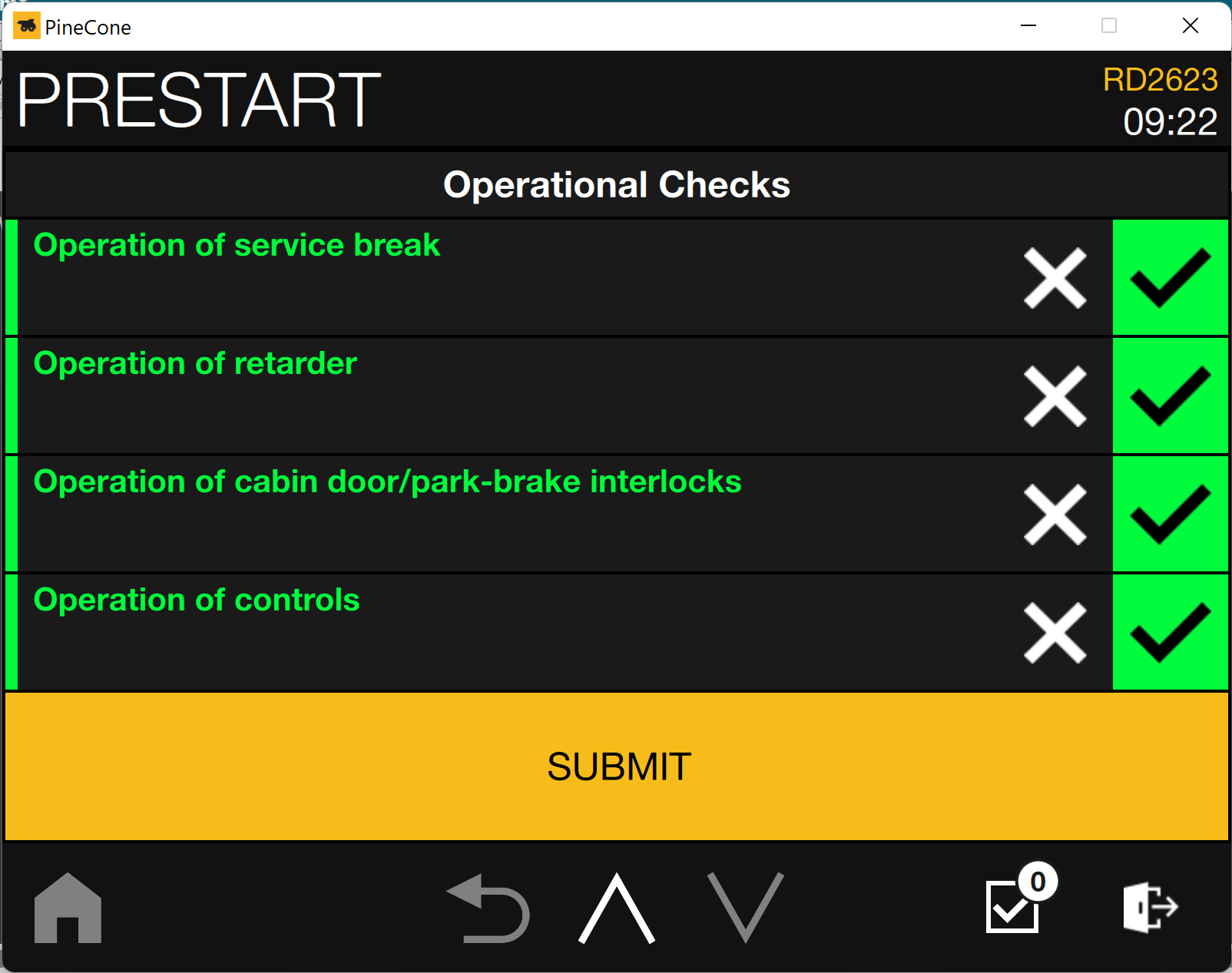
Perform each check as it appears in the list, and tap the tick ✔️ to mark the check as passed, or the cross ❌ to indicate that it has failed.
-
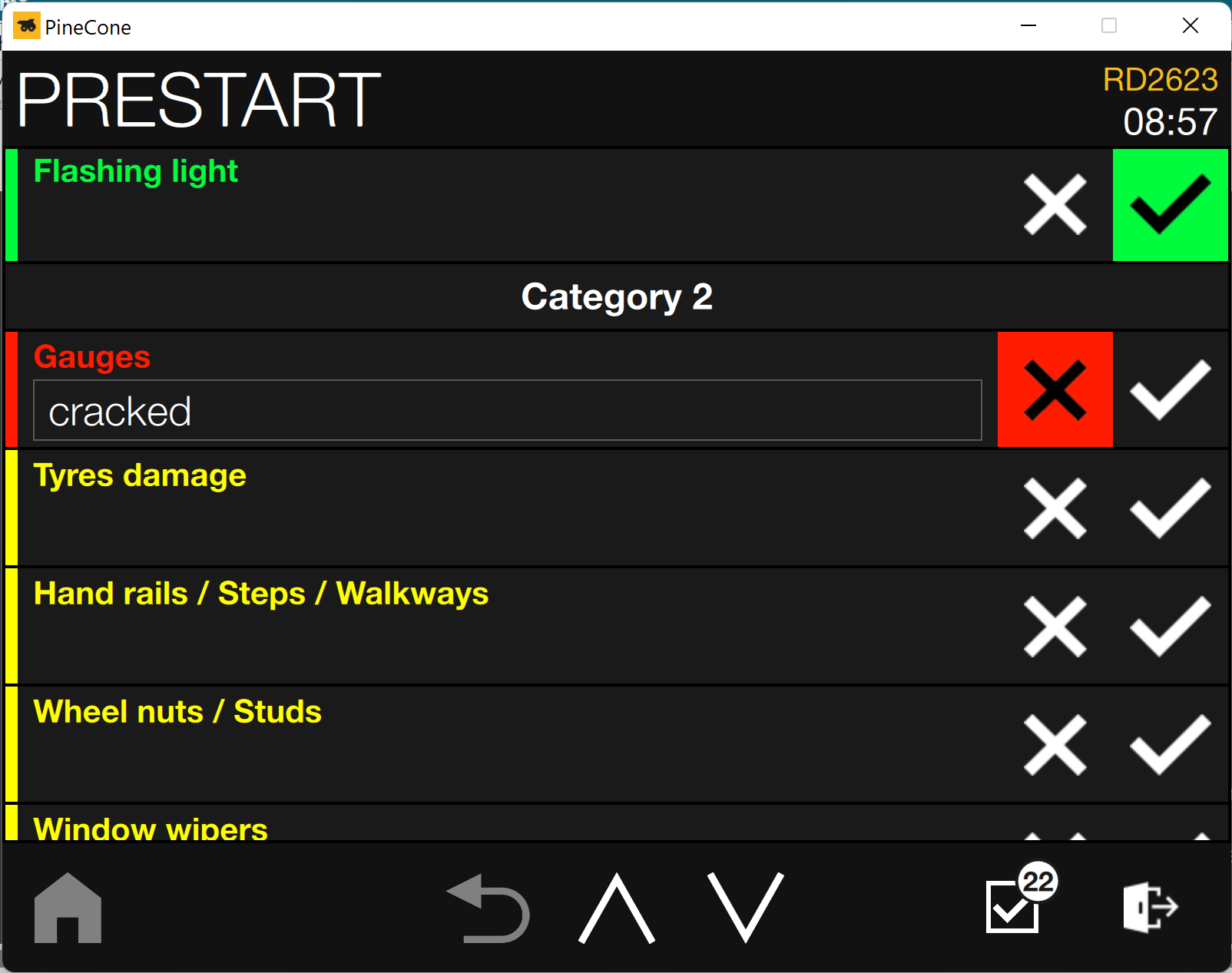
Checks change colour to green when passed, or red when failed. Incomplete checks remain yellow.
-
As you mark checks pass or fail, PreStart moves to the next incomplete check. Use the up 🔼 and down 🔽 buttons in the navigation bar to scroll through checks and complete them.
-
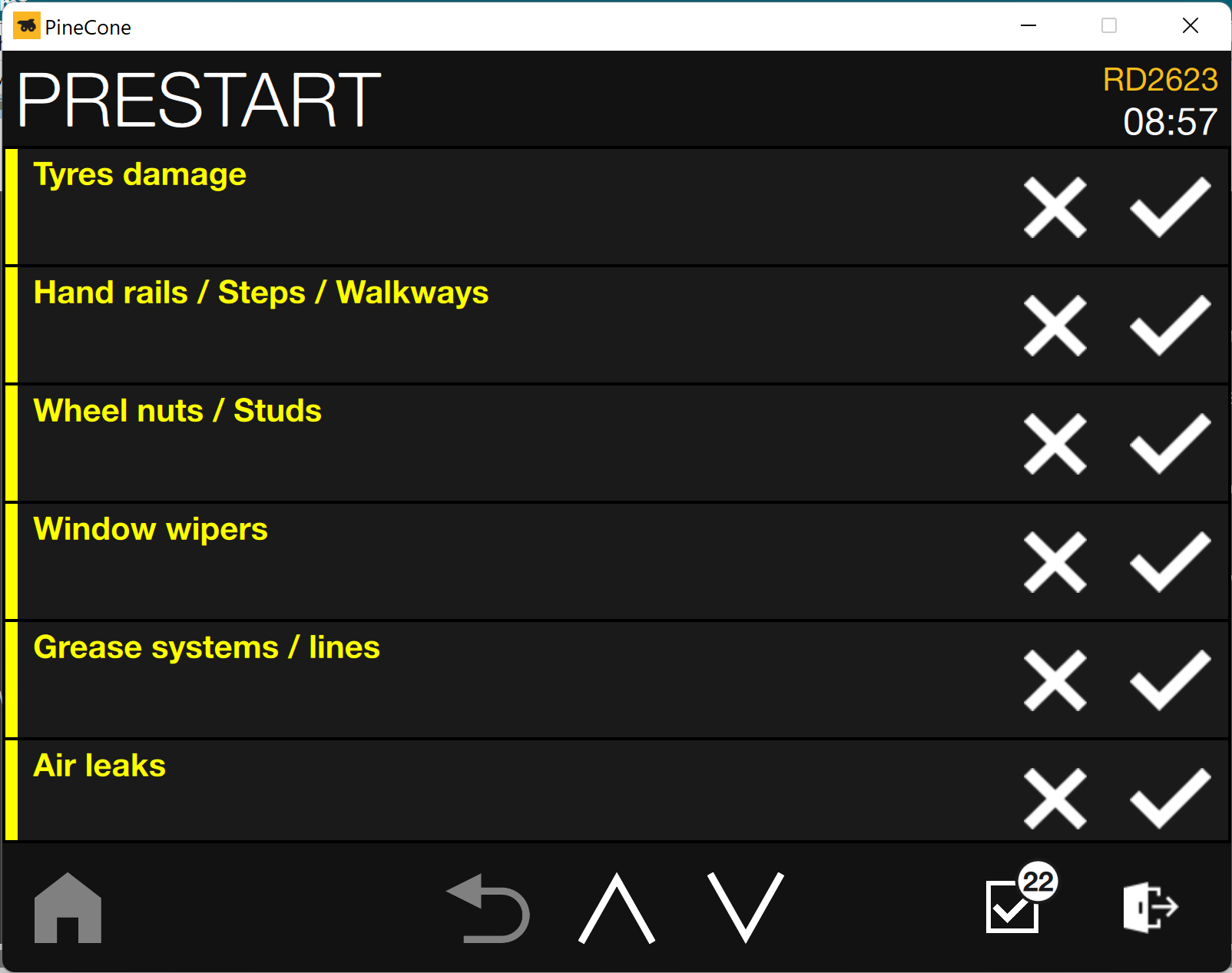
By default, the checkbox in the notification tray displays the number of remaining incomplete checks.
Tap the checkbox to move to the next incomplete check.
-
When you fail a pre-start check, you are prompted to enter a comment.
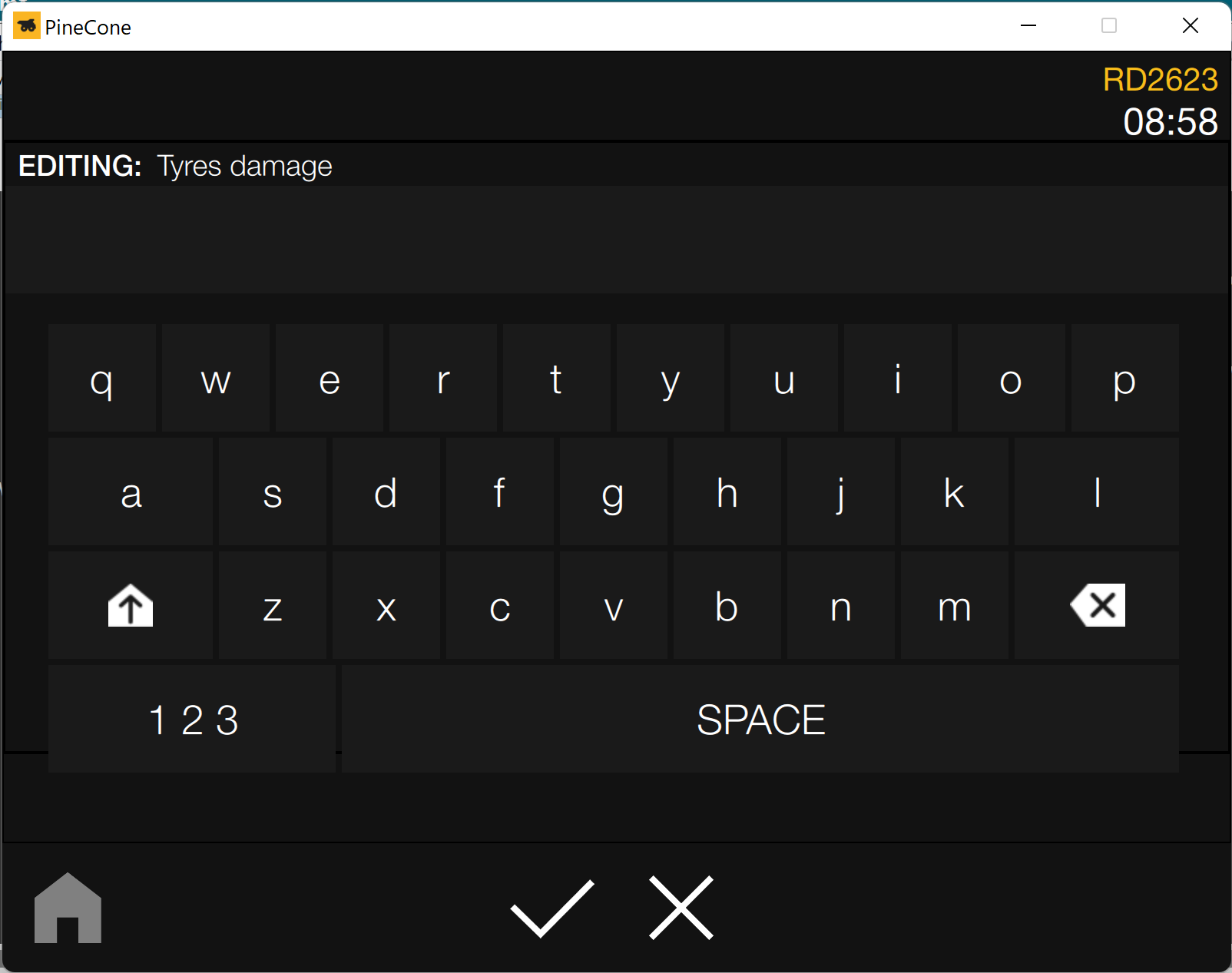
Depending on how PreStart is configured, you might be able to enter comments on passed items as well. Please contact your Komatsu representative for more information
-
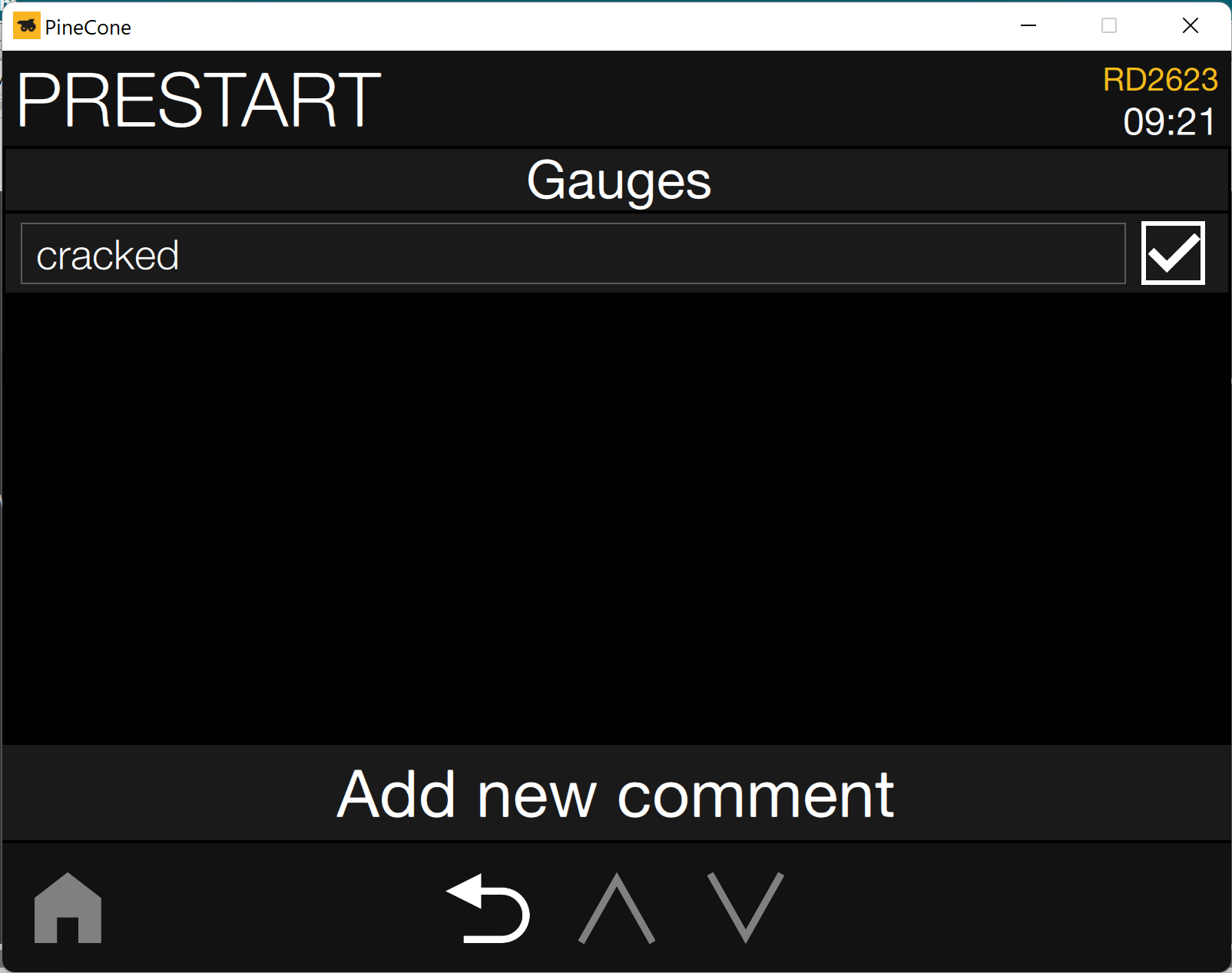
If you fail a pre-start check that has previously been failed, you can select the previous comment and append your own to it, or choose to clear the previous comment and enter a new one.
-
To select a previous comment and append your own to it, select the checkbox next to the previous comment then tap Add new comment.
-
-
To replace the previous comment with your own, clear the checkbox next to the previous comment then select Add new comment.
By default, previous comments are automatically cleared after one day. To change the amount of time comments are retained, contact your iVolve representative.
2. When you have completed all checks, tap Submit to lodge your PreStart checklist results.
-
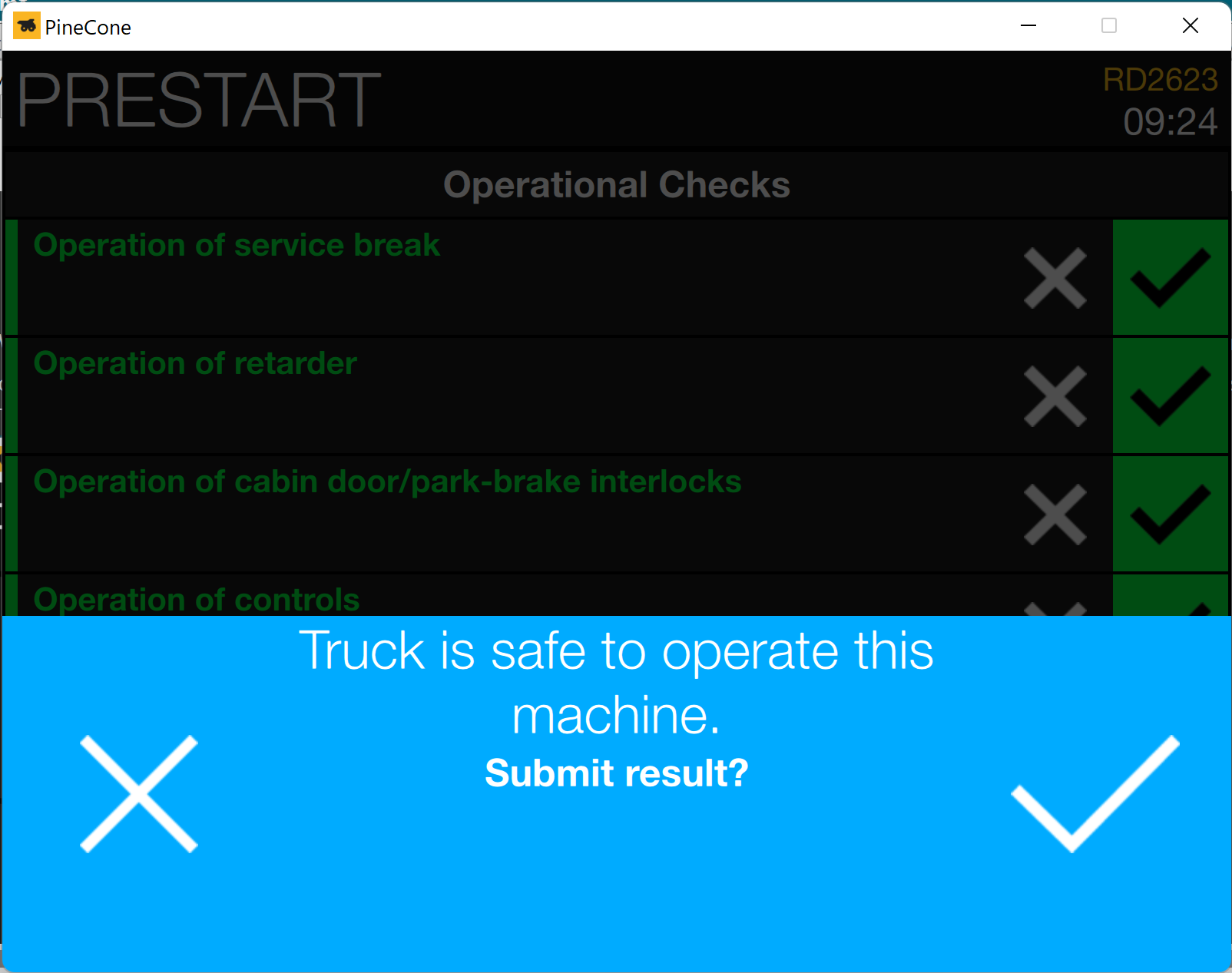
If all pre-start checks have passed, the pass message that was configured in iControl Master Data Editor appears.
-
If a pre-start check has failed, the relevant failure message that was configured in iControl Master Data Editor appears.
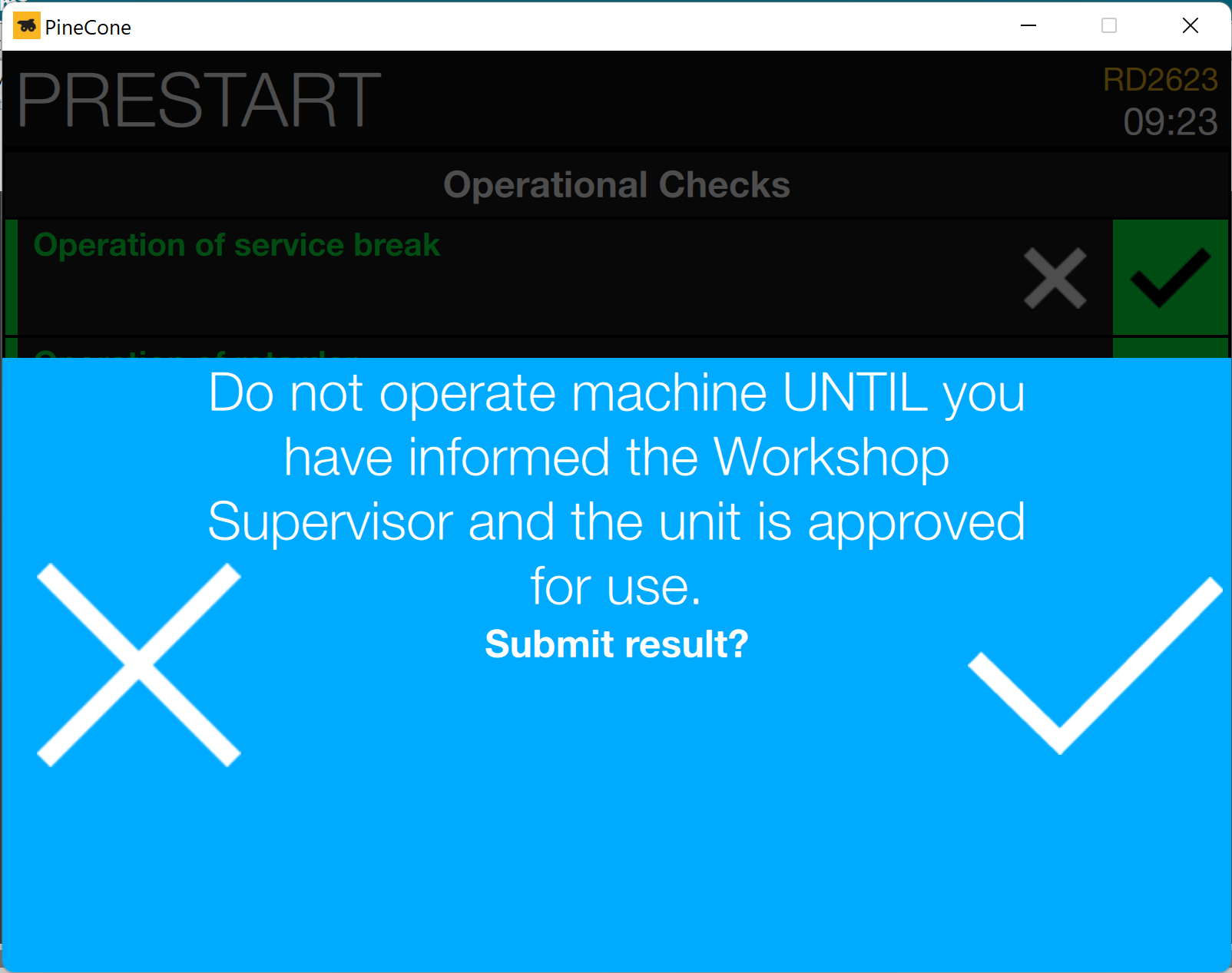
3. Tap the cross ❌ to return to the checklist or the tick ✔️ to submit the results. When you tap the tick ✔️ , the PreStart result is sent to the server and the iVolve display returns to the home screen.
If you configured PreStart Advanced to open a defect when a pre-start check fails, the Defect Reports app displays a number in the upper right-hand corner.

For more information about the Defects Reports app, see the Accessing the Defect Reports app topic.
You can configure PreStart to send SMS or email notifications to selected personnel when a pre-start checklist is submitted. For more information, see the PreStart notifications topic.
Contact your Komatsu representative for more information about configuring SMS or email notifications.