
On this Page:
You can acknowledge received messages to notify the sender that you have seen and understood the message. Certain messages can also have two or more responses (such as "Yes" and "No"), a range of pre-written responses, or the option to write your own reply. You can select these as needed from your display.
You can view all messages sent during a shift in the Messages app on your display. ) Messages can also display as a banner across your display screen, in which case you can also respond to the message in this banner.
After a message is acknowledged or a response is sent, this cannot be undone.
Acknowledging messages
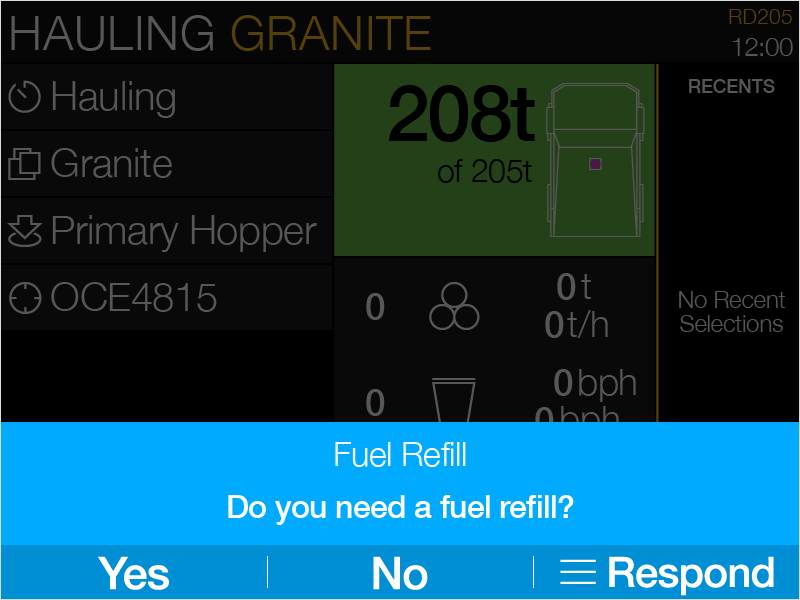
Acknowledge and respond to a message that appears as a banner on your display:
-
Select a response from the banner; depending on the message, there might be a single response (such as the word "Acknowledge"), Yes or No options, or the option to choose from several responses, which will be shown with a list menu icon and brief text, such as the word "Respond". (The specific word shown is set by the person who sent the message.)
-
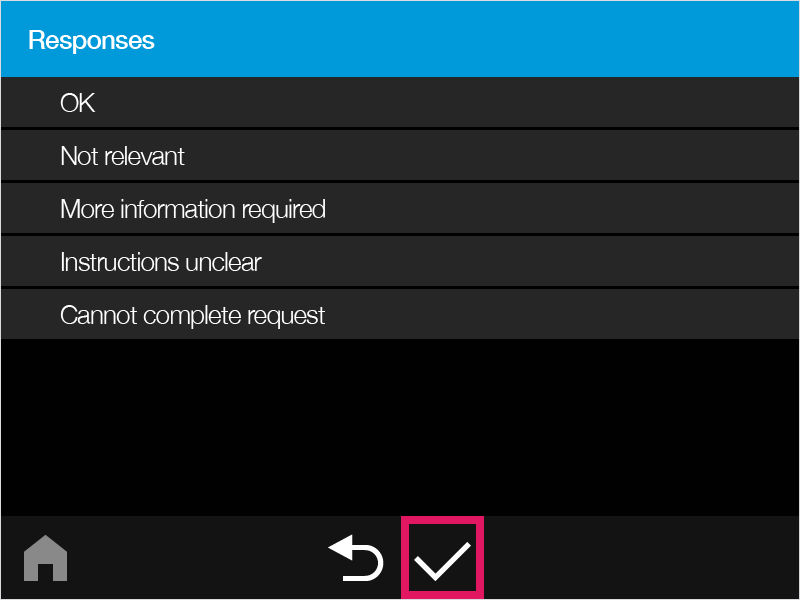
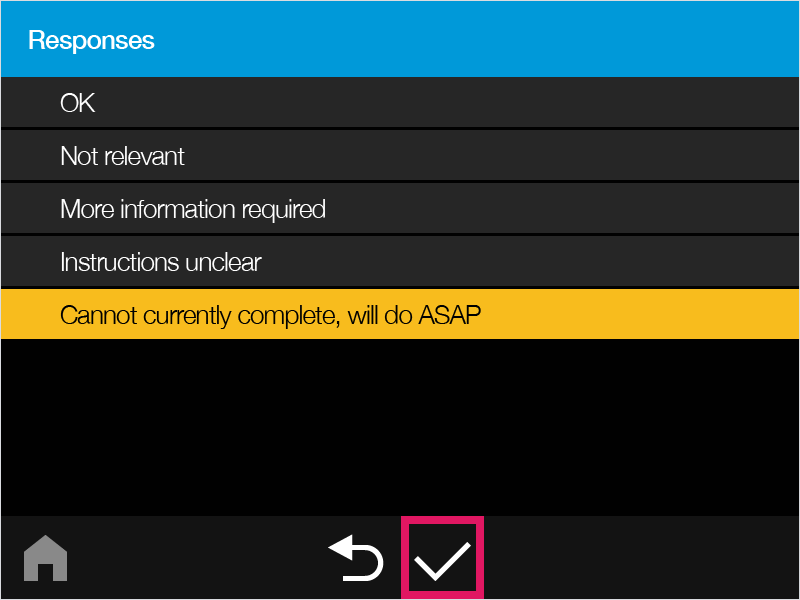
If you select the list option, a list of responses displays. Select a response as needed, then tap the tick icon at the bottom of the screen.
-
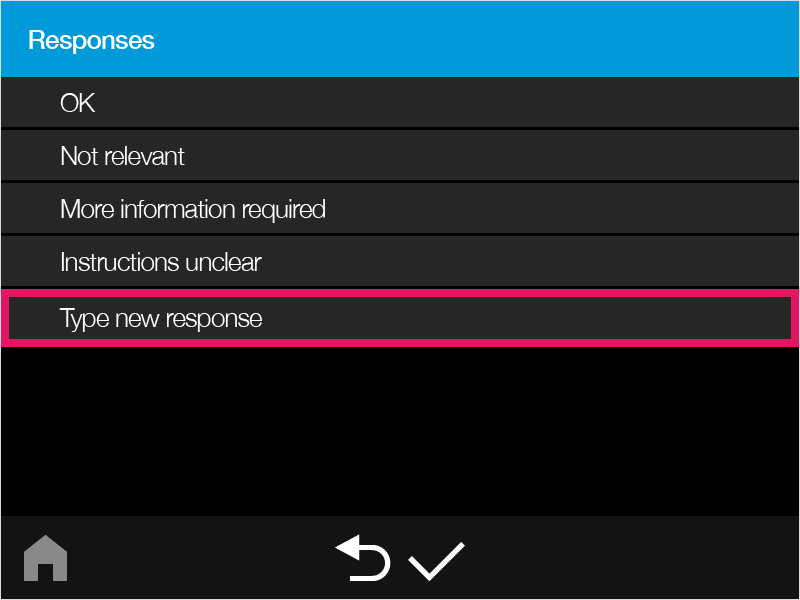
Alternatively, you might also be shown an option to type your own response; select this as needed.
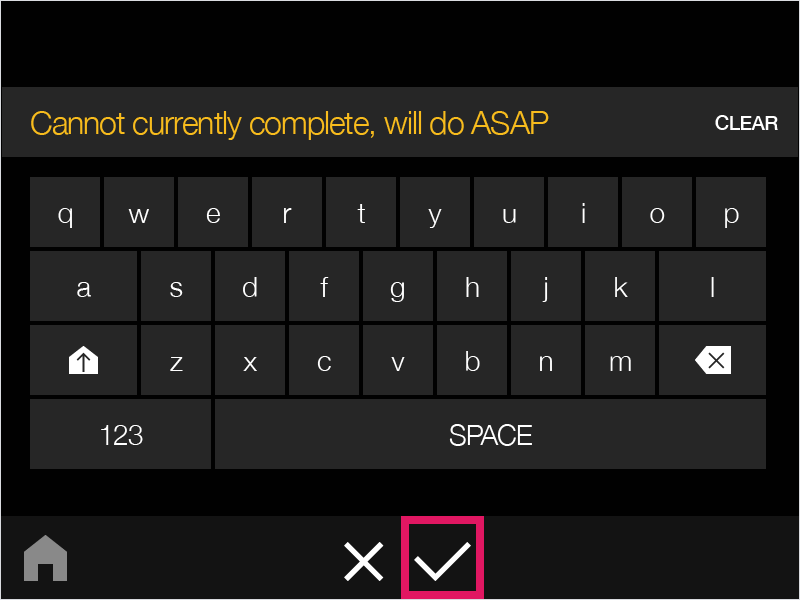
If you select this option, write out your response with the on-screen keyboard, then tap the tick icon at the bottom of the screen to save.
-
Your written response will appear as the highlighted option on the responses list; tap the tick icon to send this response.
Alternatively, to edit your written response, tap your written response again, make changes as needed, then save your changes (as shown in Step 4); tap the tick icon to send this response.
Acknowledge and respond to a message in the Messages app:
-
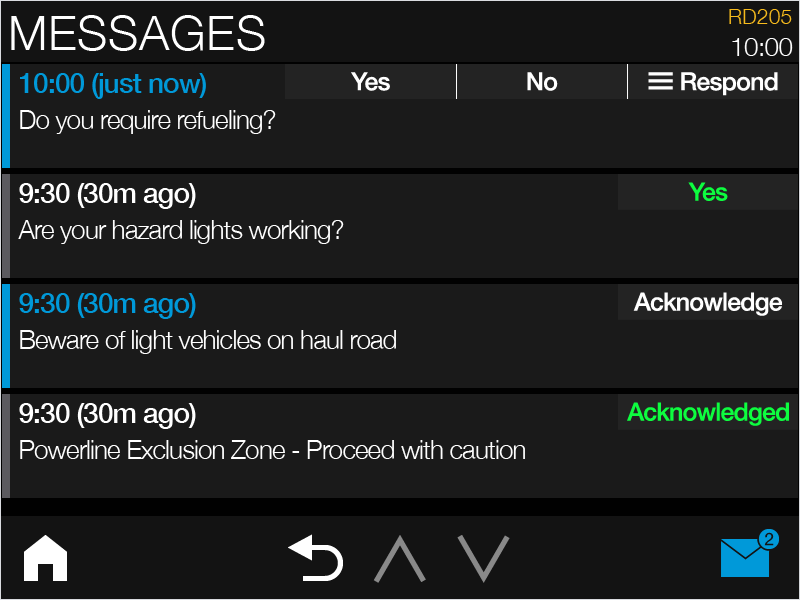
Select an unread message.
Unread messages display a blue highlight and headline text, with their response options shown in white text in the top-right corner of the message. Messages that have been read and replied to display a grey highlight and white headline text, with the selected response shown in green text in the top-right corner of the message.
-
Select a response from the top-right corner of the message; depending on the message, there might be a single response (such as the word "Acknowledge"), Yes or No options, or the option to choose from several responses, which will be shown with a list menu icon and brief text, such as the word "Respond". (The specific word shown is set by the person who sent the message.)
-
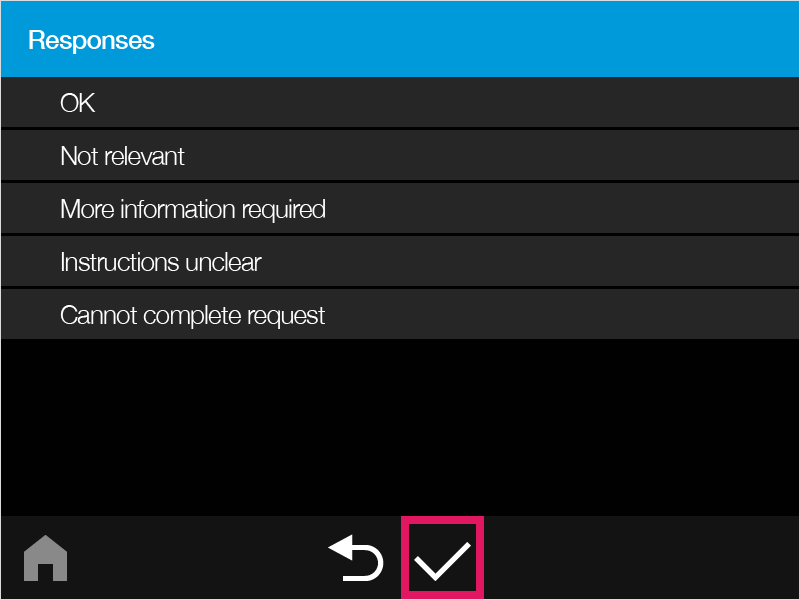
If you select the list option, a list of responses displays. Select a response as needed, then tap the tick icon at the bottom of the screen.
-
Alternatively, you might also be shown an option to type your own response; select this as needed.
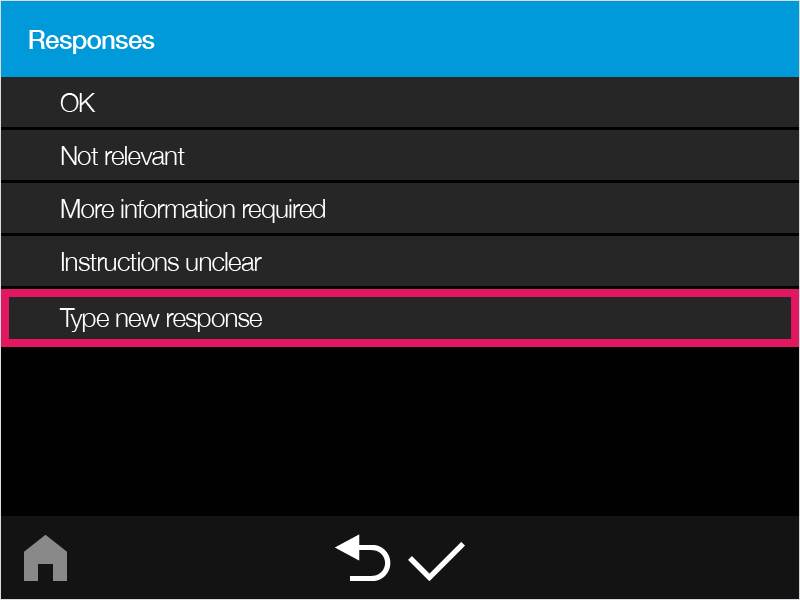
If you select this option, write out your response with the on-screen keyboard, then tap the tick icon at the bottom of the screen to save.
The on-screen keyboard cannot be used while the machine is in motion. See the Typing a reply while in motion section below for more information.
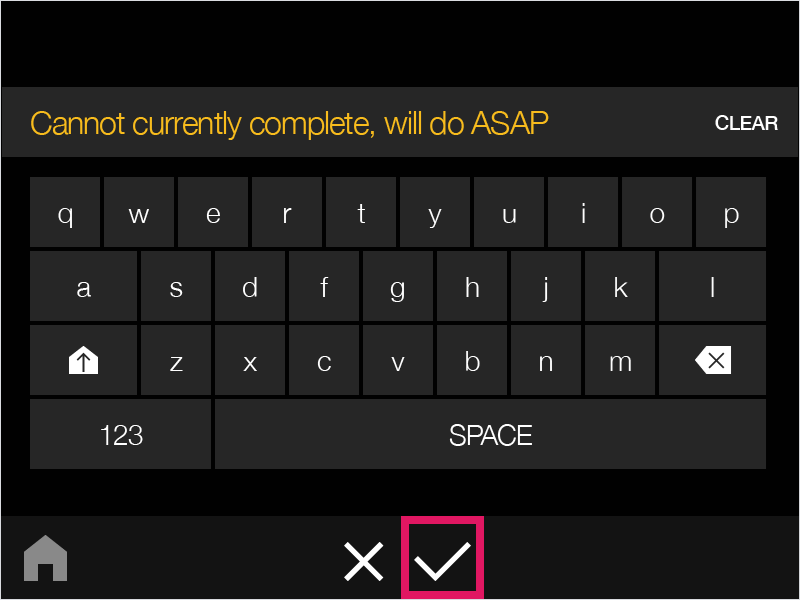
-
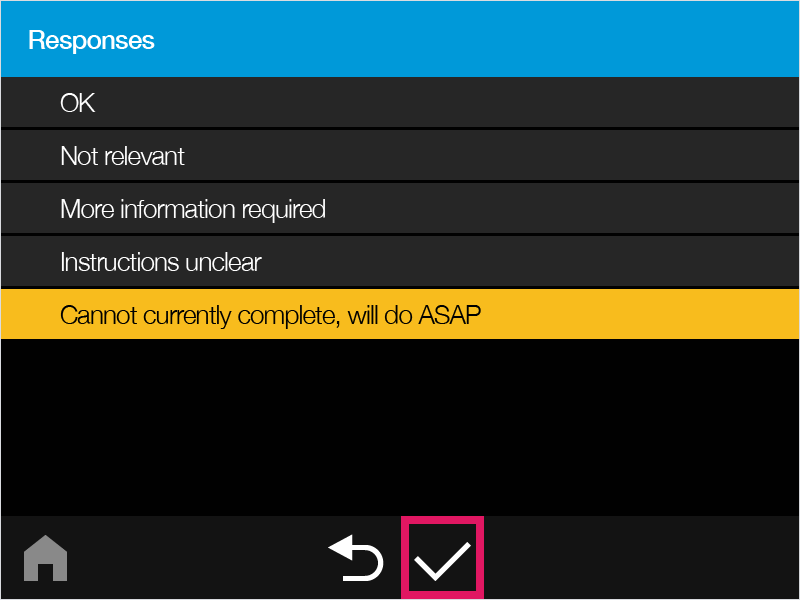
Your written response will appear as the highlighted option on the responses list; tap the tick icon to send this response.
Alternatively, to edit your written response, tap your written response again, make changes as needed, then save your changes (as shown in Step 4); tap the tick icon to send this response.
Typing a reply while in motion
For safety reasons, you cannot access the Message keyboard when your vehicle is in motion.
This feature is not configurable. It is not possible to type a message while the vehicle is in motion.
For example, if you receive a message while driving and select the Respond option from the banner notification, the Type new response option will be greyed out while the machine is in motion.
The message "Keyboard is disabled while driving, touch to respond later" will display instead. You can select this option to dismiss the message without responding, and return to the main screen.
If you dismiss the message, it will display as an outstanding message until you acknowledge it or send a reply. Outstanding messages can be accessed in the Messages app, or by selecting the Messages icon in the bottom-right corner of your screen.
Alternatively, as soon as you stop the machine the Type new response option will become available again.
Further, if you are typing a message and must move your vehicle before you can finish writing, the keyboard will automatically close and a save a draft of your message. After your machine has stopped moving, you can select this draft to continue writing.