Selecting a load group
The ability to select load groups can be disabled for SQS. Check with your site authority if this feature should be enabled.
To select a load group:
-
Select the Group card on the home screen.
-
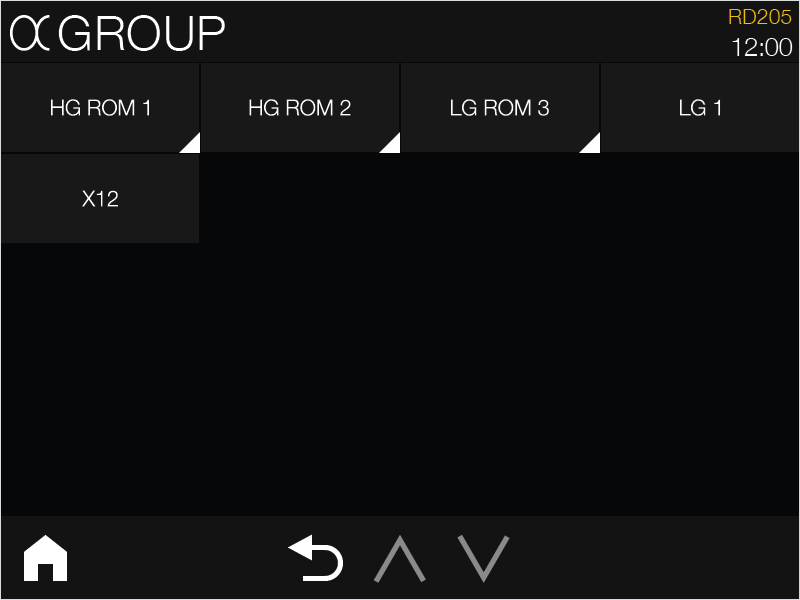
If group selection is enabled, the Group page will be displayed; select a load group as needed.
Further, some load groups display a white triangle in their bottom-right corner; these are folders. Selecting a folder opens a new page with a list of related load groups you can select.
You cannot select a folder as your load group, only the load group inside a folder. See the Folders section below for more information.
Folders
Folders group related load groups together for easier navigation and selection. Like a file browser on a computer, you can have sub-folders inside folders. However, you cannot select a folder as your vehicle's load group; only a single load group can be selected at a time.
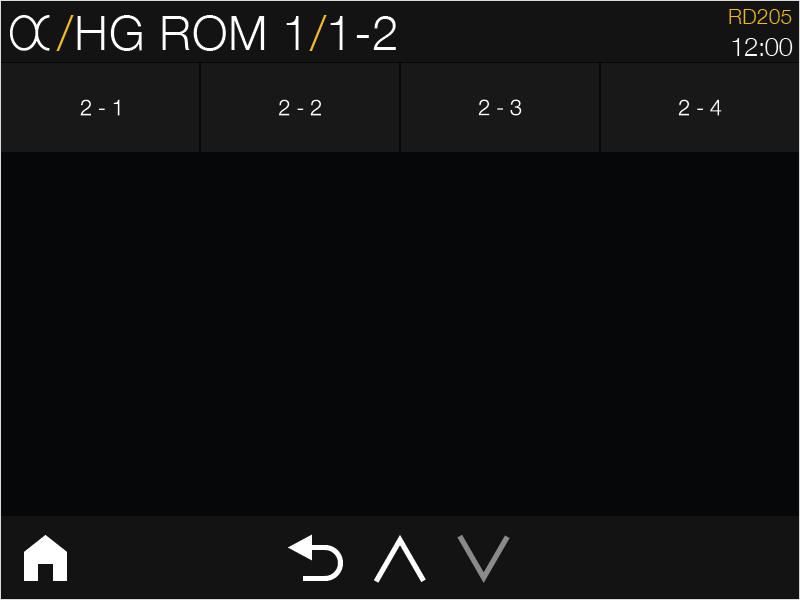
Selecting a folder displays its contents, selecting a folder within a folder displays this folder's contents, and so on. The file path of the folders you select is shown at the top of the SQS display. For example, in the screenshot below the operator has selected the "HG ROM 1" folder, then selected the "1-2" sub-folder.
You can navigate through folders by tapping one of the folder names at the top of the SQS display, or by selecting the Back button at the bottom of the screen. Alternatively, selecting the Load Groups icon in the top-left corner returns you to the main Groups page.
Further, you can navigate through multiple pages of load groups with the Up and Down buttons at the bottom of each page. However, if the buttons are greyed out, this means there are no additional pages to view. For example, in the screenshot below there is the option to navigate up to the page above the current page, but there are no pages below.
Selecting a load group returns you to the home screen, or you can select the Home icon in the bottom-right corner to return without making a selection.