
Introduction
This article provides a detailed explanation on how to set loading and unloading points on the traveling route.
By setting work points on the route, the results of loading and unloading can be counted using a mobile terminal.
*The counting method can be either manual or automatic.
*The automatic count is not a perfect complement to the user's usage.
Procedures and Explanation
Setting up a work point
-
Go to 【"1" Map Settings,】 then click 【"2" Workpoints】 from the menu, and select the 【"3" Loading or Unloading icon.】
-
Place the mouse on the approximate point you want to set on the map and click the left mouse button to create the point.
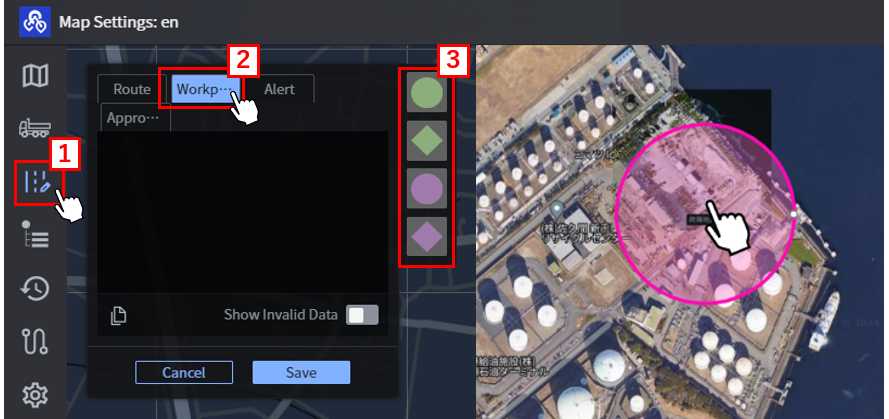
Type of workpoint
Green:Loading area Pink:Unloading area
Setting of loading
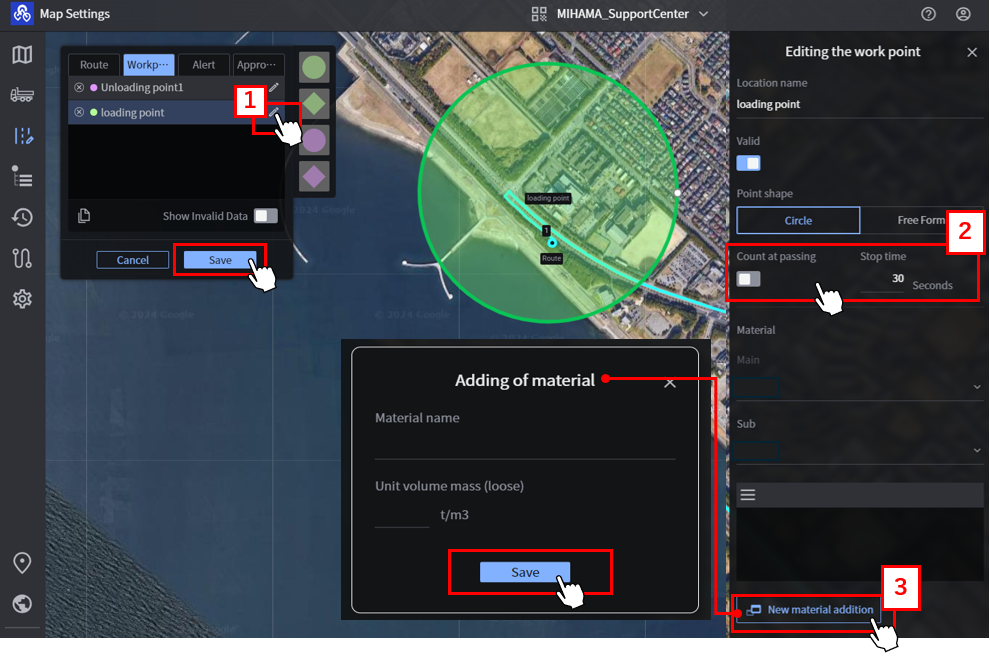
1. Click 【"1" Edit button,】 then 【“2" Select the counting method.】
"Count at Passing" is ON
*Stop time cannot be entered.
Even if the vehicle does not stop, the work history is counted as it enters and exits the set location.
"Count at Passing" is OFF
If stop time is set, the work history is counted by entering a set location, stopping, and exiting the location after the set stop time has passed.
-
Select the main material to be discharged from the loading point.
*The default is the material registered at the time of site creation.
-
To respond to changes in material during construction, register other soil types of specific gravity by clicking 【"3" New material addition】 in the sub menu.
-
Save the settings.
Setting of unloading
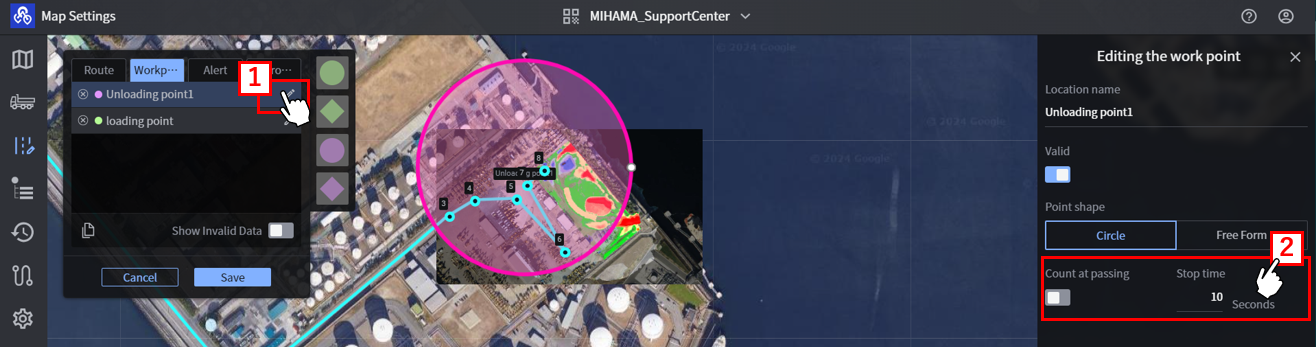
-
Click 【"1" Edit button,】 then 【“2" Select the counting method.】
"Count at Passing" is ON
*Stop time cannot be entered.
Even if the vehicle does not stop, the work history is counted as it enters and exits the set location.
"Count at Passing" is OFF
If stop time is set, the work history is counted by entering a set location, stopping, and exiting the location after the set stop time has passed.
-
Save the settings.
-
Confirm that the loading and unloading points on the route are correct.
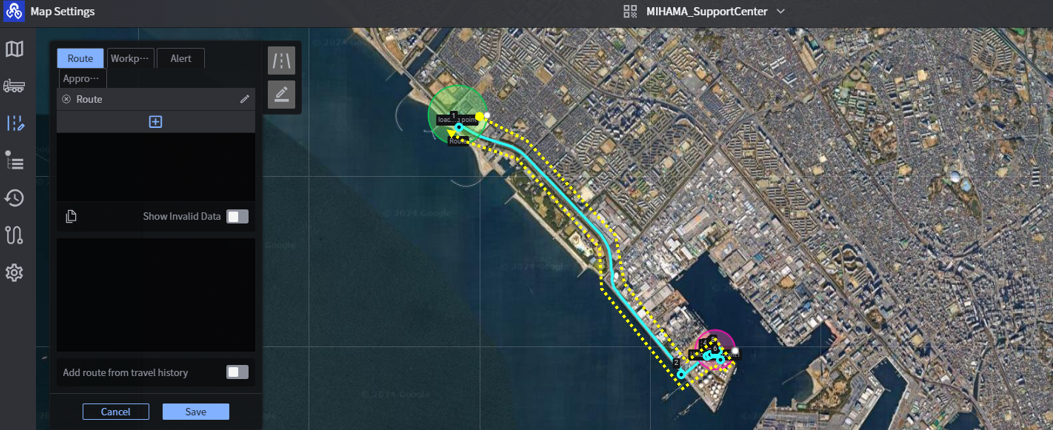
Supplementation
Counting (work history) aggregation method
Automatic counting
Dump truck (Role of the hauler)
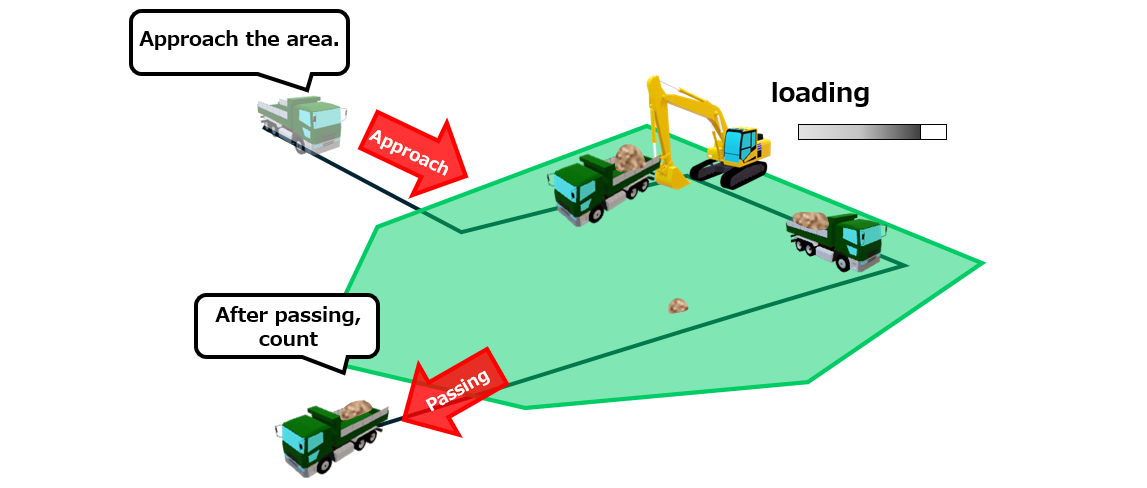
When counting at passingCounting is performed at the timing of entering and exiting an area.
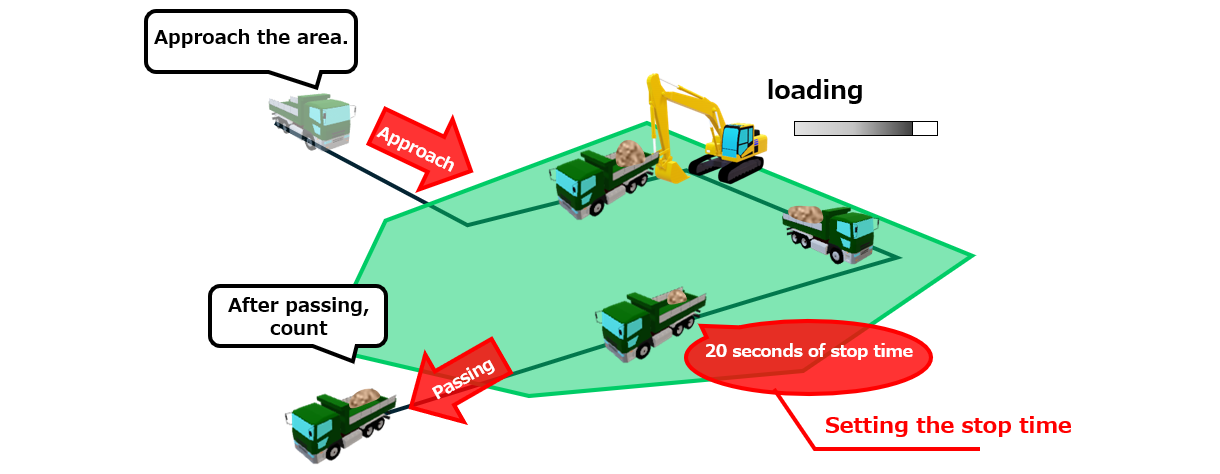
When settings of stop timing
Counting is performed after the time when the equipment stops after entering the area.
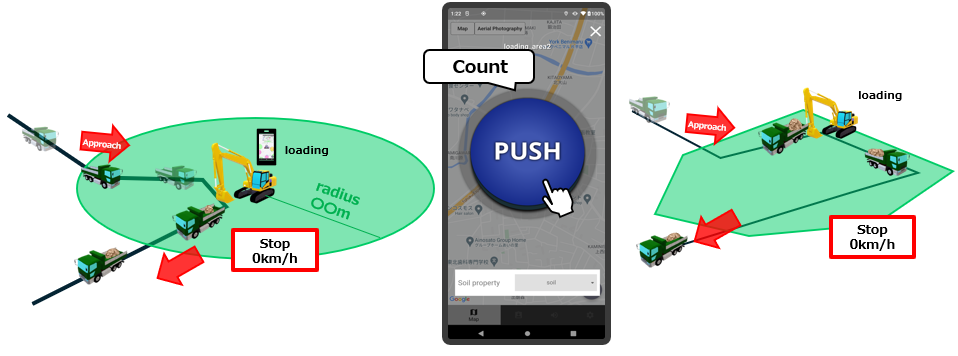
Manual counting(mobile phone)
Dump truck (Role of the hauler)
Counting is performed by tapping the “PUSH” button displayed on the mobile terminal after stopping at the work location.
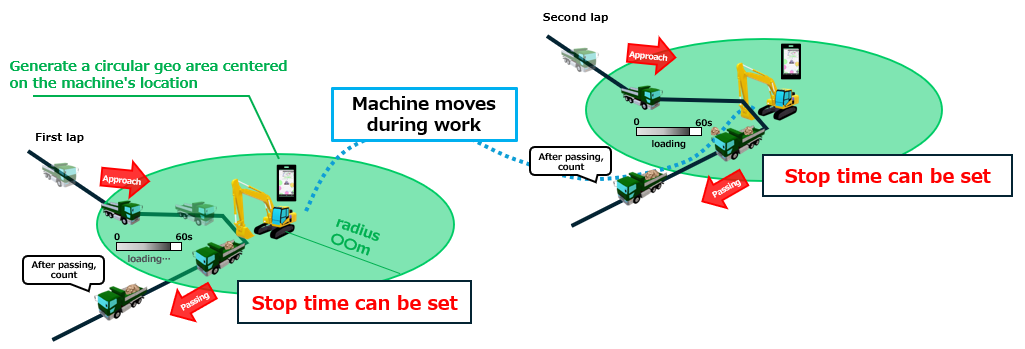
In the case of setting centered on the position of machineSince the location of the machine is the center of the location, the count is performed even if the construction site is moved.
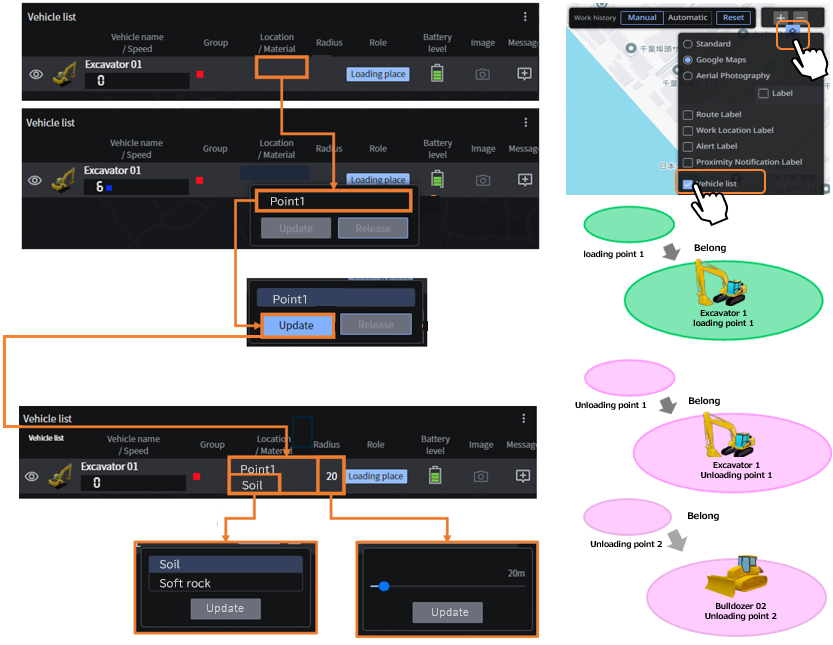
How to set up a geocircle(WorkPlace) centered on the position of machines(WEB)
Select machines from the vehicle roll in the vehicle list displayed in the real-time viewer and click on the location/soil type.
Select the work place (loading area/unloading area) you wish to set and update, and the selected machines will belong to the target work place and a geocircle(work place) will be created.
The size (radius) of the judgment area can be adjusted.
If necessary, you can change the pre-defined soil type.
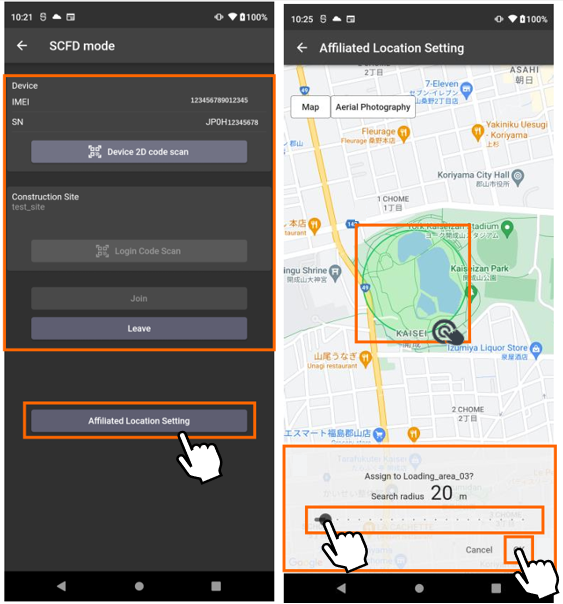
How to set up a geocircle(WorkPlace) centered on the position of machines(Fleet Device)※1
*A mobile device with a camera and the Fleet application are required for the first login.
After logging in to the system in dedicated device mode, tap Set Affiliation location.
Tap and hold the loading or unloading area you wish to set, determine the radius of the center of the machine, and tap OK.
The machines will belong to the set area, and the area it belongs to will change to a blue mark.
Logging out of the dedicated device resets the affiliation to the work place.
You can change the radius and cancel the point by long-pressing and tapping the belonging place again.
How to set up a geocircle(WorkPlace) centered on the position of machines(mobile phone)
Tap and hold the loading or unloading area you wish to set, determine the radius of the center of the machine, and tap OK.
The machine will belong to the area you set, and the area it belongs to will turn blue.
The set radius and location name will be displayed around the machine icon.
You can change the radius and cancel the location by tapping and holding the location you belong to again.
In the case of the mobile application, the affiliation information from the last login will be carried over to the next login.