
Introduction
This article provides a detailed explanation on how to check the loading results of payload construction equipment.
By registering 3DMG construction equipment and IMC construction equipment as payload machine and linking them to payload, the loading date and time and the amount of soil loaded for each vehicle can be displayed, allowing for management of the amount of soil loaded.
This function is for users who use payload construction equipment linkage, so users who only use operation management using mobile terminals cannot use this function.
Procedures and Explanation
Displaying payload loading results
-
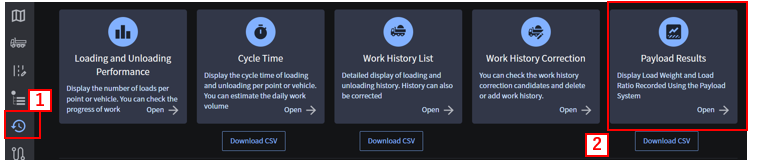
Display the 【“1” Results screen】 and click 【“2” Payload Results.】
-
Select 【“1” Date】 to display the results of the target payload.
-
You can narrow down the displayed results by selecting 【“2” Time, Vehicle, and Machine type-Model-Machine Number.】
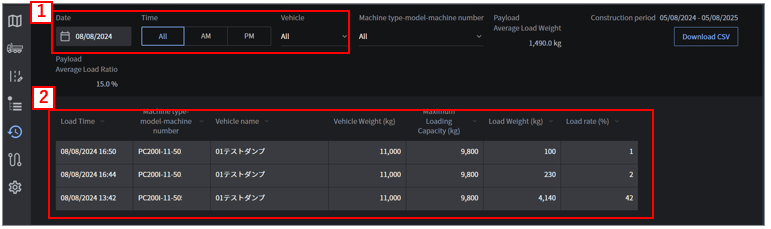
Output of payload loading results
-
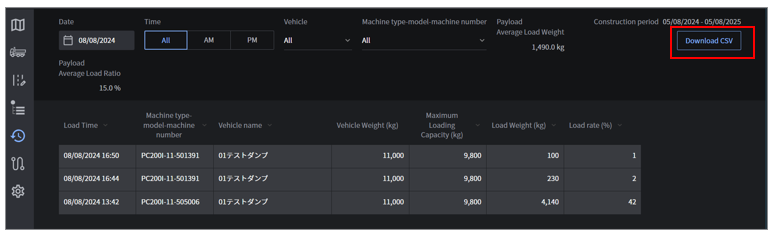
With the loading results displayed, click “Download CSV”.
-
Specify the 【"1" Output Period (Date or All Entries)】, and click 【"2" Download】 to download the results to your PC.
Supplementation
Breakdown of CSV file
The following information is included in the output data (csv.)
Loading date, loading time, loading time (milliseconds), time zone, model, vehicle name,
vehicle weight (kg), maximum loading capacity (kg), loading weight (kg), loading rate (%)
Output file name in case of date: “payload-{construction site ID}-date.csv"
Output file name for all entries: “payload-{construction site ID}.csv"

*A millisecond is one thousandth of a second.
Since internal calculations are performed in milliseconds, they are output as items, but if you do not need them, you can adjust them by hiding them.