Introduction
This article provides a detailed explanation on how to pre-register each heavy machinery operating in the loading and unloading areas in order to obtain information from them via mobile terminals.
By registering the detailed information of each machinery on the web before logging in to the mobile terminal, you can use more functions provided by the application and manage the site.
Procedures and Explanation
-
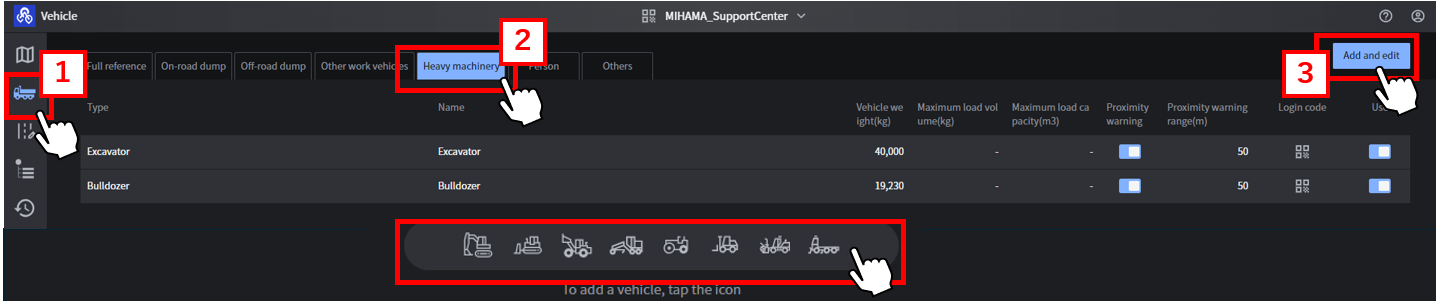
Select 【“1” Vehicle Settings】 then click 【“2” Heavy machinery.】
-
Click on 【“3” Add and edit】 and select the icon of the desired heavy machinery.
-
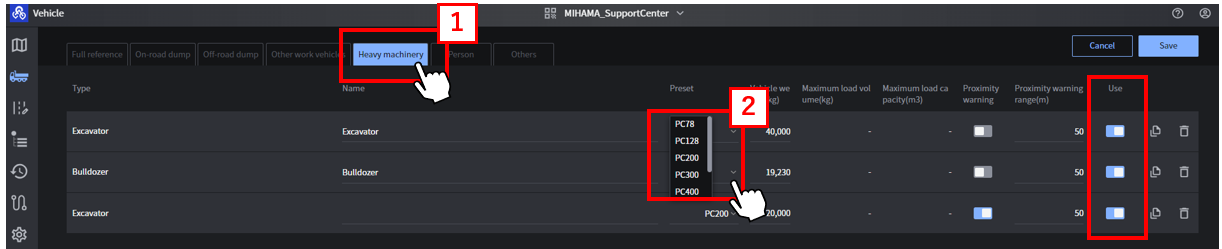
Click 【“1” Heavy machinery,】 select 【“2” preset】 as a reference value, and enter various vehicle information.
When a preset is selected, the heavy machinery information is automatically entered, so change it as necessary.
-
Turn on “Use” for heavy machinery to be used in the site (to be displayed on the mobile terminal).*The registered machinery can be used by selecting the vehicle roll [load and unload] in the mobile terminal.How to edit and deleteEdit1. Select 【“1” Vehicle Settings】 then click 【“2” Heavy machinery.】
-
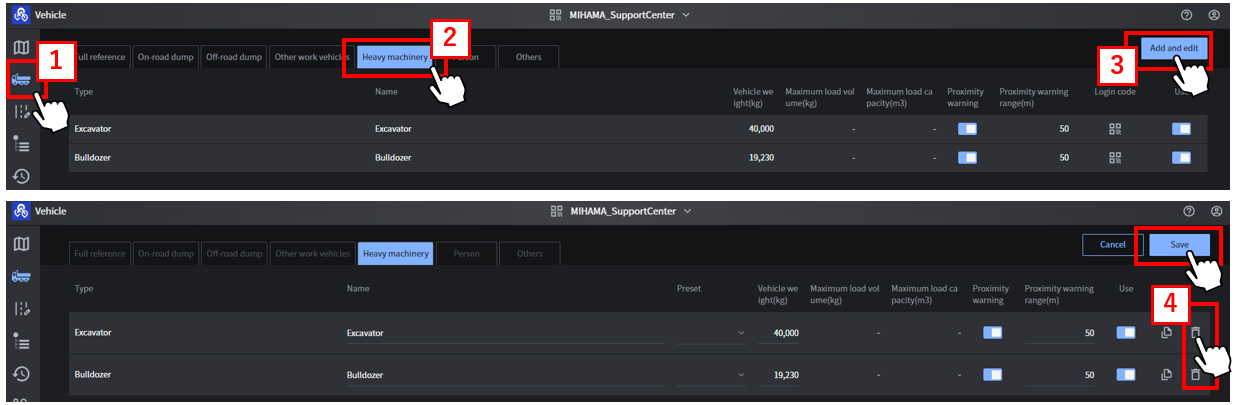
Click on 【“3” Add and edit】 and to edit each heavy equipment.
Delete
-
Select 【“1” Vehicle Settings】, 【“2” Heavy machinery】 and 【“3” Add and edit.】 Then click the 【"4" trash icon】 of the target machine.
Supplementation
Batch registration by CSV
-
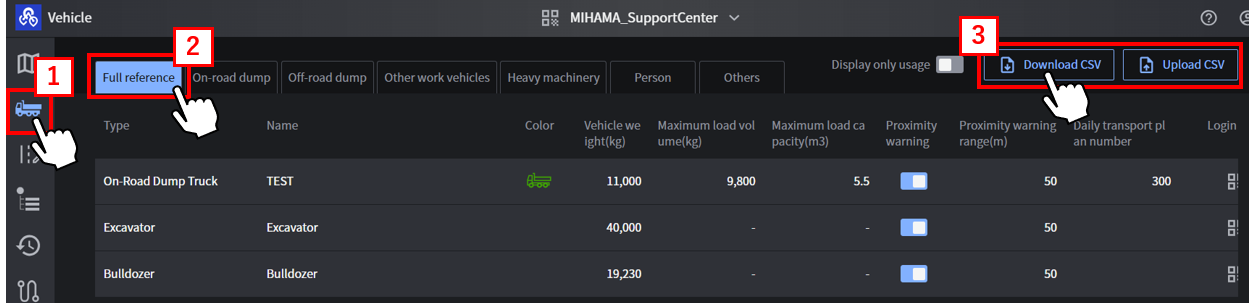
Select 【“1” Vehicle Settings】 then click 【“2” Full reference.】
-
Click 【“3” Download CSV.】
Open the downloaded file, add more lines to the dump file to be used if necessary, and then upload the file.
Example of CSV format

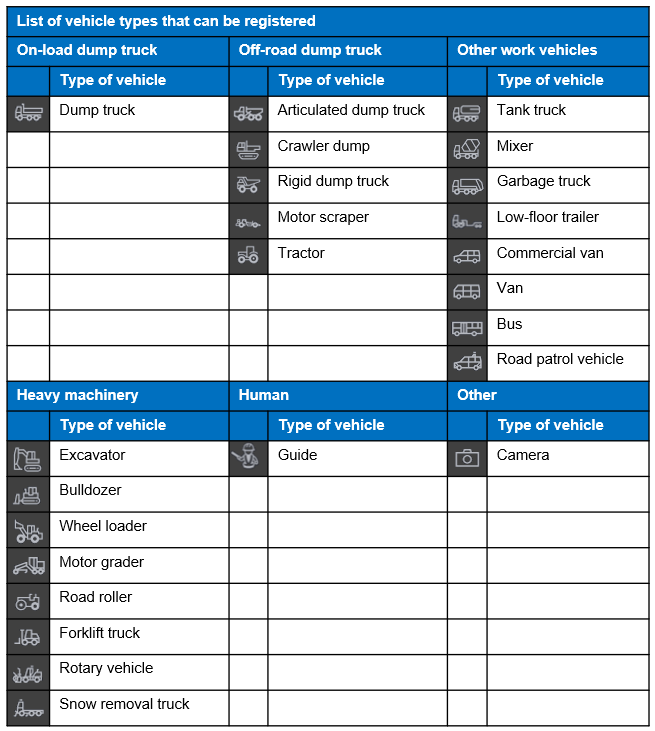
Vehicle types available for registration as of July 2024