Introduction
This article provides a detailed explanation on how to preset for notifying when vehicles approach the construction equipment working at the loading/unloading point or in the area.
By being notified of the approaching vehicle, it becomes easier for the operator of the construction equipment who have the mobile terminal to organize the work content.
*The notification point for approaching loading is for vehicles logged in with the vehicle roll “Loading area”.
*Unloading approach notification point is for vehicles logged in to the vehicle role “Unloading area”.
Procedures and Explanation
-
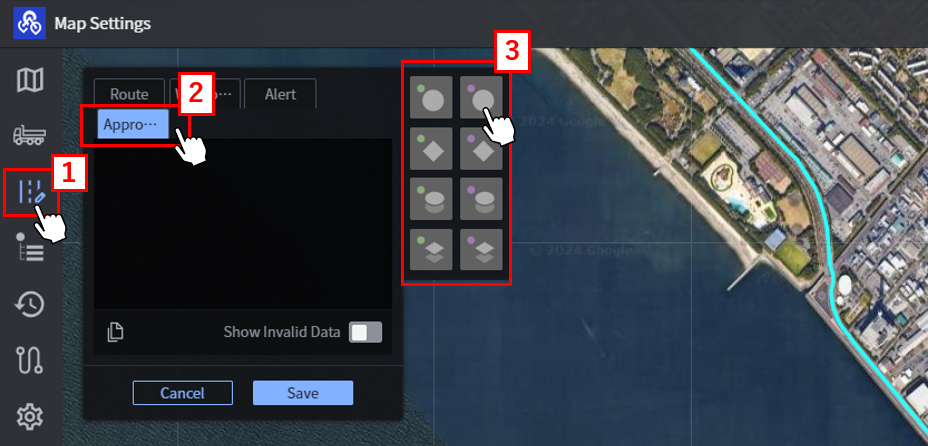
Display 【“1” Map Settings screen】 and click 【“2” Approaching Notification.】
-
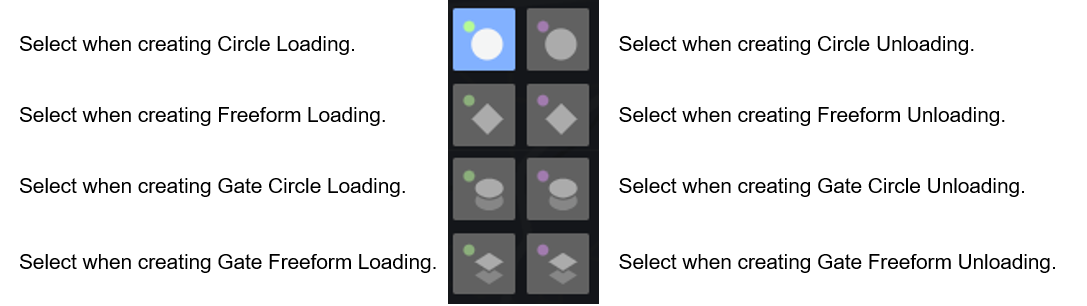
【"3" Select the type of notification point】 you wish to create, return to the map, and click on the point where you wish to send the notification.
Type of notification point
Left: Loading area Right: Unloading area
-
After setting the point, click the 【“1” Edit button】 displayed in the “Approaching Notification” field to set the name, enable the notification function, set the message, and save the settings.
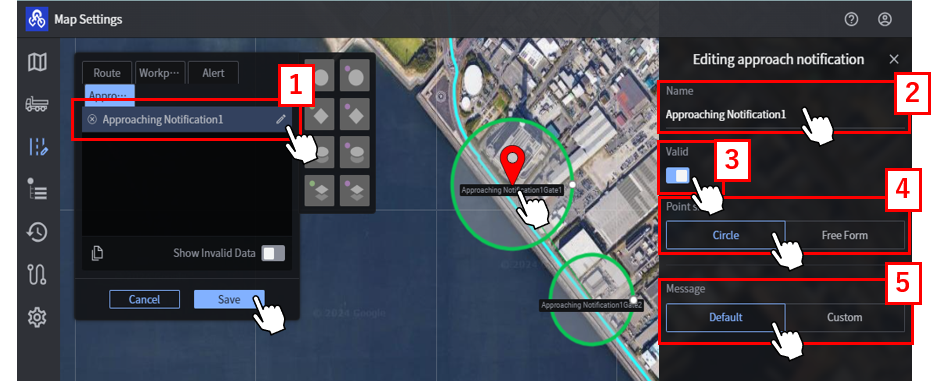
Edit Notification
・【"2" Name】
Enter the “Name” and it will be displayed on the map screen.
・【”3” Valid/Invalid】
You can choose to enable or disable a location.
If disabled, the point will be hidden from the administration screen and mobile apps.
・【"4"Choose the point shape】
Change the shape of the point to Circle/Freeform.
・ 【“5” Message Settings】
Click on “Custom” and enter your message, which will be reflected in the readout.
The message can be freely edited.
Supplementation
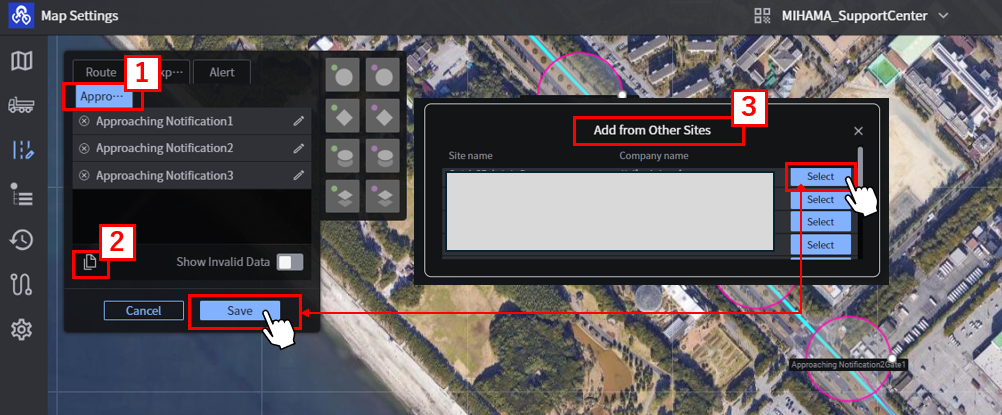
Duplication of existing notification points
If you have already used Smart Construction Fleet and have an alert location set up, you can duplicate it.
-
Display the map settings screen and click on 【“1“ Approaching Notification.】
-
Click on 【“2” copy mark】 to display 【"3" Add from Other Sites.】
*The sites where your account is registered as “Site Supervisor” will be listed.
-
Select the job site you want to copy from, and click “Save” after confirming the notification.