
Start PPK logging
-
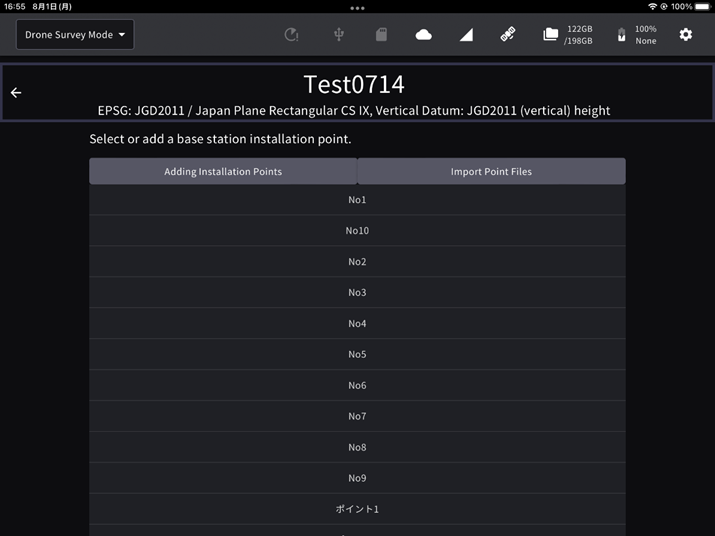
Select the point of EdgeBox from the point list.
-
Check the point data and the number of satellites used and tap the "Start PPK Logging" button.
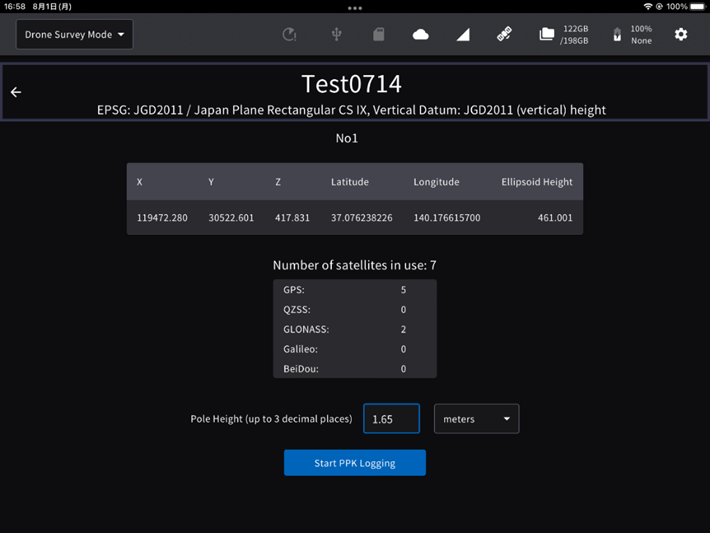
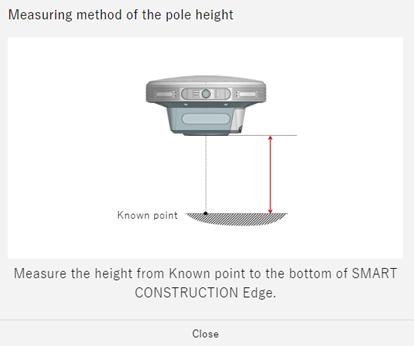
If you have set points manually or imported from a localisation file, you need to enter a pole height in advance.
Make sure that the PPK logging has started before you start flying the drone.
Wait 3 min. to stabilize GNSS reception after starting PPK logging and then, 2 min. after turning on the drone.
End PPK logging
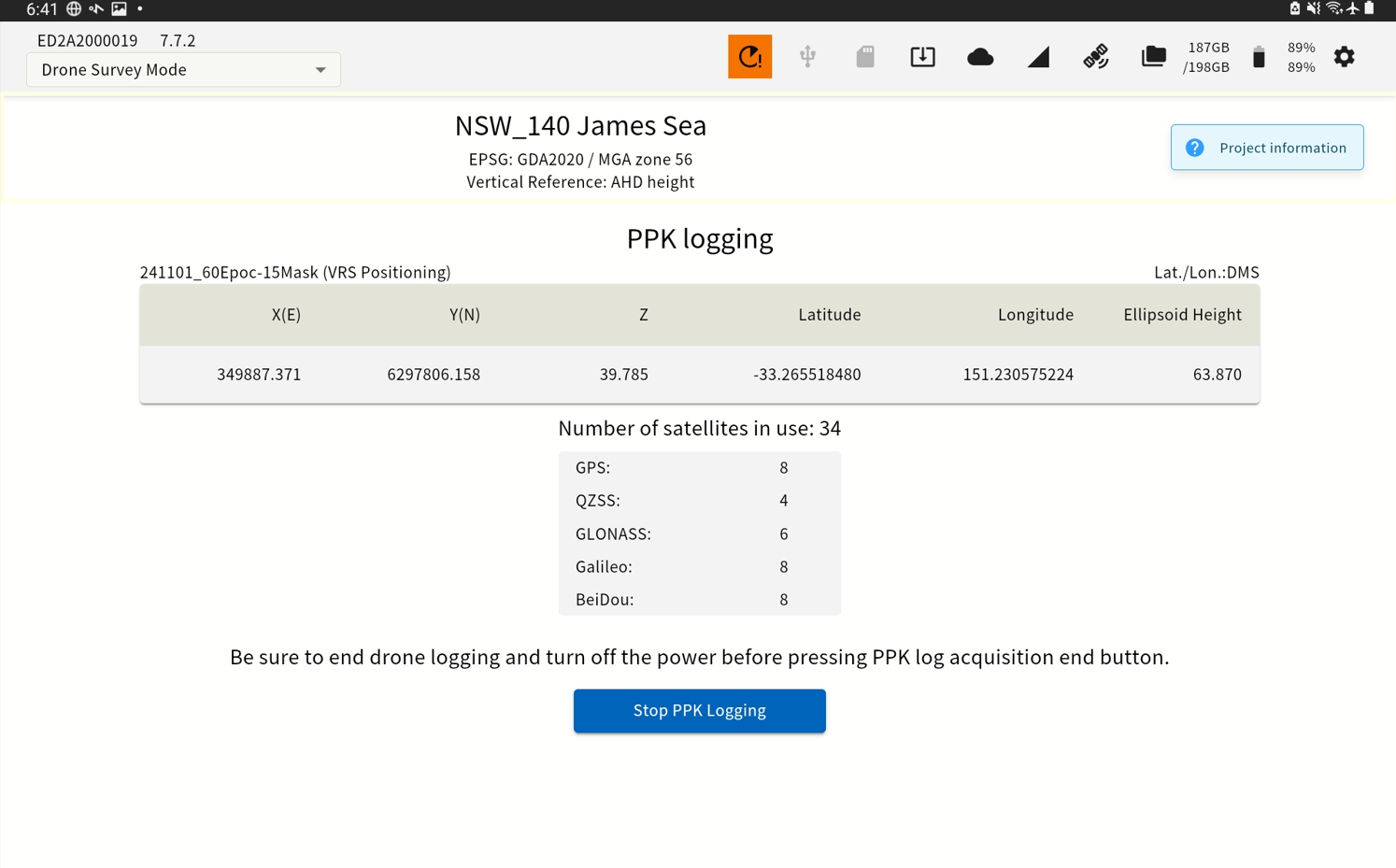
Make sure that your drone has completed its flight and that the drone and controller are powered off before you end PPK logging. This may adversely affect the accuracy of the PPK.
-
Tap the "PPK Logging Complete" button.
-
If GNSS reception deteriorates during the logging period, an error message may be displayed.
Please note that this may affect the accuracy of the PPK.