
From version 9 onwards, all internet communication functions can be used with a WiFi dongle without a SIM card.
This means Edge can connect to a WiFi network Including Starlink
※The recommended dongle model numbers as follows:
■ Archer T2U Nano(Highly recommended as internet communication is fast)
https://www.tp-link.com/au/home-networking/usb-adapter/archer-t2u-nano/
https://www.amazon.com.au/TP-Link-Archer-T2U-Nano-Wireless/dp/B07KRCW6LZ?th=1
■ TL-WN725N
https://www.amazon.com.au/TP-Link-TL-WN725N-Wireless-Network-Adapter/dp/B008IFXQFU?th=1
https://www.tp-link.com/au/home-networking/usb-adapter/tl-wn725n/
When performing RTK Broadcasting or PPK Loggin.
REMOVE THE USB FROM THE USB PORT
As this will cause GNSS interference from the USB 3.0 port
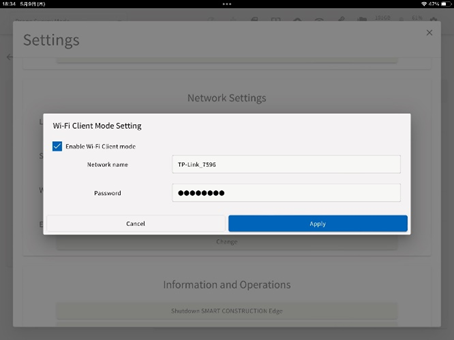
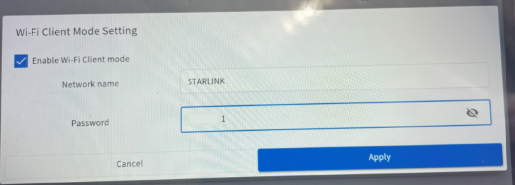
1. Tap the Add WI-FI Client Mode Settings icon in the Edge2 Settings menu and enter the SSID and password.
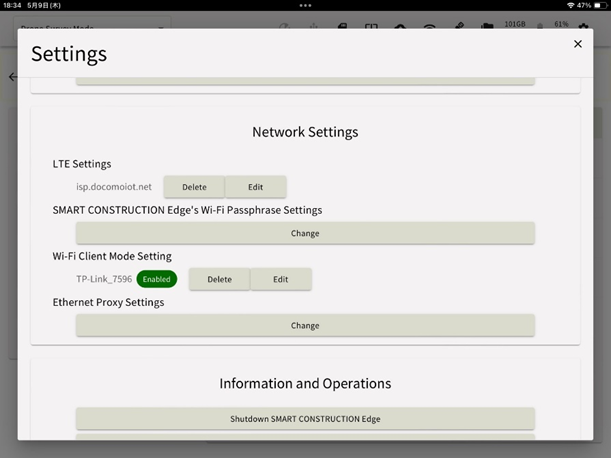
2. Confirm that the settings have been enabled
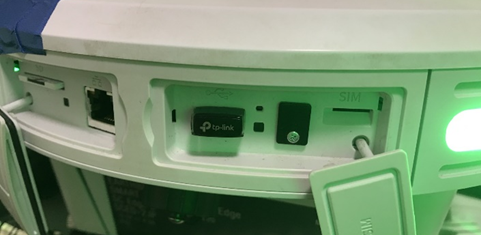
WIFI dongle into Edge 2 and wait for 30sec, after that make sure internet connection.
If you are having problems with your internet connection, please restart Edge 2.
When performing RTK Broadcasting or PPK Loggin.
REMOVE THE USB FROM THE USB PORT
As this will cause GNSS interference from the USB 3.0 port
Due to the Tp-Link dongle & Edge environment the Download & Upload speeds are roughly halv