Charge batteries
Make sure to charge the batteries fully before using SMART CONSTRUCTION Edge. The batteries can be charged while installed in the Edge.
-
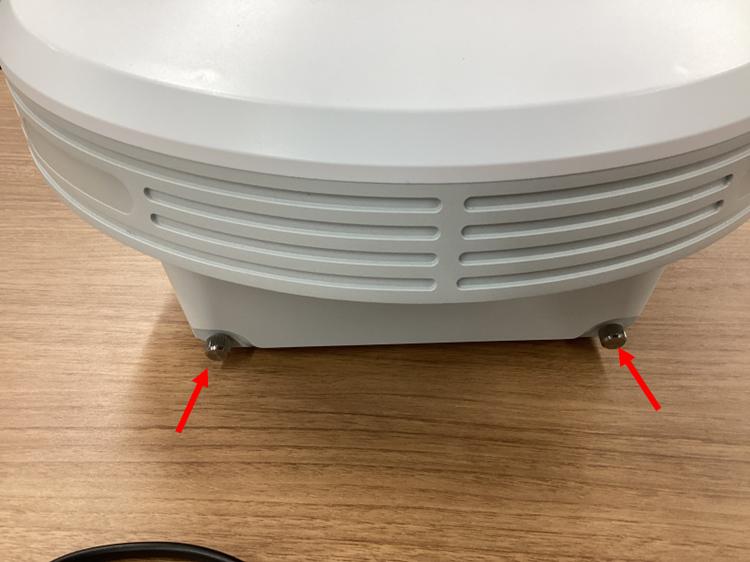
If you would like to remove the batteries first remove 2 screws and open the rid to install the batteries.
-
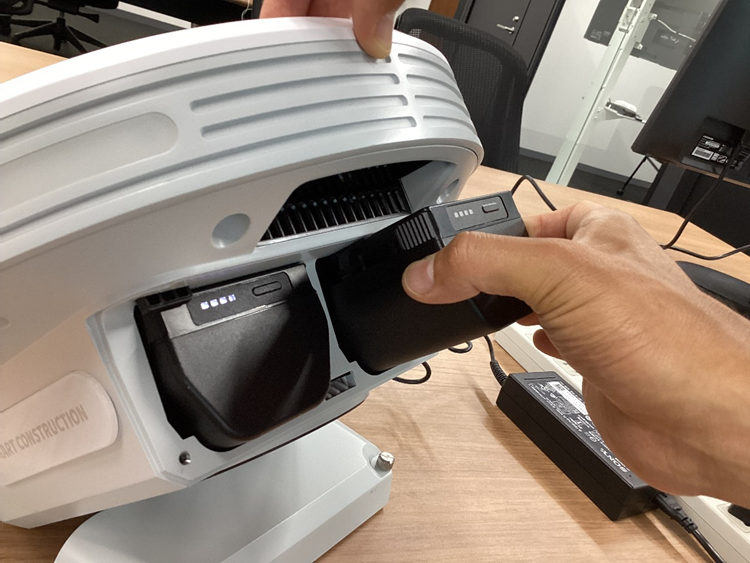
Slide the batteries into the slot.
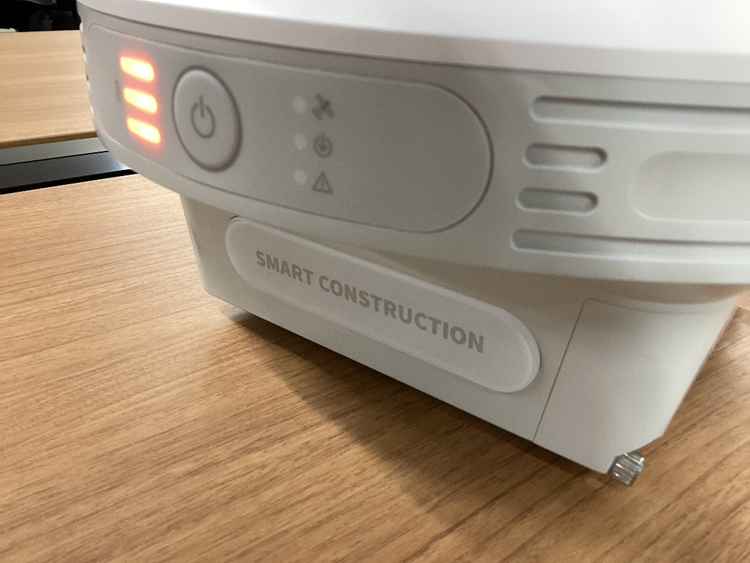
Charge fully until Status LED turns all solid. (Orange – Charging, Green – discharging)
Turn on EdgeBox
-
Press and hold the power button on the EdgeBox for about 4 seconds.
The Status LED on the unit will flash in green while the main unit is running, and the Status LED will turn green when the starting process has completed.
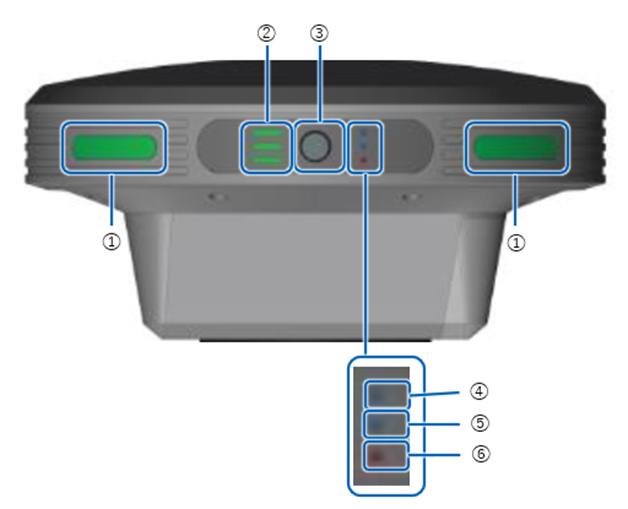
① Status LED
② Battery Indicator
③ Power Button
④ GNSS reception status LED
⑤ PPK logging status LED
⑥ Error / Update status LED
Connect EdgeBox to a Tablet or Laptop
Verify that the Status LED turns green and connect the tablet (iPad as a default option) to the EdgeBox via Wi-Fi.
-
Tap “Wi-Fi” and select the EdgeBox SSID (Serial Number) from the available access point list; Example:ED2A*******
-
Enter your EdgeBox password (default : edge2-ap) in the password field.
-
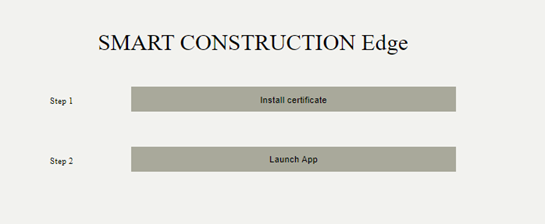
Use MS Edge or Chrome to access SC Edge User Interface with the following URL: https://scedge.local
-
For Android you may have to allow access to the application by going to “Advance Setting” then “Allow”.
-
Press Launch App