
When selecting a surface file to be used for control in an actual jobsite (TIN data, Plane Surface file, and Alignment file), perform the following procedure.
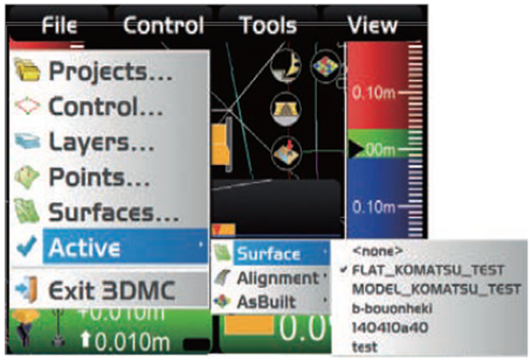
1. Turn the control box on, wait for it to power up, then press the ON/OFF button again to get to the main menu.
2. Press “File” menu, then press “Active” and “Surface”.
3. Then select the file you want to make active.
Notes:
-
You cannot use the surface file by simply importing it onto the control box. You must perform the above procedure to activate it.
-
If the surface file is not displayed when performing the above procedure, it has not been imported properly. See: How to import a Project File.
-
When displaying both TIN data and alignment file and using them for control, select TIN data from “Surface”, and then select the alignment file from “Alignment”.
How to Activate Alignment File
When selecting an alignment file to be used on a jobsite, perform the following procedure.
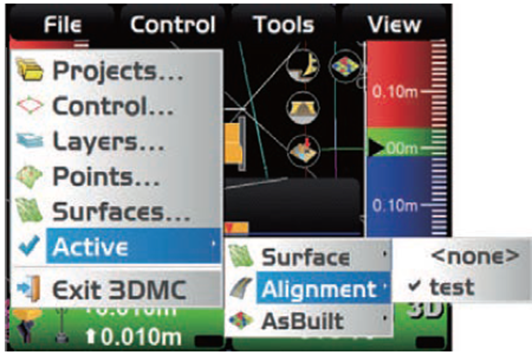
1. Turn the control box on, wait for it to power up, then press the ON/OFF button again to get to the main menu.
2. Press “File”, then press “Active” and “Alignment”.
3. Then select the alignment file to activate it.
Notes:
-
By setting an alignment file from “Surface” or “Alignment” to an active surface, you can use the alignment file on the steering display.
-
When you select the Alignment file from “Alignment”, 3DMC recognizes it as the Surface files for the Steer Indication.
-
When the same Surface files are selected both on “Surface” and “Alignment”, if you cancel the selection on “Surface”, the selection on “Alignment” will also be cancelled.
How to Activate As Built View
When selecting an active as-built view, perform the following procedure. (You can select by shortcut on the main window as well.)
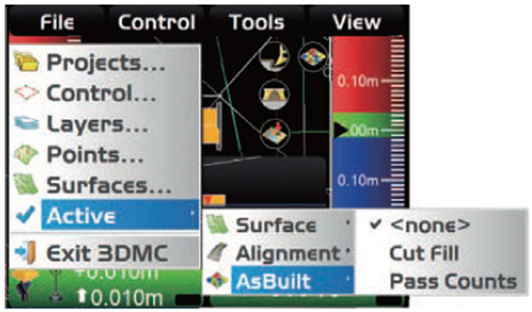
1. Turn the control box on, wait for it to power up, then press the ON/OFF button again to get to the main menu.
2. Press “File”, then press “Active” and “AsBuilt”.
3. Then select an as-built control screen to activate it.
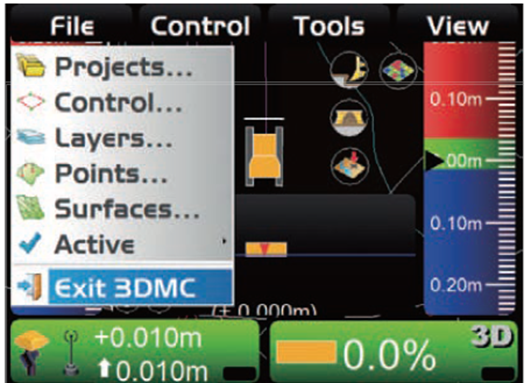
4. On “File” menu, press “Exit 3DMC” to exit the main menu window and return to the main control view screen.