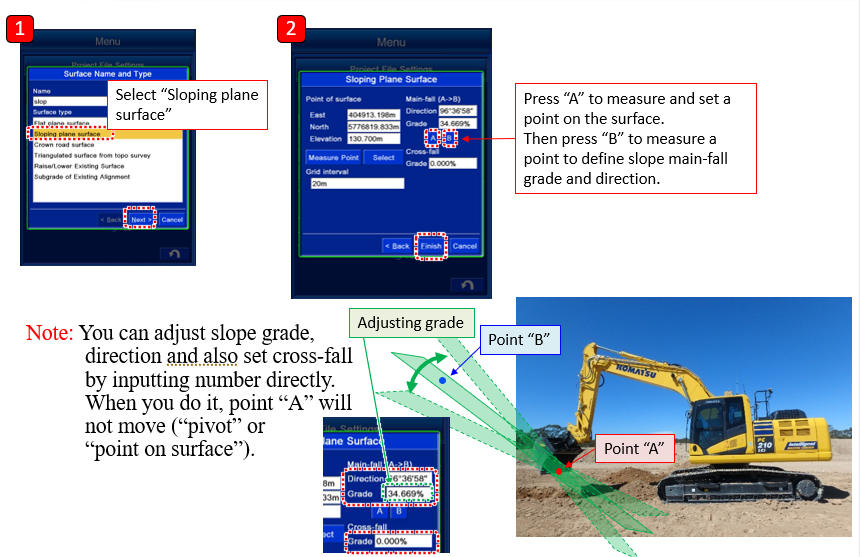
Also known as: Quick Surface Creation (Slope Plane)
-
Place bucket in position where slope plane is required
-
Go to Project File Settings
-
Press Surfaces
-
Create New surface and select Sloping plane surface, input new surface name
-
Select A to measure and set a point in the surface.
-
Move bucket to a second point and select B to define the slope main-fall grade and direction.
-
Press Finish. Machine will measure the coordinates of the bucket positions and create a sloped surface expanding out from these points.
-
Select to set the new surface as Active and return to the main screen
-
Design surface has now been created and can be used.
Status of the design data is indicated by the following colours:
-
Finished surface = Yellow/Green
-
Target surface = White