
-
From the Homescreen, tap the Time Log button.
From any other screen in the app, tap the

-
The Time Log screen opens. Tap to open the Additional Options menu in the lower right corner.
-
The Additional Options menu opens. Tap the Quick Actions option to continue.
-
The Quick Actions screen opens, displaying the following details and offering the following options:
-
Date: This is the date under which the time log adjustments will appear.
-
Exit Quick Actions: Tap this "X" to close out the dialogue without making any adjustments.
-
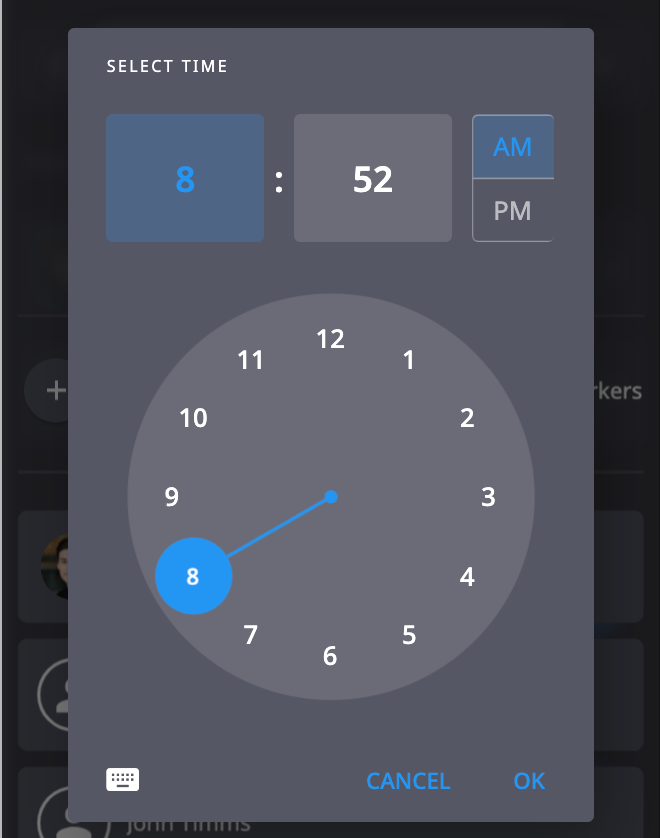
Clock In/Out Time: Tap these fields to enter times for Clock In/Out.
-
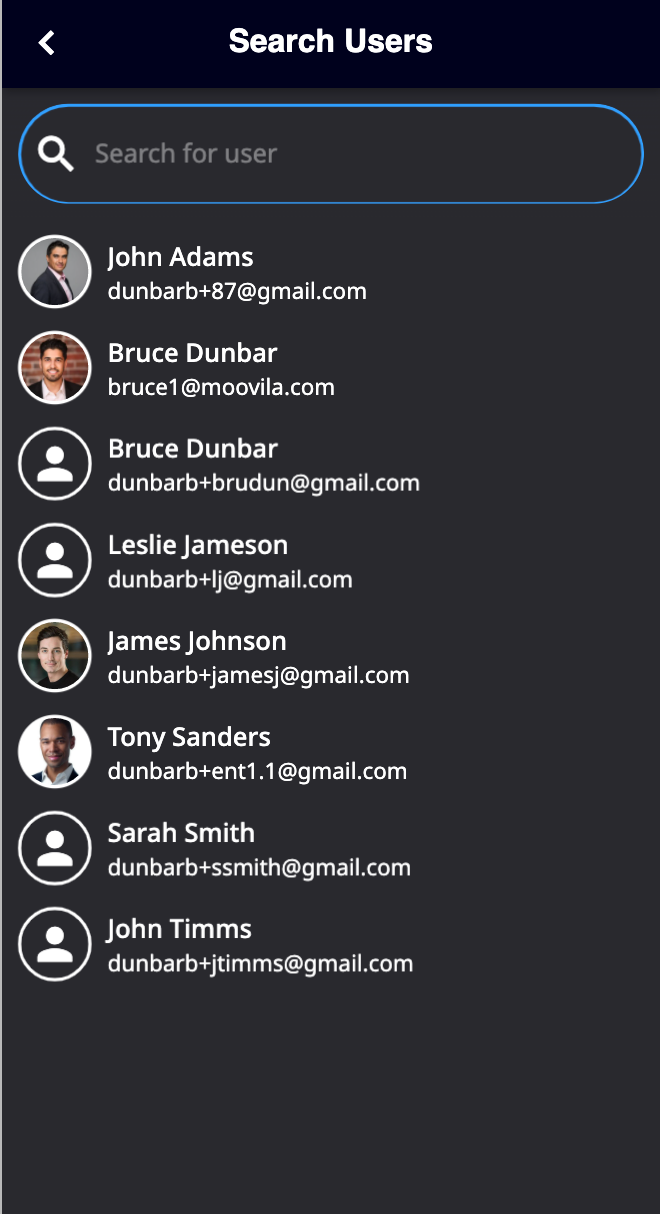
Add Worker: Tap to select workers from a list of available options for inclusion in the time log adjustment.
-
Add Workers from the Prior Day: Tap to add all workers with time entries from the previous day to the adjustment.
-
Worker Count: Displays the total number of workers who will be impacted by this adjustment.
-
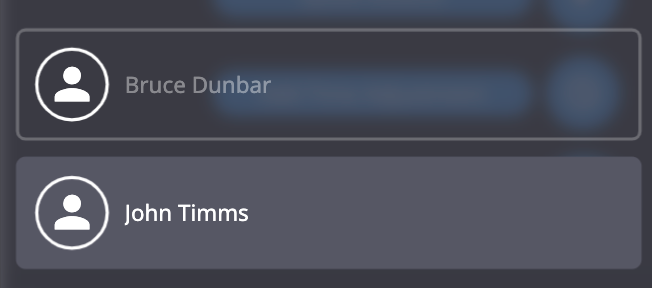
Affected Workers: Lists the workers who will be impacted by this adjustment. Tap on anyone in this listing to deselect them. Deselected workers appear as greyed out entries (Bruce Dunbar is deselected in the example below).
-
Proceed: Tap to move forward with the adjustments.
-
Cancel: Tap to cancel the adjustments.
-