On This Page:
You can create, edit, and view activities, delays, and operators before, during, and after a shift with Timelines in GoLine.
You can also view the utilisation of a machine, but this cannot be edited.
For example, you can add or remove delays from a vehicle's timeline to more accurately record what occurred during a shift, and change operators to record who actually worked on a specific vehicle during a shift.
The Timelines app is used to record the work completed and people working during a shift; it is not used to plan shifts or assign crews.
Viewing Timelines
To view one or more timelines:
-
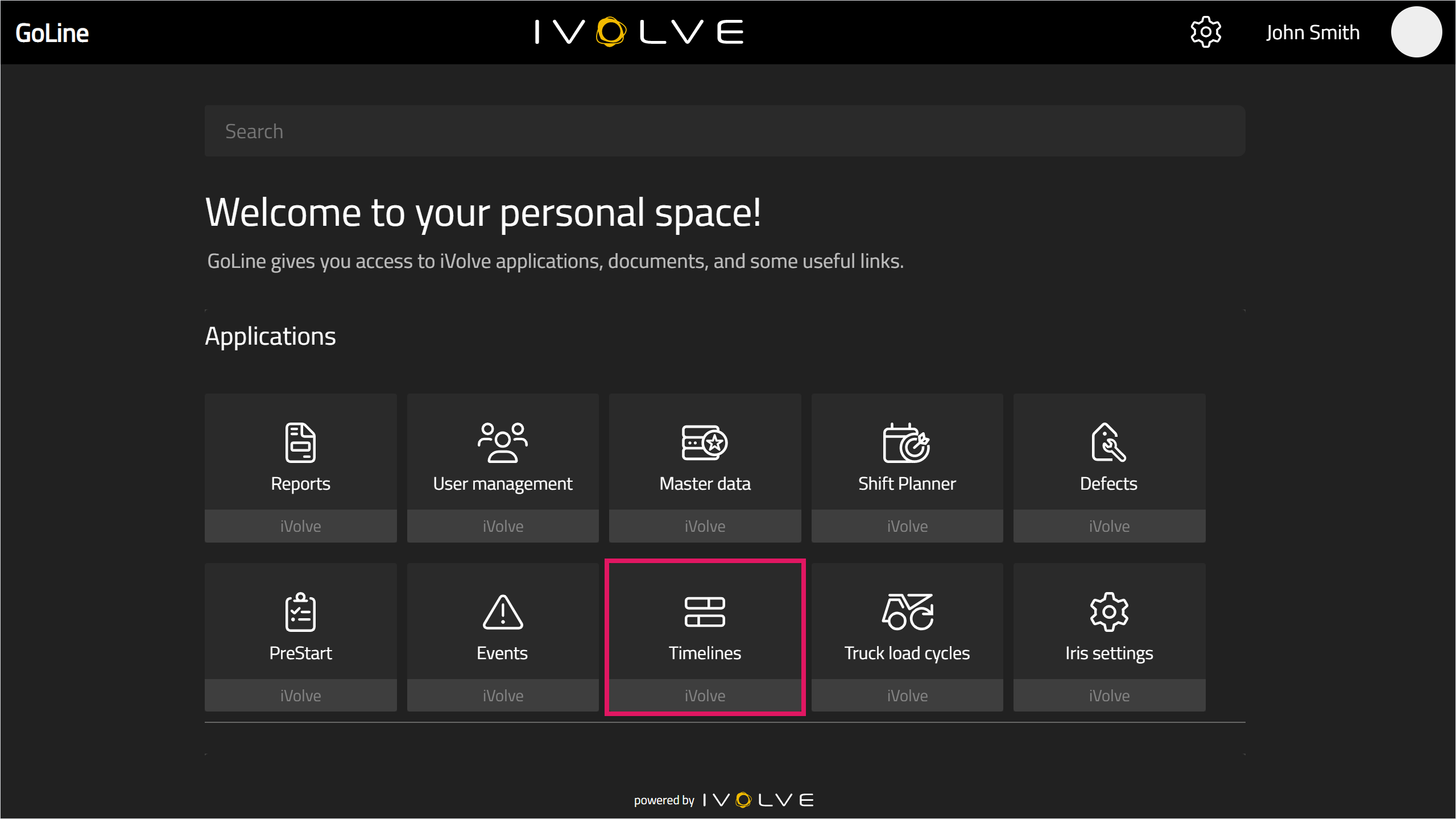
Click Timelines on the GoLine homepage.
-
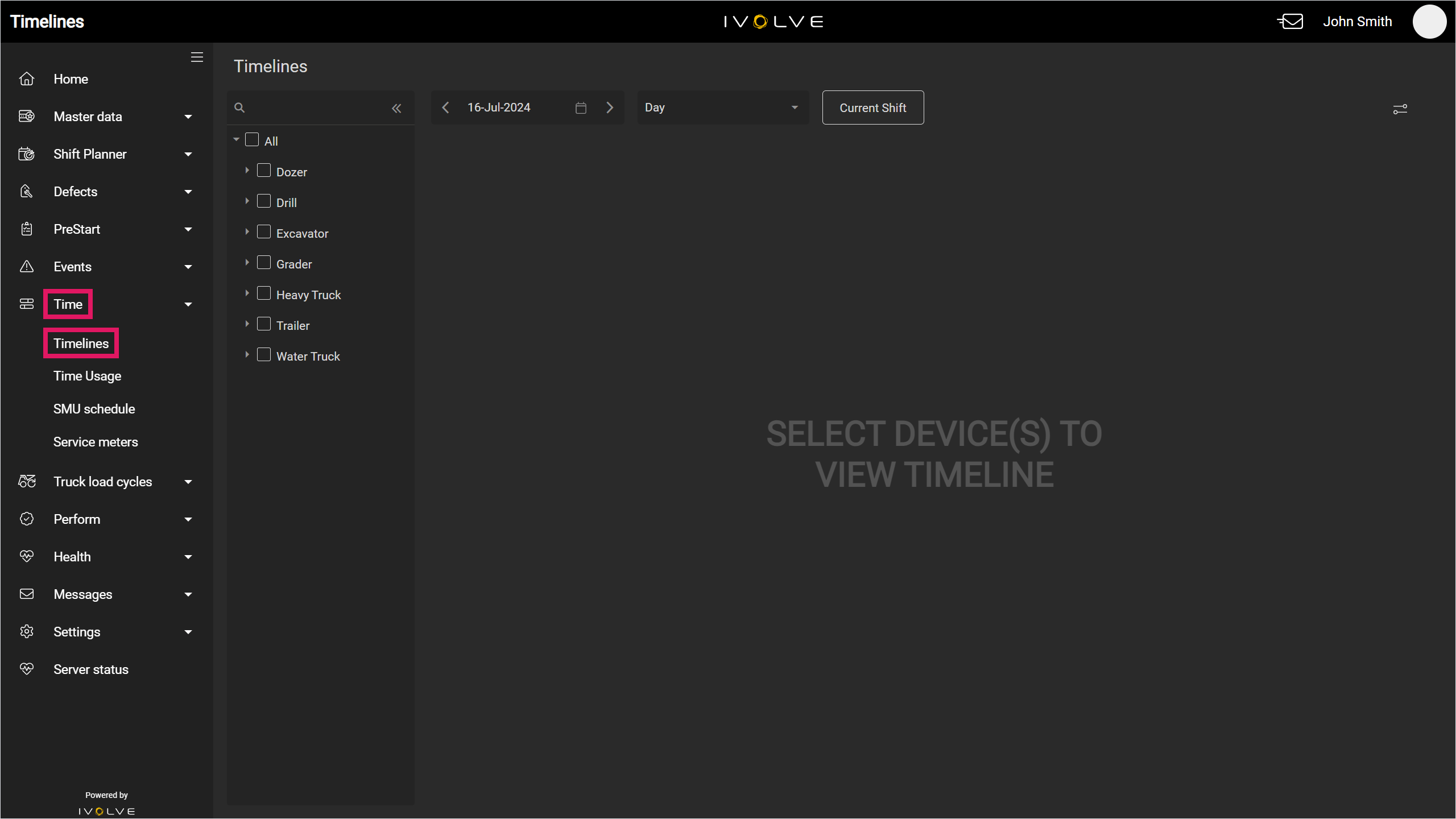
Alternatively, from any page in GoLine, select Timelines in the Time section in the left-hand menu.
-
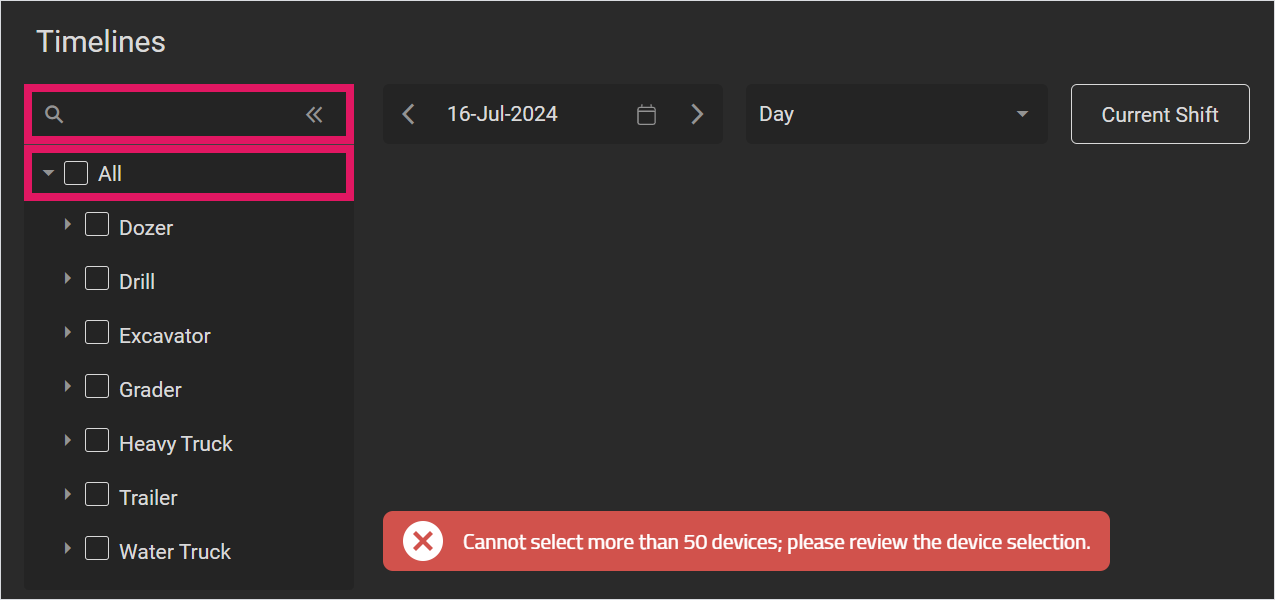
In the Timelines page, select a specific machine's check box from the left-hand menu to add it to the timeline as needed. Alternatively, select a vehicle type to add all vehicles of that type, or select All to add all vehicles on site to the timeline.
You can also filter for a specific vehicle with the Search field above the list of vehicles.
Adding a large number of vehicles to the timeline can impact its performance; a warning message will display if more than 50 vehicles are added to the timeline.
-
Select a specific date as needed from the calendar; the timeline defaults to today's date.
Alternatively, select the Current Shift button to view the current shift.
When you select a shift, this shift's data is loaded, as well as the last four hours of the previous shift and the first four hours of the following shift.
You can configure how many hours of the previous and following shift are loaded in the timeline's Configuration page. See the Configuring the timeline section below for more information.
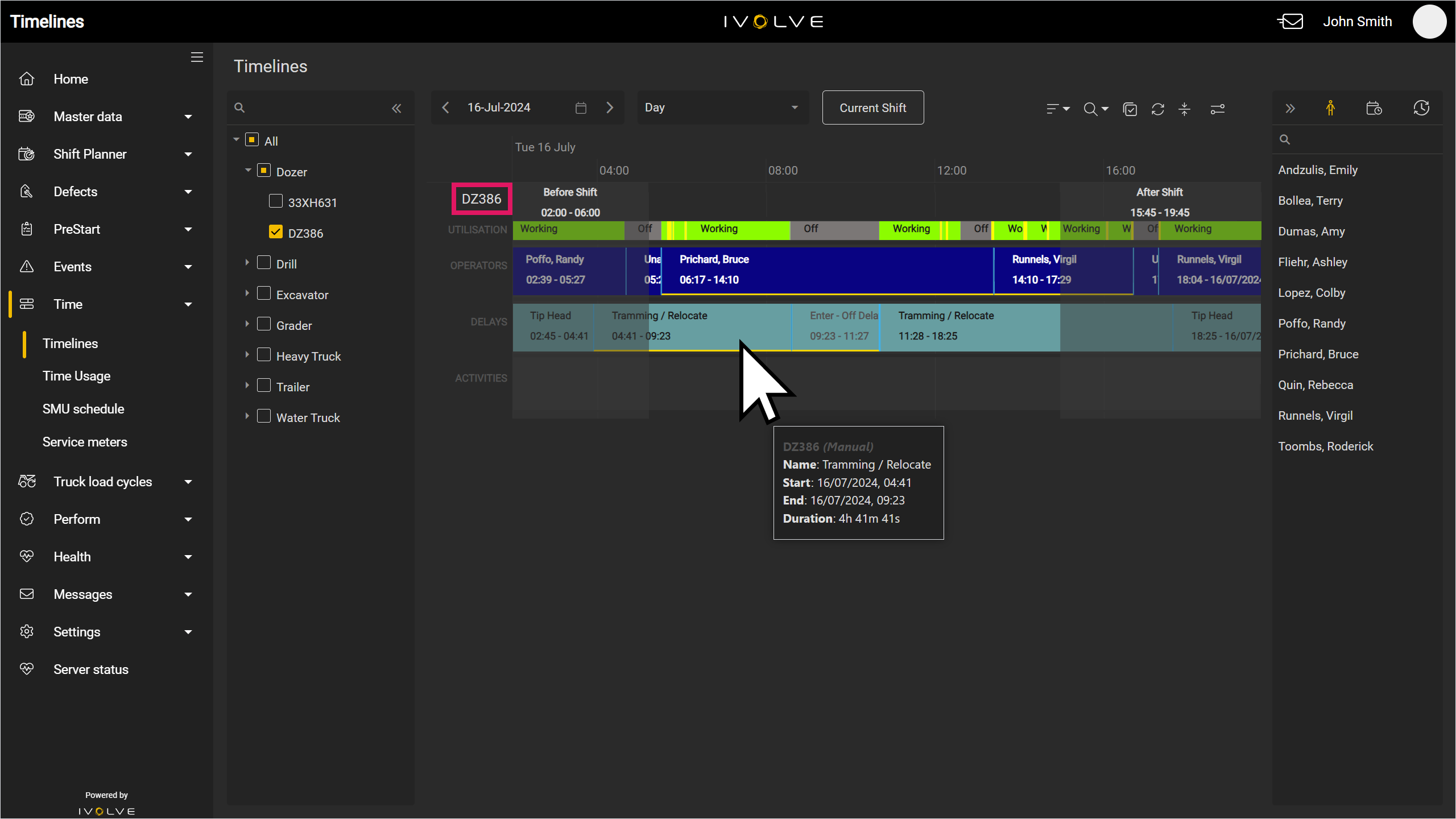
The relevant vehicle information displays in the timeline. Each vehicle has four rows: Utilisation, Operators, Delays, and Activities.
The Utilisation row shows the vehicle's working state, and displays "Working", "Idle", or "Off".
The Operators row shows the person operating the vehicle at a given time.
The Delays row shows the work completed and delays recorded by a vehicle.
The Activities row displays any activities recorded by a vehicle.
You can hover over an entry to see a pop-up with more information; this can be useful when there are multiple entries over a short period of time. You can also click a machine's name to hide the entry from the timeline, and click its name again to display its details again.
Further, any delays or activities added to the timeline by the Timeline editor display a yellow border along the bottom of its entry. Any delays or activities recorded in-cab on the iVolve display do not display this border.
Additionally, you can scroll in or out with your mouse wheel to view smaller or larger time intervals; if you scroll beyond a shift's start or end time (such as before 6am), the previous shift's entries will be shaded.
Smaller intervals are better at viewing the timeline in more detail (such as when there are numerous delays in a short amount of time), while larger intervals are better for viewing the overall shift.
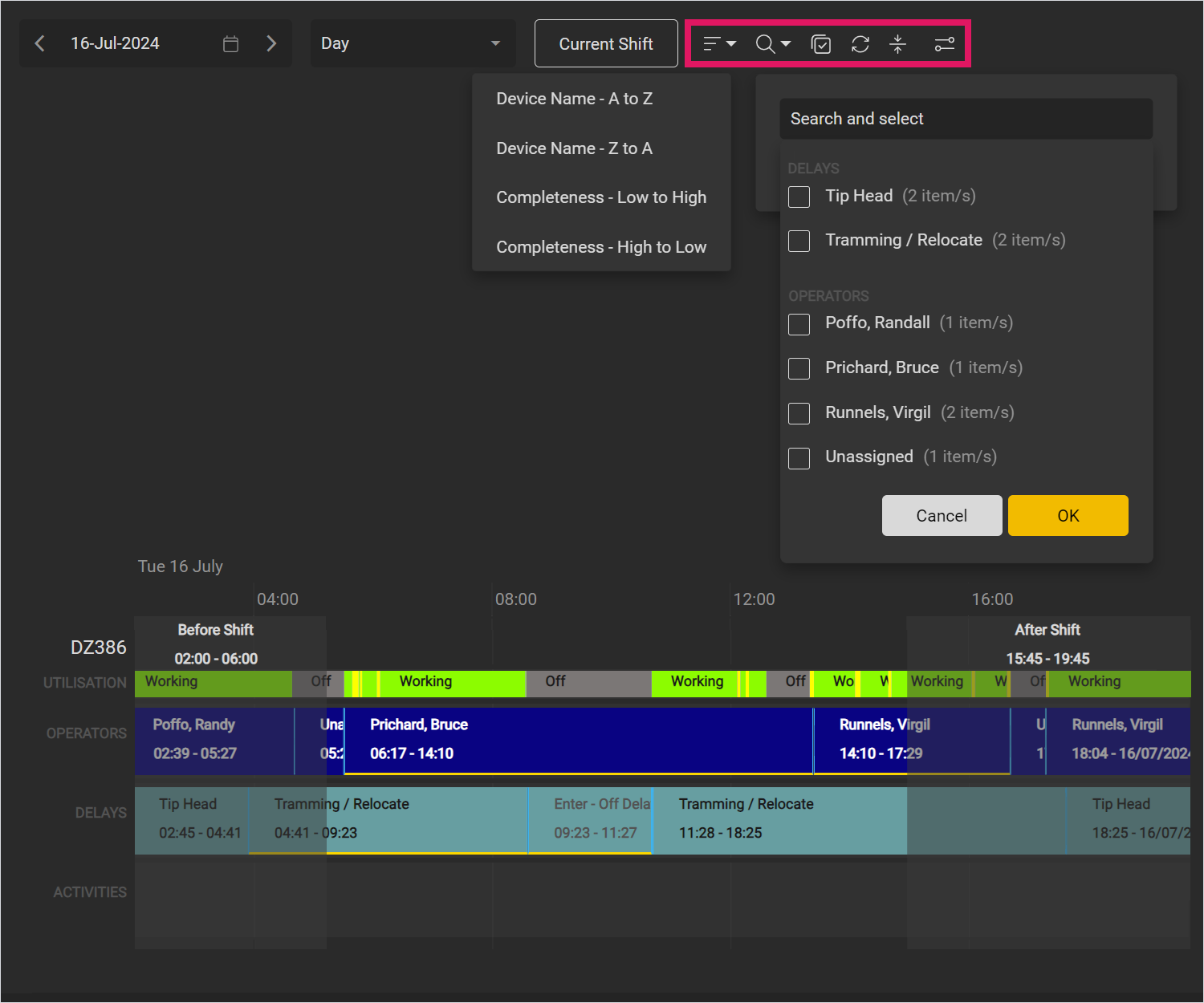
Options toolbar
When one or more vehicles are added to the timeline, the Options toolbar will appear.
From left to right, its features are Timeline sort order, Search and select, Multi-select, Refresh, Expand/Collapse, and Configuration.
If there are multiple vehicles on the timeline, Timeline sort order organises these vehicles by device name (A to Z, or Z to A) or completeness (low to high, or high to low).
If you sort by completeness, a bar will appear beneath each vehicle's name indicating its completeness level. You can hover over this bar to display a tooltip with the more information on the vehicle's completeness.
Completeness is calculated by the timeline rows (utilisation, operators, delays, and activities) and the amount of work recorded against these rows. For example, if there are eight hours of recorded activities in an eight hour shift, the activities completeness is 100%.
Further, if the shift is ongoing when you view the timeline, completeness is calculated up to the current time. For example, for an eight hour shift running from 12pm to 8pm, if the timeline is viewed at 6pm, completeness is calculated up to 6pm.
Search and select allows you to search for any operators, activities or delays in use on the timeline, and automatically select any entries that are found. Once selected, you can then edit or delete these entries as needed. If an operator, activity, or delay is not in use on the timeline, they will not appear in this search.
Multi-select allows you to select multiple entries on the timelines (operators, activities, and delays) so that they can be edited or deleted at the same time. (You can also multi-select at any time by holding down the CTRL key and clicking the entries you want to select.)
Refresh refreshes the timeline's data. If new data has been added to the timeline since you last refreshed, a red Refresh icon will display until you refresh the timeline.
If new data has been added to the timeline, you must refresh the page before you can make any changes.
Expand/Collapse expands or collapses all entries on the timeline.
Configuration opens the timeline's configuration menu. See the Configuring the timeline section below for more information.