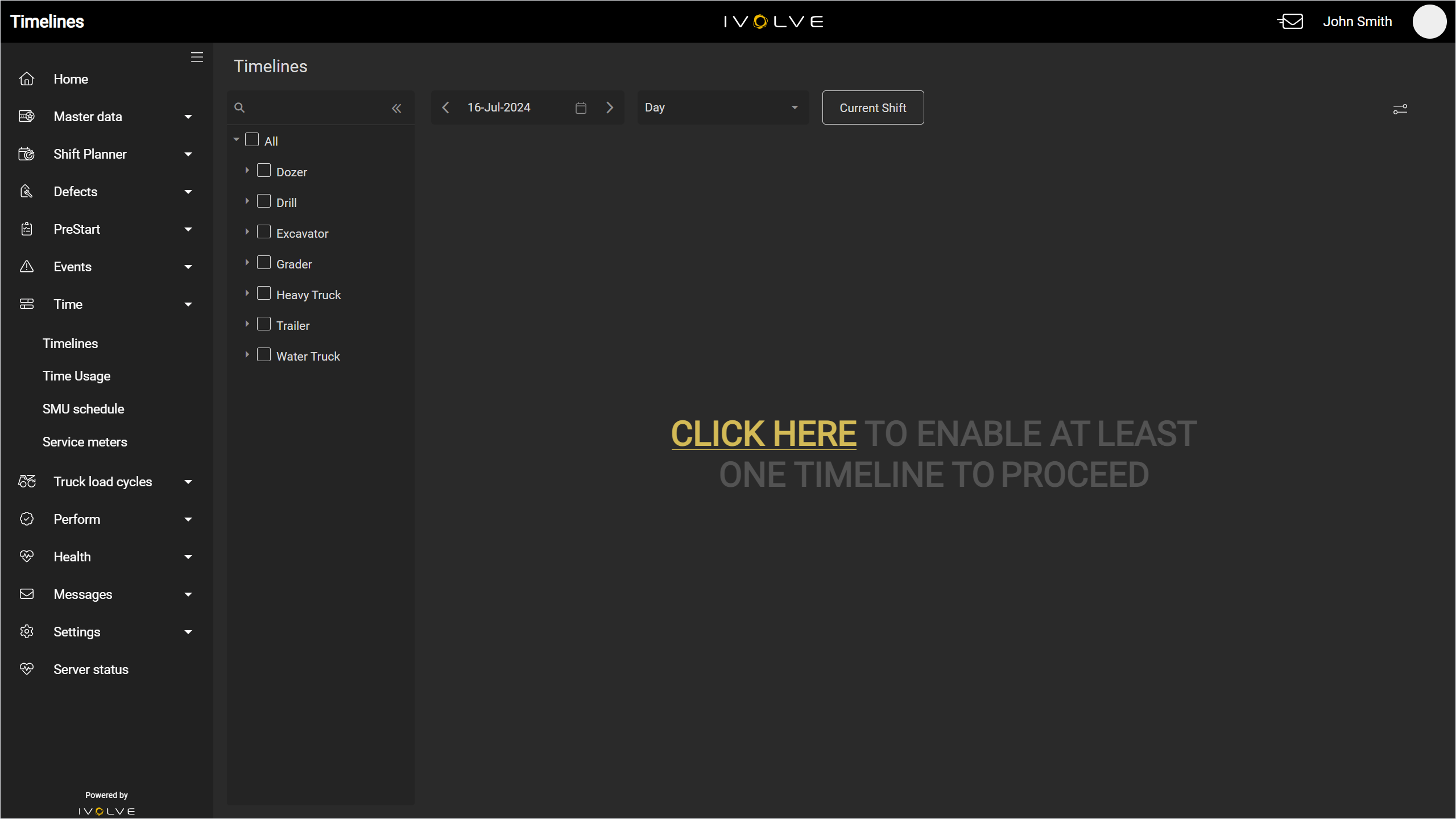
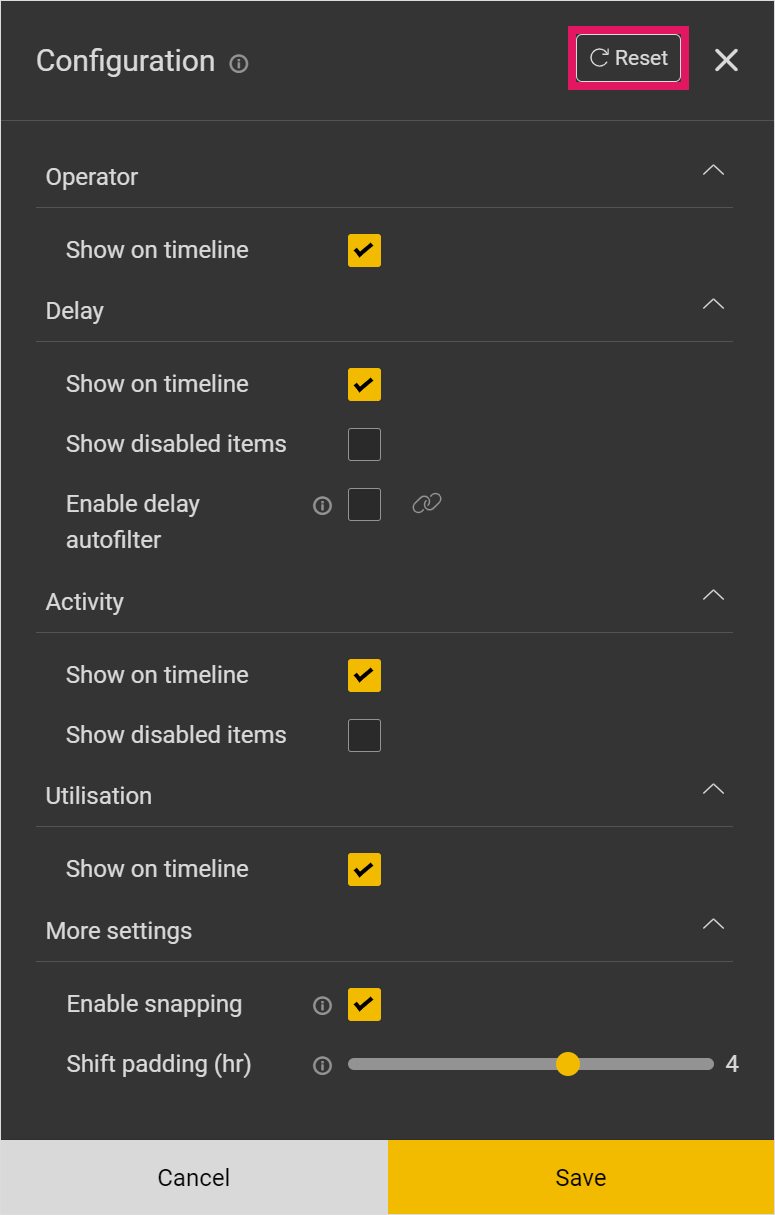
The Configuration page allows you to customise some aspects of the timeline, such as whether to display operators, activities, and/or delays, whether to apply certain filters, and more.
Any changes you make here will not apply to any other users; you cannot edit another user's timeline configuration from this page.
To configure the timeline:
-
Select the Configuration icon in the top-right corner of the timeline.
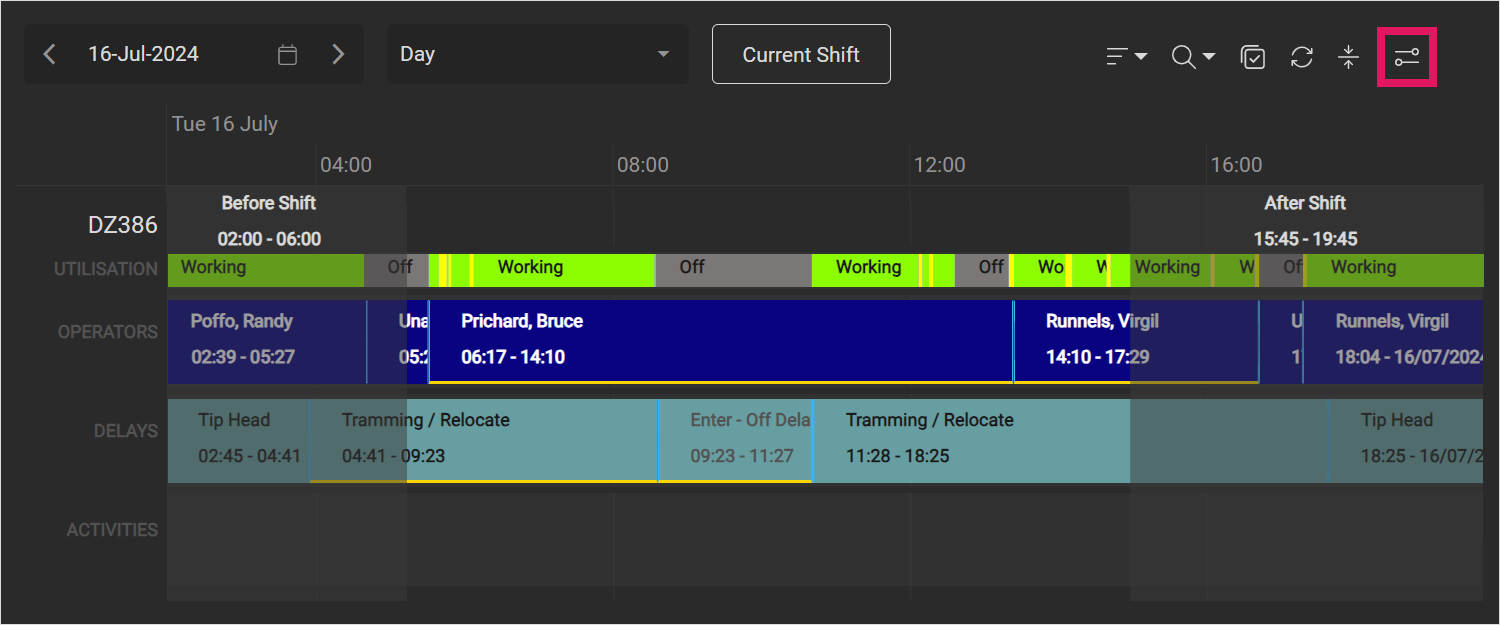
-
In the Configuration page, select or clear a check box to configure that setting.
Select Show on timeline in the Operator, Delay, Activity, or Utilisation sections to display these rows on a machine's timeline.
Select Show disabled items to display disabled activities or delays in the right-hand menu on the timeline.
By default, if an activity or delay is disabled it is not displayed in the Activities/Delays menu and cannot be added to the timeline. Selecting this check box will display disabled activities and delays, and allows them to be added to the timeline.
Select the Enable delay autofilter check box to only display delays related to the selected machine(s) in the right-hand menu.
For example, if a dozer and an excavator are currently displayed on a timeline, only delays mapped to dozers and excavators will be available in the right-hand menu. Delays are mapped to specific machines in the Delay Code Map section of the Rules page in the Master data app.
This can be useful in removing irrelevant options when you are working on a specific vehicle type.
Select the Enable snapping check box to automatically snap a timeline entry's edge to another nearby entry's edge when editing.
Drag and drop the Shift padding slider to configure how many hours are automatically loaded before and after the shifts you view on the timeline.
-
Alternatively, click Reset to reset to the default configuration.
-
Click Save to update the timeline configuration.
If you clear every Show on timeline check box, no entries will display on the timeline. Instead, the timeline will display a prompt to add at least one row. Open the Configuration menu and select at least one Show on timeline check box.