
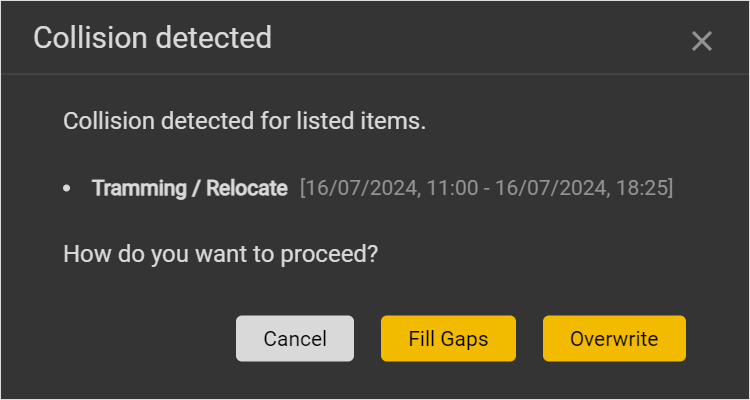
If you edit an entry's start or end time (either by dragging an entry's borders or with the detailed editor) to overlap with another entry's start or end time, a notification displays to inform you of the issue.
Select Fill Gaps to have your edited entry fill any empty time between both entries without overwriting the other entry, select Overwrite to overwrite the other entry with your edited entry's start or end time, or select Cancel to undo the edit and set a new start or end date.
Further, a machine's timeline can be automatically updated with data taken directly from the machine. If you edit this machine entry on the timeline, it will now be considered a manually-entered entry in the timeline editor.
Also, if you edit a manually-entered entry to a new start or end time, and this time overlaps with an existing machine entry's start or end time, the Collision Detected window (shown above) will appear. Select Overwrite or Fill Gaps as needed; the overlapping entries will be updated and each will be considered a manually-entered entry in the timeline editor.
If a machine entry conflicts with a manually-entered delay then the machine data is disabled and is not shown on the timeline.
For example, if a delay is manually added to a machine's timeline for 12pm to 1pm, and the machine's system automatically records an entry from 11am to 12:30pm, the machine entry is disabled due to the overlap between 12pm and 12:30pm. The disabled entry is not displayed on the timeline editor.
The entire machine entry is disabled, not only the overlapping section.