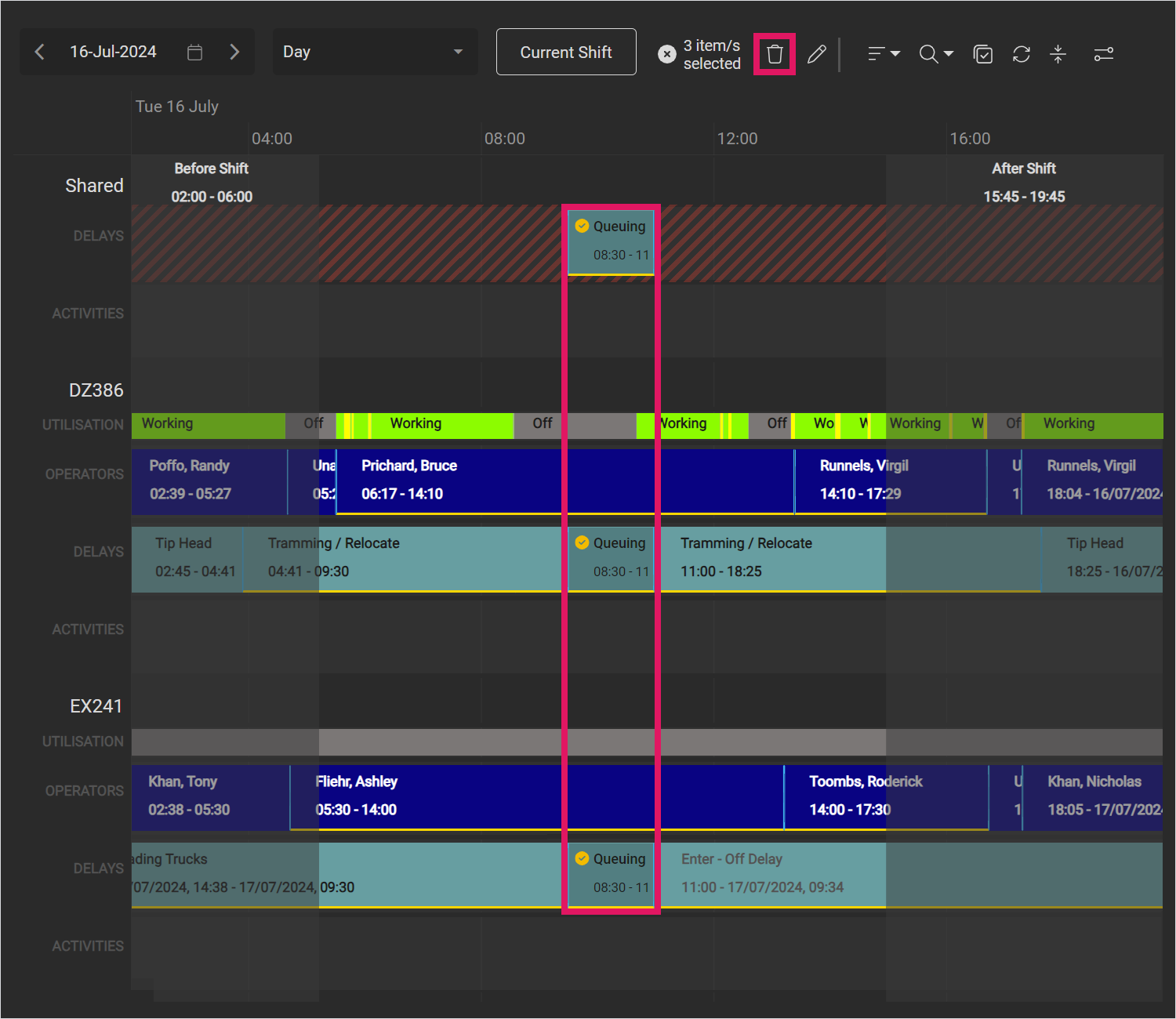
You can edit and delete entries in the operator, delays, and activity rows of a vehicle on the timeline. Also, editing or deleting an activity or delay in the Shared row will edit or delete this from all other rows as well.
Clicking on an entry in the Shared row automatically enables the Multi-select option, and also selects all the related entries in the timeline. Deselecting any selected entry deselects every selected entry.
To edit a timeline entry:
-
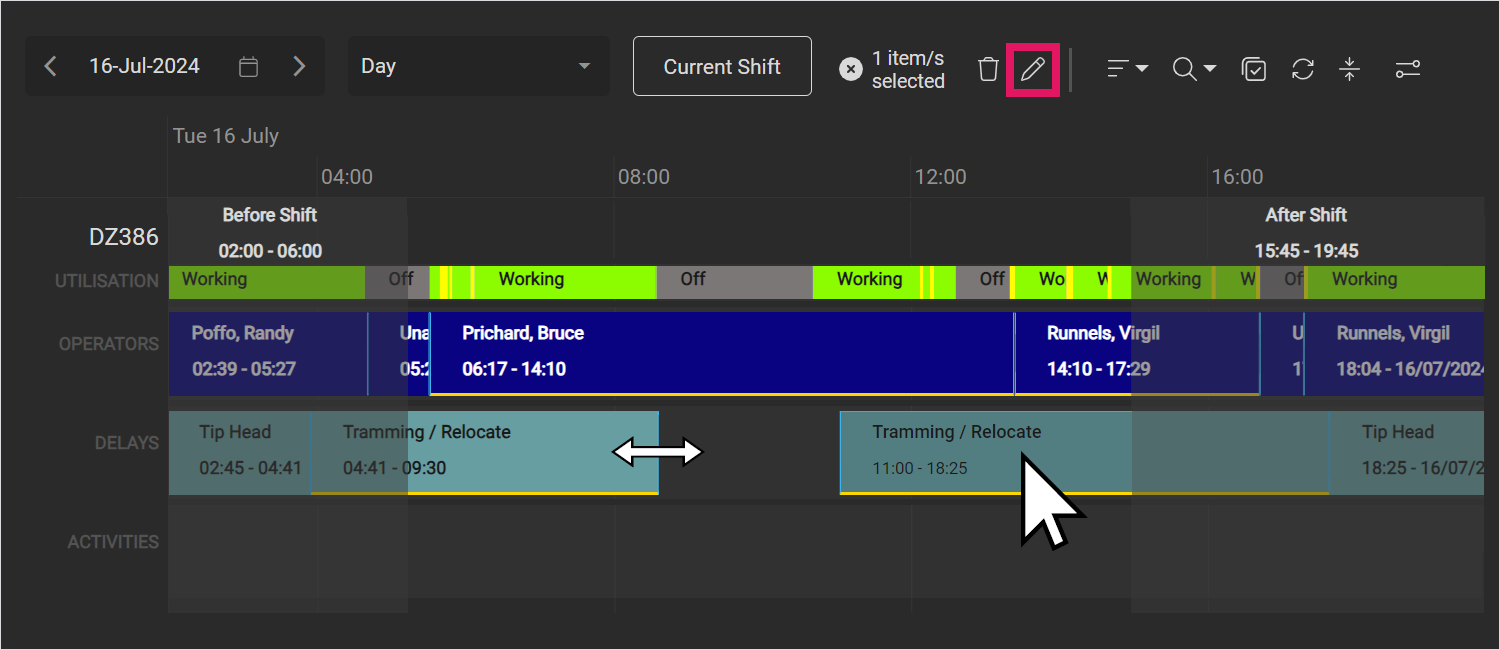
Click an entry to select it, then hover your cursor at the edge of an entry until the resize cursor appears. Drag an entry left or right to extend or shorten its time on the timeline.
You cannot edit the area outside your selected shift with this process. For editing outside your selected shift, use the detailed editor, which is discussed in the next step.
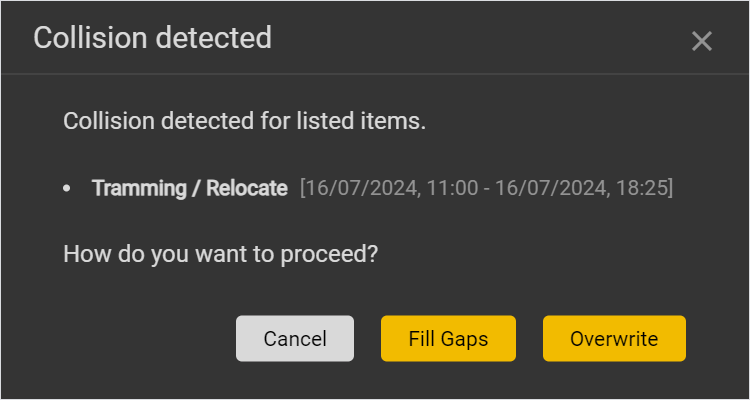
Further, if the start date or end date you set overlaps with another entry on the timeline (either by clicking and dragging or in the detailed editor), the Collision Detected window opens.
See the Managing overlapping page for more information.
-
Alternatively, click an entry (or multiple entries), then click the Edit icon at the top of the table to open the detailed editor.
-
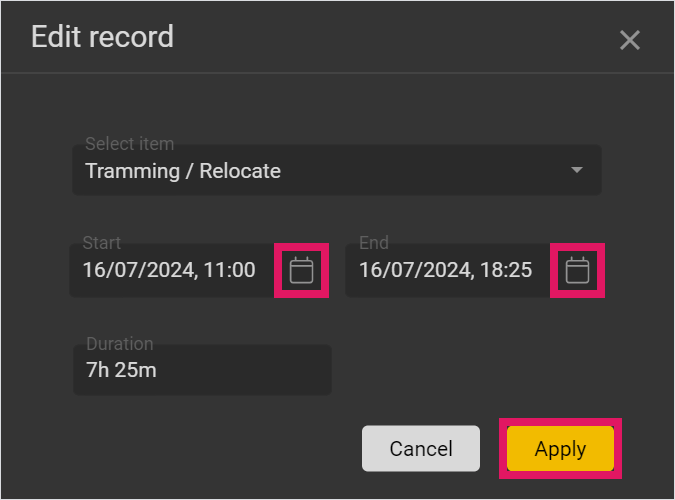
In the detailed editor, edit the Start and End fields as needed. You can also make a new selection in the Select Item drop-down to change the activity, delay, or operator to a different item.
You can also click the Calendar icons to select a different start or end date, or edit the Duration field to edit the overall length. If you edit the Duration field, the entry's End time will change; that Start time will not be affected by any edits in the Duration field.
-
Click Apply.
If the start date or end date you set overlaps with another entry on the timeline (either by clicking and dragging or in the detailed editor), the Collision Detected window opens.
See the Managing overlapping entries section of this topic below for more information.
To delete an entry, click the entry (or multiple entries) to select it, then click the Delete icon at the top of the table.
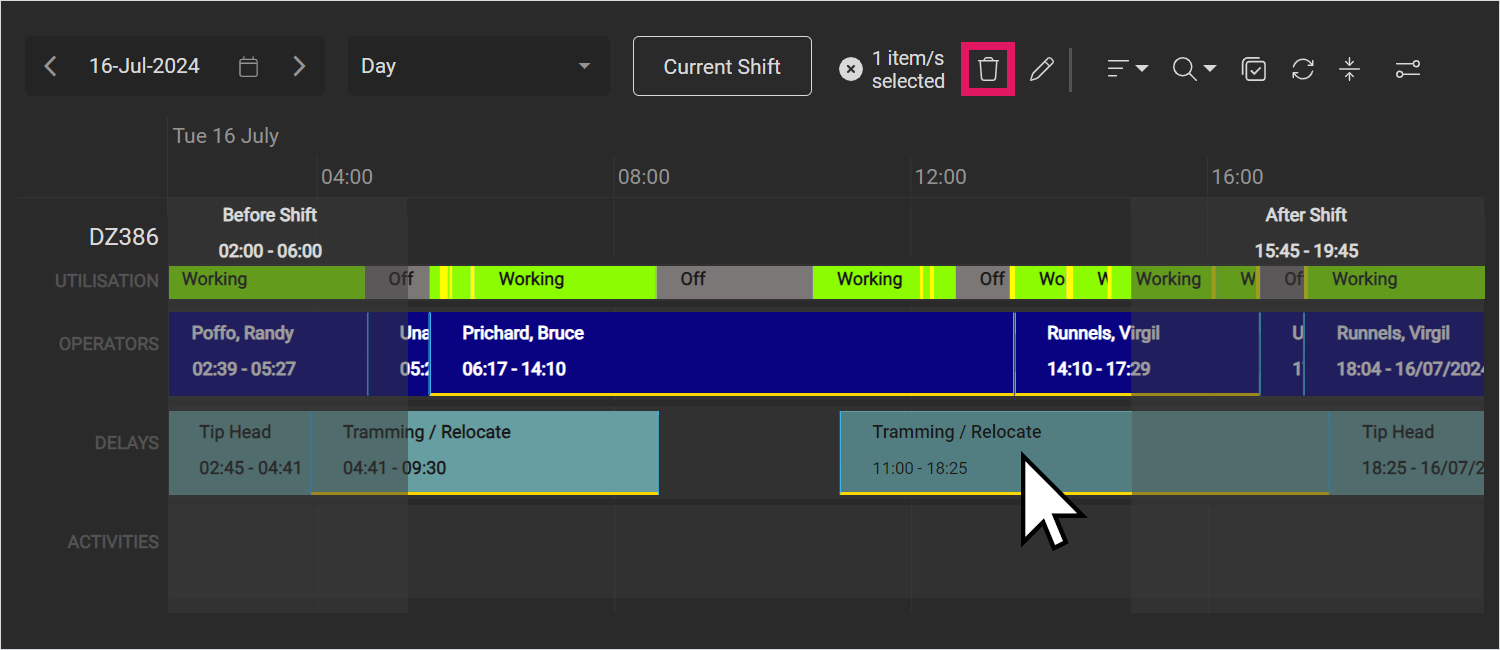
Click Delete in the confirmation window that opens. All selected entries will be deleted.
You cannot undo deleting an entry. If you delete an entry by mistake, you will need to manually re-add the entry to the timeline.
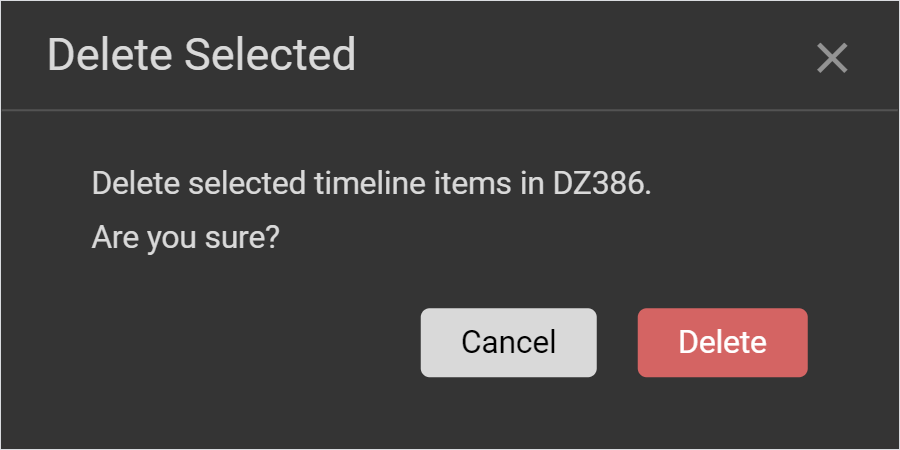
Further, if an entry has been added to multiple vehicles with the Shared row, deleting the entry in the Shared row deletes this entry on all vehicles on the timeline.