
-
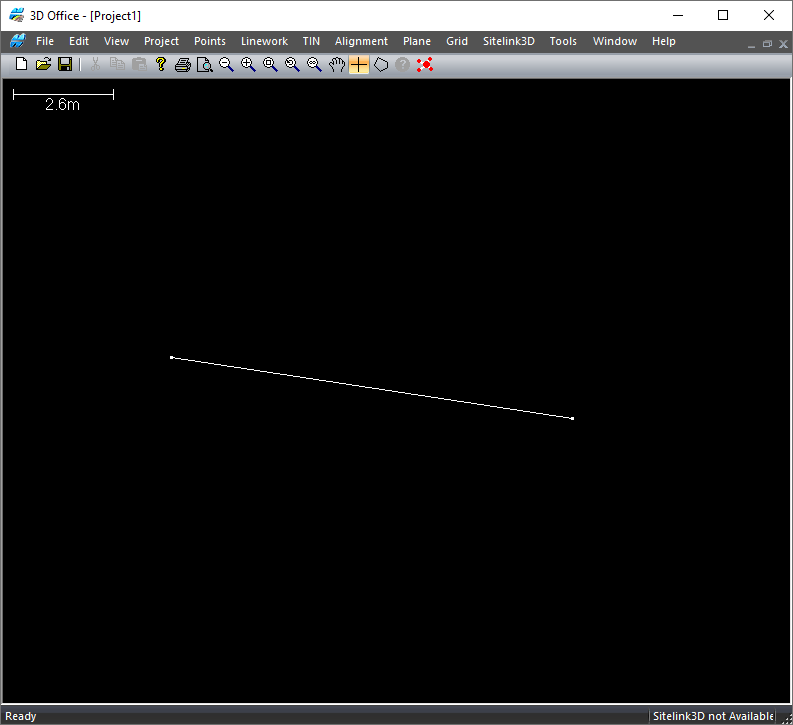
Generate and select polyline that will be the reference for the avoidance zone.
To generate the Avoidance Zone in 3D Office, use steps 2 and 3. If generating the zone only in machine, skip to step 4.
-
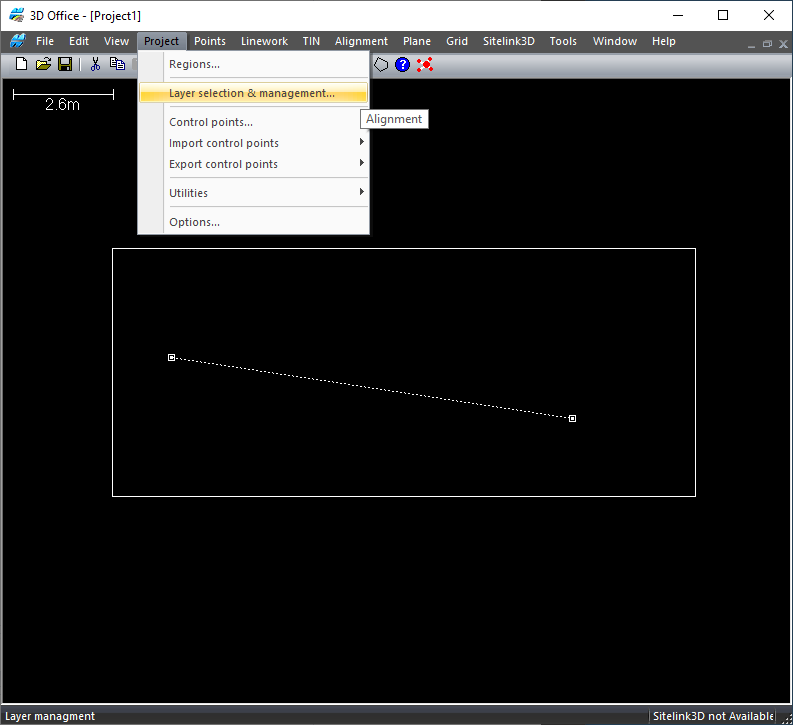
Open Layer selection & Management
-
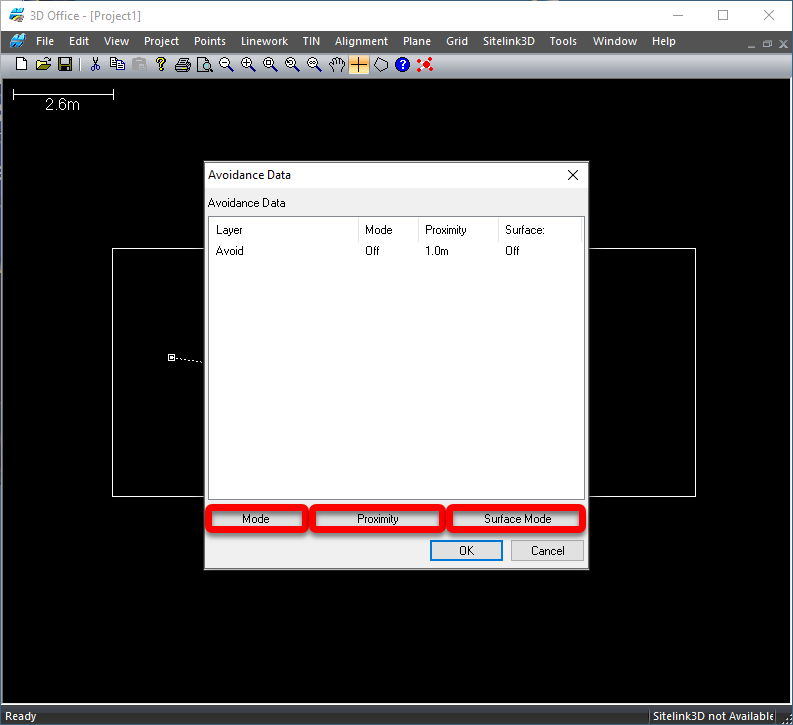
Adjust Mode, Proximity & Surface for the Avoidance Data
Choose from the following settings:
Mode: Off, 2D, 3D
Proximity: 1.0m, Adjustable distance
Surface: Off, Above, Below, Above and Below
-
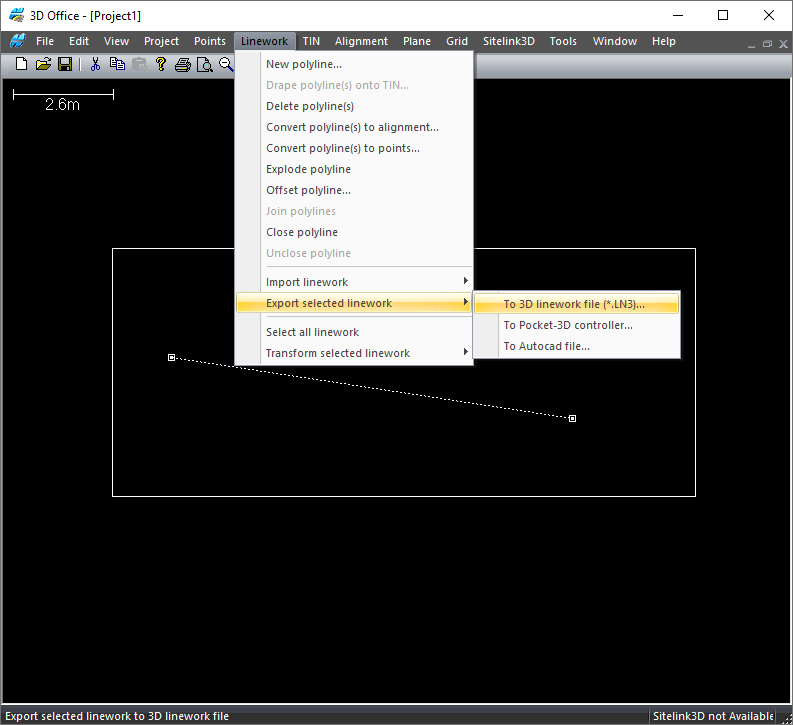
Export the Selected linework to a Topcon 3D Linework File .LN3.
-
Save this file to a USB to Transfer to the Machine.
If exporting a full Projects file, these settings and layers will be saved within the .TP3.
-
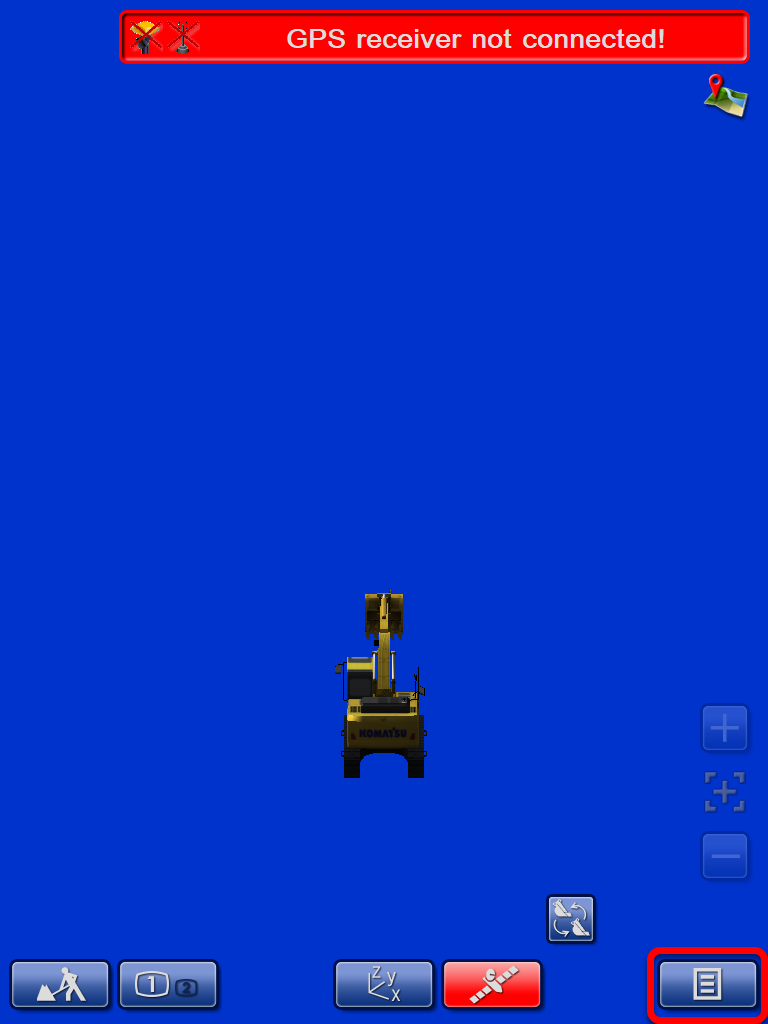
On the machine in Komatsu HMI
Press the Main Menu icon in the bottom right corner
-
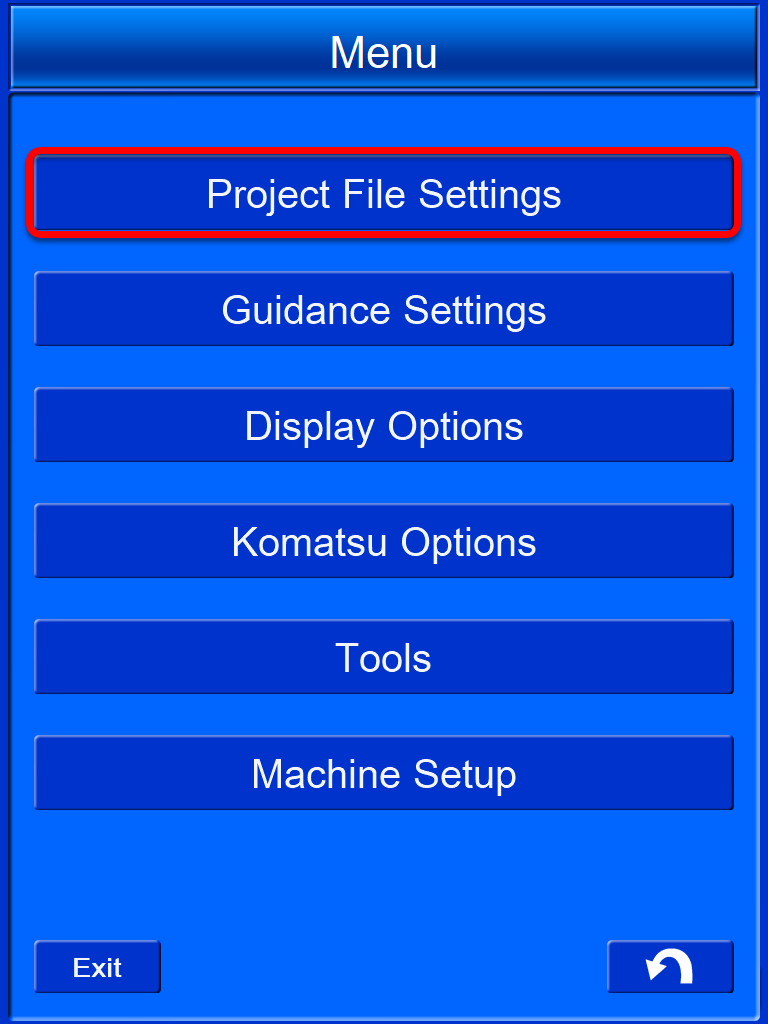
Select Project File Settings.
-
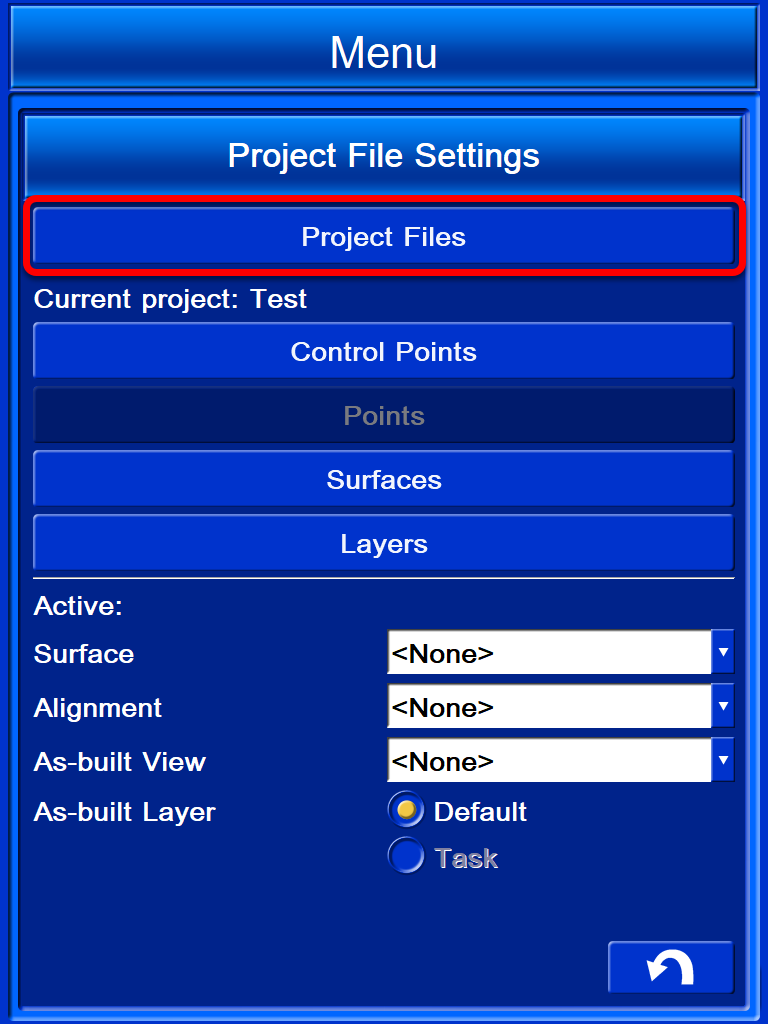
Select Project Files.
-
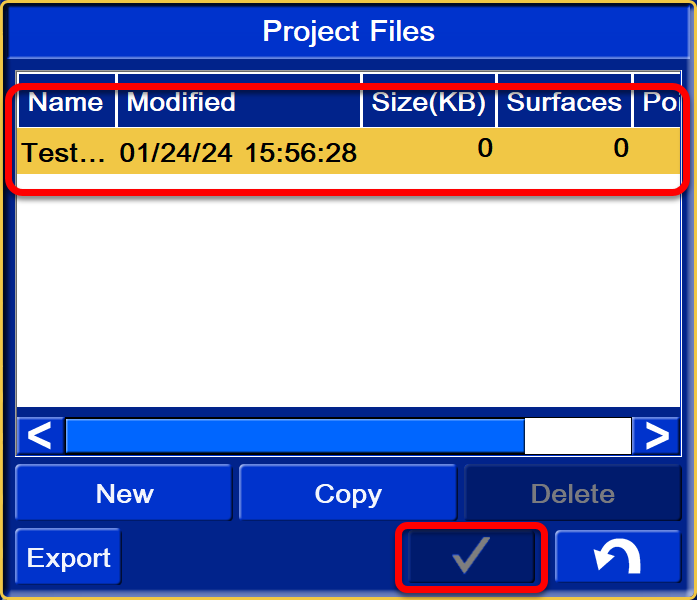
Select and open the desired project.
-
You can also copy the Project .TP3 from USB
-
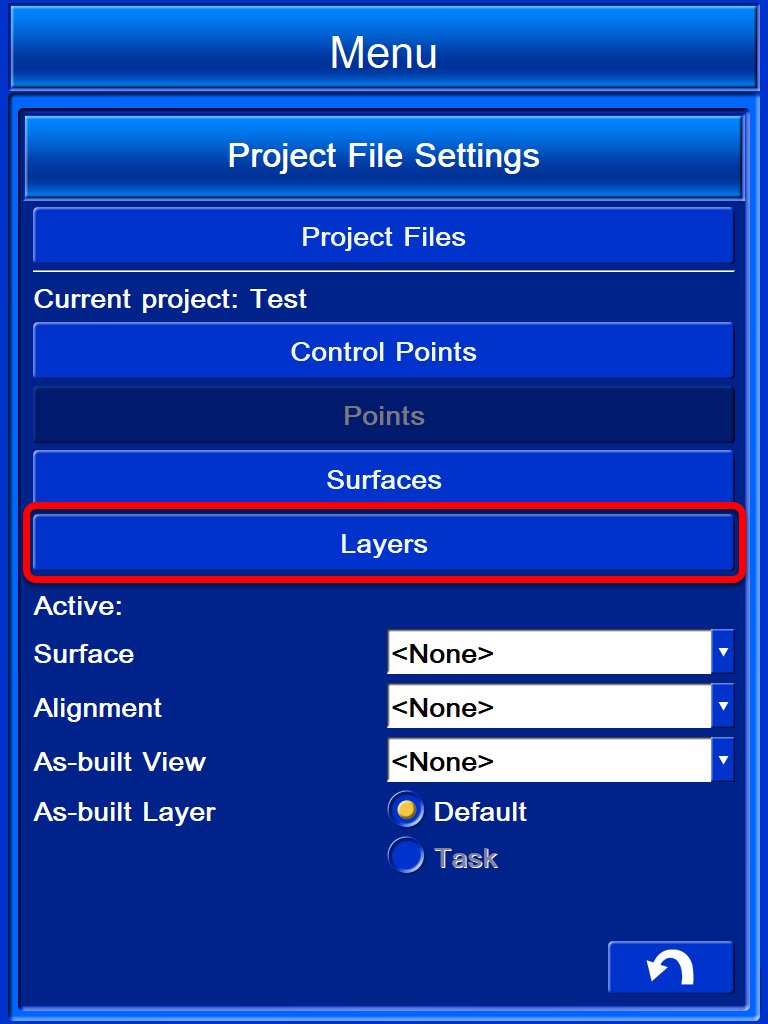
Open the Layers management menu.
-
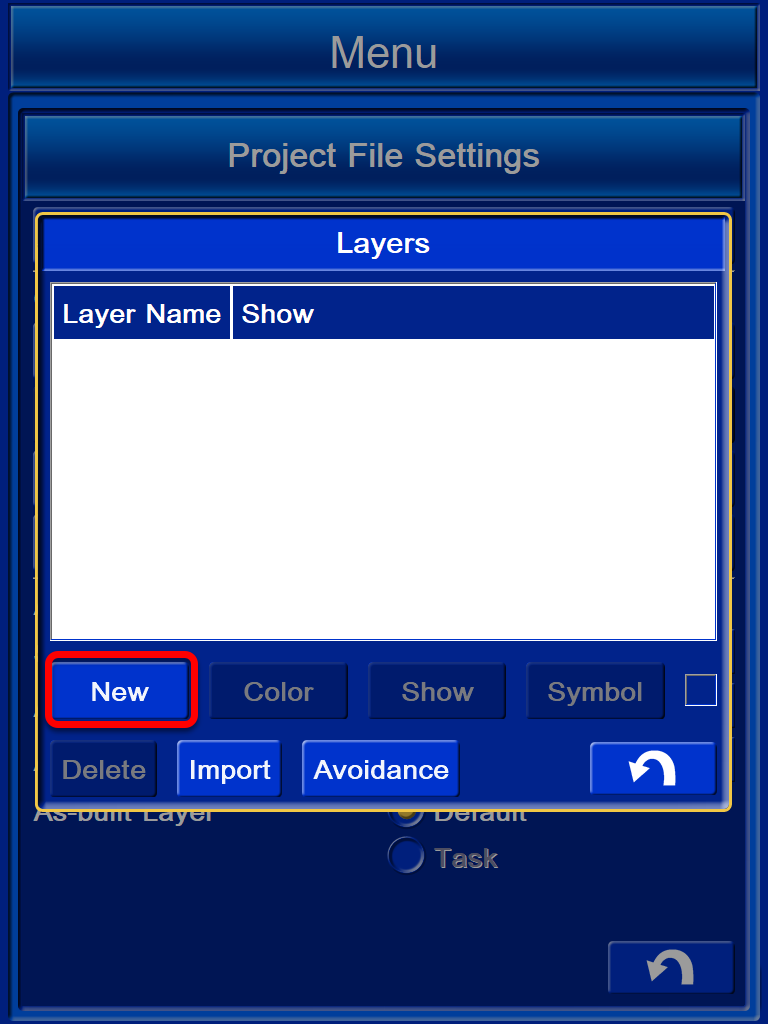
Select New Layer.
-
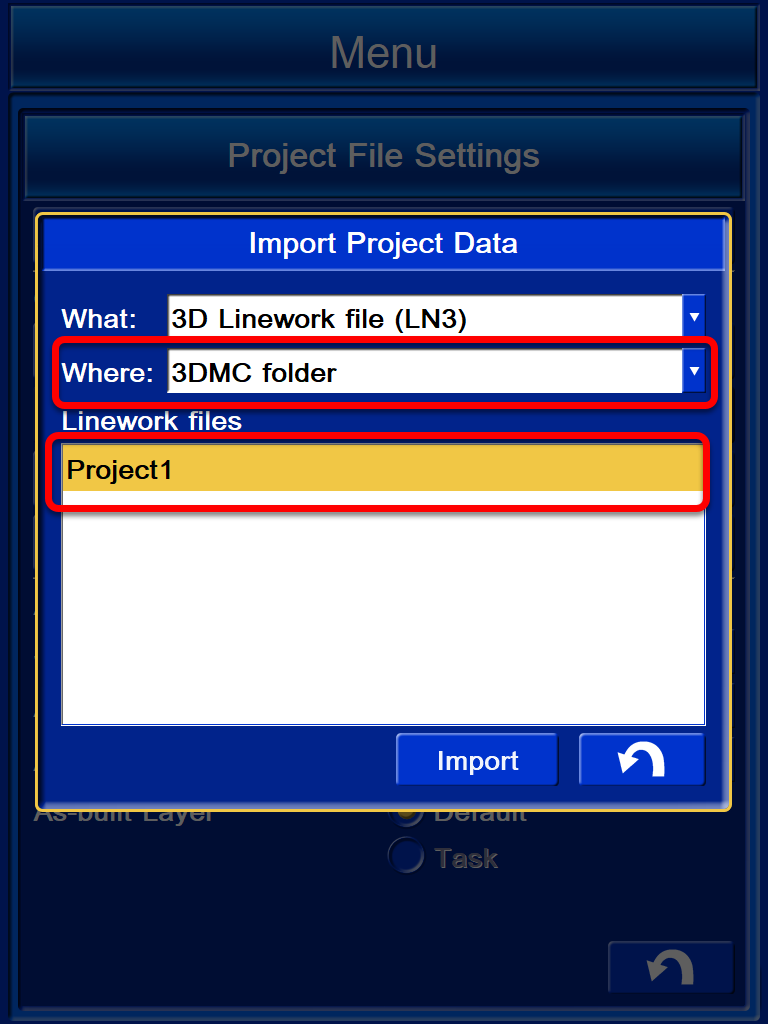
Import Project Data.
What: 3D Linework File (LN3)
Where: 3DMC Folder OR USB Drive
Select the desired Linework File.
-
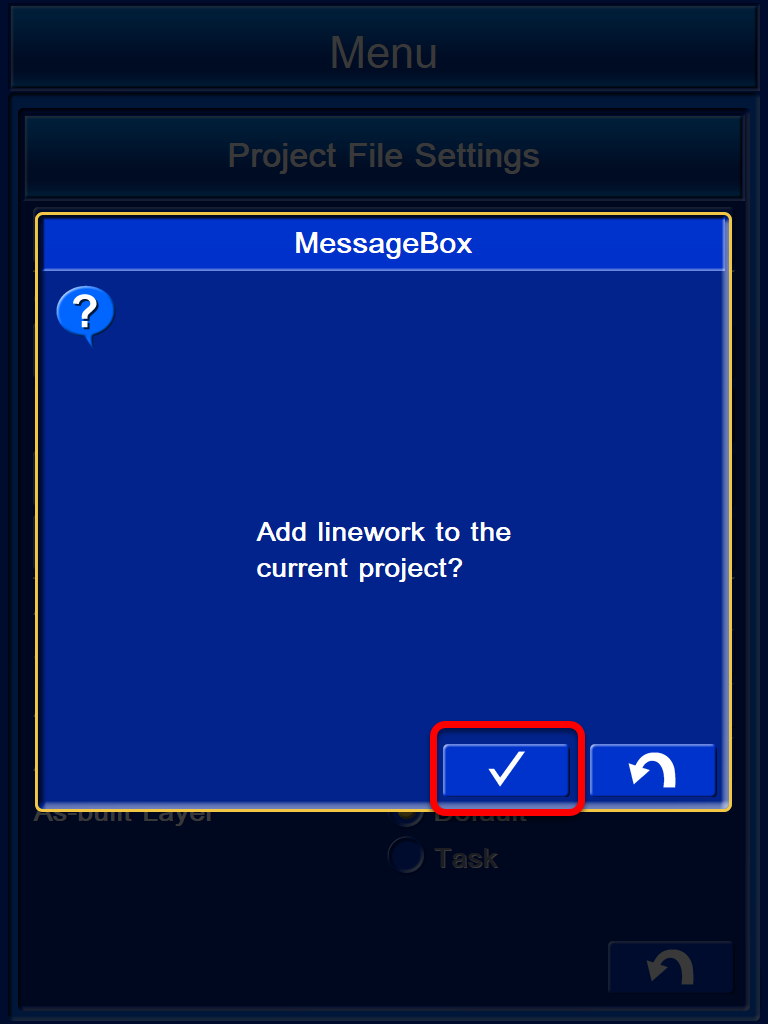
Tick Yes to add linework to project
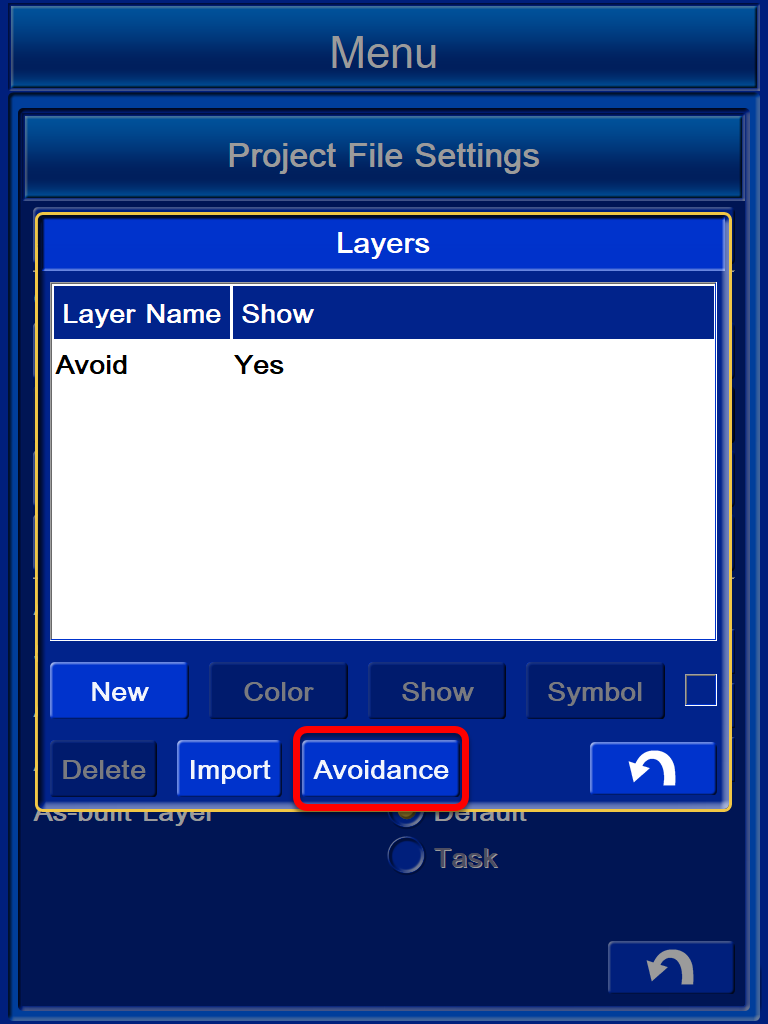
-
Select Avoidance
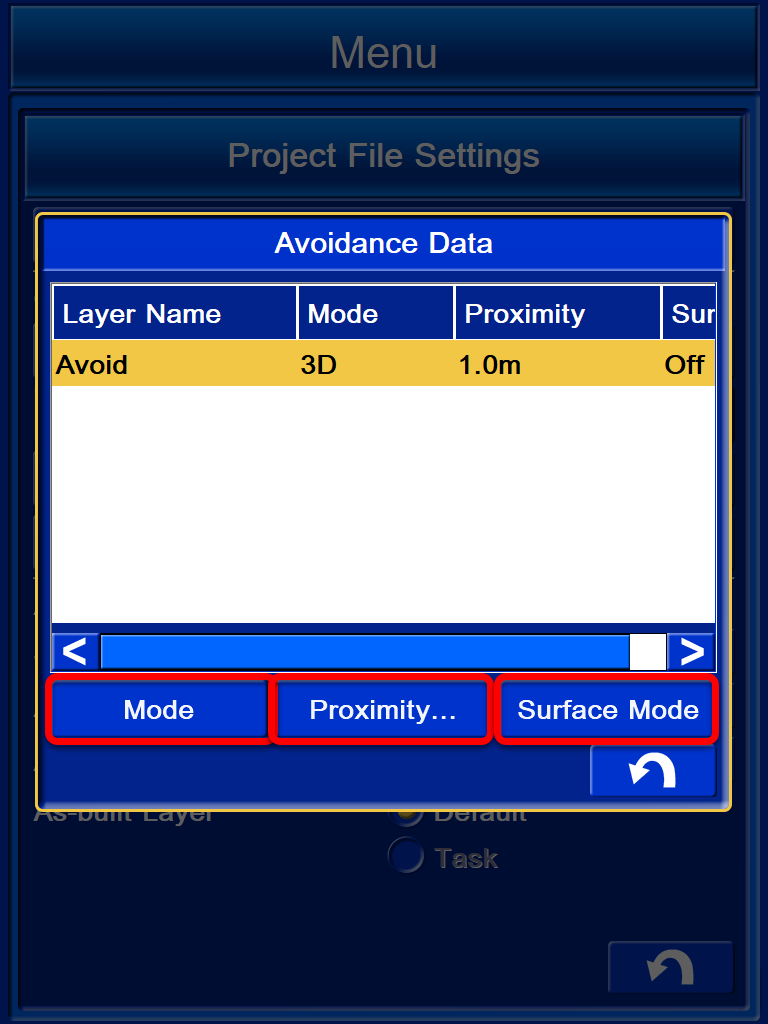
-
If not previously completed in office software.
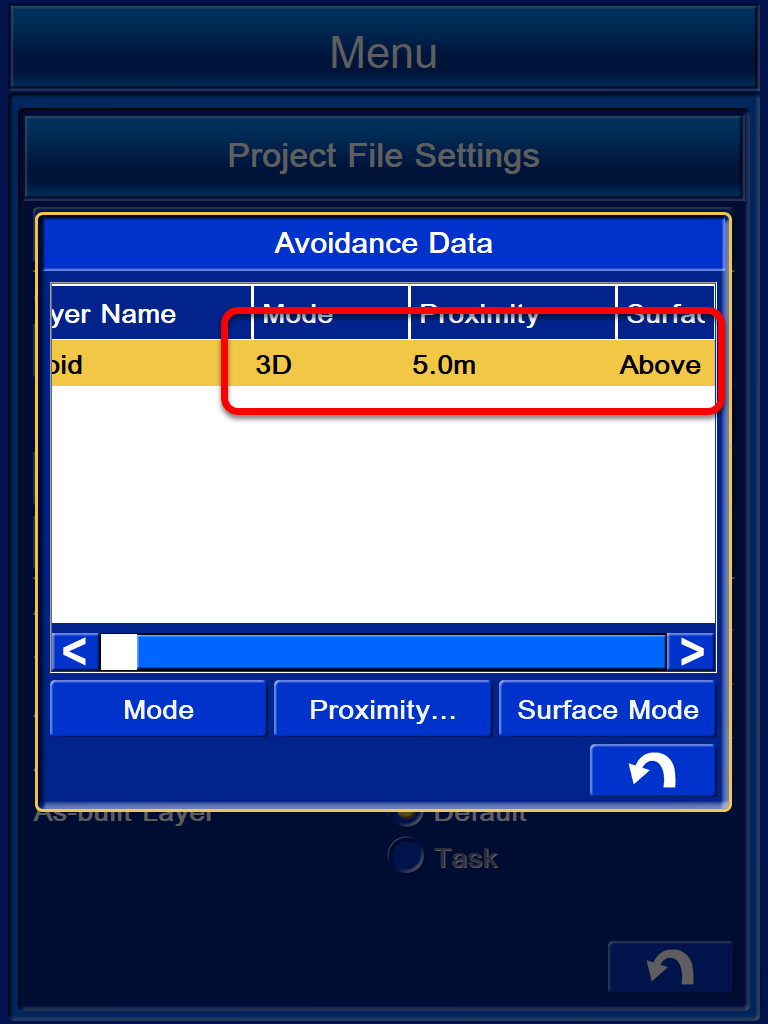
Adjust Mode, Proximity & Surface
Mode: Off, 2D, 3D
Proximity: 1.0m, Adjustable distance
Surface: Off, Above, Below, Above and Below
-
Confirm Settings and use the return icon to return to the main screen.