This is only able to be done on the Go-Line Master Data App
Software version needs to be 24.1 or later
To create a device with a payload limit:
-
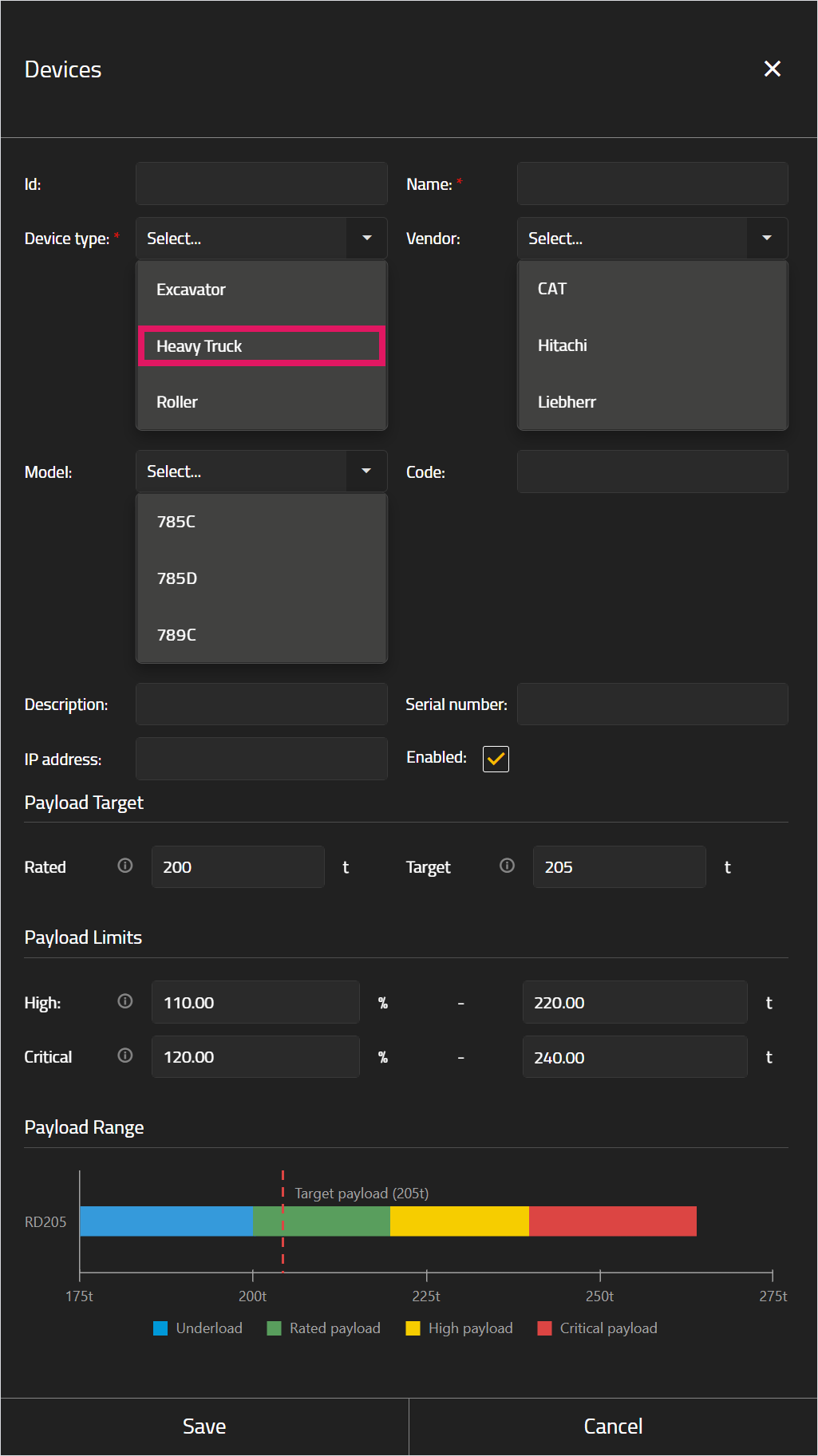
In the Add devices window, enter a Name, then select Heavy Truck in the Device type field.
The Heavy Truck field refers to haul trucks (and only haul trucks) in this instance.
-
Fill out the remaining fields in this section as needed.
-
In the Payload Target section, enter the device's Rated Payload and Target Payload.
A device's rated payload and target payload are usually the same amount, but these can be different. For example, trucks that can safely be filled above their rated payload (such as 105% of its rated payload) can have a target payload set that is greater than their rated payload to improve productivity.
Do not overfill your trucks beyond their safe operation limits. Target payloads should not be set in SQS that will cause damage to your vehicles or unsafe working conditions.
The High (yellow) and Critical (red) payload limits are derived from the device's Rated Payload. The Target Payload does not affect the High and Critical payload limits.
The Rated, Target, High, and Critical fields will all display "Not set" if they are left blank. If you set a value for any of the Rated, Target, High, or Critical fields, you must set a value for the remaining fields or the device cannot be created in GoLine.
You can create a device without entering data in these fields, but in this case each of the Rated, Target, High, and Critical fields must be left blank.
-
In the Payload Limits section, enter a High Limit and Critical Limit.
You can enter these limits as either a percentage of the machine's rated payload (in the field on the left) or as a set amount (in the field on the right). The corresponding weight or percentage will be automatically calculated.
-
The Payload Range section automatically updates to display a bar graph of the target payload and payload limits; hovering over this graph displays a tooltip with each payload limit's details.
-
Click Save.
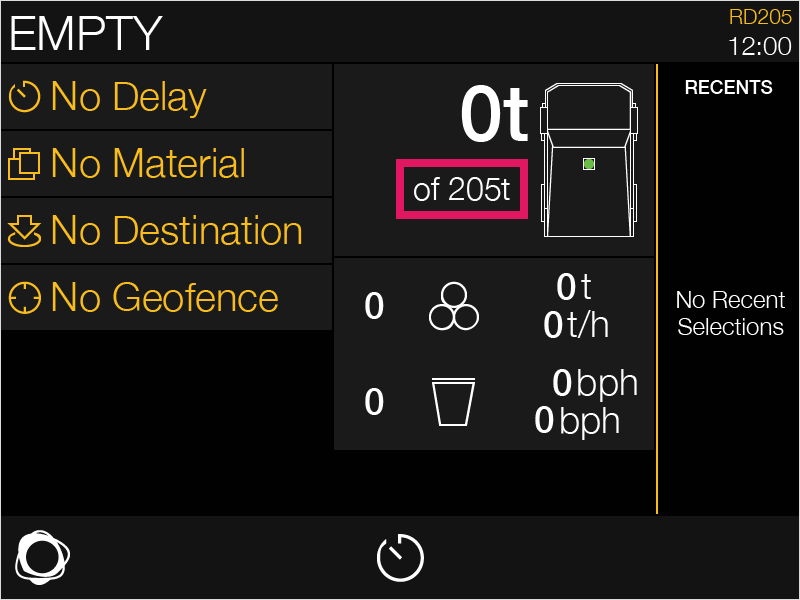
The target tonnage is shown in the payload card on the SQS display.
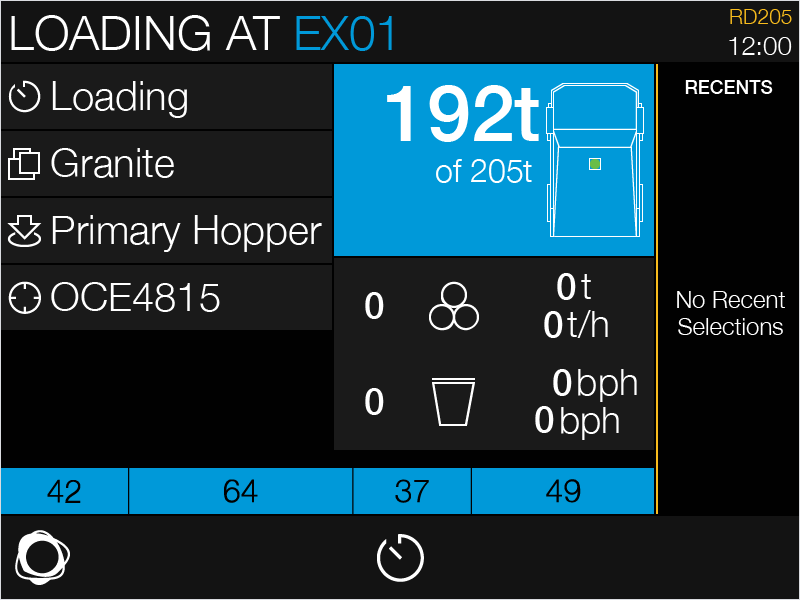
After the payload limits are set, this will also affect a haul truck operator's SQS display. For example, if a haul truck is underloaded, the SQS display will show the truck's payload in blue.
If the payload is within haul truck's the high limit, the SQS display will show the truck's payload in yellow.
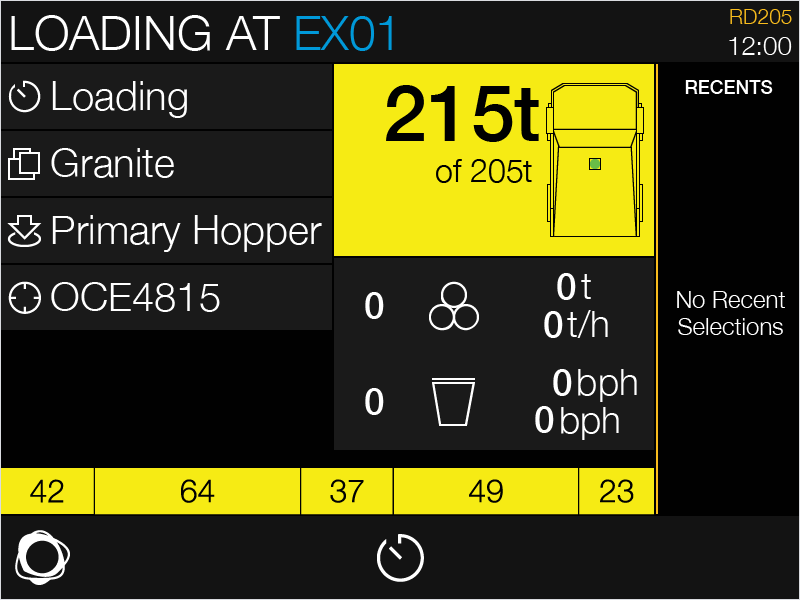
If the payload is within the haul truck's critical limit, the SQS display will show the truck's payload in red.
These colours are shown until the haul truck's load finalisation reweigh.
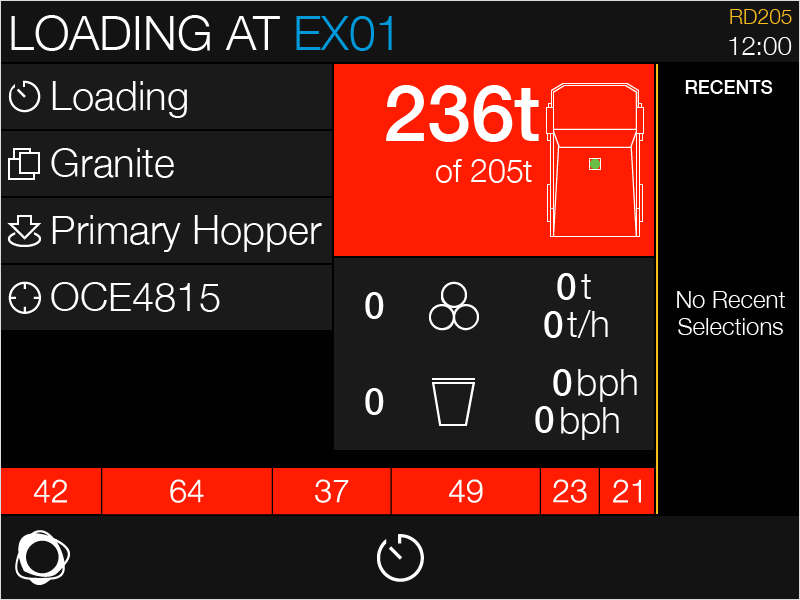
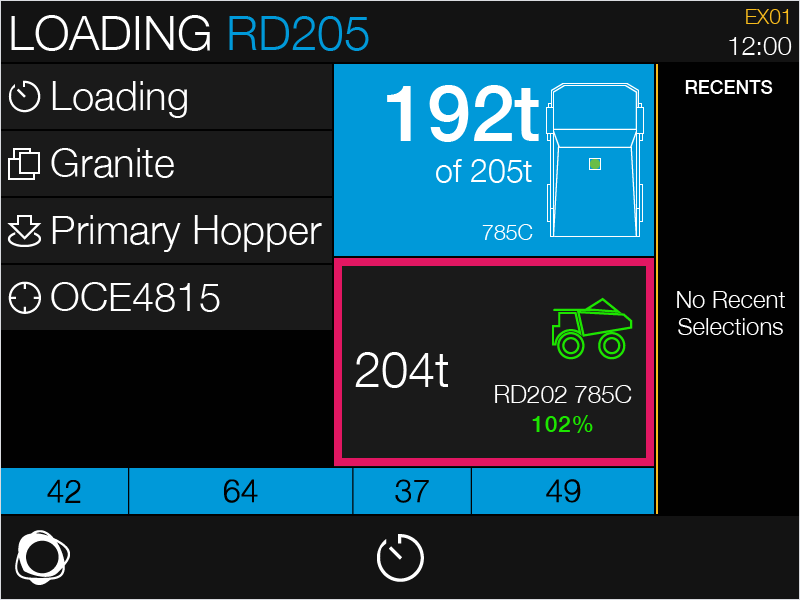
The loader's SQS display also shows the same colours when a haul truck is underloaded or overloaded. Further, if the previous haul truck was loaded to the correct amount, this will be represented by a green truck icon in the Previous Truck card on the loader's SQS display.
If the previous truck's load reached its High limit, this truck icon will be yellow, and if the previous truck's load reached its Critical limit, this truck icon will be red. Further, the percentage shown is derived from this truck's Rated payload.