Set up Project (SC Portal & SC Fleet Lite)
-
Create a Jobsite in the SC Portal
Create a jobsite with Jobsite Setting on SC Portal before setting a project on SC Fleet Lite. To acquire Payload results from SC Pilot, the same jobsite needs to be imported into SC Fleet as SC Pilot. Find the details about Jobsite Setting in Online Manual on SC Portal.
-
Activate Project in SC Fleet Lite
-
Log on SC Fleet
-
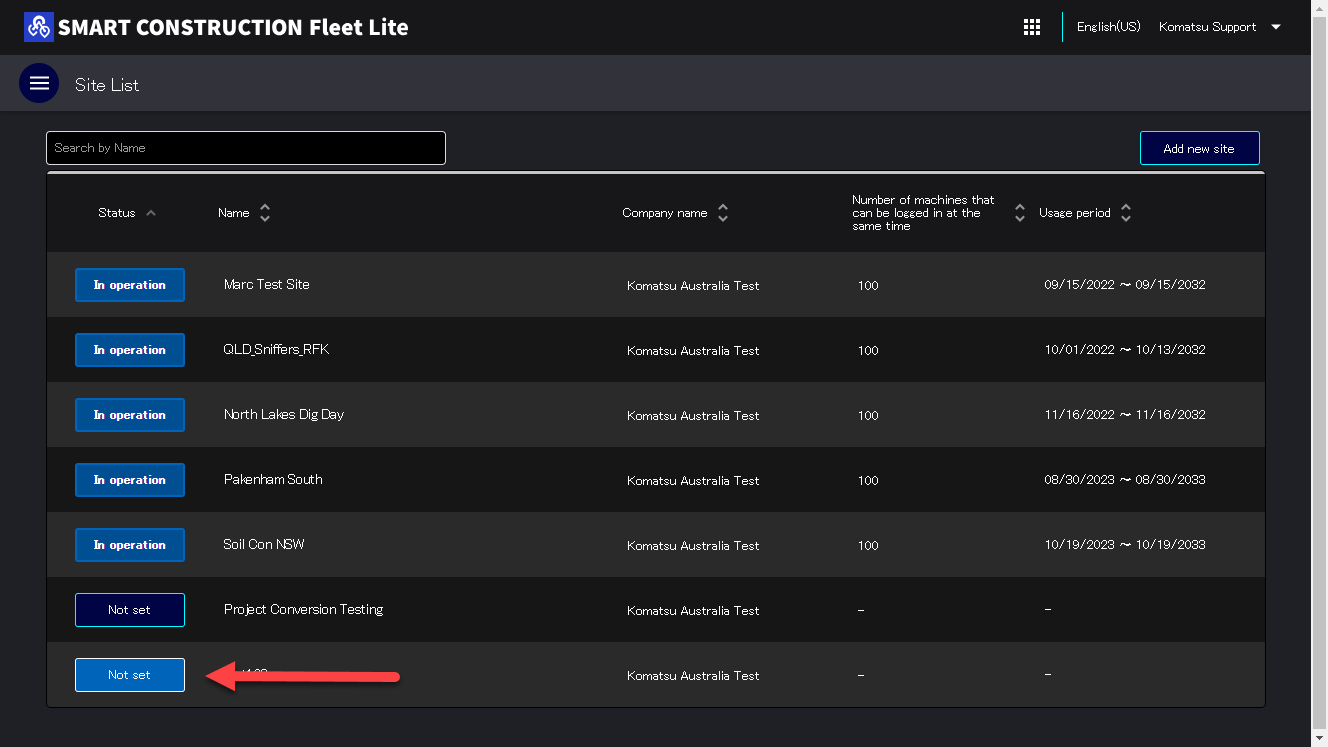
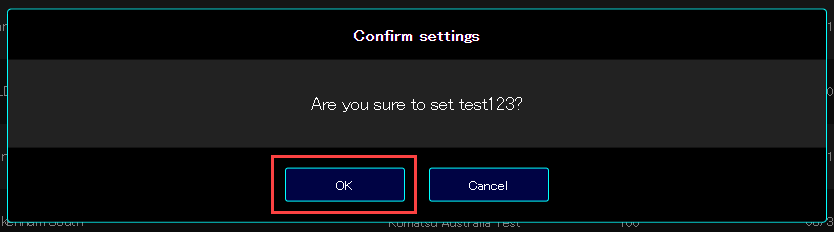
Press “Not Set” next to project name and activate the project
-
Register Payload Machine
-
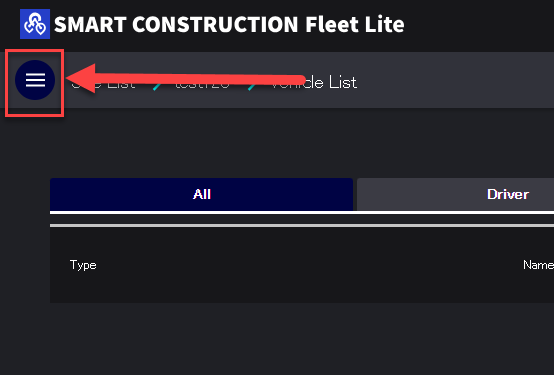
Press on the menu button (Top Left Corner of window) to open the menu list
-
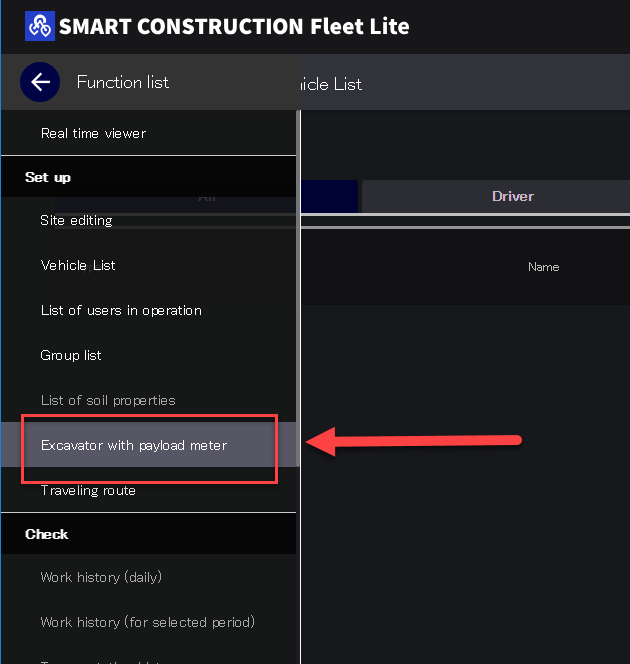
Press “Excavator with payload meter” in the menu
-
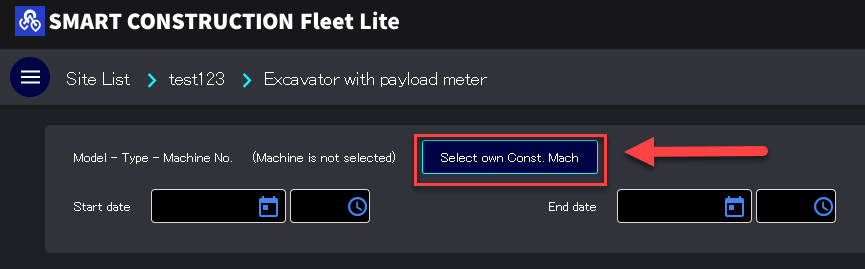
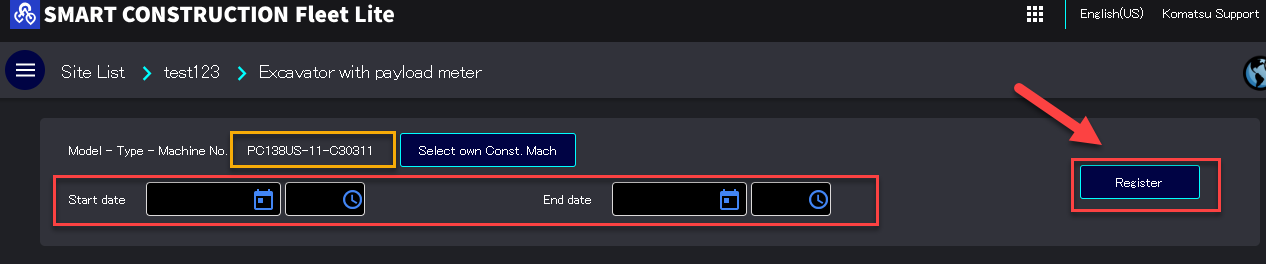
Press “select own Cont. Mach.”
-
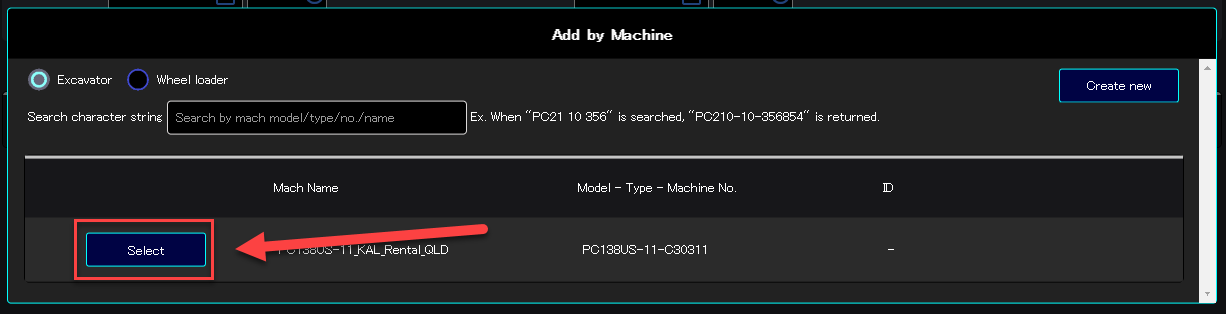
Select the Payload machine from the machines list. This list contains all machines belonging to your organisation
-
Specify “Start Date / End Date” and then press “Register” to add the machine to the list
Register Dump Truck
-
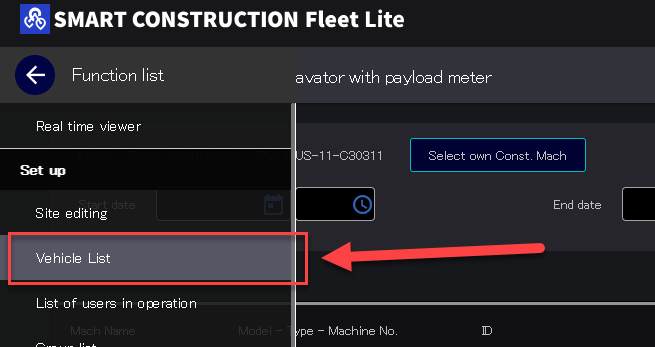
Press on the menu button (Top Left Corner of window) to open the menu list
-
Press “Vehicle List”
-
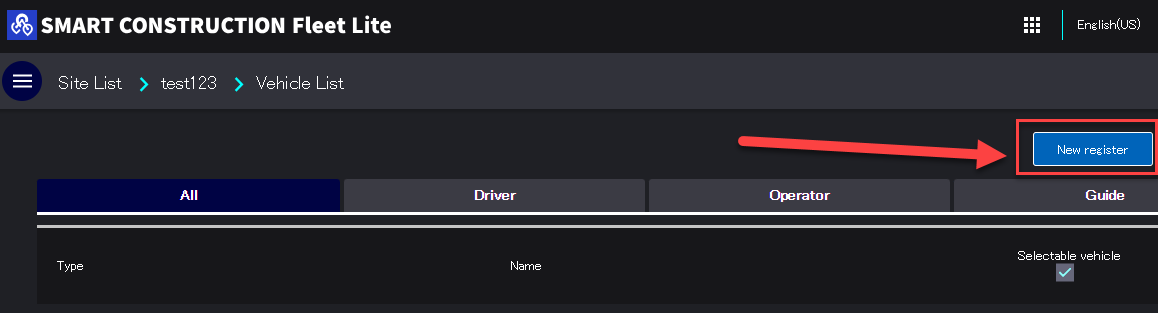
Press “New Register”
-
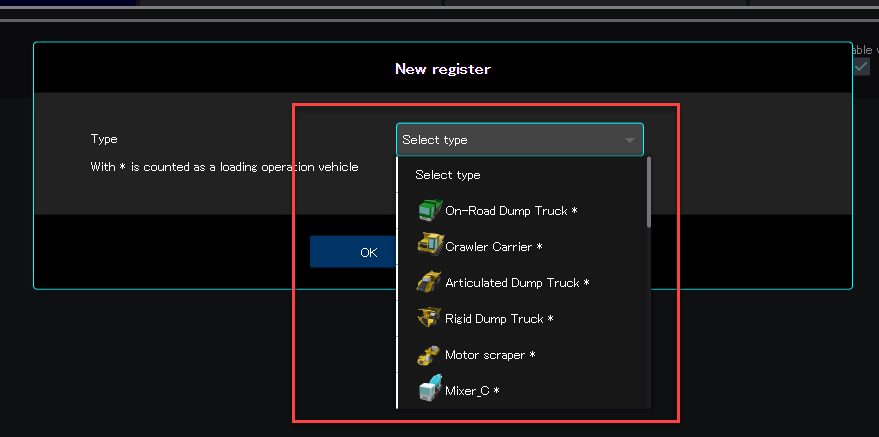
Select Vehicle type and press OK
-
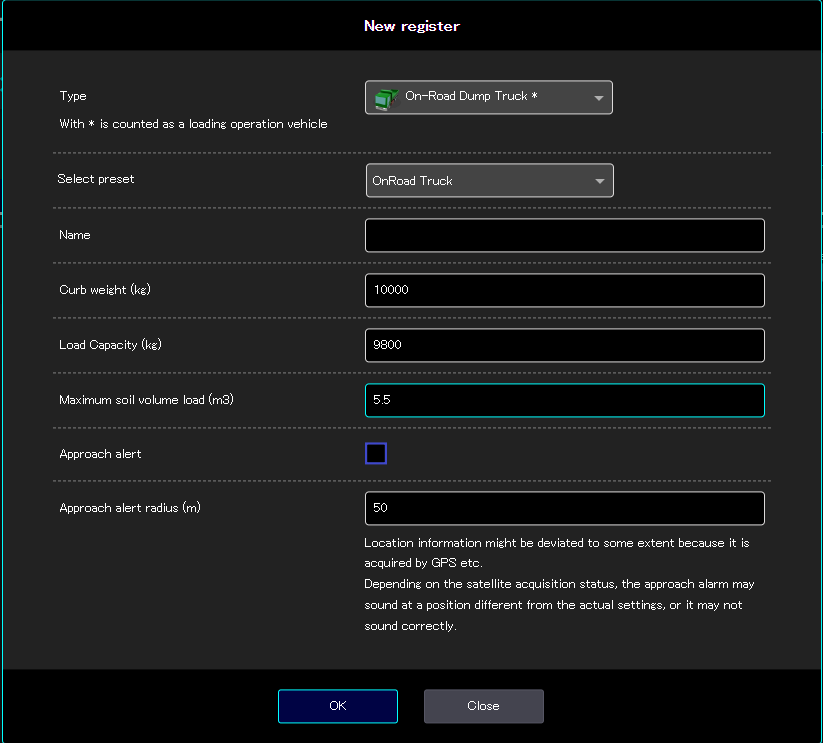
Enter Dump Truck Parameters and press OK
-
Name
-
Curb Weight
-
Load Capacity
-
Maximum soil volume load (m3)
-
Approach Alert**
-
Approach Alert Radius**
-
** - only applicable when using SC Fleet (Full version)
-
If steps are completed in “Register Payload Machine” below, vehicle will appear in truck list on SC Pilot Tablet application (may require application restart to appear once new vehicle is added)
Register Payload Machine
Payload information must be correctly configured on the Pilot Tablet app, otherwise data syncing will not occur.
-
In Smart Construction Pilot (Tablet app), access the Machine Settings menu in Administrator settings menu
-
Ensure the payload machine information entered is correct for Model, Type, and Serial.
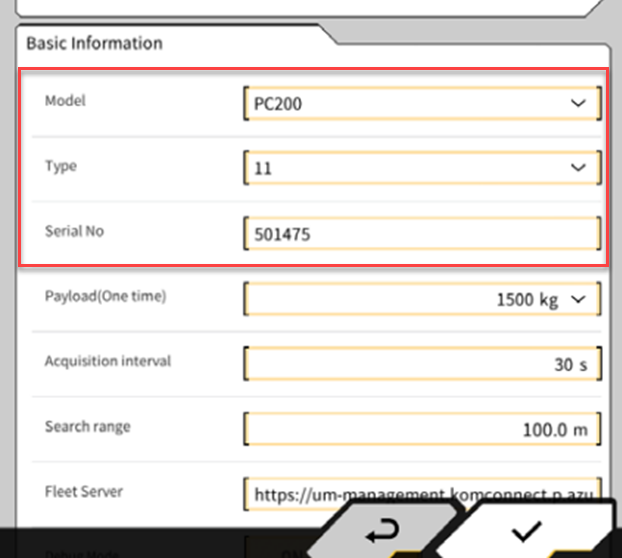
For payload result to be accurate, machine must be properly configured, calibrated and verified. If the information is not populated, or not correct, Contact Smart Construction Support Centre (SCSC) for assistance.
Standalone mode vs Syncing mode
By default, every SC Retrofit system will be set to “Standalone” payload mode. Standalone mode does not sync any payload data to the server. Using the Payload system in standalone mode is for real time reference only and all data will be lost. Additionally, trucks created on SC Fleet Lite will not be displayed in Standalone mode.
In order to store all load data and obtain the truck list, the system must be configured to “Syncing” mode.
List of Dump Truck
If the SC Fleet Lite application and SC Pilot Tablet application are configured correctly and the system is set to “Syncing” mode, vehicles created in SC Fleet Lite will be shown on the operators payload interface.
View Payload Results
-
Log into “SC Fleet Lite” web application
-
Select the project by clicking the site name
-
Press the menu button (top left corner) to access the list
-
Press “Loading Result (Payload)”
-
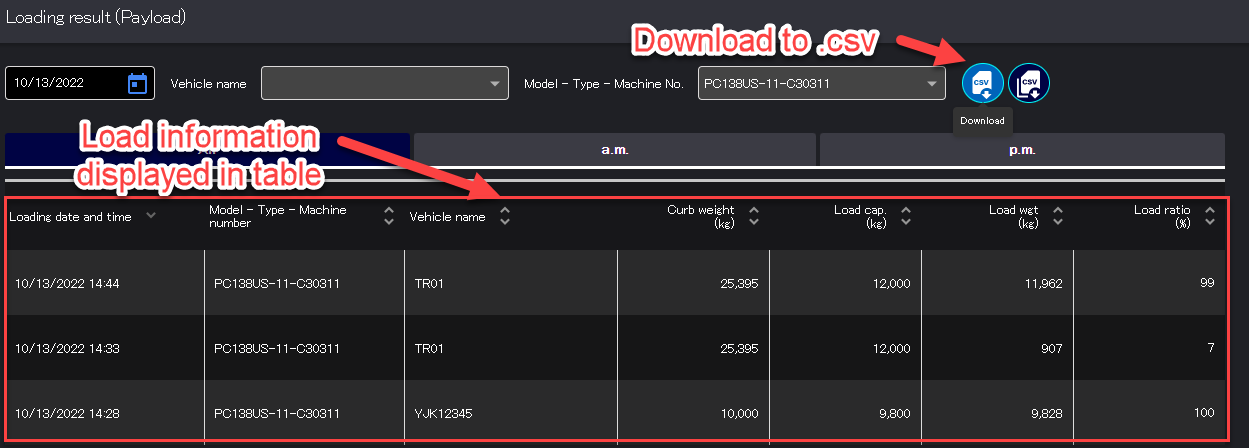
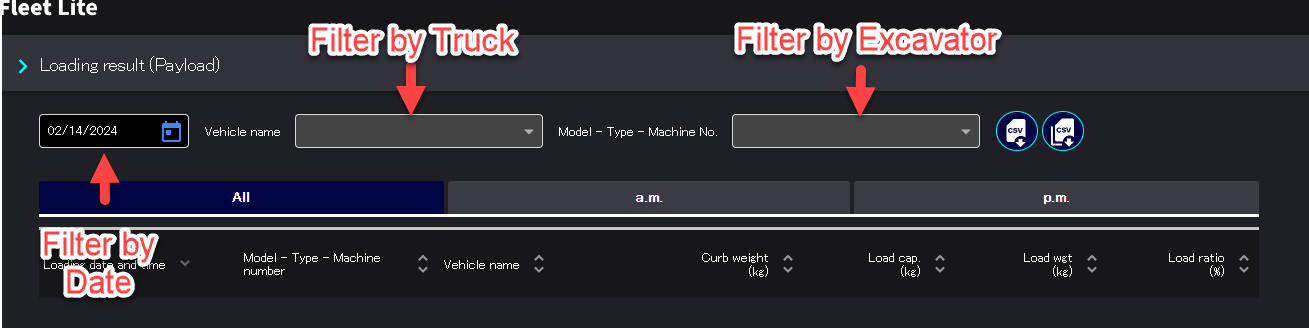
Use the filters to show the required data
-
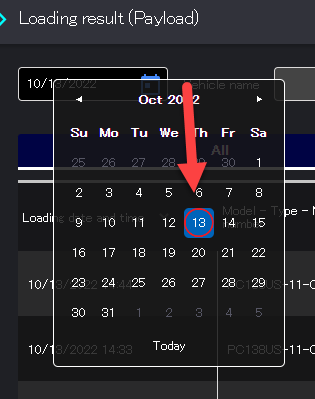
When a filter is applied, dates that contain load information will have a red circle for easier identification
-
The data can be viewed in the web viewer, or downloaded to text format (csv) using the download button