On this page:
You can view a list of all sent messages in GoLine, see which machines these messages were sent to, and also resend any sent messages.
Viewing sent messages
To view a list of sent messages:
-
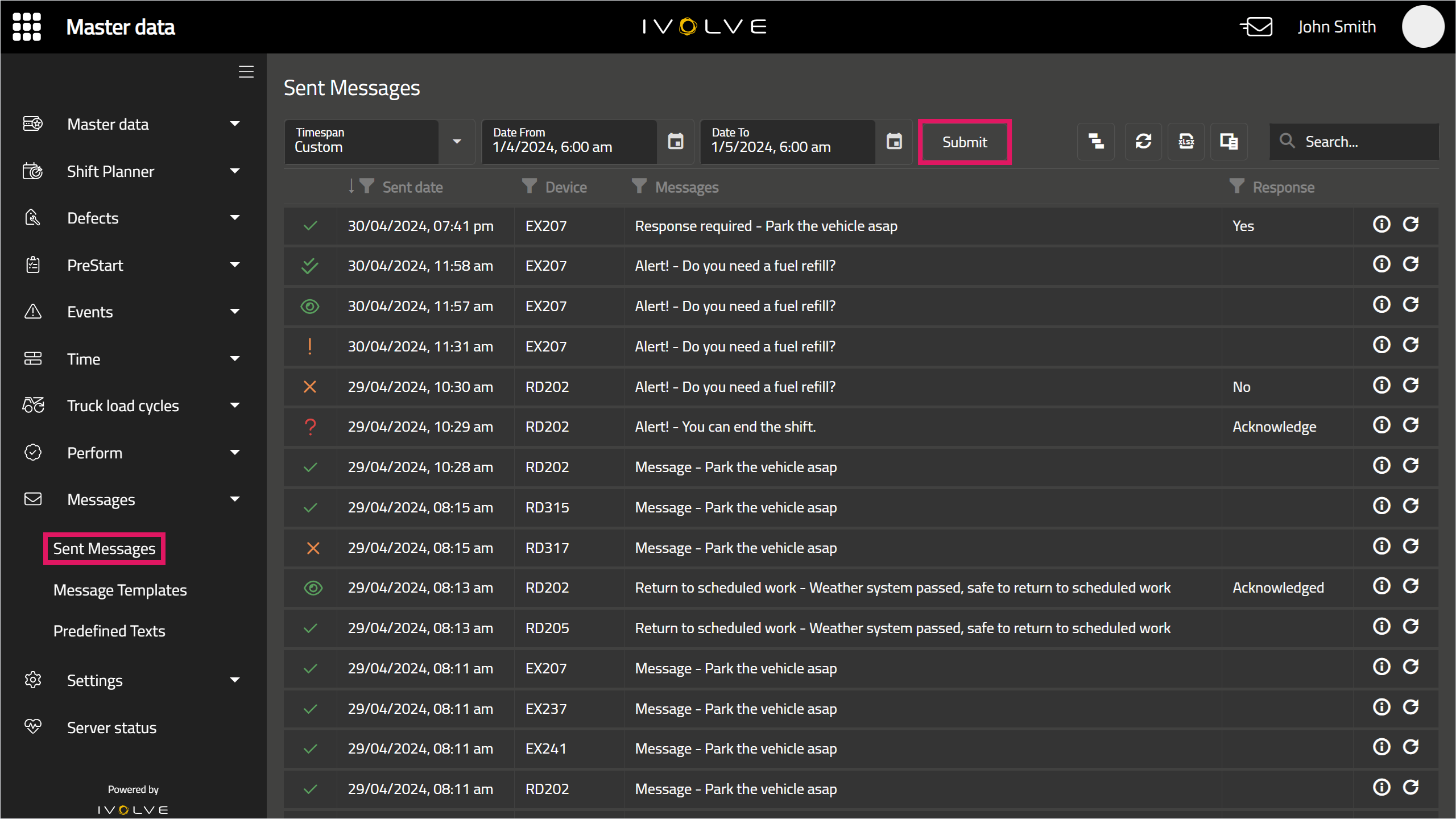
In GoLine, in the Messages section, select Sent Messages.
-
Select a Timespan (such as the current shift, last month, and so on), or select dates in the Date From and Date To fields to view a specific timespan, and click Submit to load the sent messages.
-
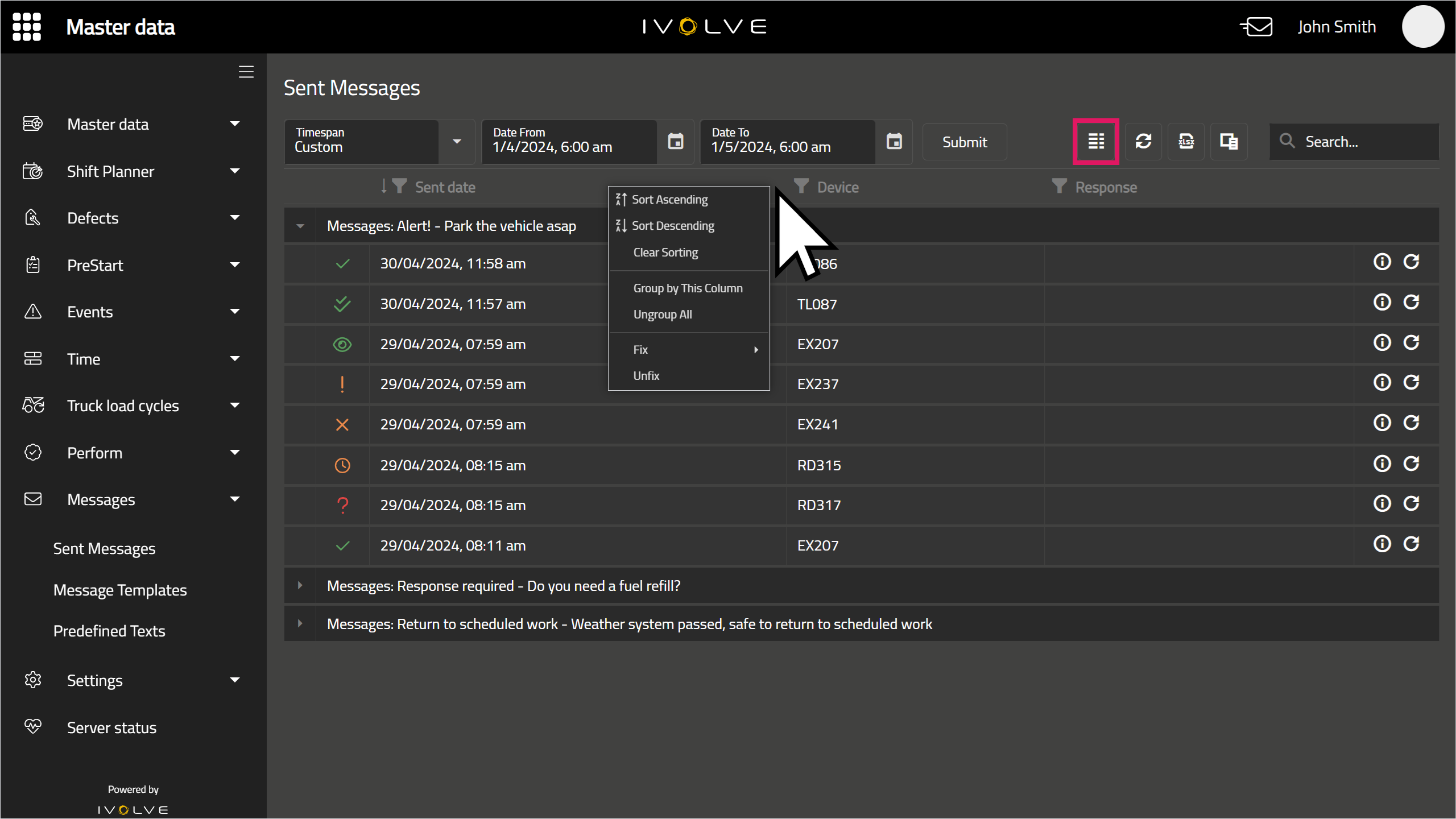
You can view sent messages in either the Inbox or Hierarchy view.
The Inbox view displays all messages in your selected timespan, from newest to oldest, while the Hierarchy view displays all sent instances of the same message.
For example, if the same message is sent to two different devices, in the Inbox view these will be shown as two separate entries, while in the Hierarchy view these will be displayed as the one group. (The screenshot below displays the Hierarchy view.)
To switch between views, click the Inbox or Hierarchy icon in the top-right corner of the Sent Messages table.
The Hierarchy view checks the title and text of a message when grouping; if the title and text are the same between two messages, they are considered the same message in GoLine, even if their responses or other fields are different.
-
You can sort both the Inbox and Hierarchy views by each column in the table, and group by each column as well. You can also fix a given column to the left or right of the Sent Messages table. To access these options, right-click a column at the top of the table, then select an option as needed.
You can also select Clear Sorting, Ungroup All, or Unfix to revert the Sent Messages table to its original layout.
Each message displays a status icon next to its entry. The following icons represent the following status:
|
Icon |
Status |

|
Sent |

|
Received |

|
Read |

|
Expired |

|
Cancelled |

|
Pending |

|
Unknown |
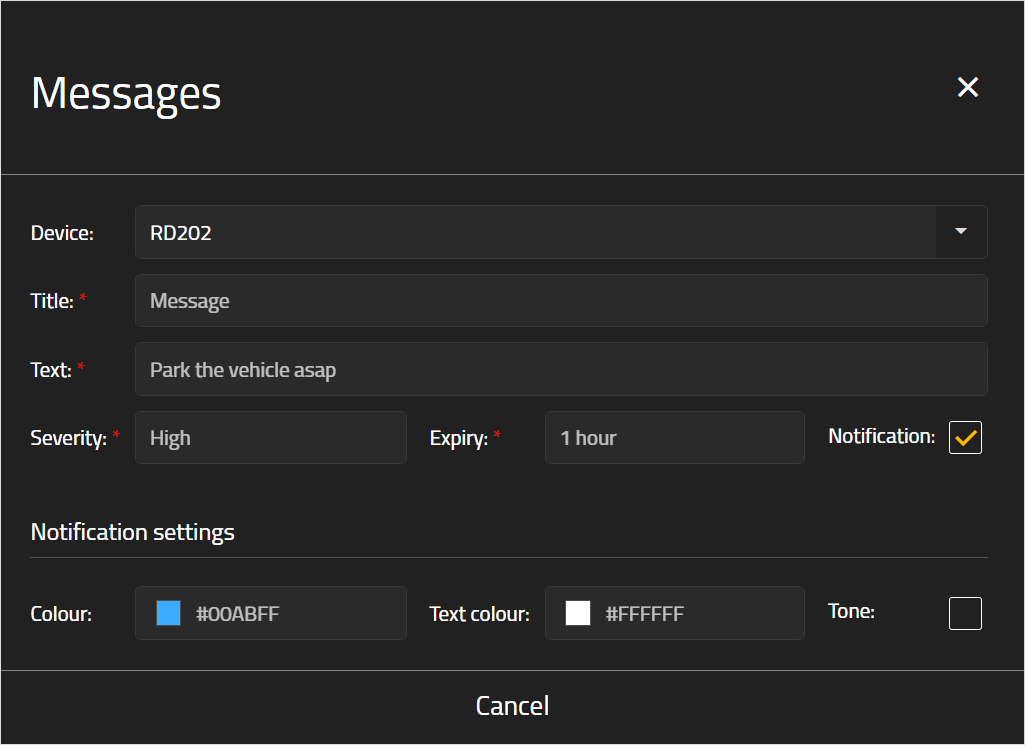
To view the details of a sent message, click the Information icon in its entry.

The message's details are displayed in a new window.
You cannot edit the details of a sent message.
Resending sent messages
You can resend a sent message to the same device the message was originally sent to, however you cannot change its details or send this message to a different device.
To resend a sent message:
-
Click the message's Resend icon.

-
A confirmation window opens; click Yes.