On this Page:
Predefined texts are the text of a message sent to an operator's in-cab display. Predefined texts can be attached to a message template to always display when a given template is selected, or can be chosen from a drop-down list of options when sending a message.
Creating predefined texts
To create a predefined text:
-
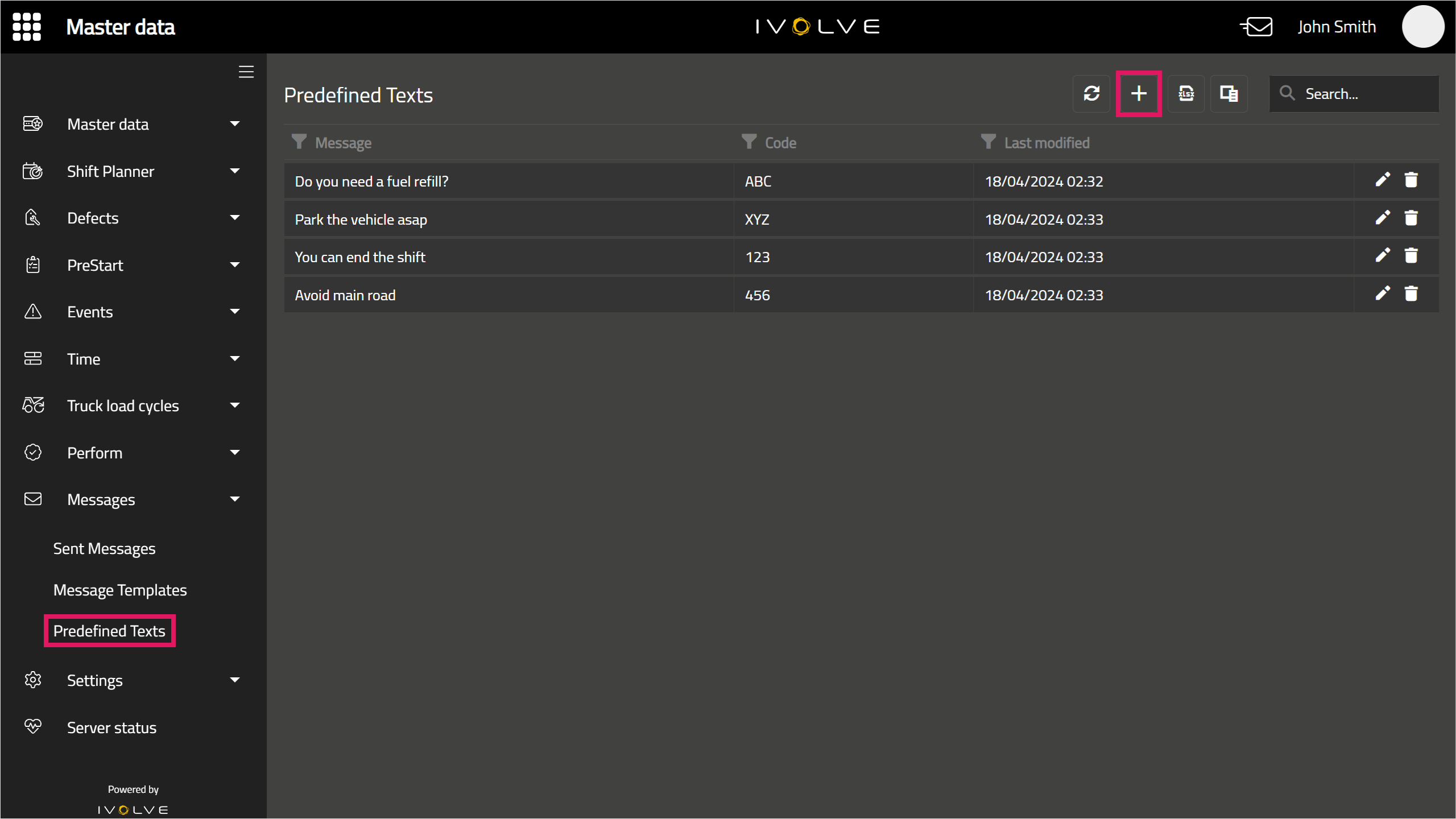
In GoLine, in the Messages section, select Predefined texts, then click Add in the top-right corner.
-
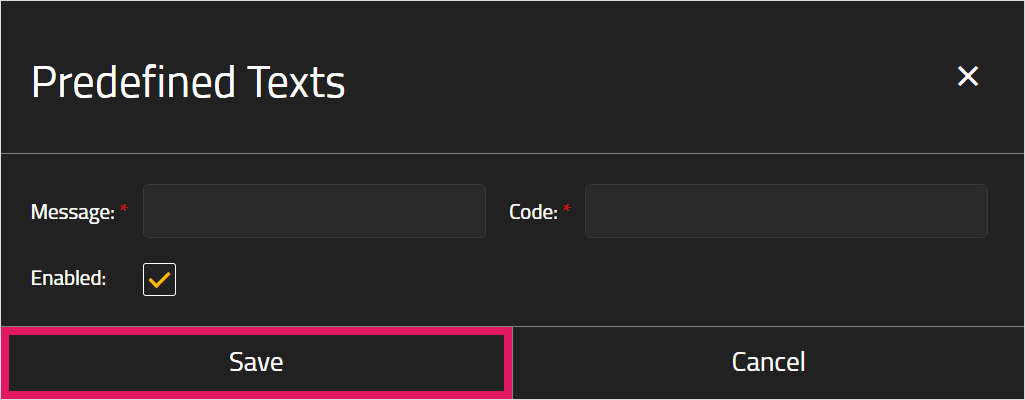
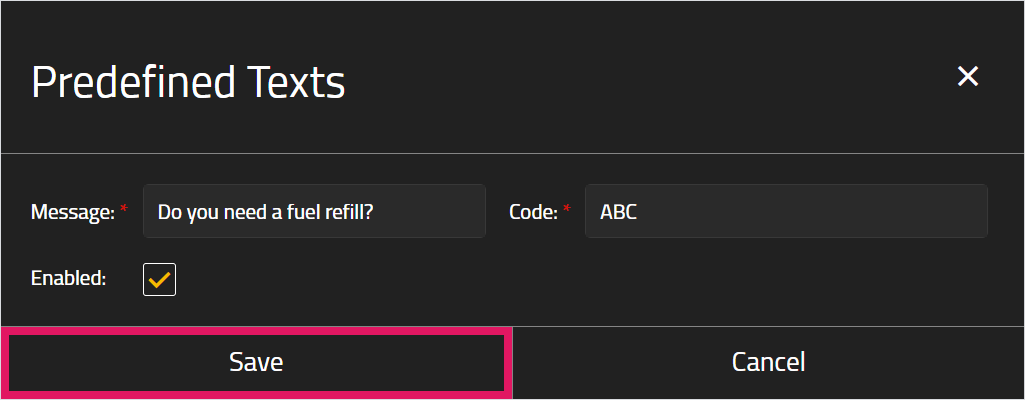
Enter a Message; this is text that will appear to an operator on their in-cab display.
-
Enter a Code; this can be any combination of text and numbers, and is used as a unique identifier for the predefined text.
-
Ensure the Enabled check box is selected.
If the Enabled check box is cleared, the predefined text cannot be used in any messages.
-
Click Save.
Editing predefined texts
To edit an existing predefined text:
-
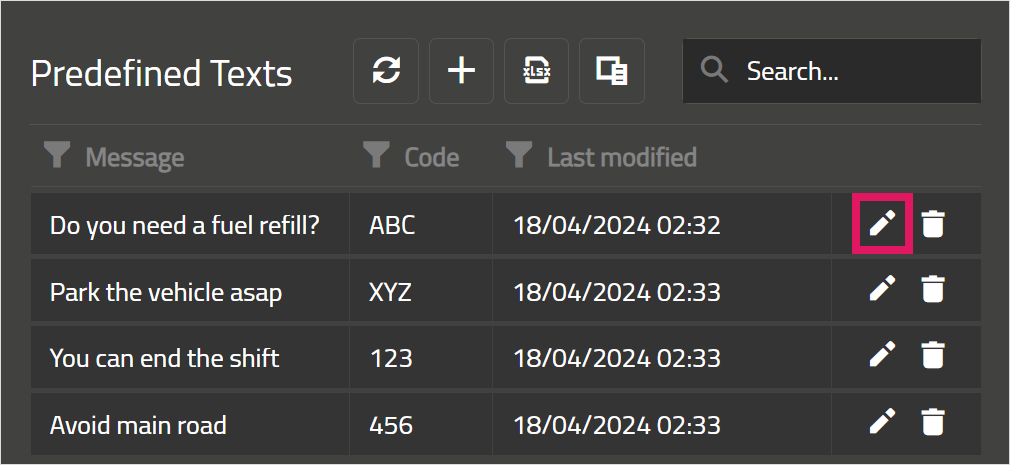
Click the Edit icon on a predefined text.
-
Make changes as needed, then click Save.
If the predefined text has previously been deleted, selecting its Enabled check box will re-enable the predefined text. See the Deleting predefined texts section of this topic below for more information.
Deleting predefined texts
When you delete a predefined text it can no longer be applied to any machines.
However, this is a soft delete, and the predefined text can be enabled again by selecting its Enabled check box. See the Editing predefined texts section of this topic above for more information on this process.
To delete a predefined text:
-
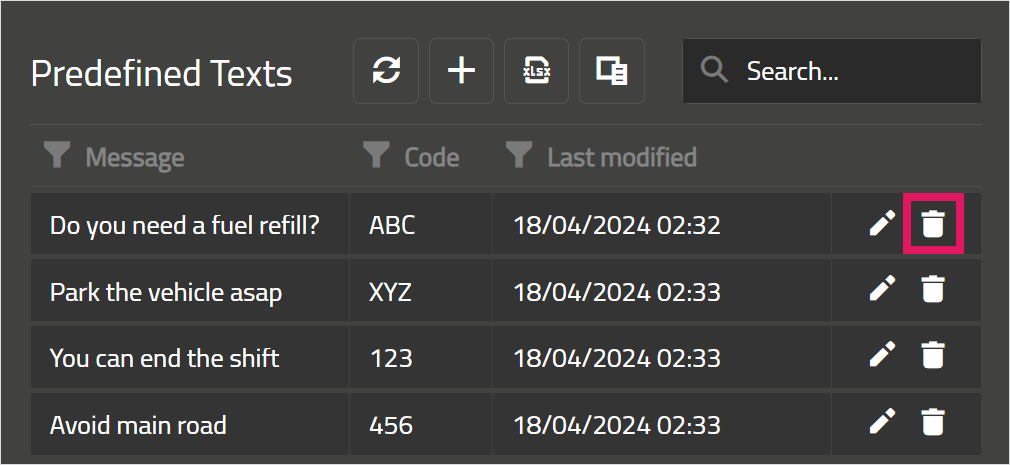
Click the Delete icon on a predefined text.
-
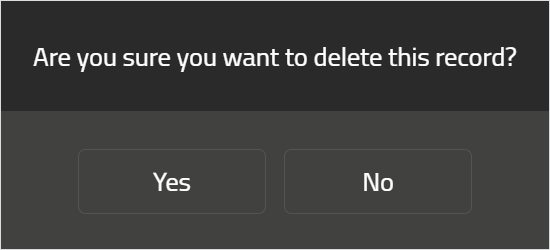
Click Yes in the confirmation window that opens.