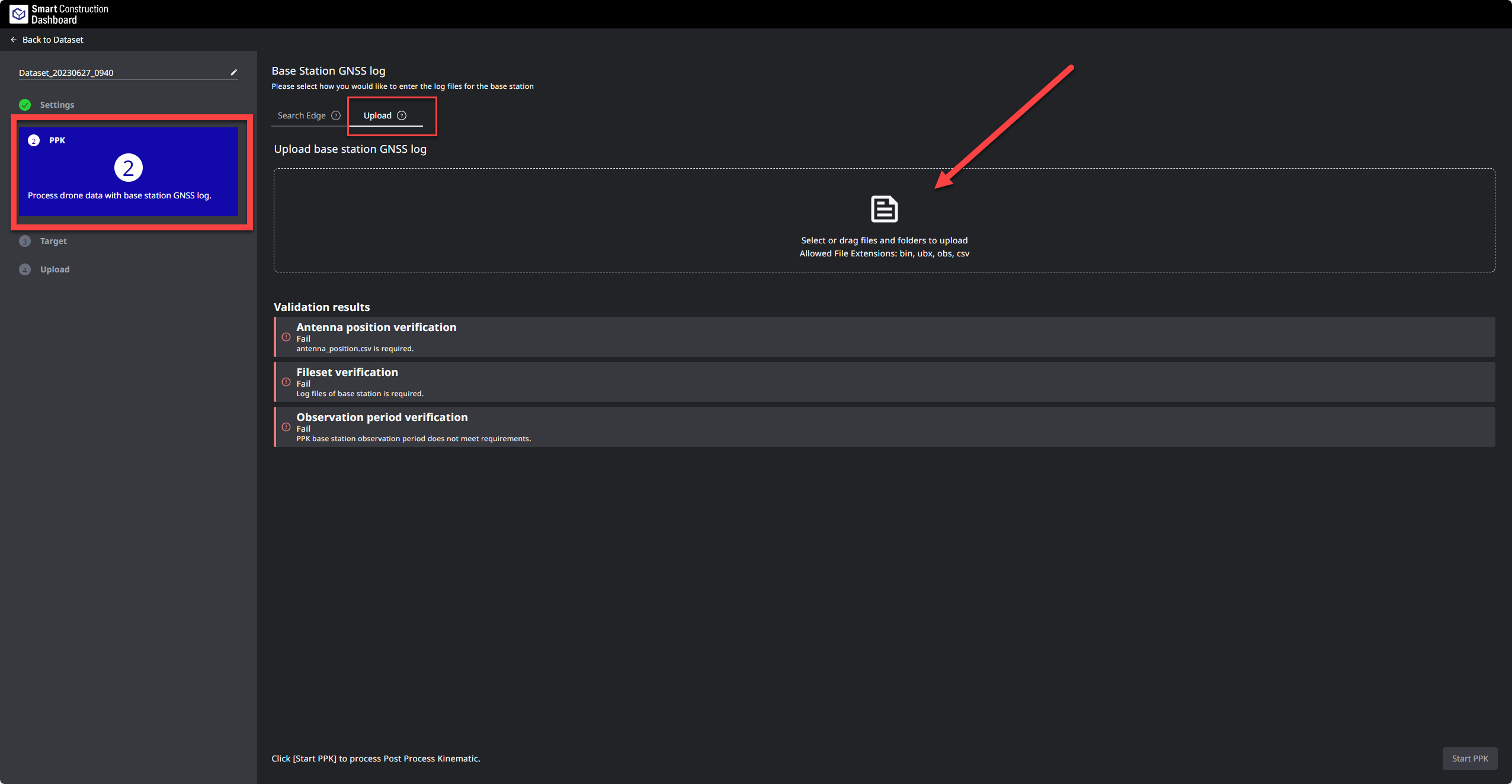
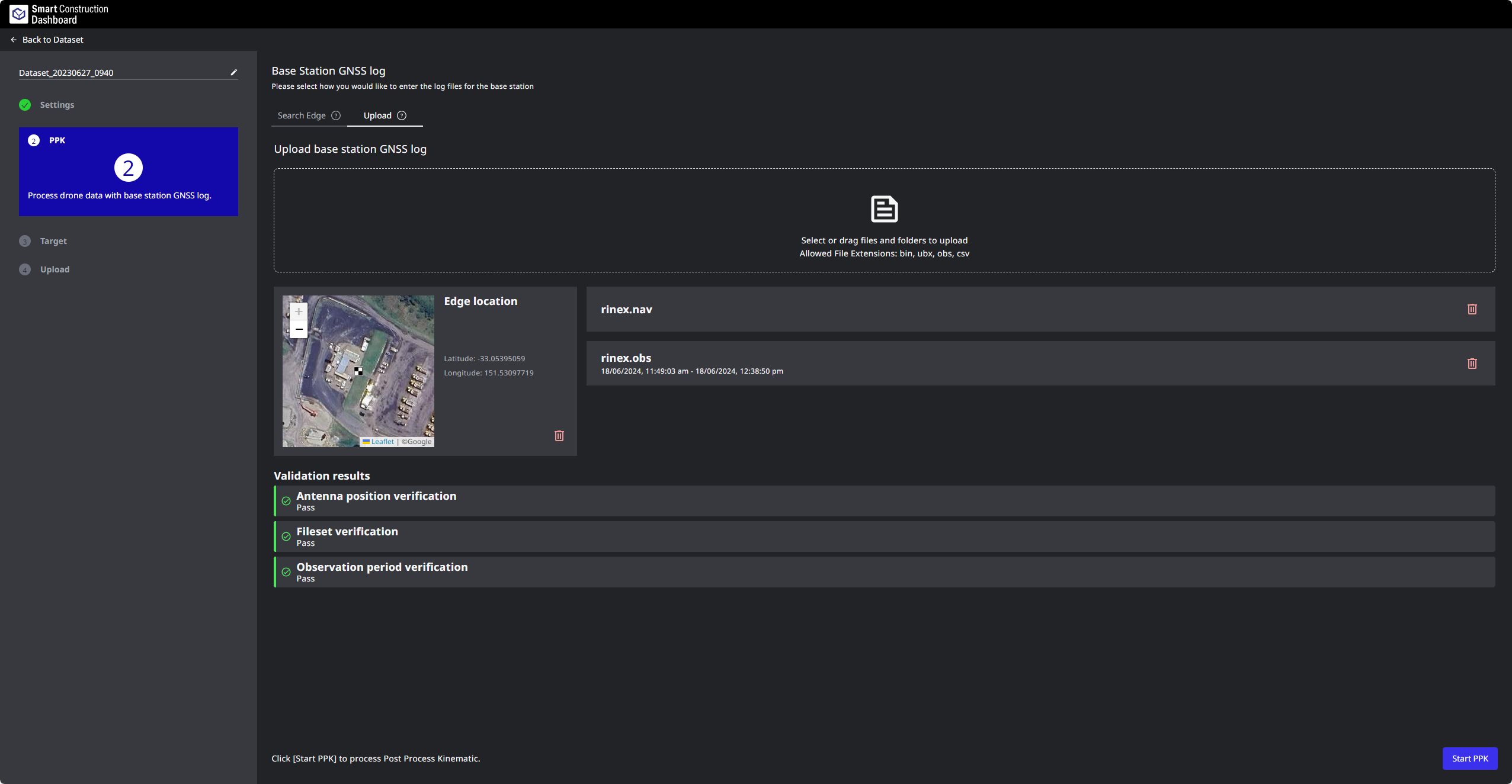
If you forgot to upload the PPK log at the end of your flight, you can either go back into the Edge and press “Send” PPK log again or you can Export it for manual uploading.
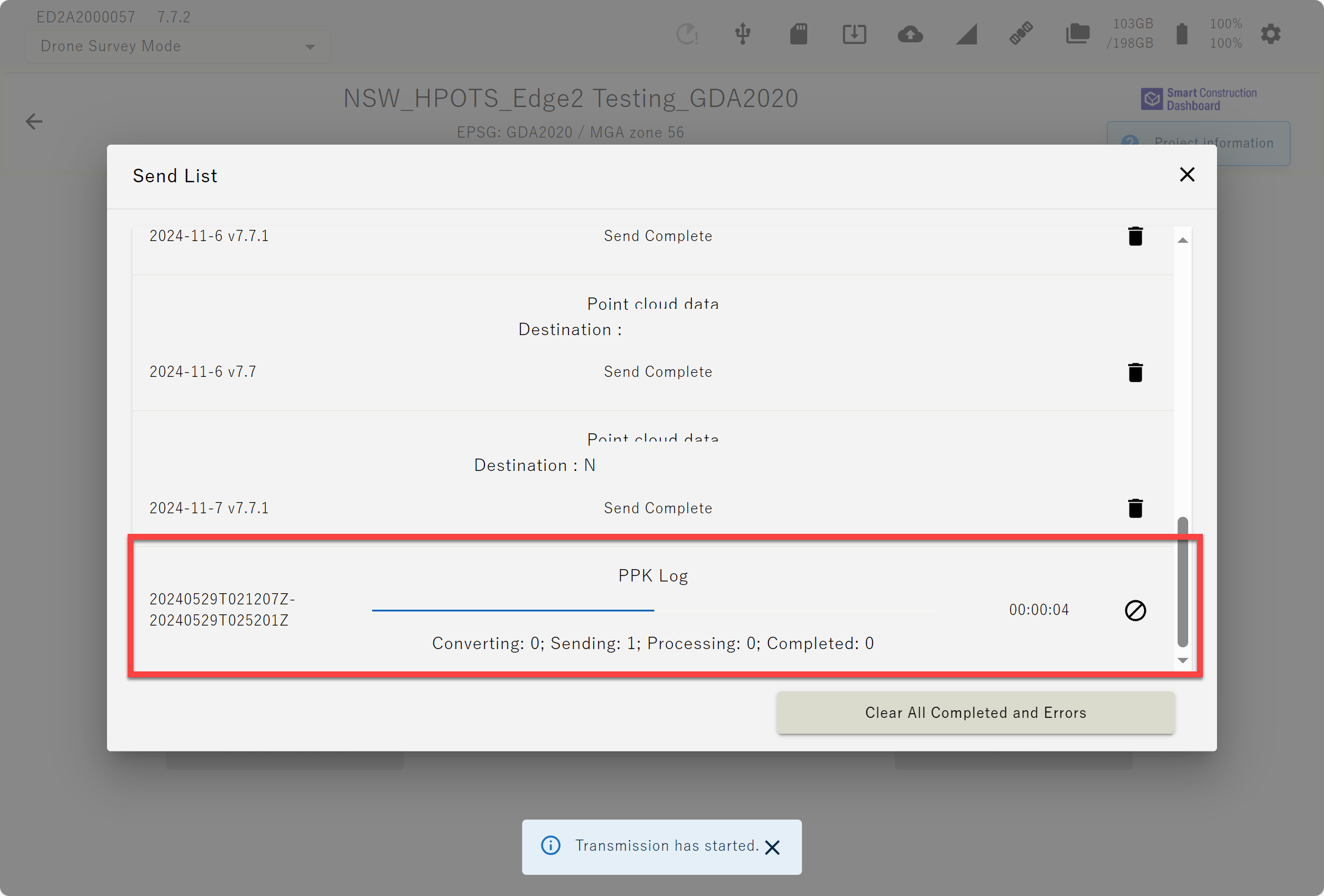
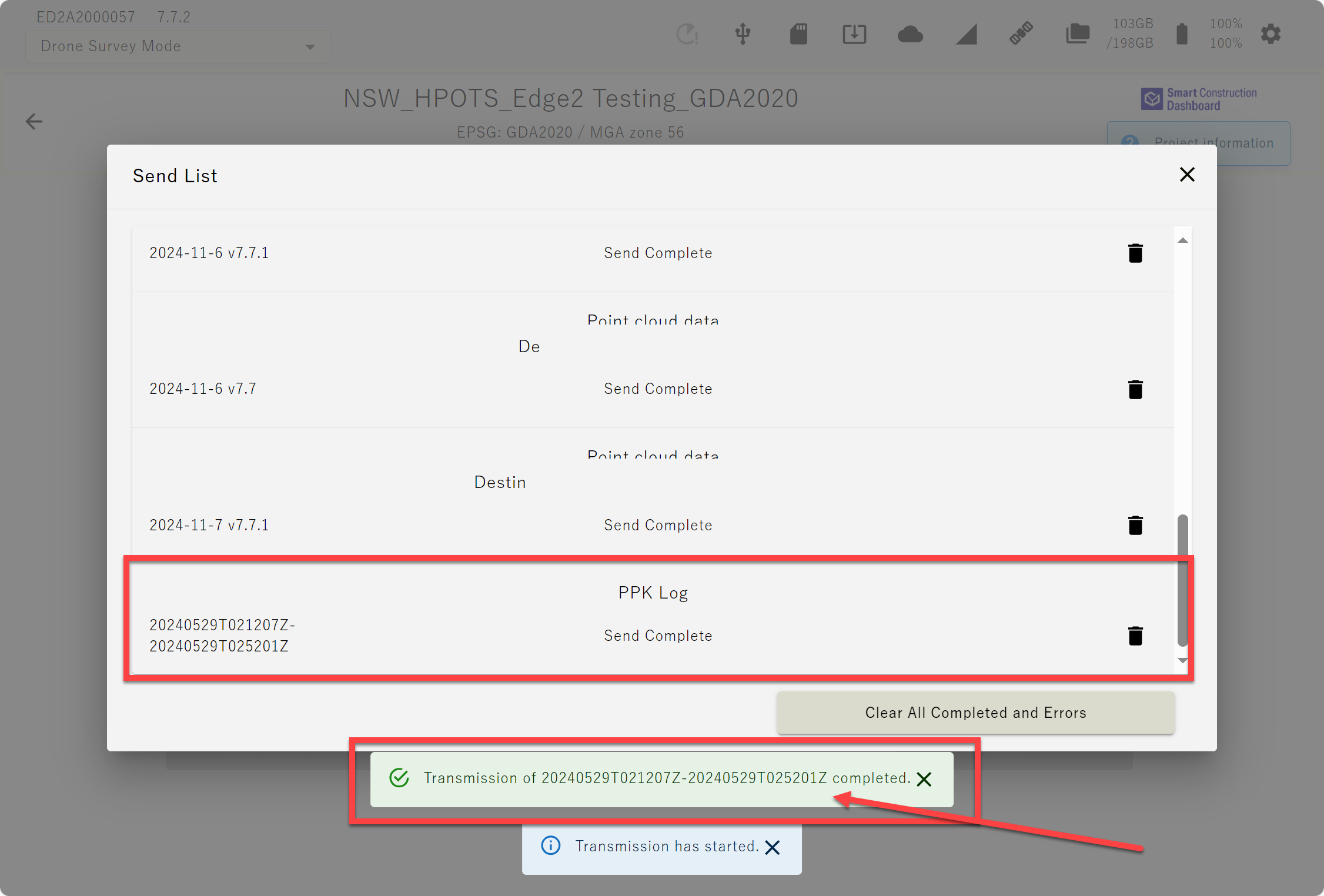
When you pressed “Send” PPK log, make sure the file is finished uploading before shutting down the Edge.
Shutting down the Edge before the PPK log has finished uploading will result in Cloud SfM processing failure
Send PPK log again
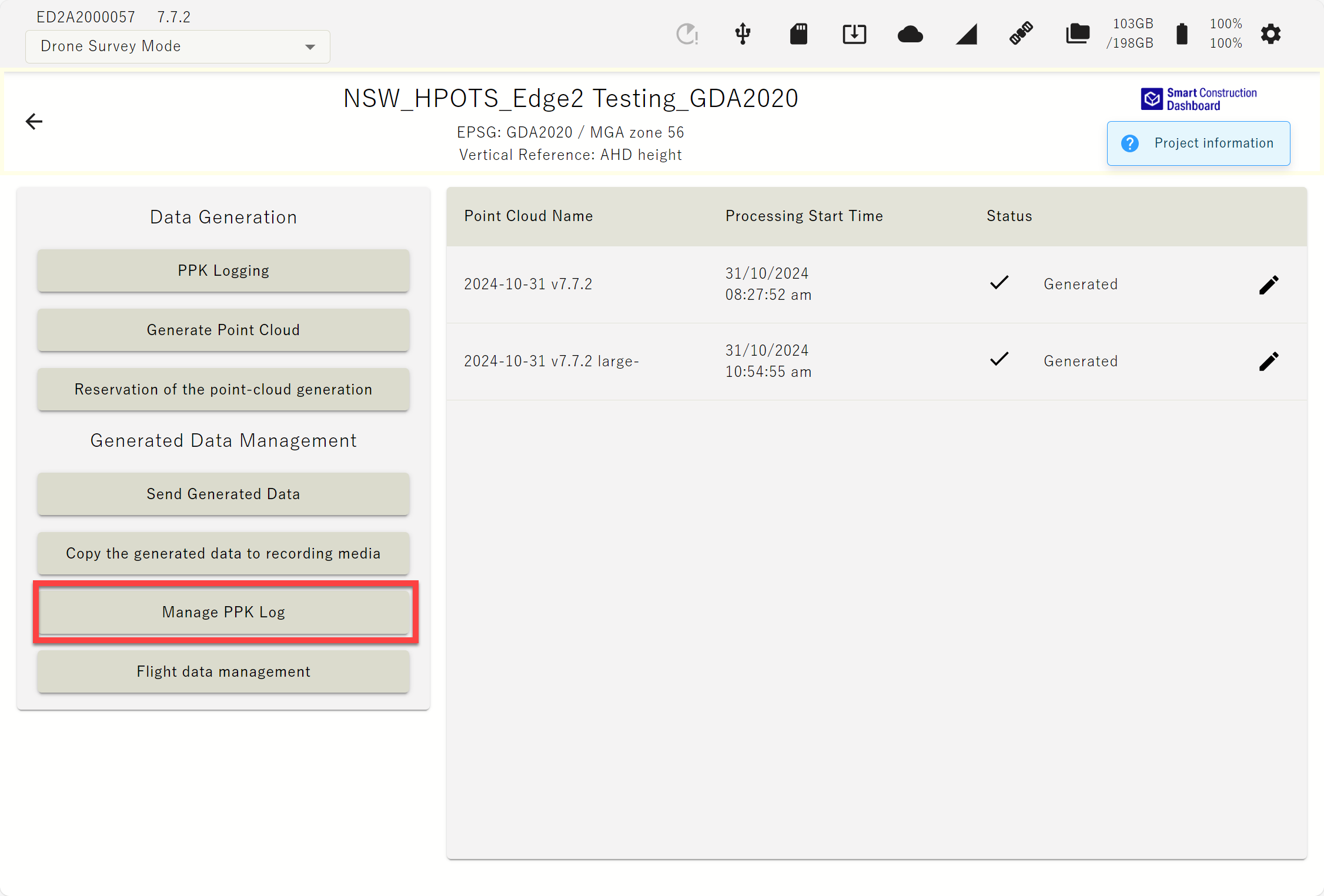
Go into the project with the associated PPK log & go into “Manage PPK Log”
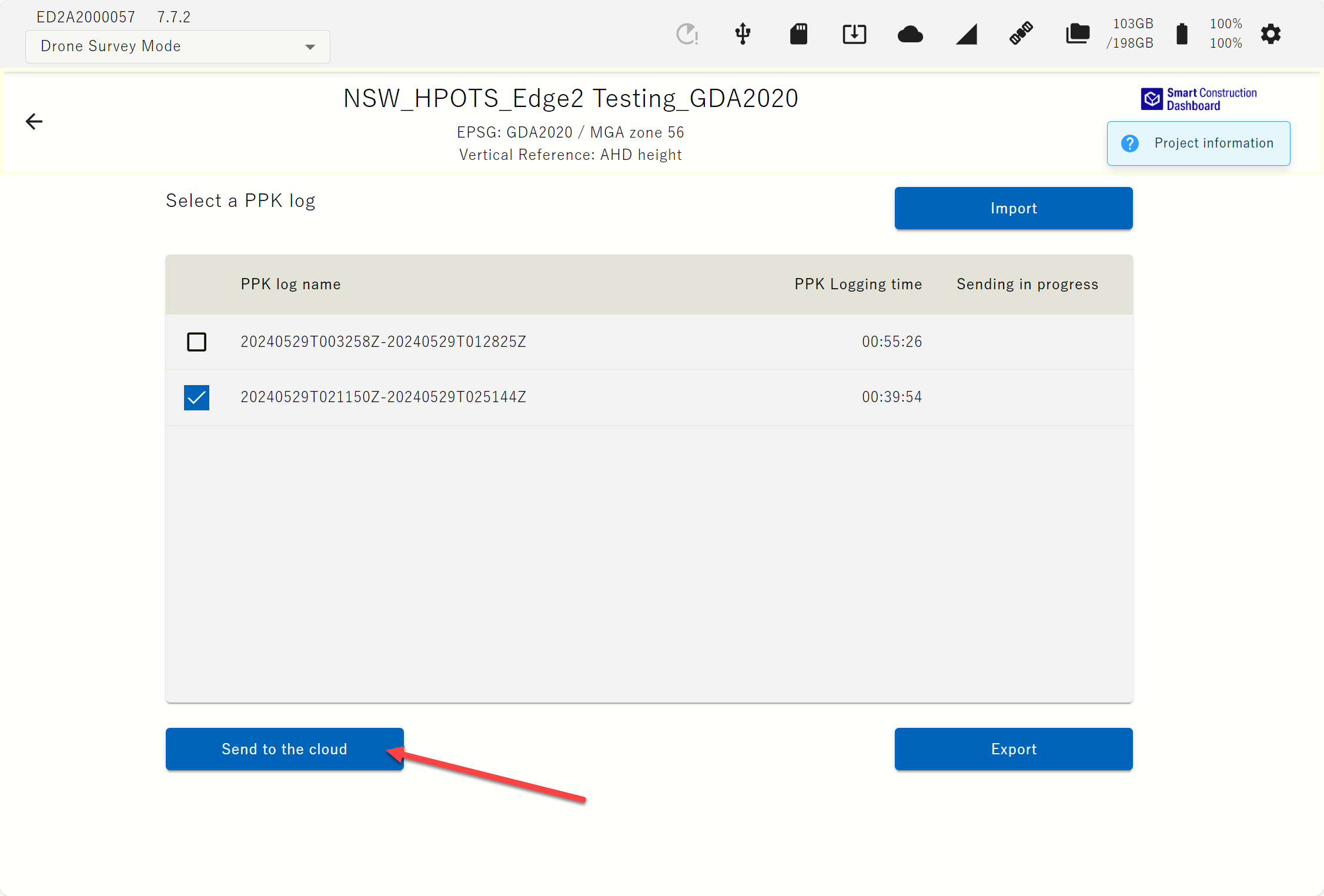
Choose the PPK Log you need to send by “Ticking” the box and press “Send to the cloud”
Export the PPK Log to USB
From Edge
Insert a USB into the Edge USB port and press “Export”
Wait for the export to finish
Eject the USB”
In SC Cloud SfM
At Step2 select “Upload” and Drag & Drop the entire folder containing all three files from the Edge.