You can customise the layout and parameters of your iReport dashboards, both for your personal account and for all users, and also Favourite a chosen dashboard.
Favouriting dashboards
You can Favourite a dashboard from the Dashboard Configuration page, or while viewing a dashboard.
Favouriting a dashboard sets it as your default dashboard in iReport. Also, clicking the Dashboard item on your GoLine homepage will take you direct to your Favourited dashboard.
You can only Favourite one dashboard at a time; you cannot have two favourite dashboards.
To Favourite a dashboard from the Dashboard Configuration page:
-
Select the Dashboards tab from the top of the page in iReport.
-
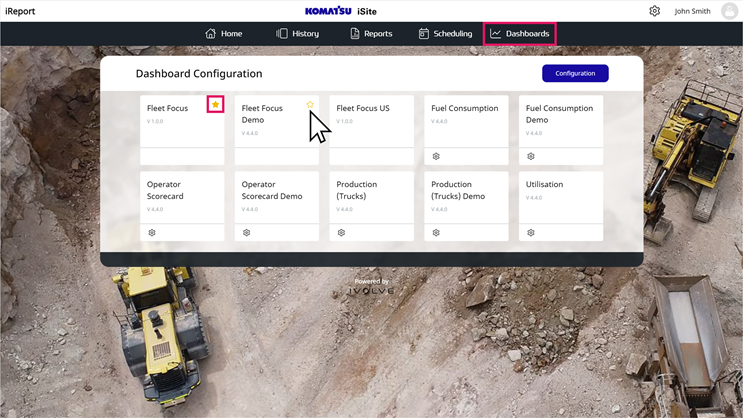
The current favourite displays a gold star in its top-right corner; hover your mouse over a dashboard to display a gold star outline, and click this outline to select a new favourite dashboard. The current favourite is automatically deselected.
Alternatively, click the favourite dashboard's gold star to deselect it without choosing a new favourite.
To Favourite a dashboard while viewing a dashboard:
-
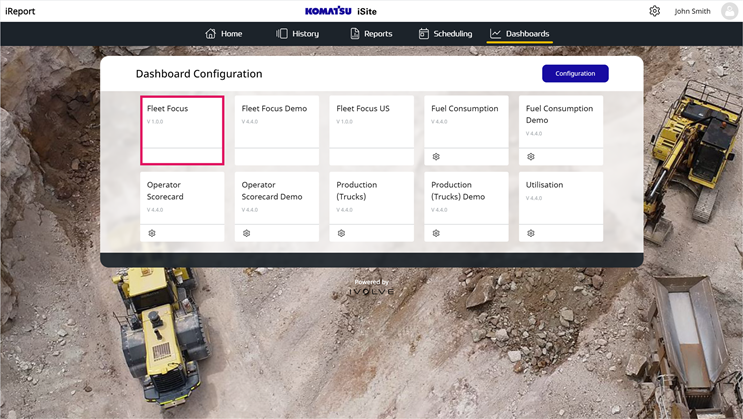
Select a dashboard from the Dashboard Configuration page.
-
Click the Dashboards menu icon in the top-left corner of the dashboard's screen.

-
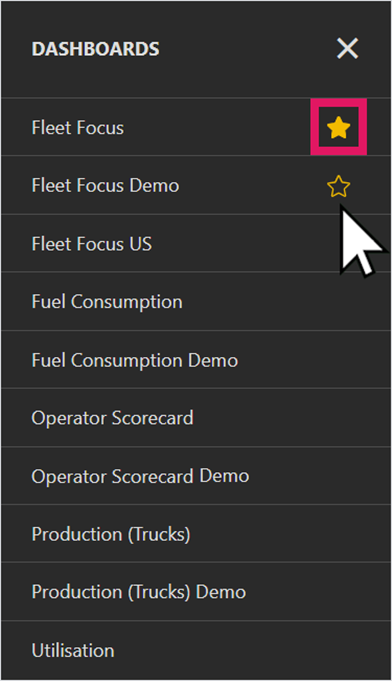
In the Dashboards menu that opens, the current favourite displays a gold star in its right corner; hover your mouse over a dashboard to display a gold star outline, and click this outline to select a new favourite dashboard. The current favourite is automatically deselected.
Alternatively, click the favourite dashboard's gold star to deselect it without choosing a new favourite.
With a favourite dashboard selected, clicking Dashboards in GoLine opens the favourite dashboard.
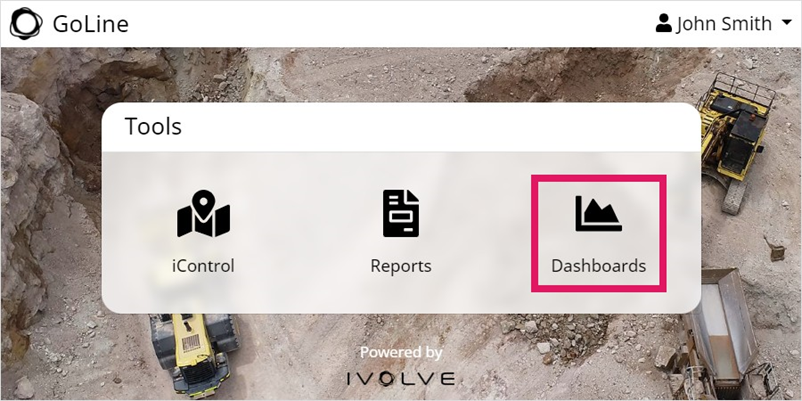
If you have multiple sites, there will be a Dashboards option for each site in GoLine. You can set a favourite dashboard for each site.
Further, if you do not have a favourite dashboard, the first dashboard in your list opens instead.
Setting a default work site
You can select a default work site for all your dashboards.
Individual users can still manually select a different work site after they open a dashboard.
To set a default work site:
-
Select the Dashboards tab from the top of the page in iReport, then click the Configuration button.
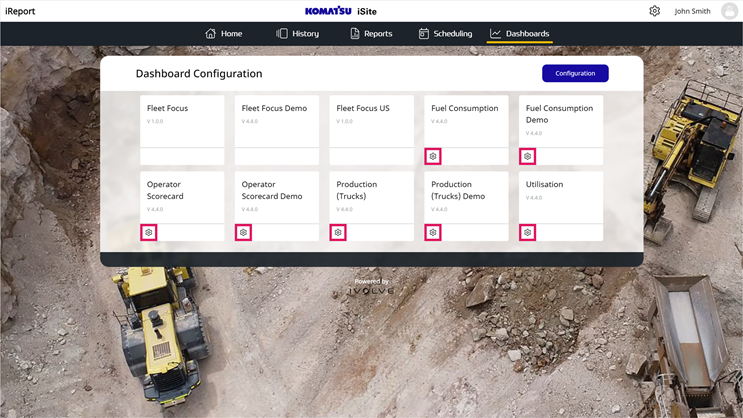
If a dashboard does not have a Settings icon, it does not have a timespan.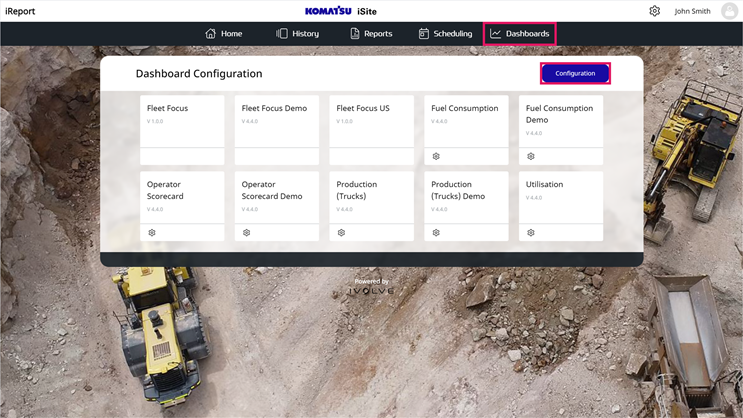
-
Select a work site from the drop-down menu as needed, then click Apply to update all dashboards.
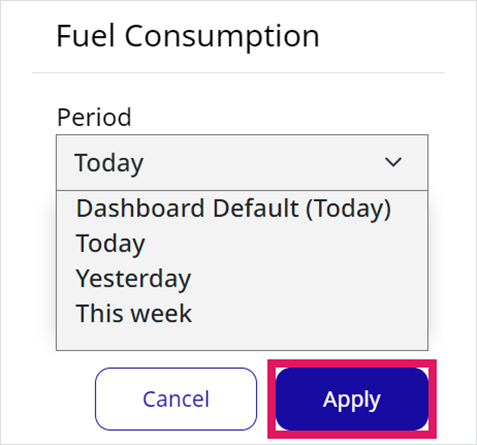
The default timespan for a dashboard will always be at the top of the drop-down menu. You can select this option to revert the dashboard to its default timespan at any time.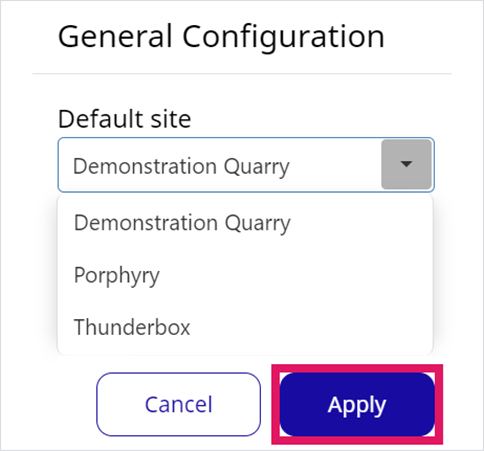
Setting default dashboard timespans
You can set a default timespan for a dashboard to display when it is opened.
Individual users can still manually select a different time span after they open a dashboard.
To set a default timespan:
-
Click the Settings icon on a dashboard.
-
Select a timespan as needed from the drop-down menu, then click Apply to update the dashboard.
Configuring a Dashboard
You can move and resize widgets on a dashboard to customise your dashboard display.
You cannot delete or add widgets to the dashboard, only configure your existing widgets.
To customise your display:
-
Click the Edit icon in the top-right corner of a dashboard screen.

-
Click a widget to select it, then click its Movement () icon and drag and drop to relocate.
This can affect the size and placement of other widgets on the dashboard.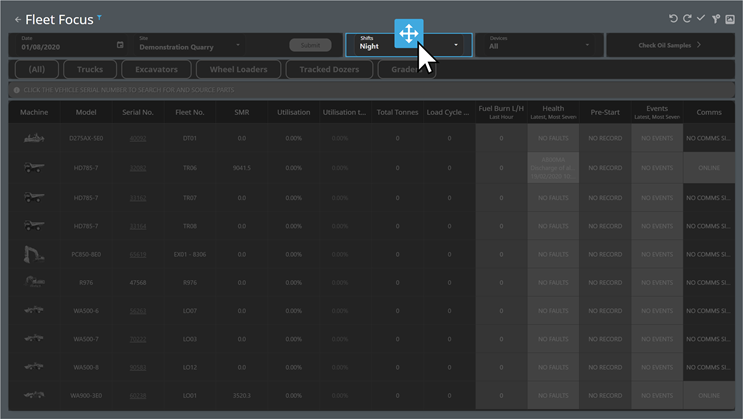
-
Hover your mouse at the border of two widgets until the resize cursor appears, then drag the borders as needed to resize the widgets.
Resizing a widget can affect the size of other widgets on the dashboard.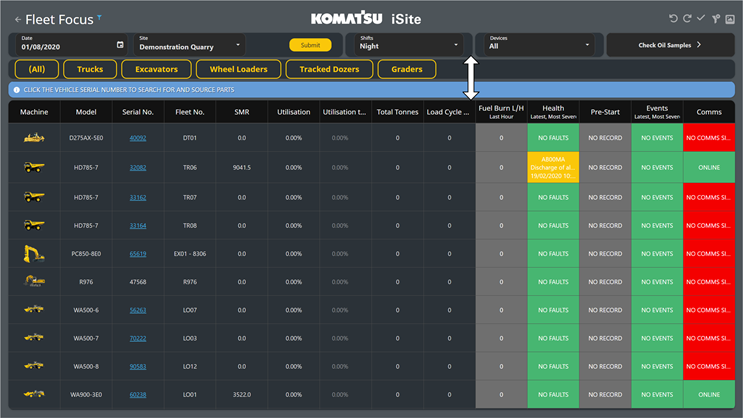
-
You can click the Undo or Redo buttons at any time to undo or redo your changes. When you are finished editing, click the Save tick to save your changes.

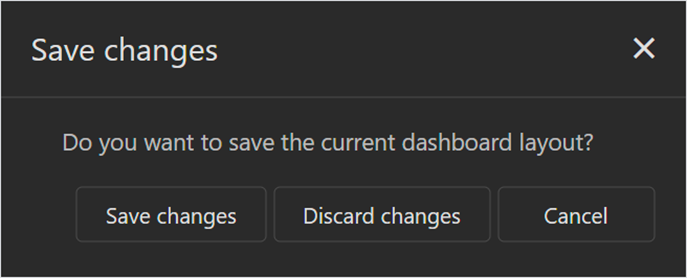
After you click the Save tick, a confirmation window opens. Select Save changes or Discard changes as needed, or select Cancel to continue editing.
You cannot undo or redo your changes after saving.
Resetting a dashboard to its default layout
You can reset your dashboard to its default layout at any time.
You cannot undo a reset or revert to a previous dashboard layout. After a dashboard layout is reset, you must edit the dashboard again to manually restore any custom placements or sizes you implemented.
To reset your dashboard's layout:
-
Click the Reset icon in the top-right corner of the screen.

-
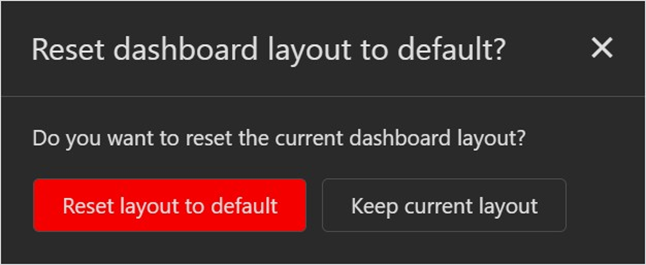
In the confirmation window that opens, click Reset layout to default.