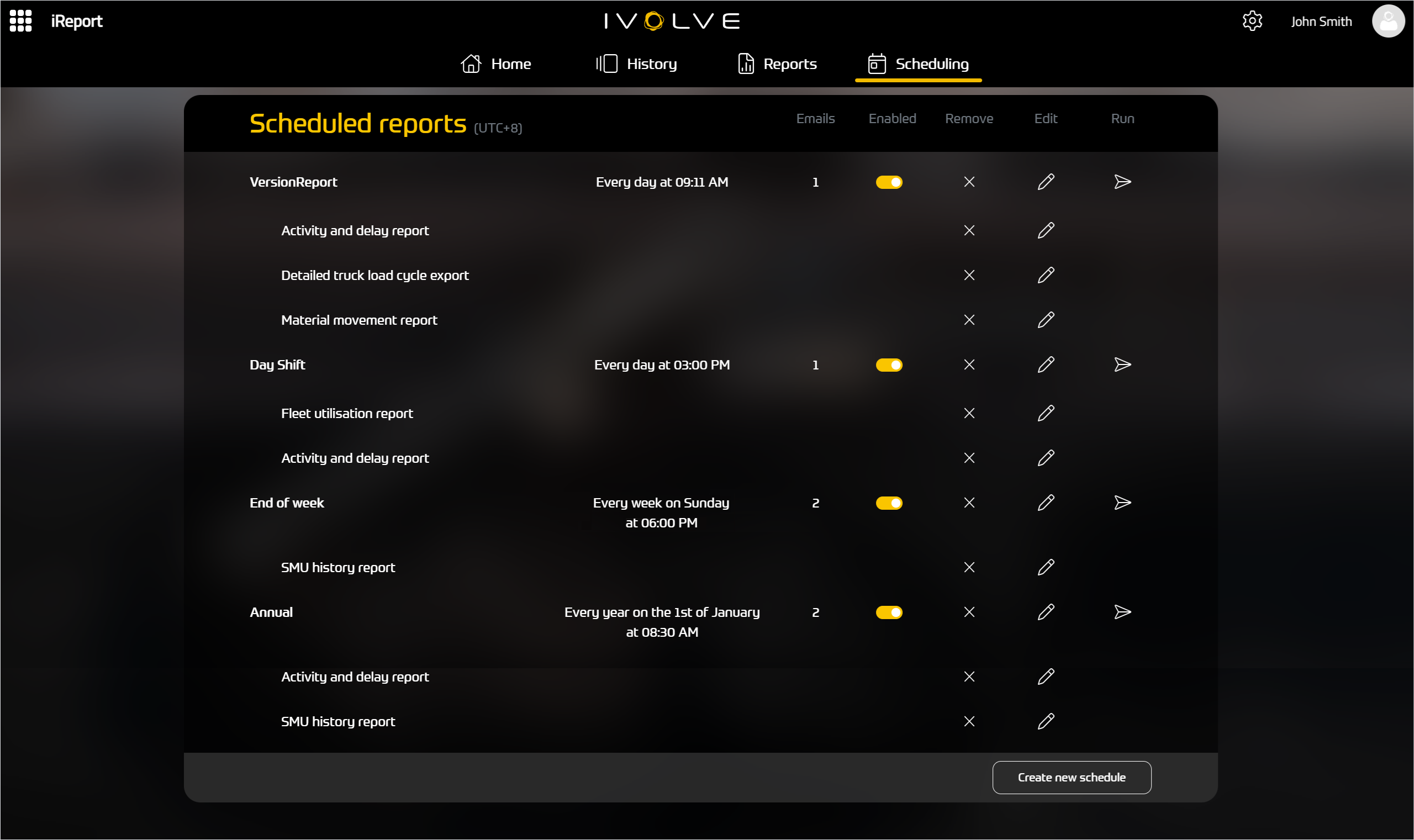
After a schedule is created, you can assign it additional report templates. Every report template assigned to a schedule is listed beneath the schedule's name in the Scheduled reports page.
You can only add one report template at a time to a schedule. To add additional reports, repeat the process below as many times as needed.
To assign additional report templates to an existing schedule, complete the following steps:
-
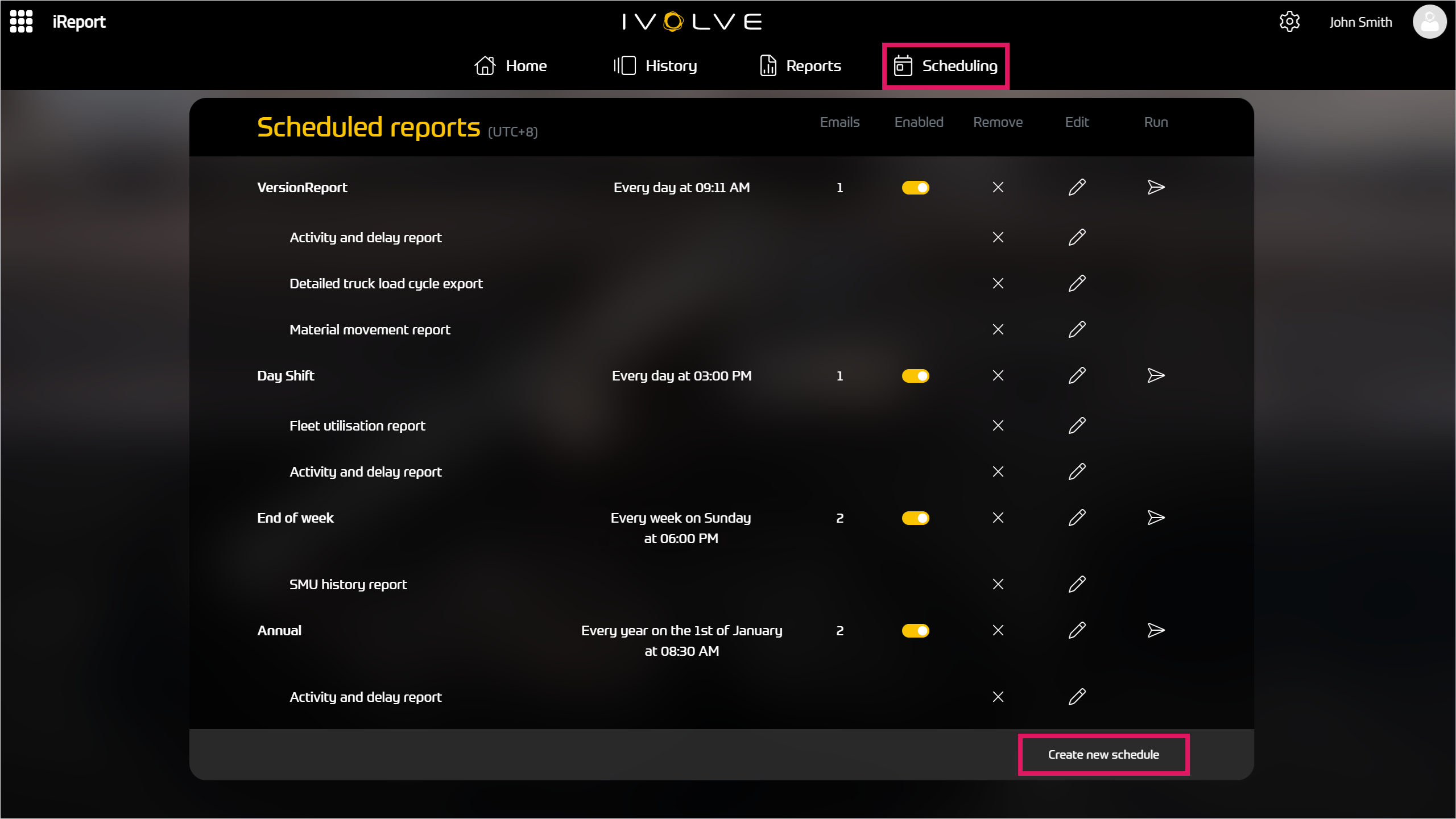
In the Scheduling tab, select Create new schedule below the table of schedules.
-
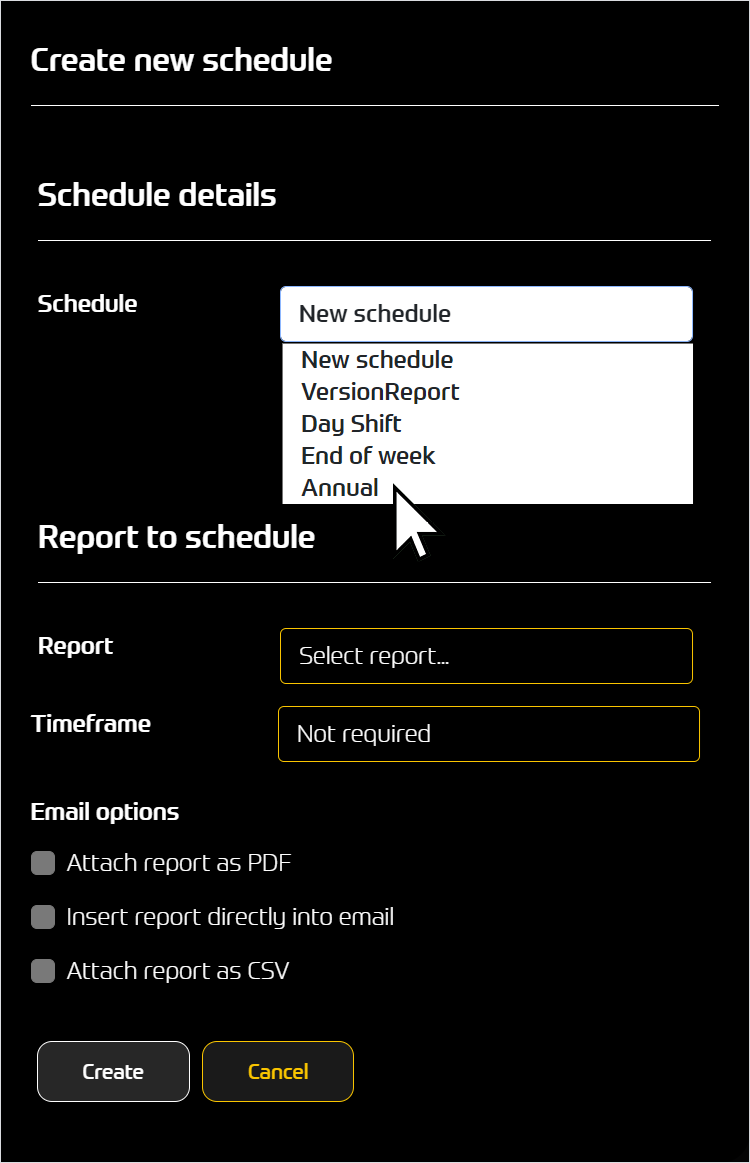
In the Schedule field, select an existing schedule from the drop-down menu.
You cannot remove report templates already assigned to a schedule from this window, you can only add additional report templates to an existing schedule.
Further, you cannot edit who receives the report templates from this window.
-
In the Report field, select the report template you want to add, and set a timeframe as needed.
-
Select the appropriate email options; you can select one or more options from this list.
-
Select any additional parameters for the report template as needed.
-
Click Create.
The iReport Server updates the report schedule and the Scheduling tab updates to reflect the additional reports assigned to the schedule.