Introduction
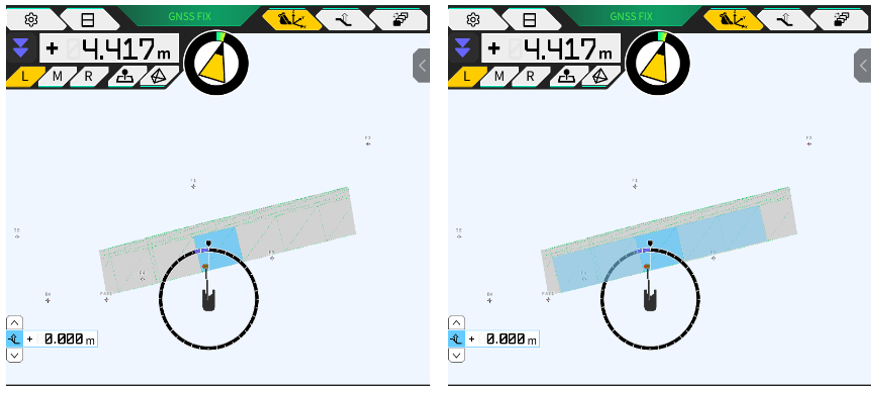
This article provides a detailed explanation on how to extend a portion of the design surface data.
By extending the design surface data, the adjustment of the slope cutout position can be easily extended for trimming to the required level and slope.
Procedures and Explanation
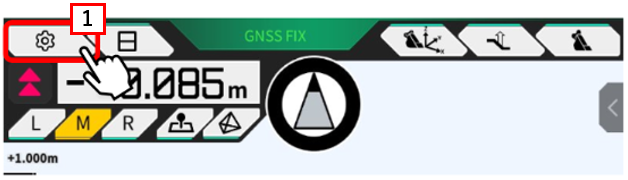
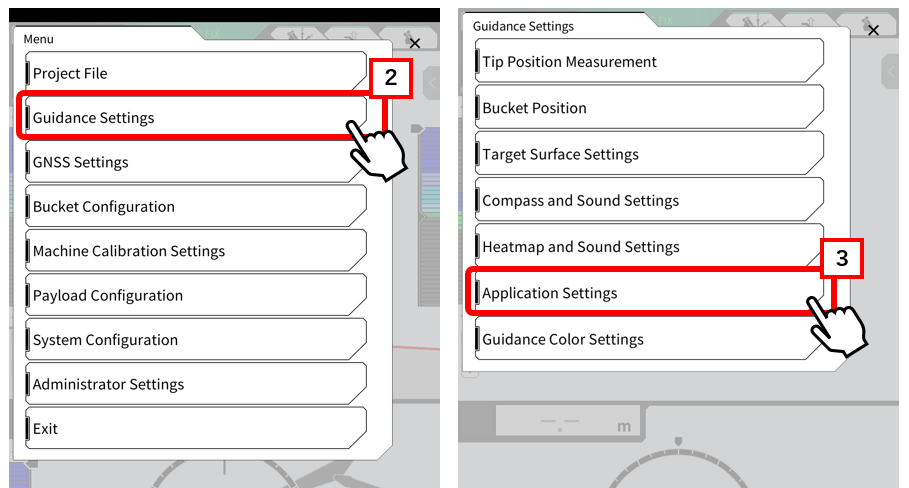
1. Select 【"1"the gear mark】 and 【"2"Guidance Settings"】 and tap 【"3"Application Settings】.
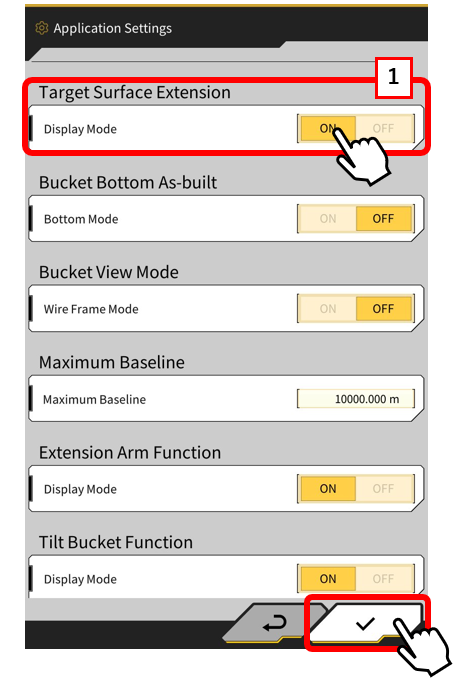
2. Turn on the 【"1"Target Surface Extension】 in "Application Settings."
When this "Display Mode" is on, you can extend the plane by selecting a target surface.
3. Tap 【”1"the TIN view】 icon, select and check the range of TIN data to be extended.
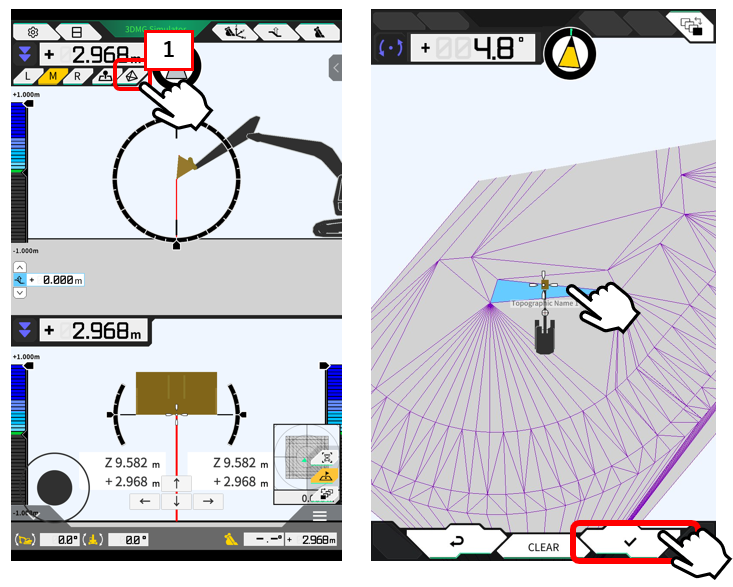
4. The selected surface data will be extended.
*The distance and range to be extended cannot be specified.
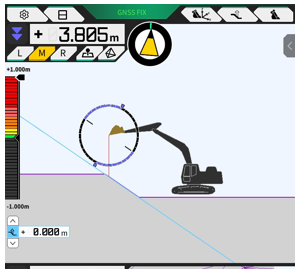
Supplementation
・Adjustment to TIN range
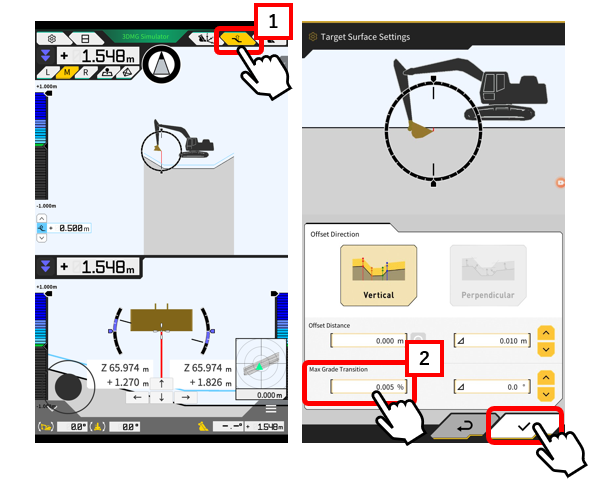
Before selecting a range, tap 【”1"Target Surface Settings】 icon to change the value of 【”2"the max grade transition】.
The larger the value, the more TIN data will be grouped.
For curves with many change points, it is recommended to reduce the input value.
Before After