This function is available with tablet app version 1.0.04 or later. If you are using an older version, please update the app.
Introduction
This function can create design surfaces for machine guidance from linework in a project file. Design surfaces are created by entering "width" and "offset Z" values for the selected linework.
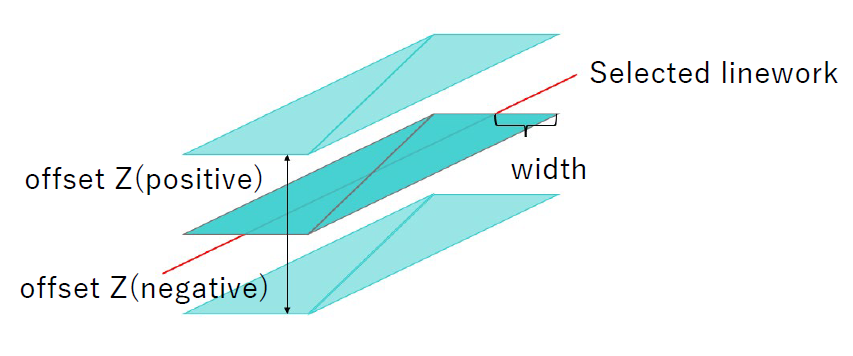
Feature Overview
How to use
Creating Surface from Line
-
Tap the Edit button of the project for which you wish to add a design surface from the Project File menu to display the Project Settings screen.
-
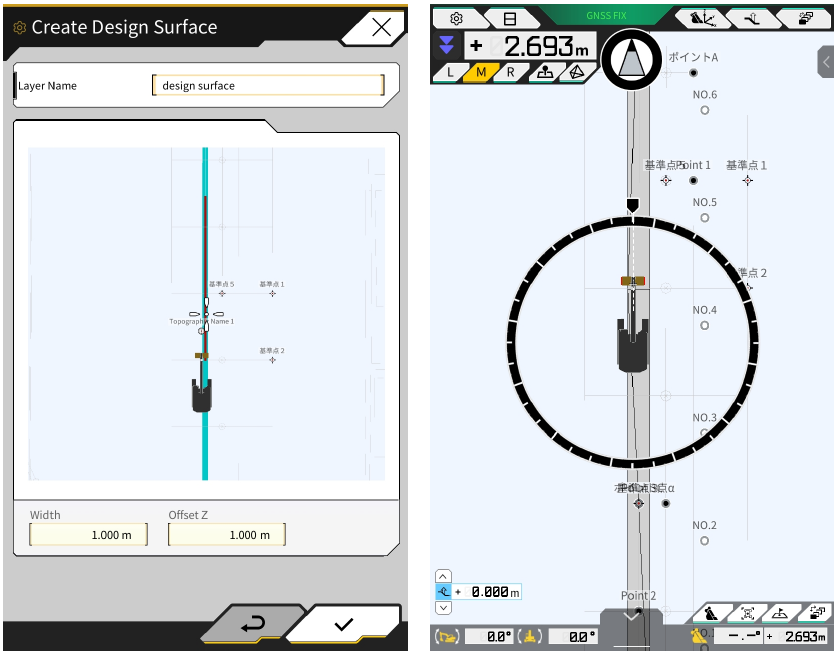
Tap the button in the lower left corner of the screen.
-
Adjust the crosshair cursor so that it is on the linework where you want to create the design surface.
-
Enter the layer name, width, and offset Z, and save.
-
The created design plane will be displayed when the layer you created is specified in the Design Plane pull-down menu of the Project Settings screen.
Edit/Delete Created Surface
-
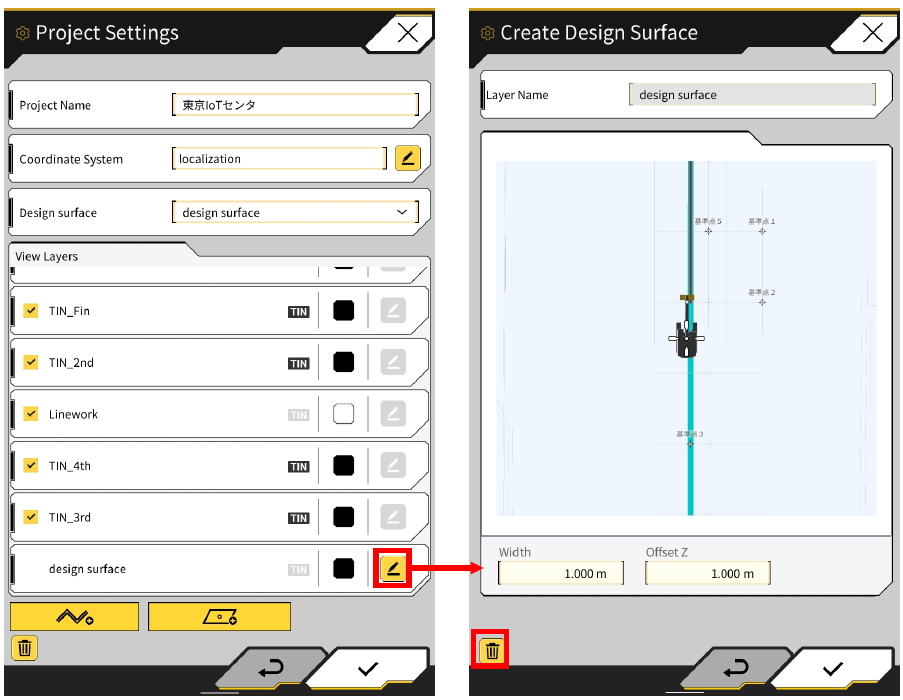
Click the Edit button of the target project from the Project File menu to display the Project Settings screen.
-
Click the Edit button of the layer of the design surface created from the line work.
-
The Create Design Plane screen will be displayed. To edit the design plane, follow the same procedure as described above. To delete a design plane, click the trash button.
Notes
In the following cases, the design surface may be created only halfway. It may be possible to create the design surface by changing the position of the linework selection and creating the design surface again.
· When the number of triangles (TINs) constituting the design surface exceeds 200
· When the length of the selected linework exceeds 200 m
· When the selected linework has a large inflection
· When the input value of width is large
· When the linework includes a very small line segment
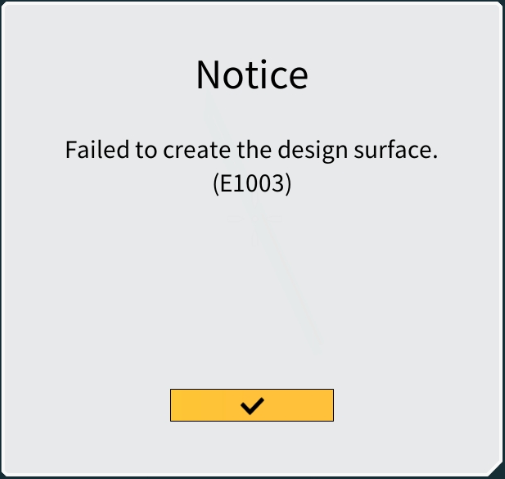
In addition, depending on the linework selected, it may not be possible to create a design surface. In such cases, the following message will be displayed.