
This function is available with tablet app version 1.0.07.1 or later. If you are using an older version, please update the app.
Introduction
3DMG Basic is designed for operators to easily utilise the 3D machine guidance function in cases where 3D project data is not available.
With no need for localisation or design data, it allows the creation of a 3D target surface from the bucket tip position, enabling straightforward usage of machine guidance.
User Interface Overview
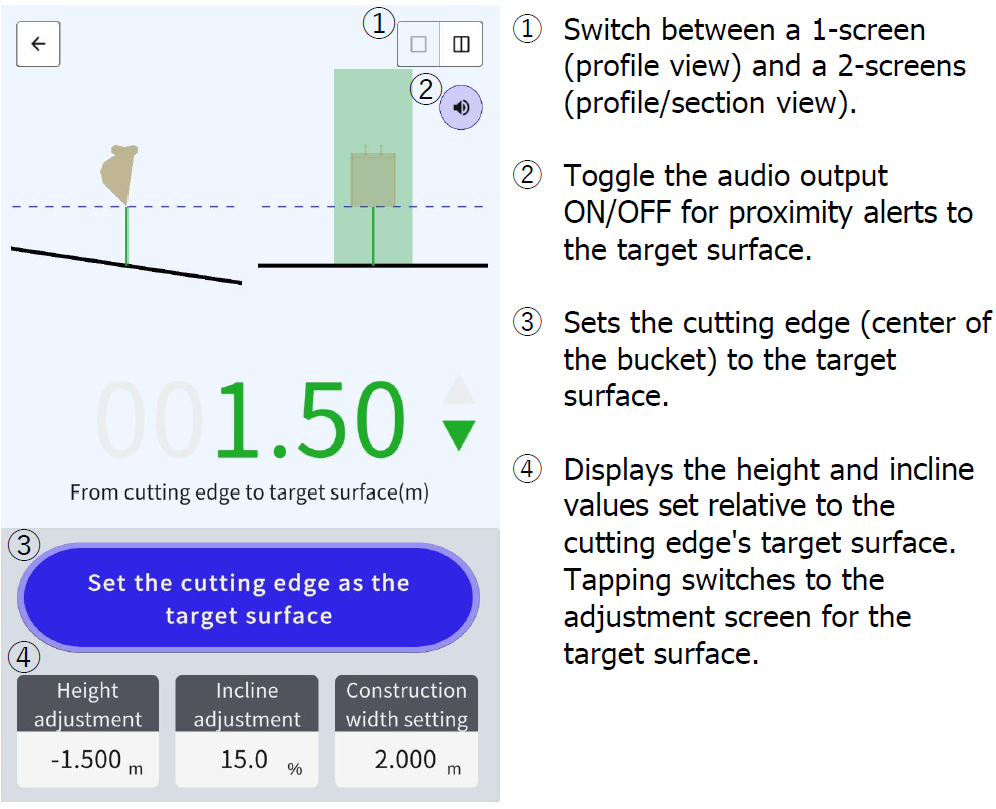
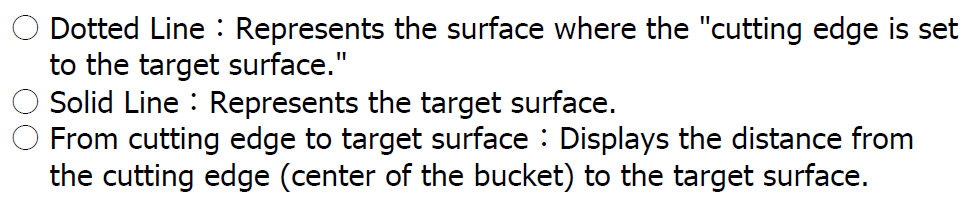
How to use 3DMG Basic
Enabling the Function
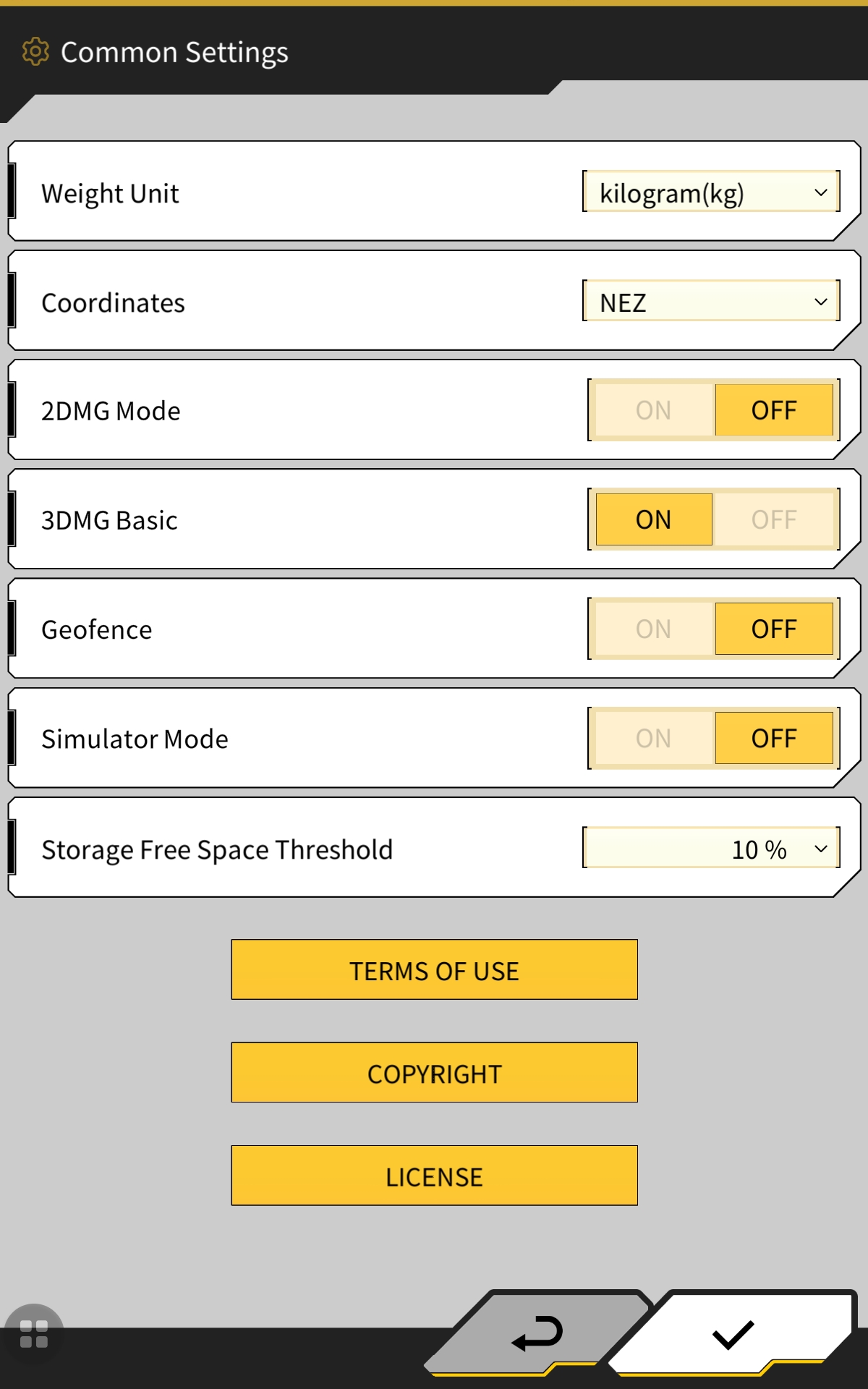
By default, 3DMG Basic will be disabled. It can be enabled in the common settings menu on the main start up screen.
|
|
|
|
Initial Start Up
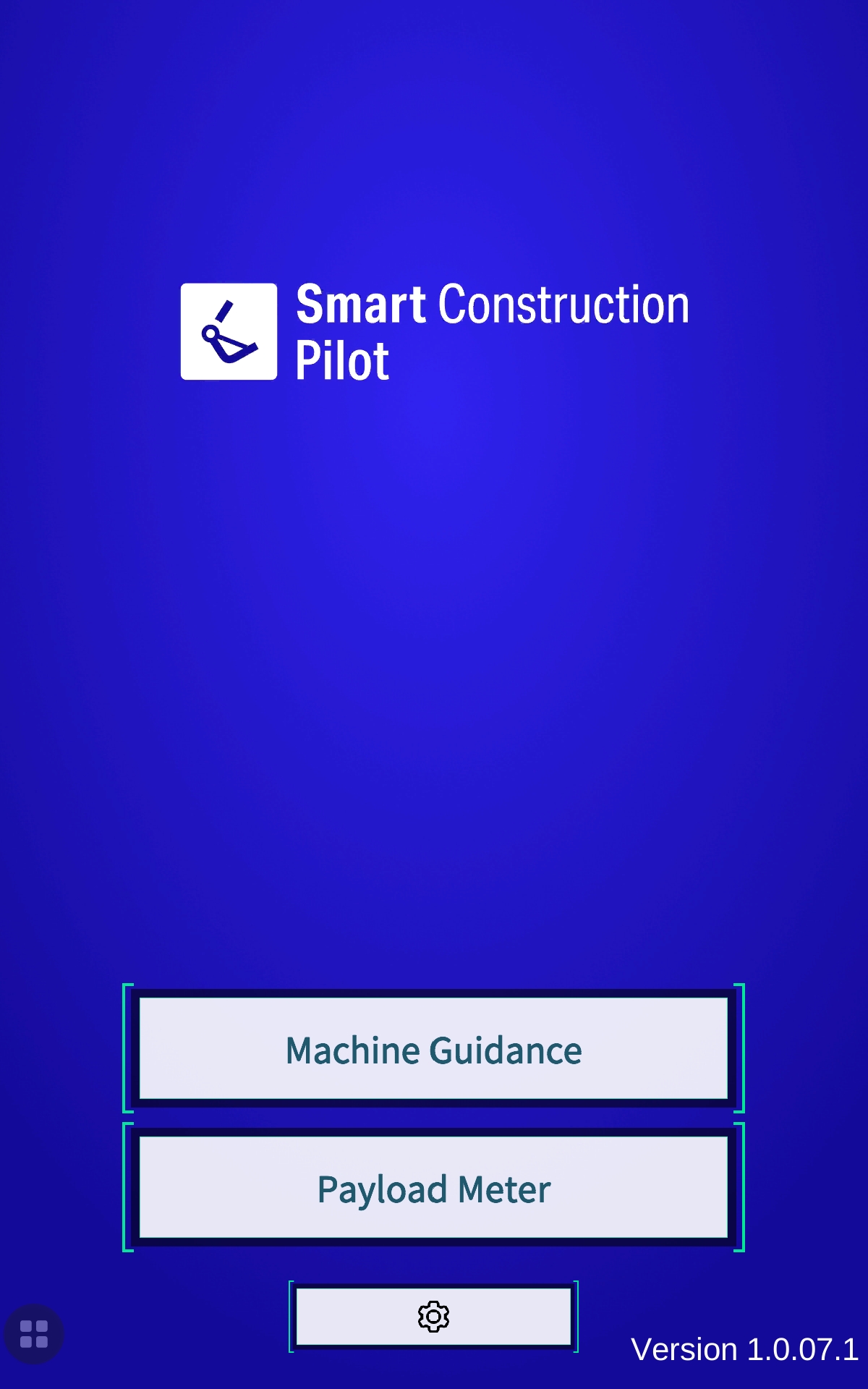
After launching the application, tap on 3DMG Basic on the main screen. Then the 3DMG Basic main interface will be displayed.
During startup, you may encounter errors such as "Controller not connected" due to connection delays with the controller, or "Positioning accuracy decreased" due to delays in GNSS FIX.
-
Please wait until the connection is established or the FIX process completes.
-
If you also see sensor errors like IMU errors, please contact the support center for assistance.
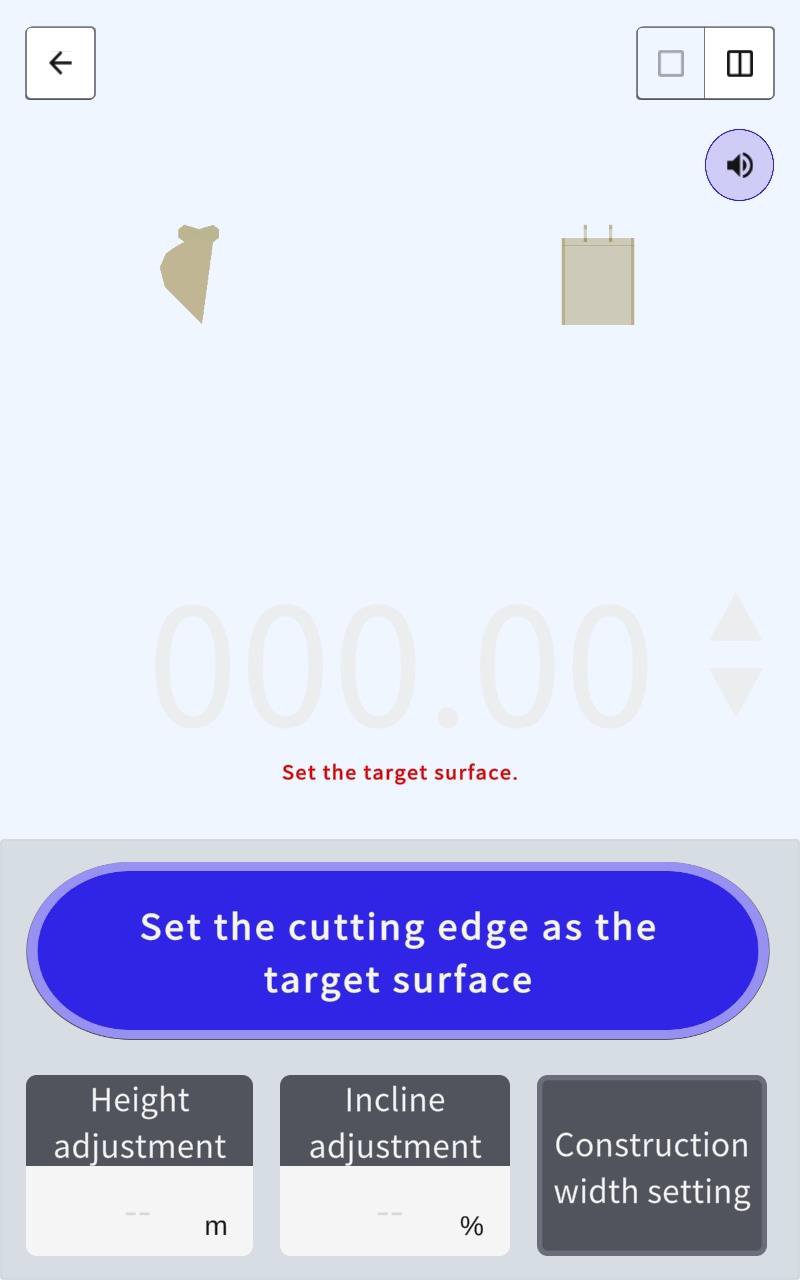
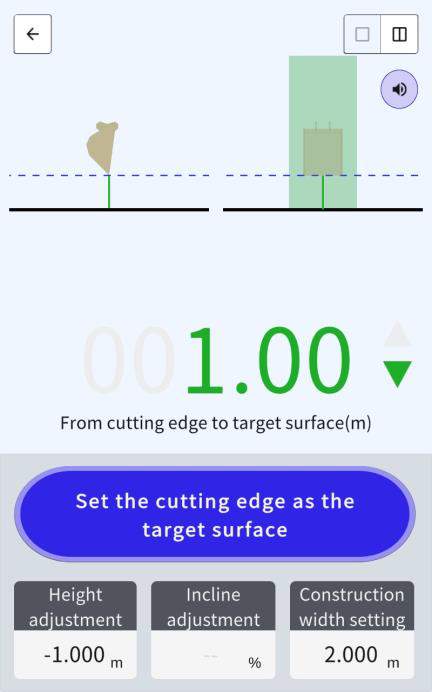
Set Cutting Edge as the Target Surface
-
Place the bucket of the machine to the place you want to generate the target surface
-
Tap “Set the cutting edge as the target surface”
-
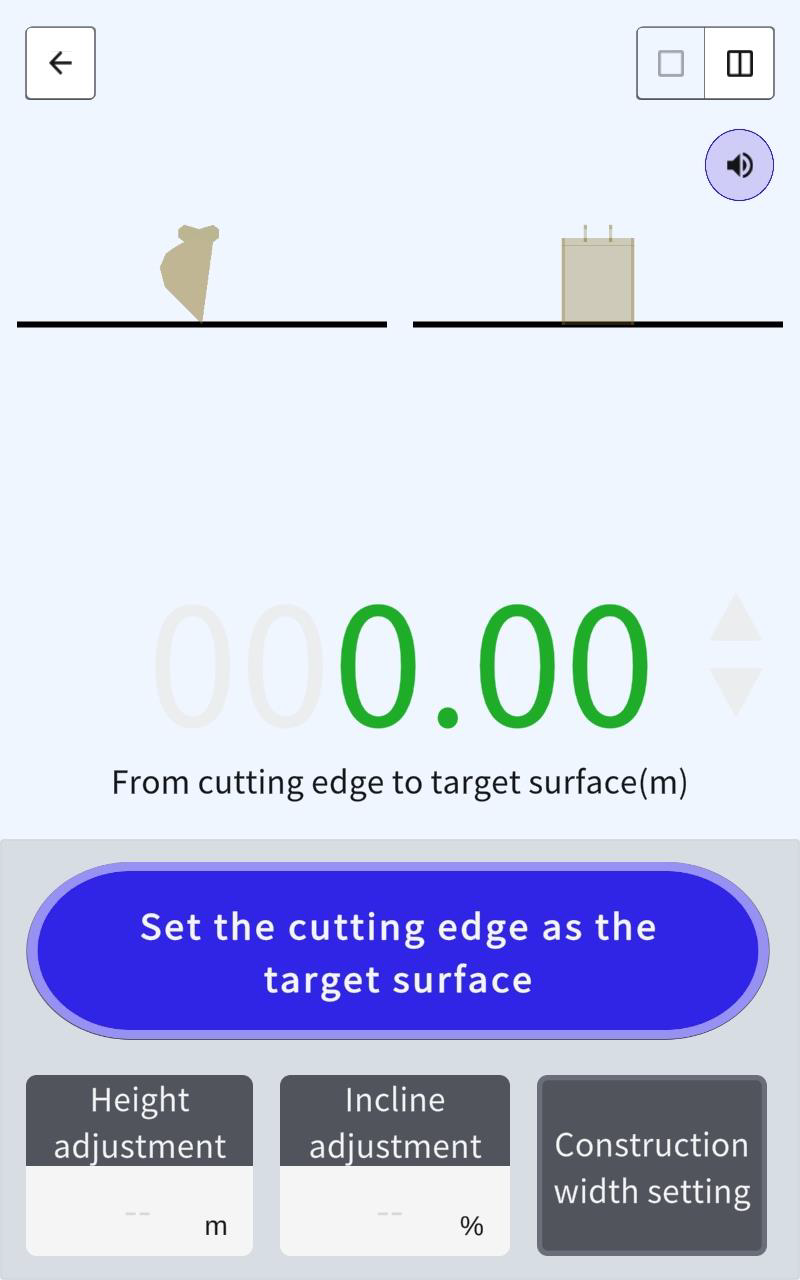
Wait a couple of seconds and a 3D Target surface will be generated at the position of the cutting edge.
-
If you want to adjust the height or incline, tap “Height Adjustment” or “Incline Adjustment”
Adjustment of Target Surface
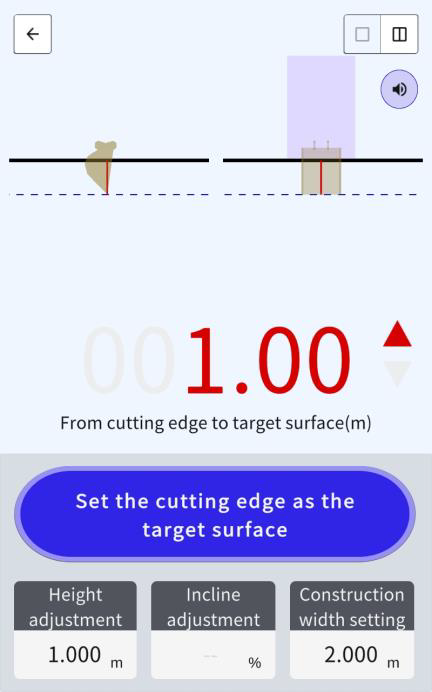
Height offset or incline (slope) adjustments can be made once the initial surface has been created.
Height Adjustment
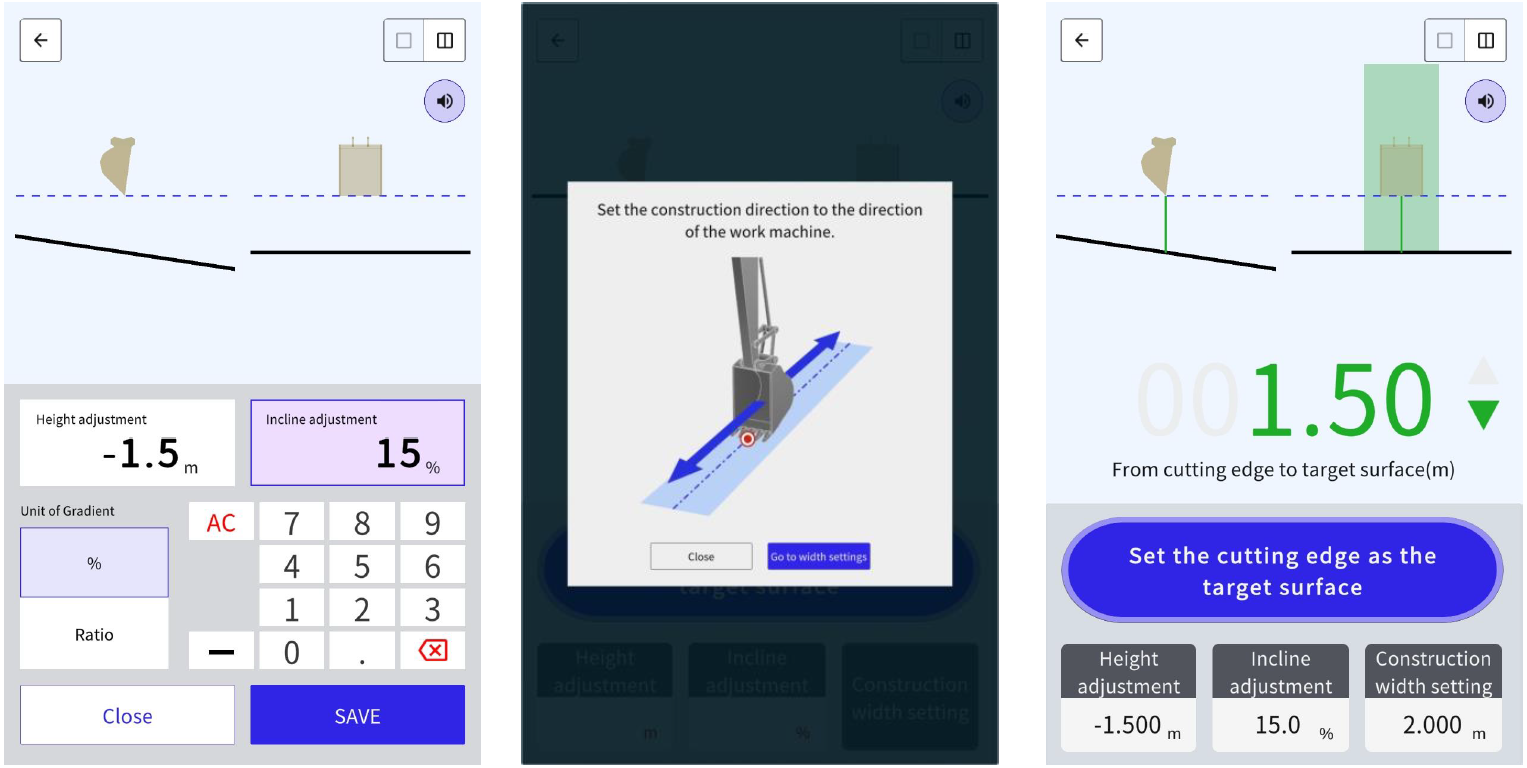
Adjust the height of the target surface based on the height set at the bucket tip position. The target surface can be raised with a positive value or lowered with a negative value.
Input Range = -20m to 20m
The units can be adjusted between mm or m.
Incline Adjustment (Mainfall Slope)
Adjust the incline (mainfall slope) of the target surface (in the direction that the machine was facing when surface was created)
% Input Range = -400% to 400%
Ratio Input Range = -1000~-0.25 0.25~1000
Set Construction Direction and Width
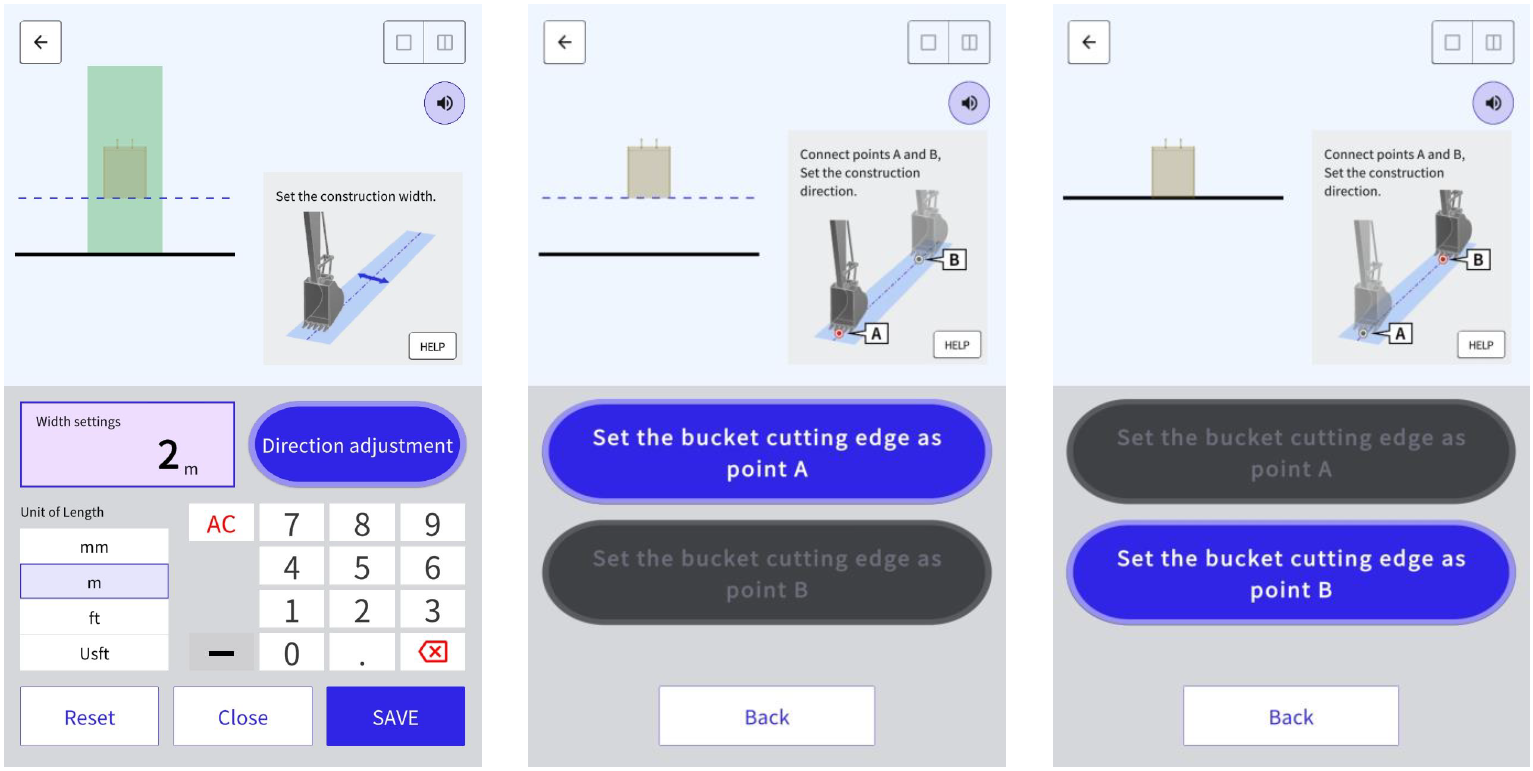
When setting the construction width and direction, the area will be displayed in color on the guidance screen.
Setting Construction Width
-
Point the machine in the construction direction and align the centre of the bucket with centre of the construction width
-
Tap Construction width settings
By default, the direction is set to the direction of the work equipment.
-
Enter the width using the numeric keypad.
-
After inputting the value, tap "SAVE" to proceed to the guidance screen and start the construction.
Setting Construction Direction
By measuring two arbitrary points at the centre of the cutting edge, you can set the construction direction that connects the two points.
-
Tap ”Direction adjustment”
-
Place the bucket at the starting point to be set in the construction direction and tap “Set the bucket cutting edge as point A”
-
Place the bucket at another point that determines the construction direction and tap “Set the bucket cutting edge as point B”
Examples of 3DMG Basic
Limitations
-
3DMG Basic still requires configuration of RTK settings which must be done through the standard Machine Guidance interface (i.e. NTRIP/Radio settings)
-
3DMG Basic will not automatically calculate the slope between point A and Point B. The points are used for heading/direction purposes only and the slope is defined by the set value.
-
3DMG Basic does not support dual slope surfaces
-
3DMG Basic does not provide as-built data
-
Payload function is unavailable in 3DMG Basic