
Set up Project (Customer Portal & SC Fleet Lite)
-
Create a site in Customer Portal
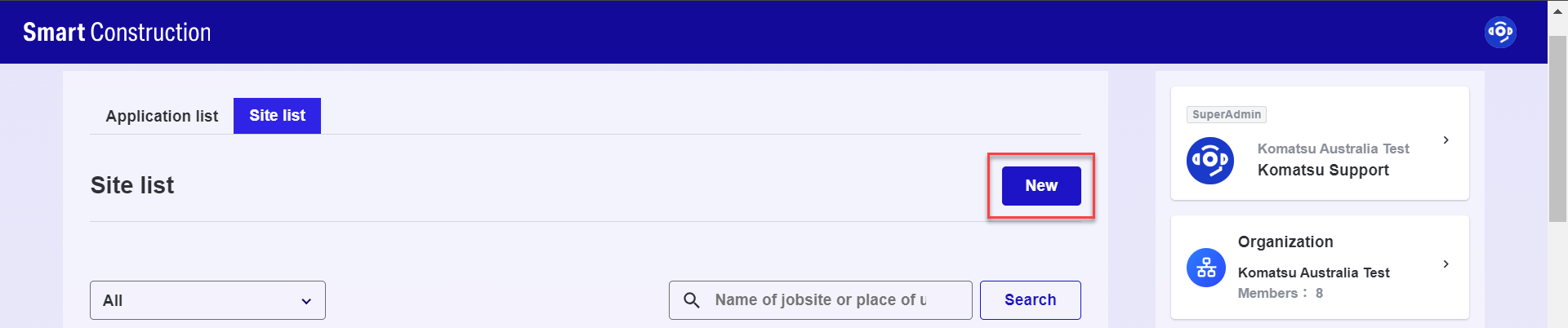
-
Enter required site information to register it
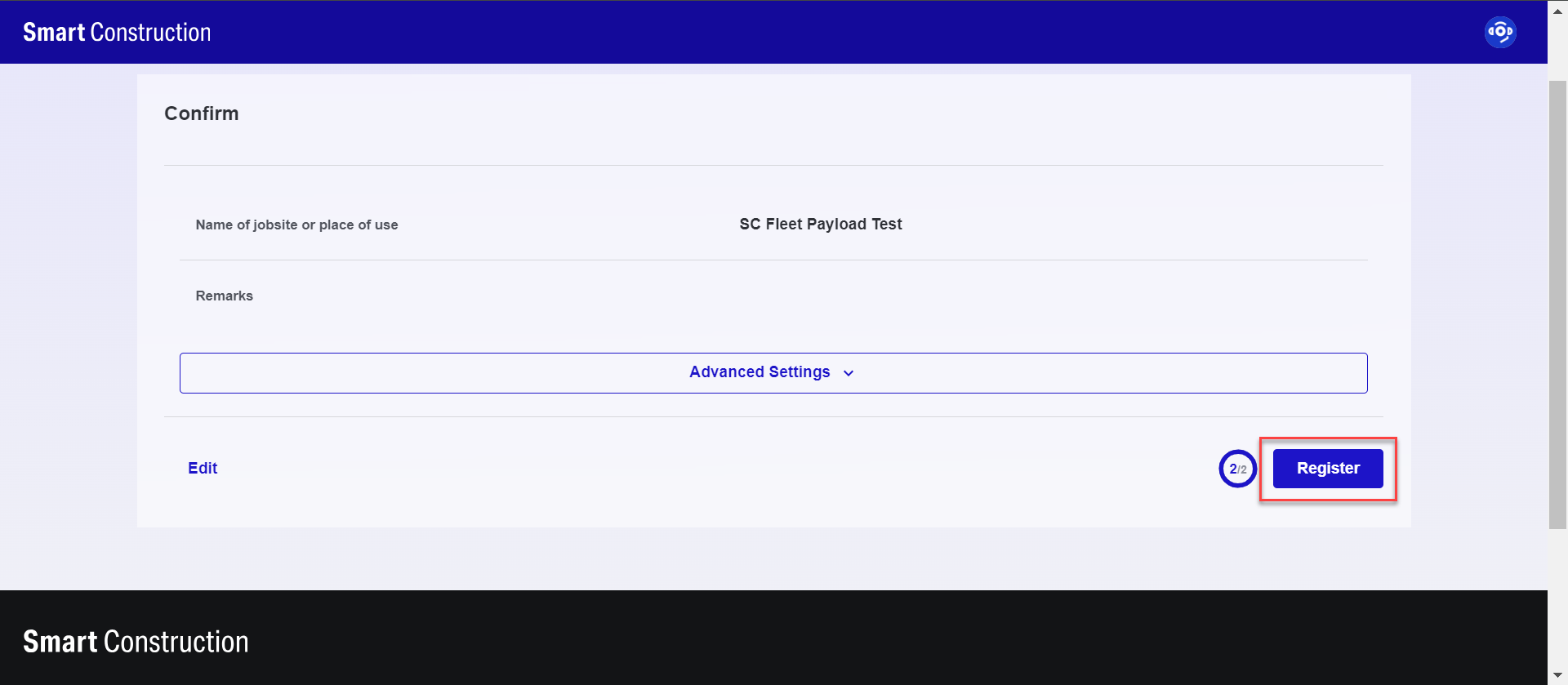
Create a site with Customer Portal before setting a project on SC Fleet Lite.
-
Activate Project in SC Fleet Lite
-
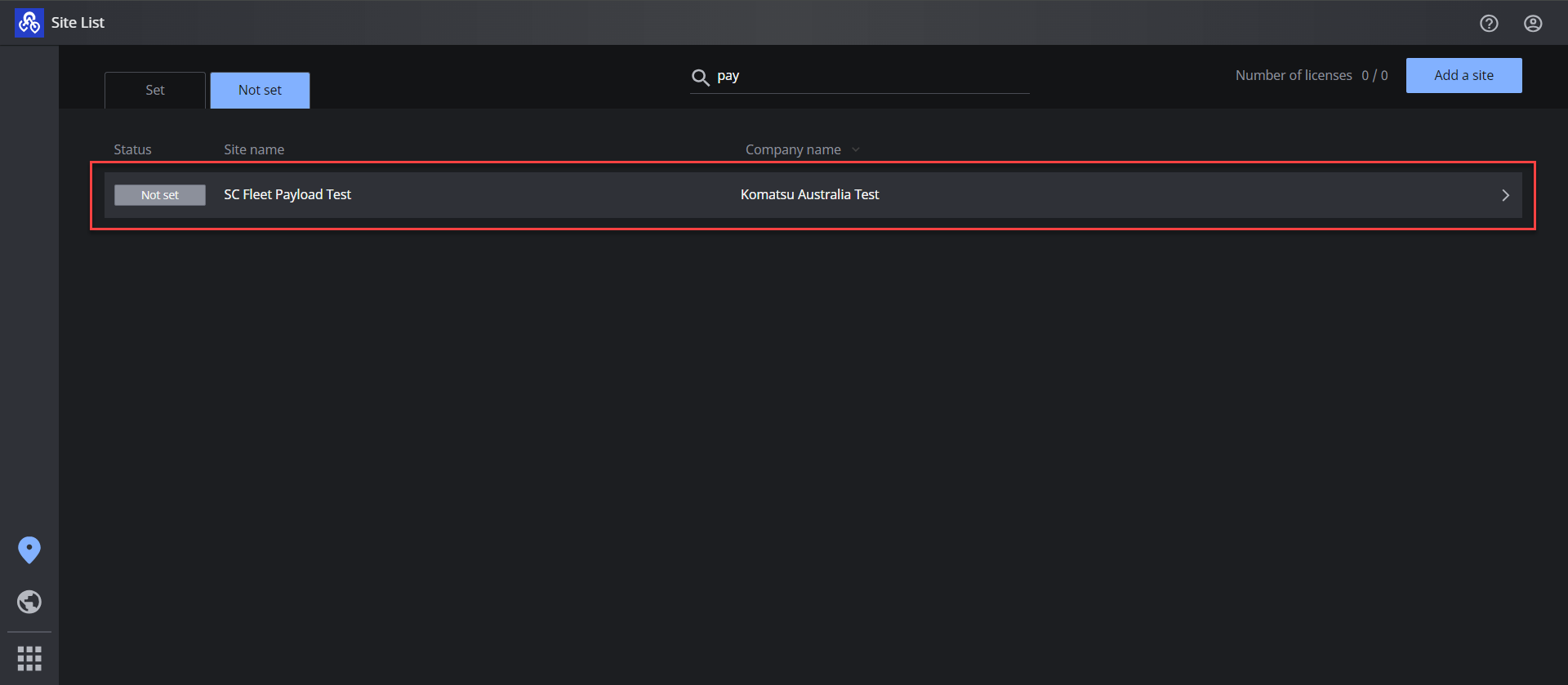
Log on SC Fleet Lite
-
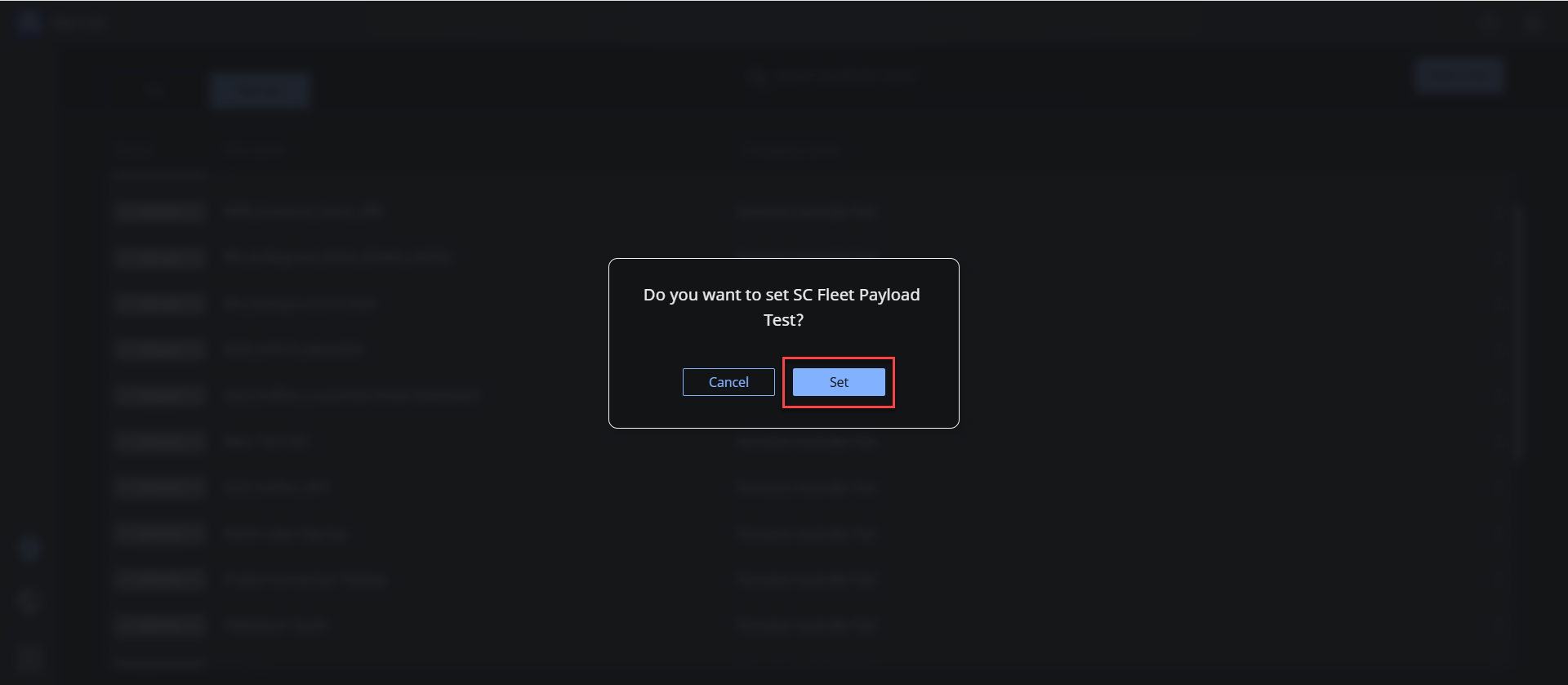
Tap “Not Set” tab and press a site to set up a project
-
Register Payload Machine
-
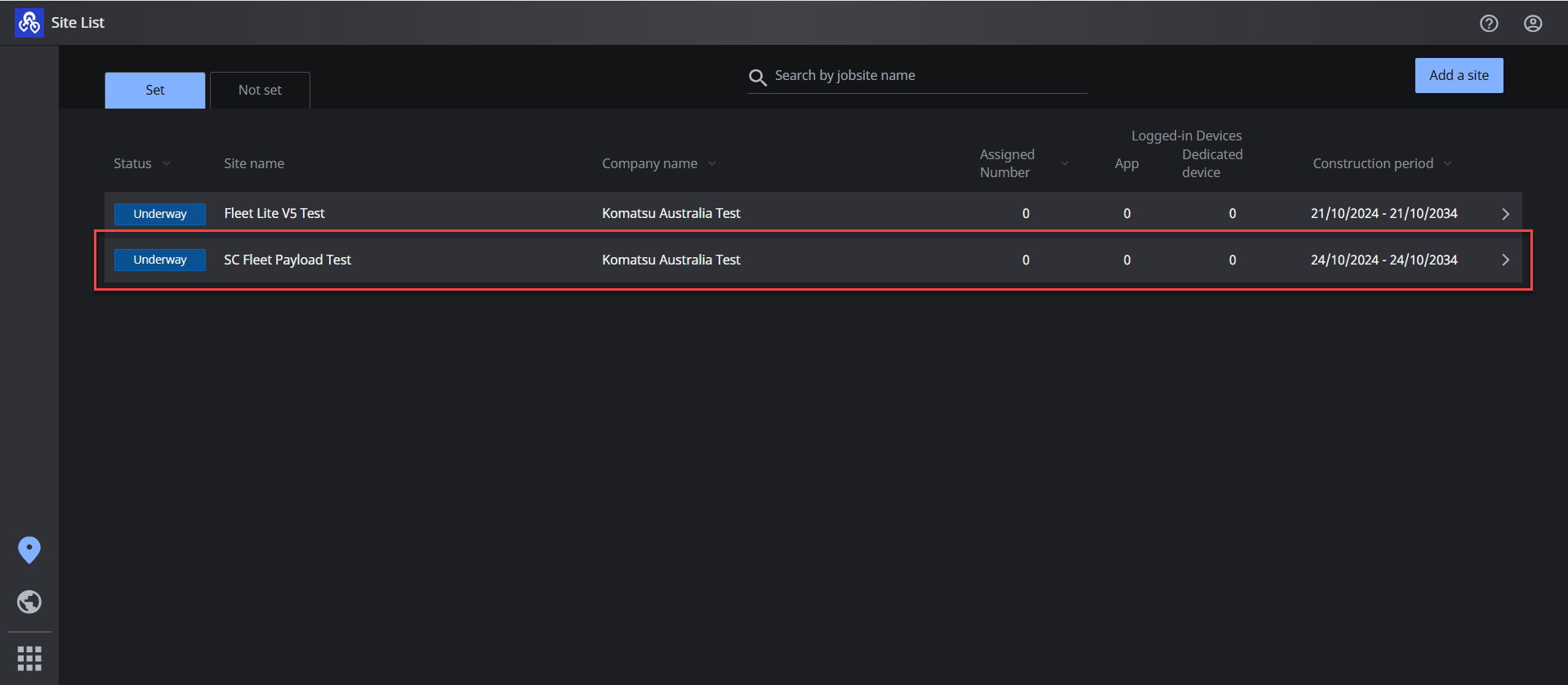
Press the project in “Set” tab
-
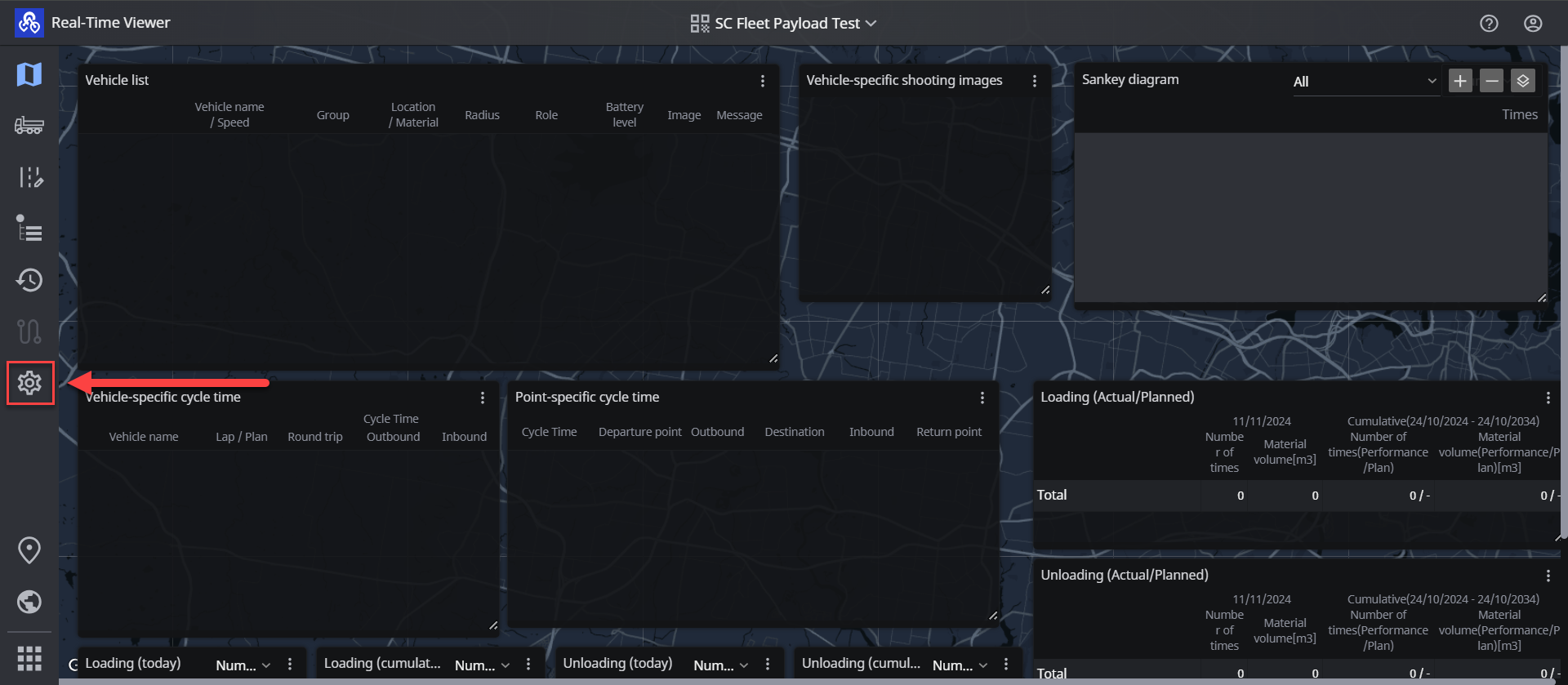
Press the setting button (Left panel of window) to open the setting list
-
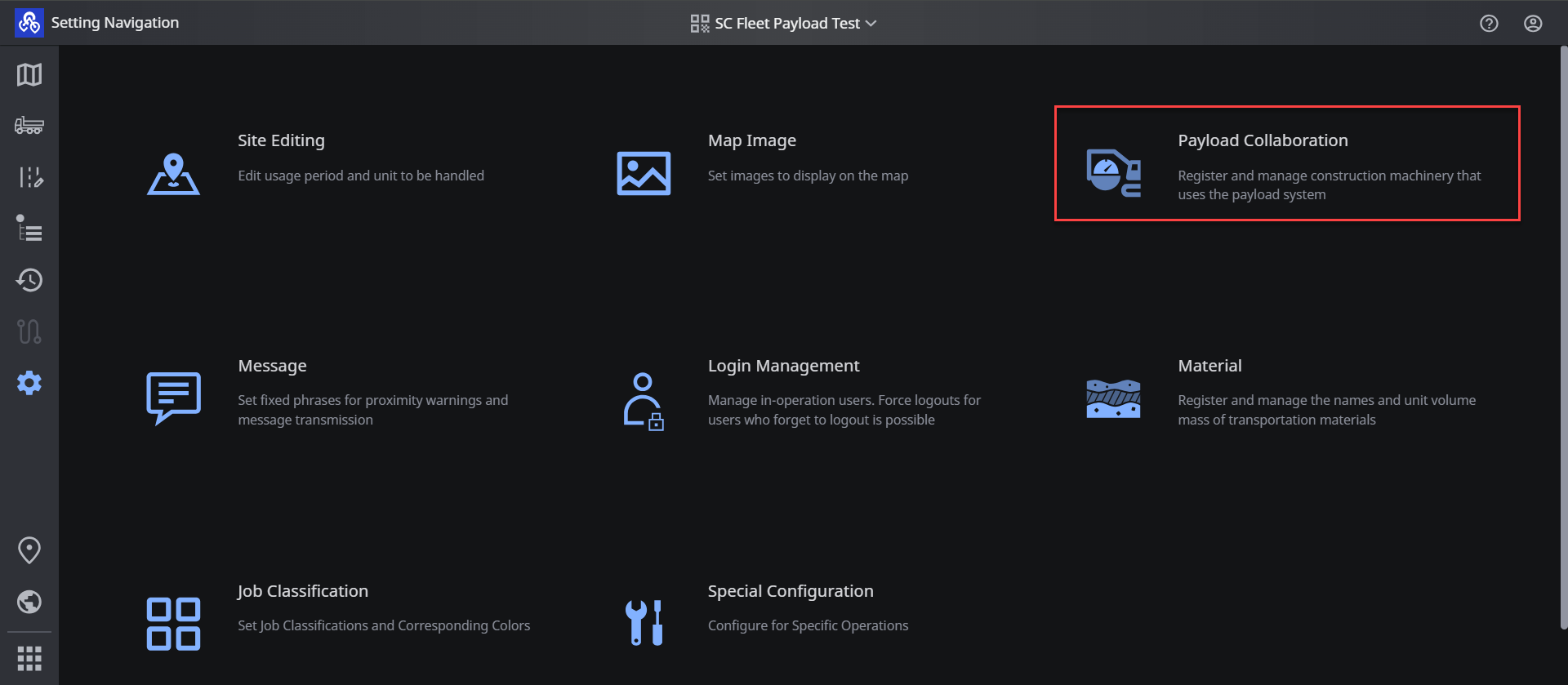
Press “Payload Collaboration”
-
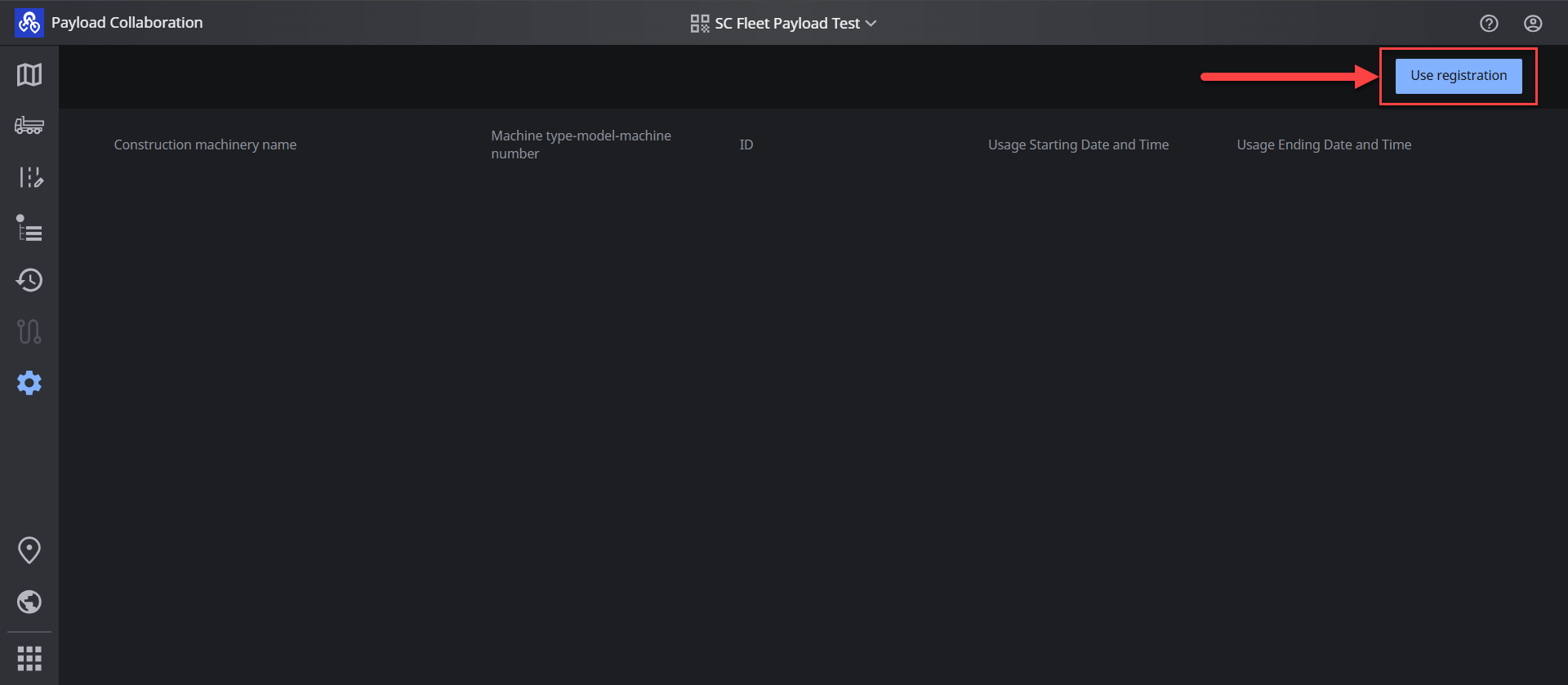
Press “User registration” (Top right of window)
-
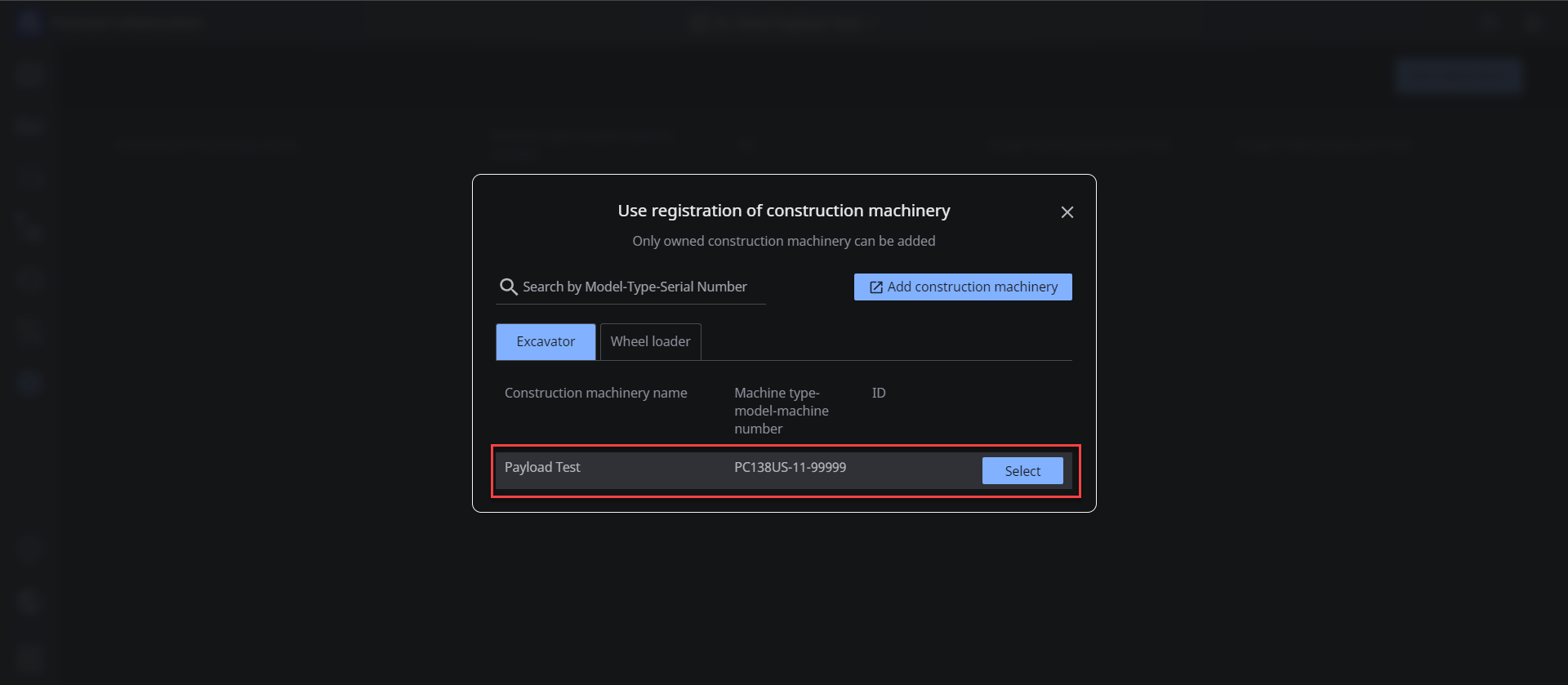
Select the Payload machine from the machines list. This list contains all machines belonging to your organisation
-
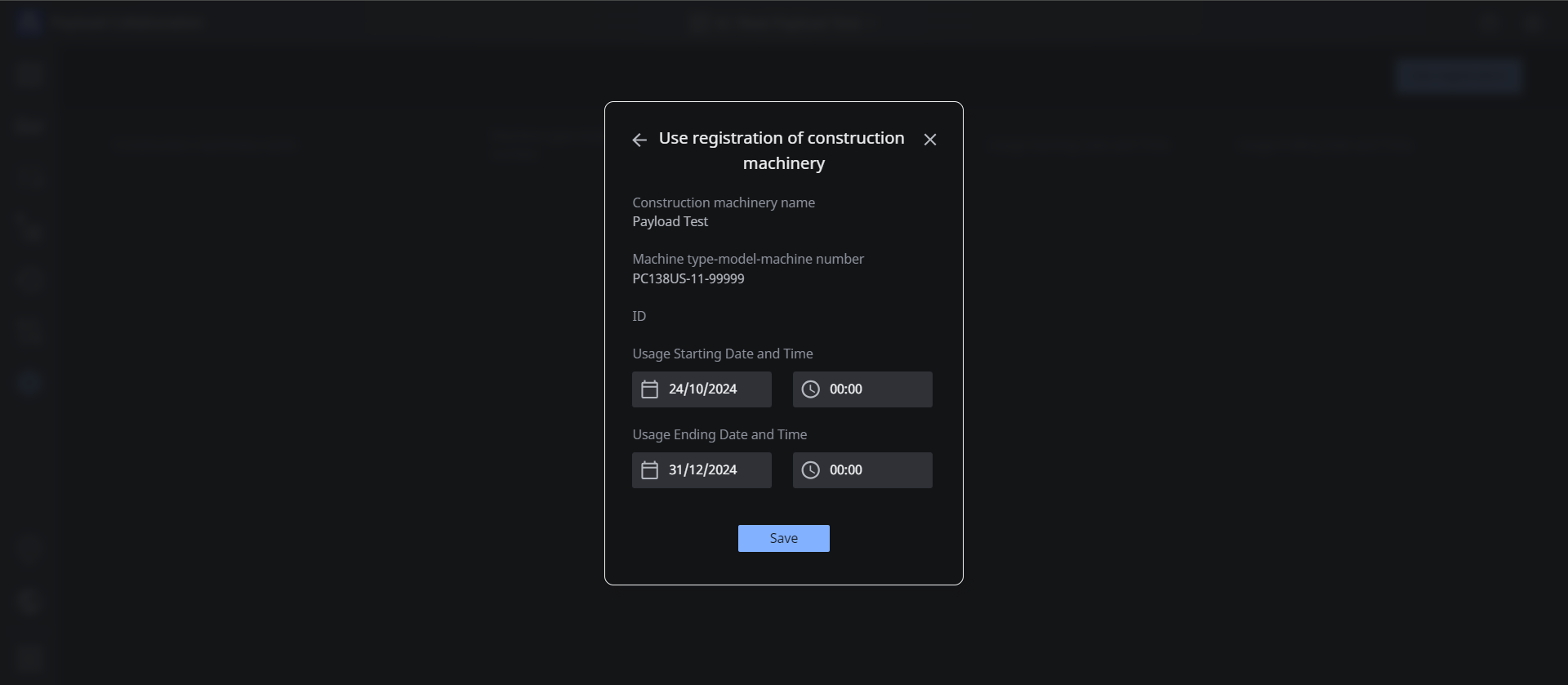
Enter “Starting Date and Time” and “Ending Date and Time” and press “Save”
-
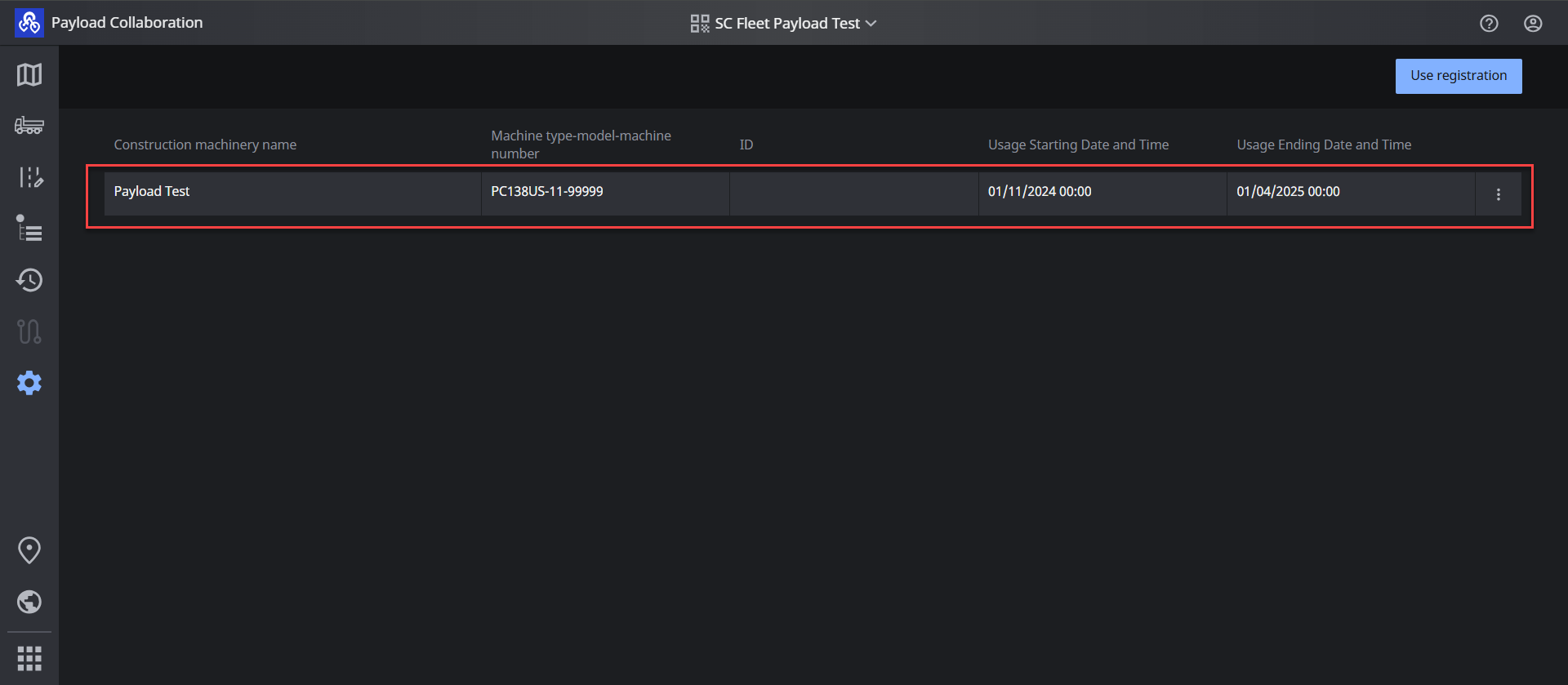
The machine has been registered as Payload machine
Register Dump Truck
-
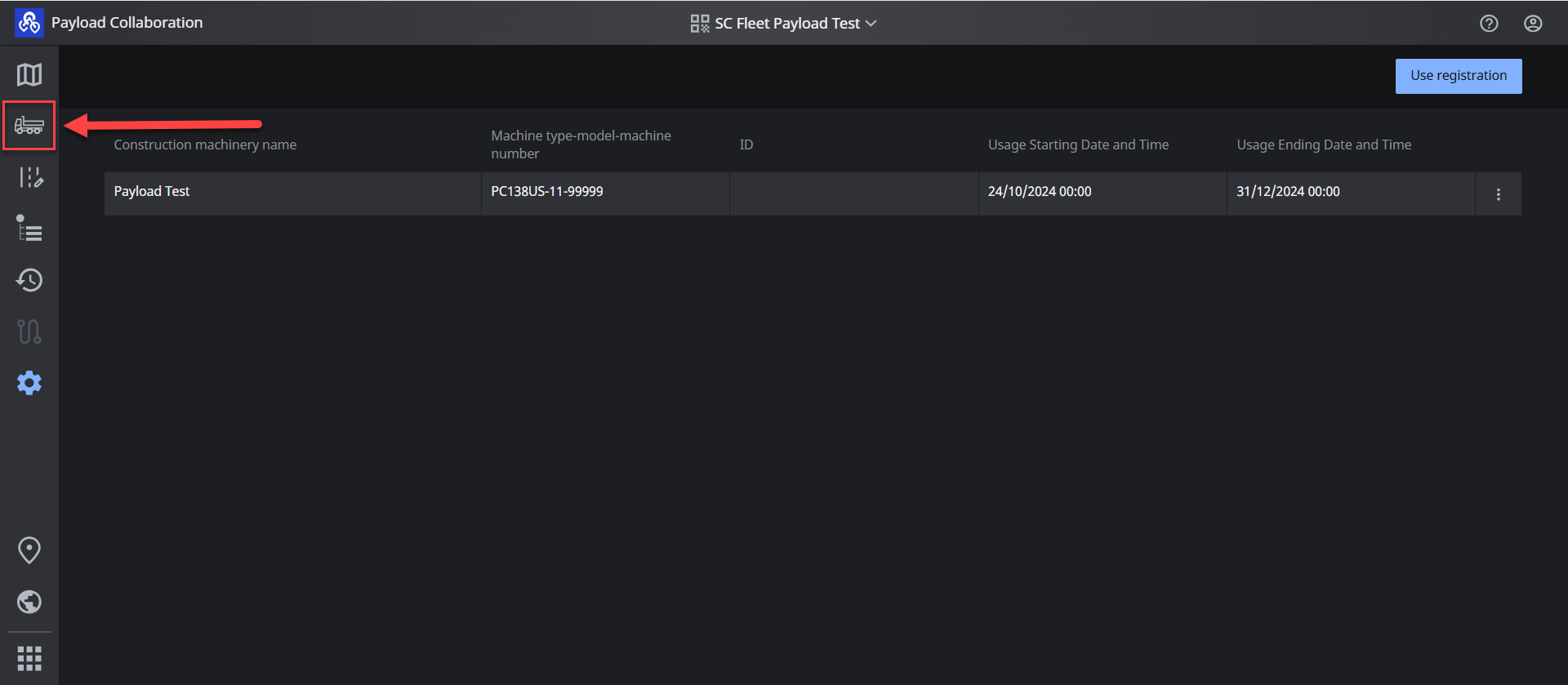
Press Dump Truck button (Left panel of window)
-
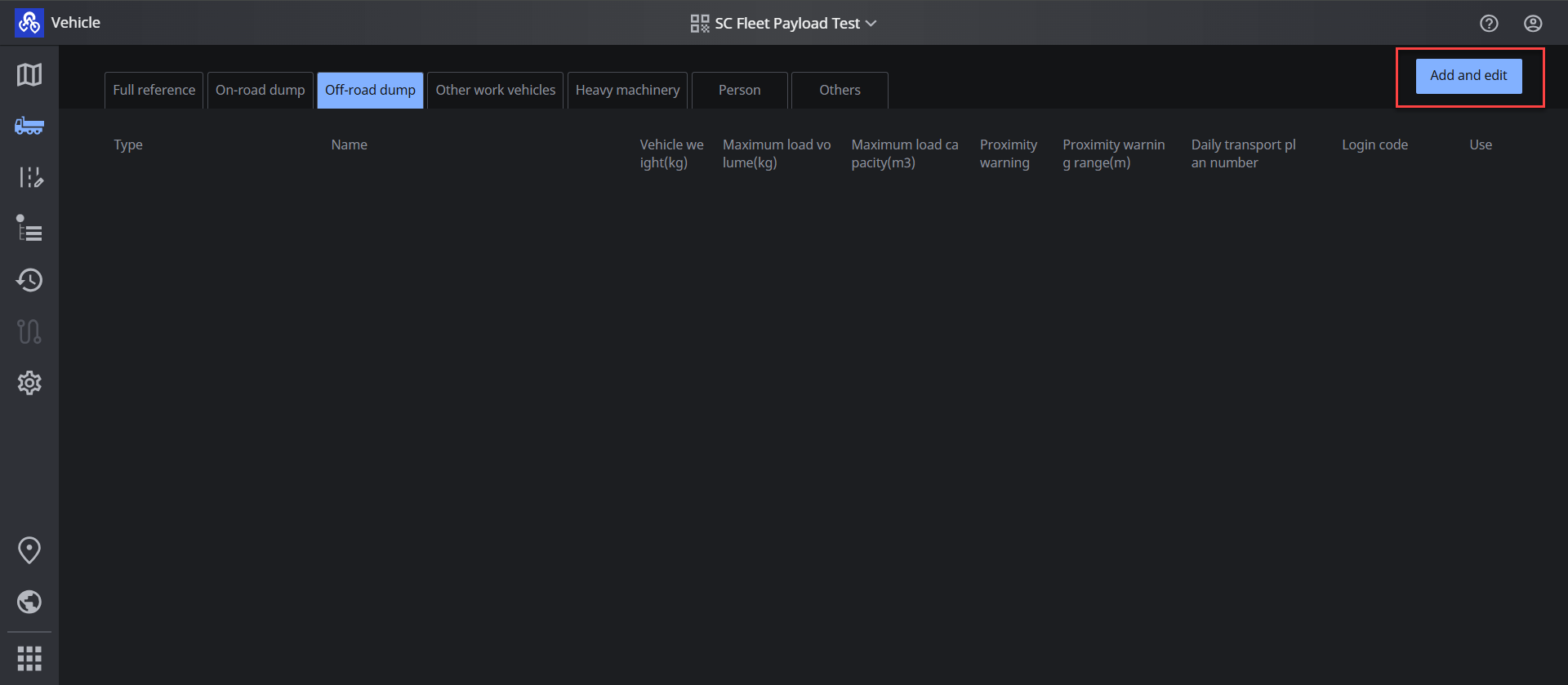
Tap “On-road dump” tab or “Off-road dump” tab and press “Add and edit”
-
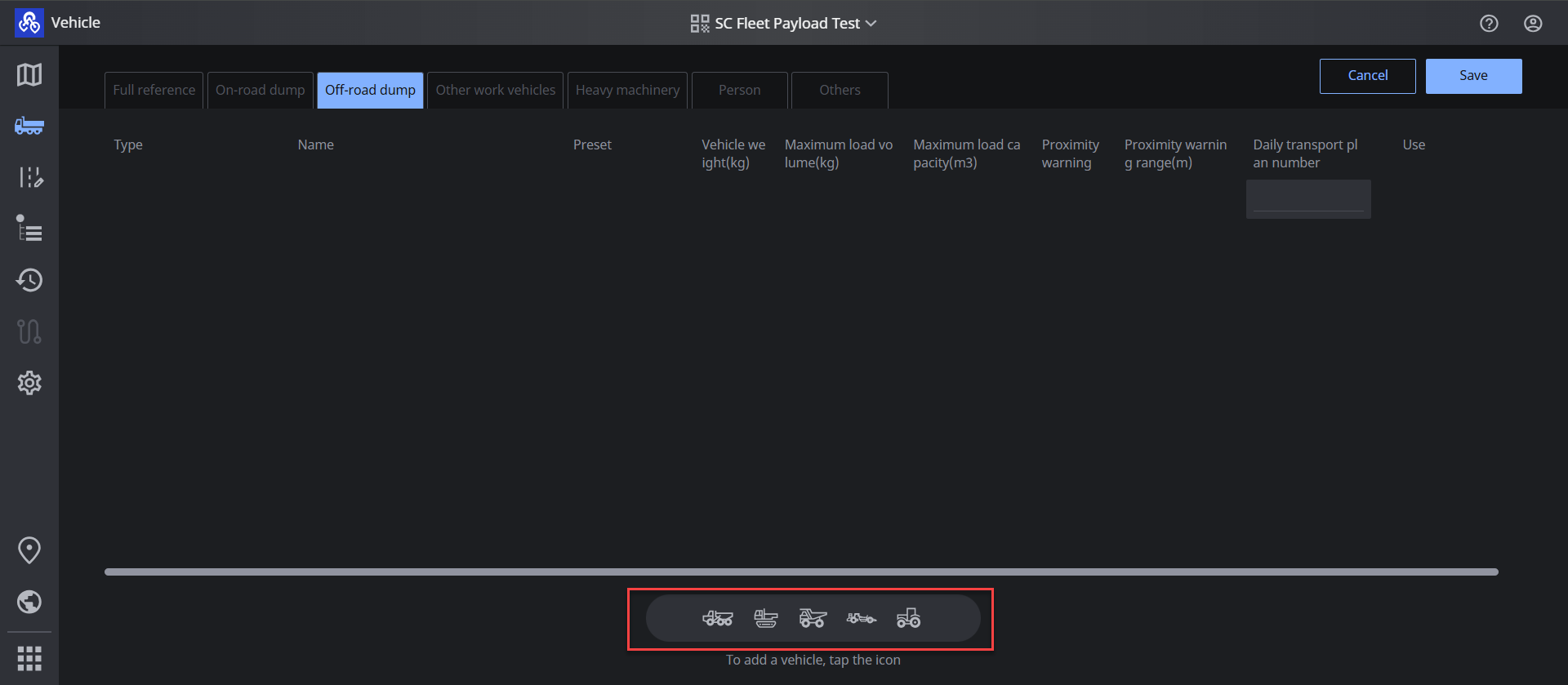
Select Dump Truck type from the icons (Bottom of window)
-
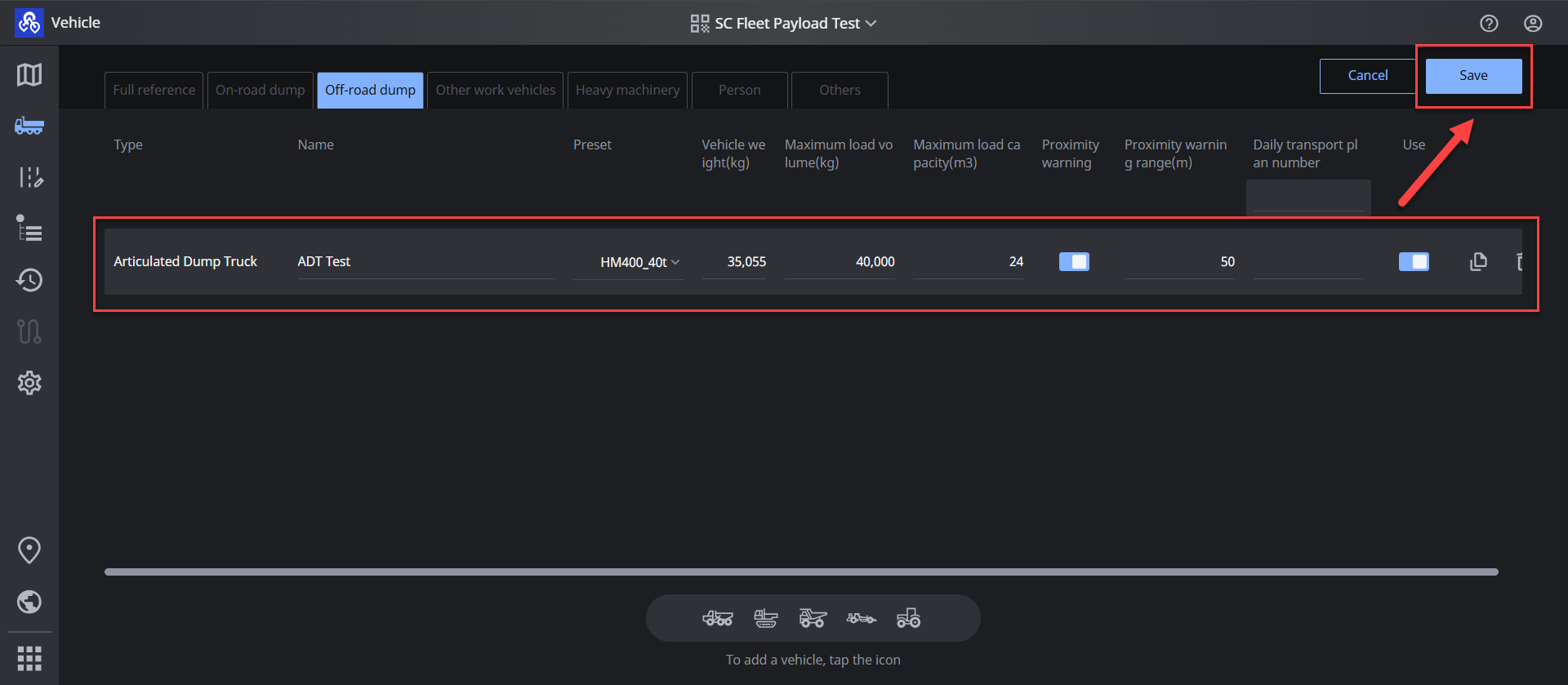
Enter Dump Truck parameter and press “Save”
-
Name
-
Vehicle weight
-
Maximum load volume
-
Maximum load capacity
-
Proximity warning (ON or OFF)**
-
Proximity warning range**
-
Daily transport plan number**
-
** - only applicable when using SC Fleet (Full version)
-
If these steps are completed, the dump truck will appear in truck list on iMC 3.0 Extended Monitor Payload application (may require application restart to appear once new vehicle is added)
Enable Fleet Connection on ICT Monitor
In order to sync trucks and payload results to SC Fleet server, you must enable the Link to SC Fleet function in the payload app.
Swipe on bottom left of screen to open the app menu and select the Payload application.
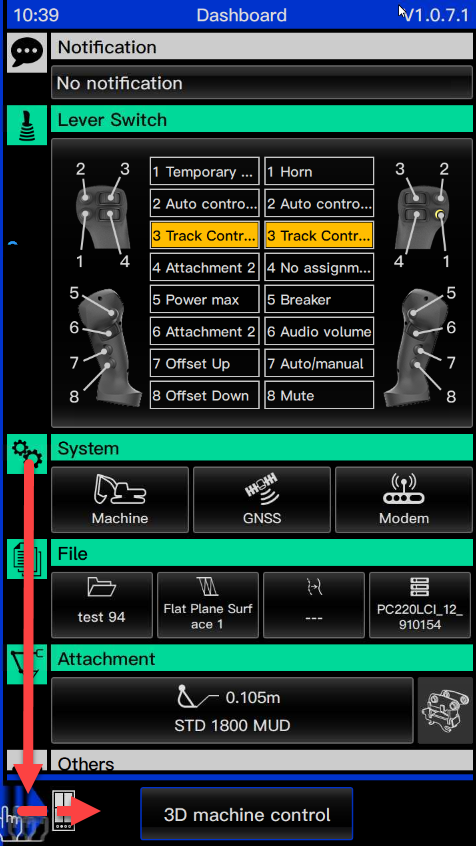
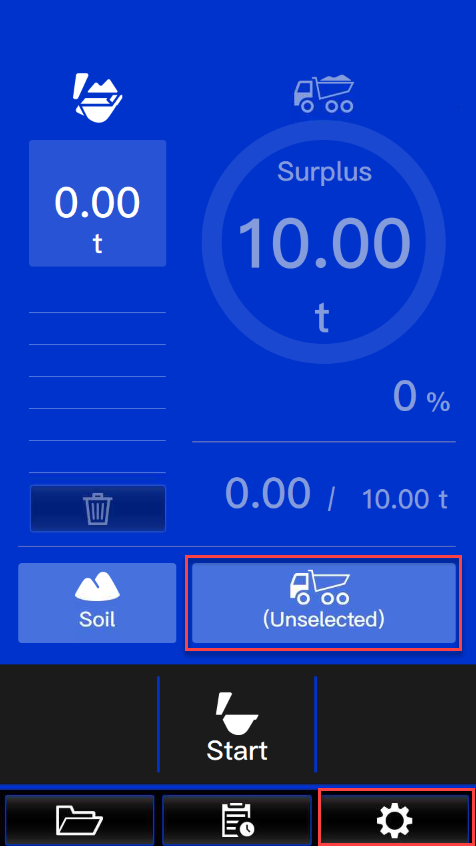
Ensure that the truck status is set to “Unselected” and then press the settings button
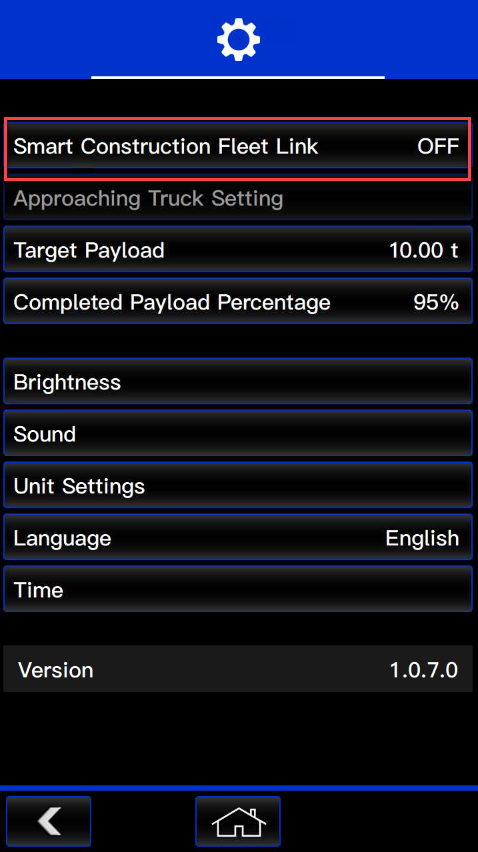
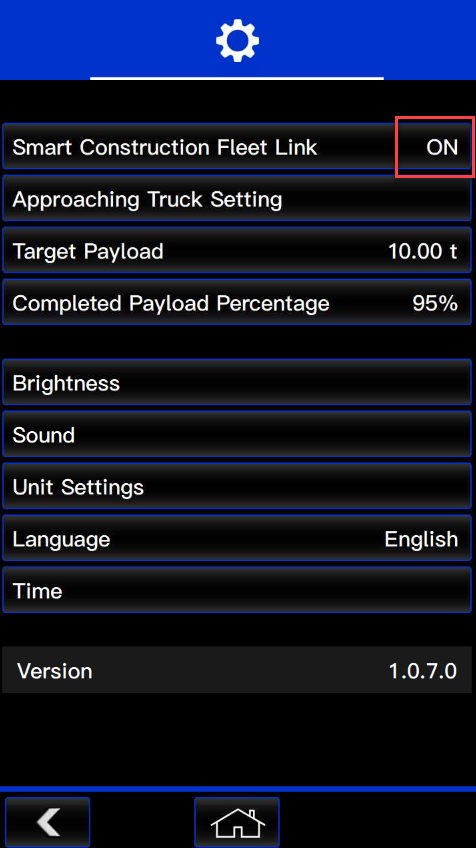
Select “Smart Construction Fleet Link” and press the tick to enable the link.
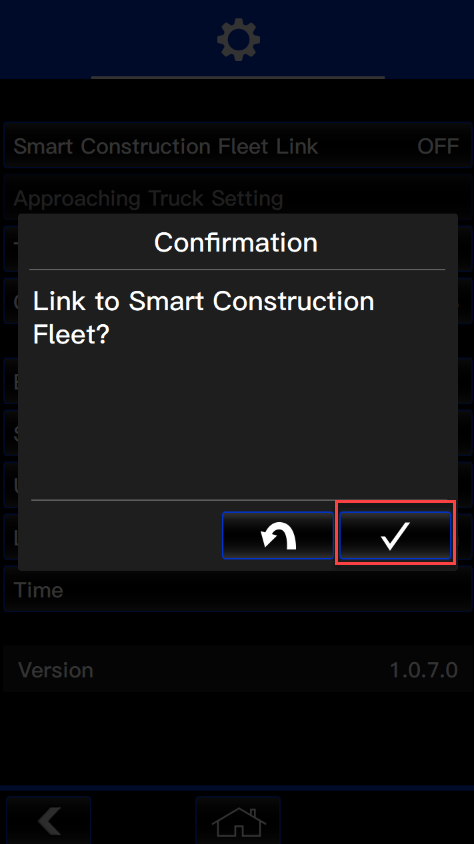
Confirm that the linking status has changed to “ON”
If the linking fails, check internet connection and try again
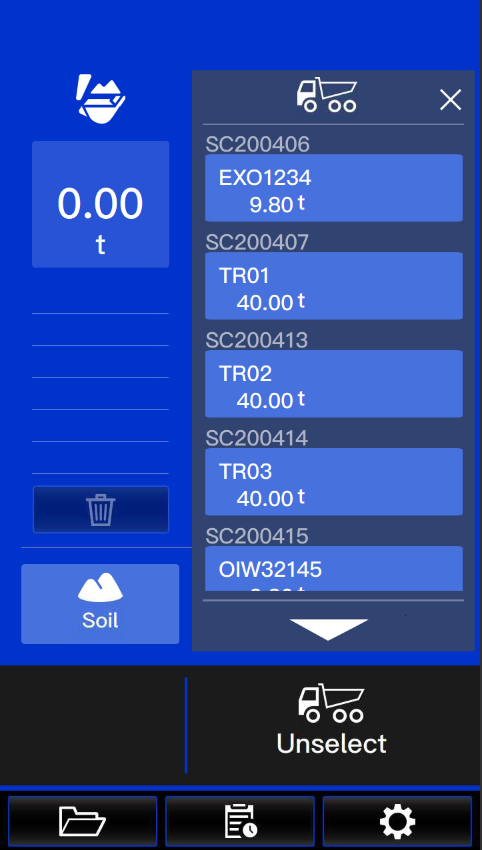
Open the Truck list and the Trucks that were created in SC Fleet will be visible for selection
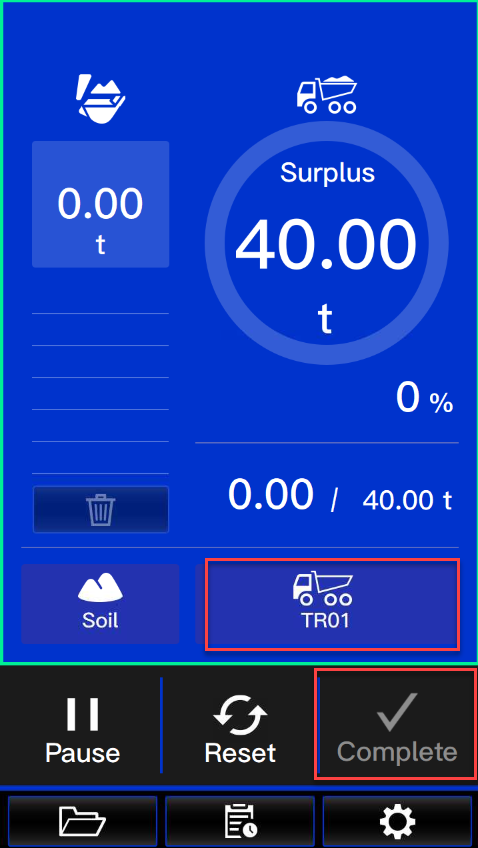
Once the loading is completed, press “Complete” to finish the load cycle and upload the data to server
View Payload Results
-
Log into “SC Fleet Lite” web application
-
Select the project by clicking the site name
-
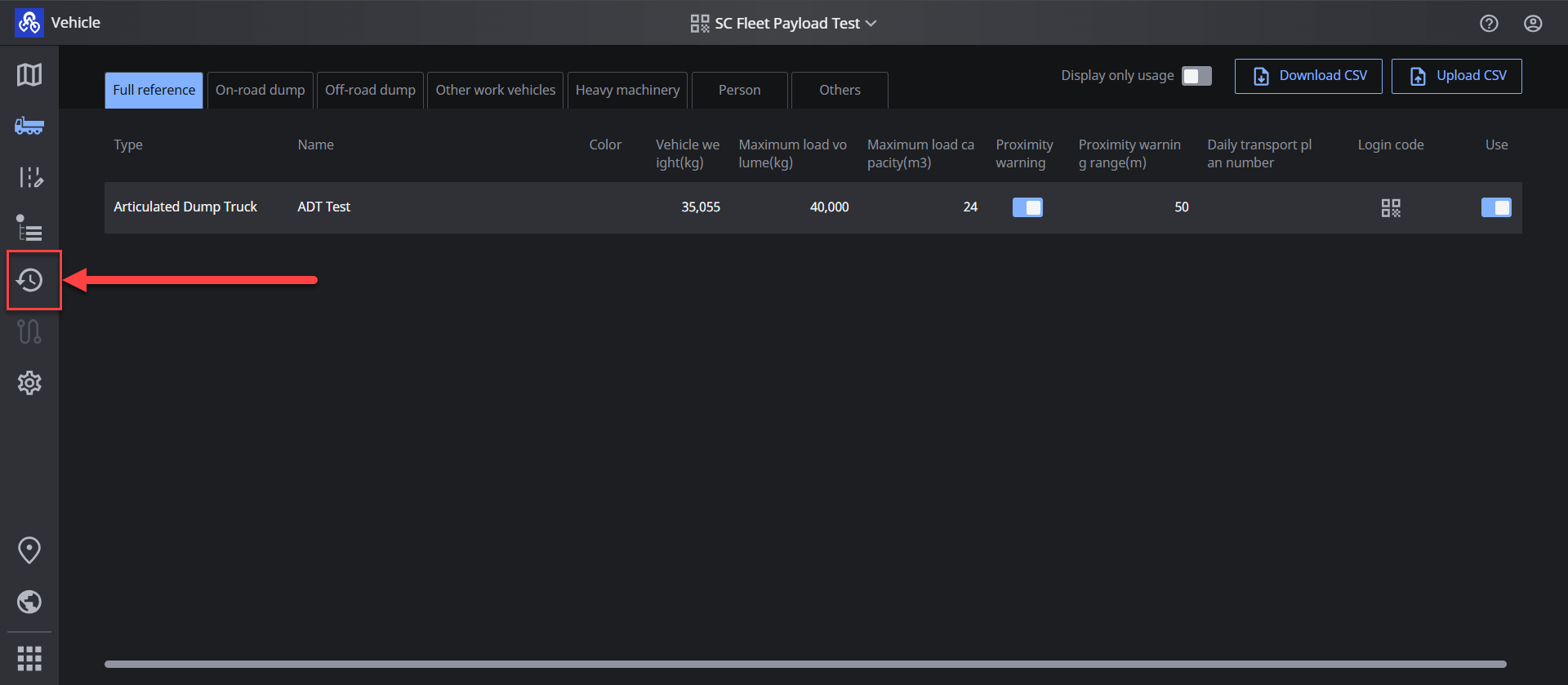
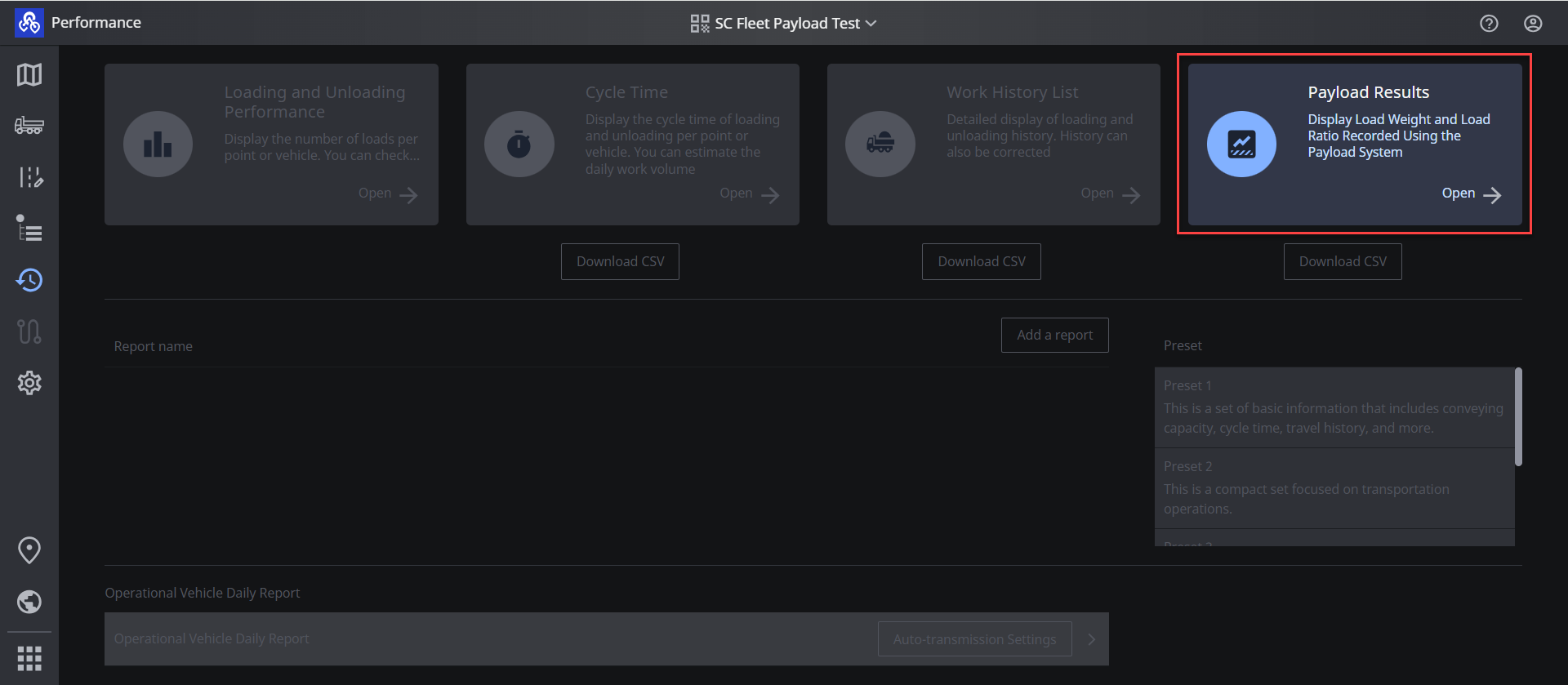
Press the performance button (Left panel of window)
-
Press “Payload Results”
-
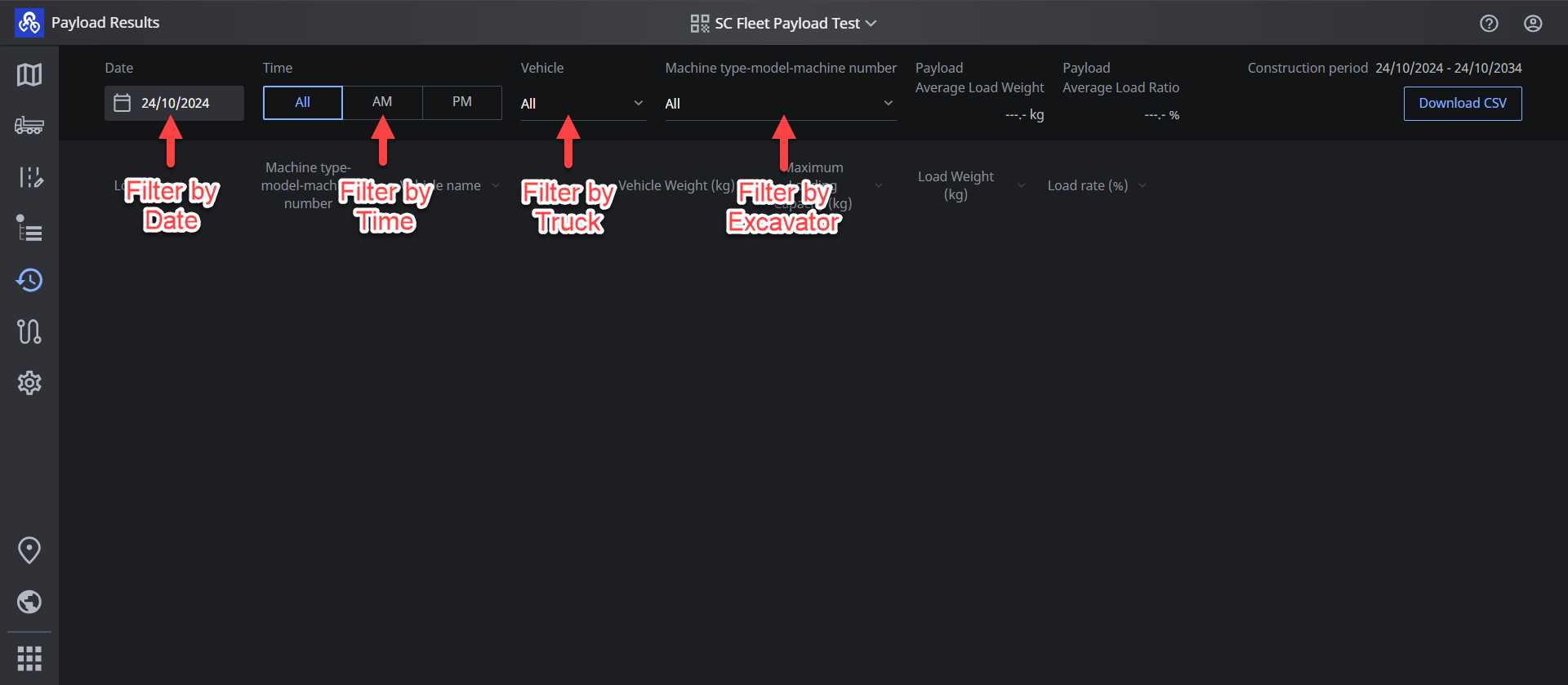
Use the filters to show the required data
-
The data can be viewed in the web viewer, or downloaded to text format (csv) using the download button (Top right of window)

-
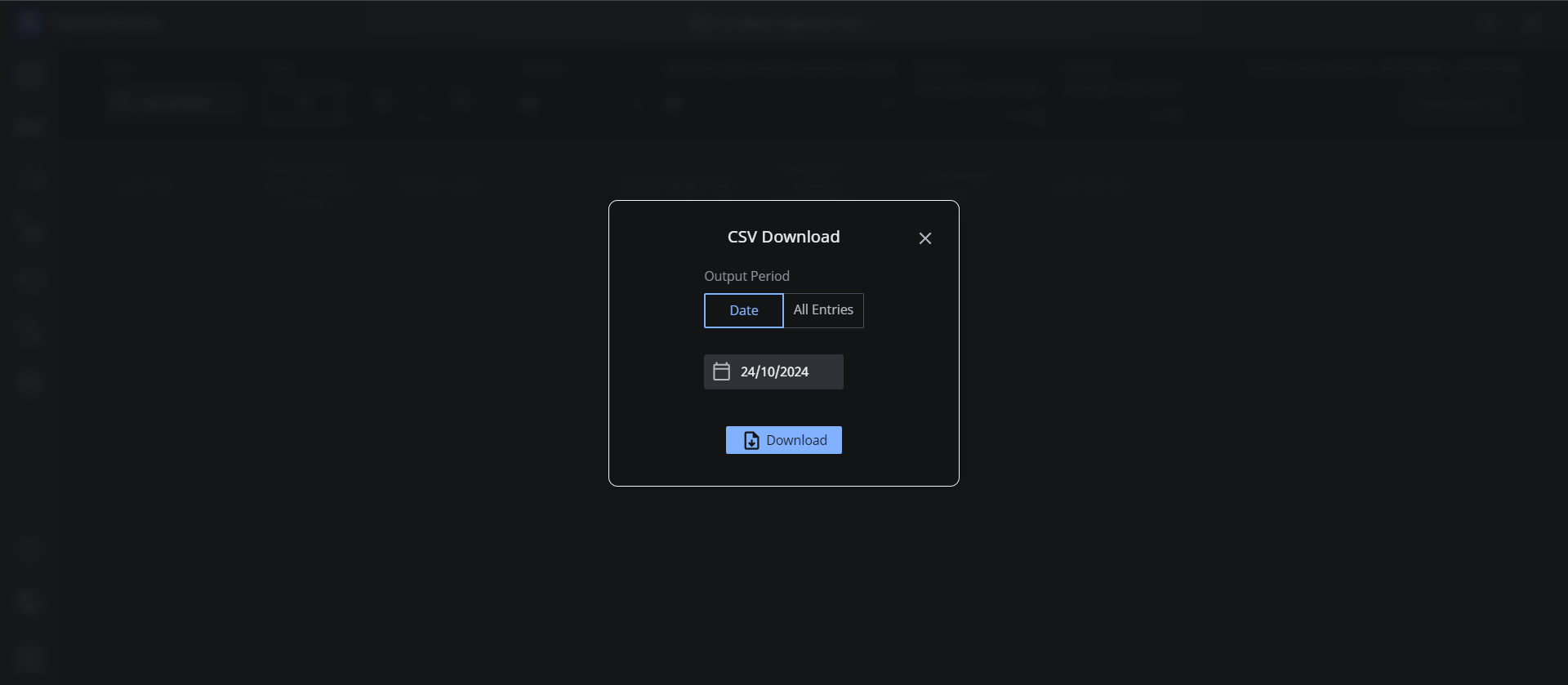
CSV Download modal window will pop up. Specify “Date” or Select “All Entries” and press “Download”
-
CSV file will be download, which includes Loading date, Loading time, Excavator information, Dump Truck information, Payload weight, and Payload ratio
