On June 9 (Mon.), Ver. 5.13.0 of Smart Construction Fleet will be released.
The main new features and fixes in this update are as follows.
■Contents of the release
【Web】 Function to toggle the display of the "Transporting Soil" icon in the Real-Time Viewer
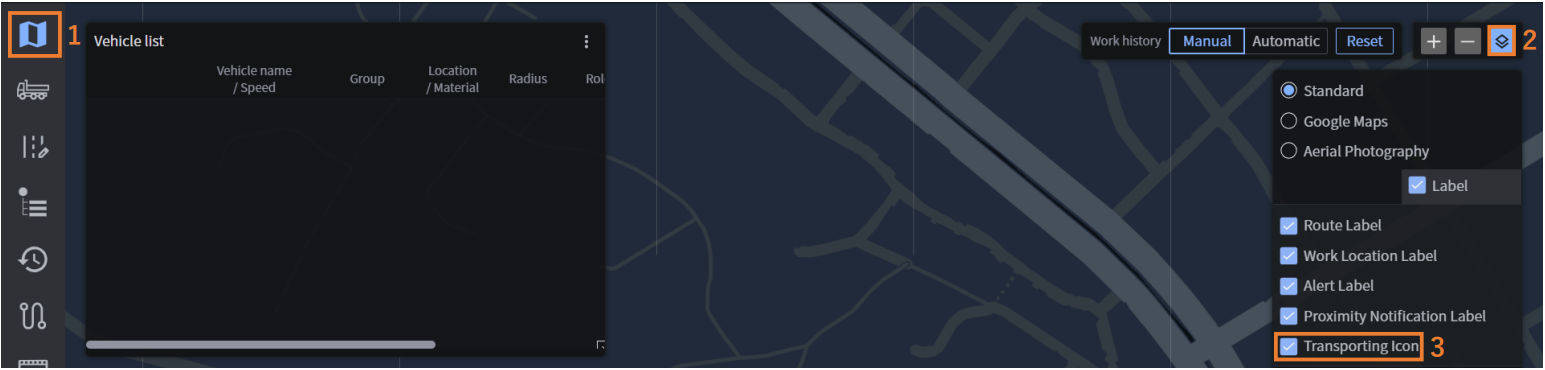
By default, the "Transporting Soil" icon display is turned ON. You can switch it OFF using the following steps: Since the various display settings in the Real-Time Viewer are saved per browser, there will be no conflict in settings even if multiple users are viewing the same site.
-
Click “Real-Time Viewer”
-
Click “UI Display Toggle”
-
Uncheck “Transporting Icon”
【Web】 Function to set speed limits by route
You can now set speed limits for each "Route" drawn in the "Map Settings" menu. It is also possible to set speed limits for specific segments within each route.
[Current Behavior] The speed limit set in the “Site Editing” menu is applied to the entire site.
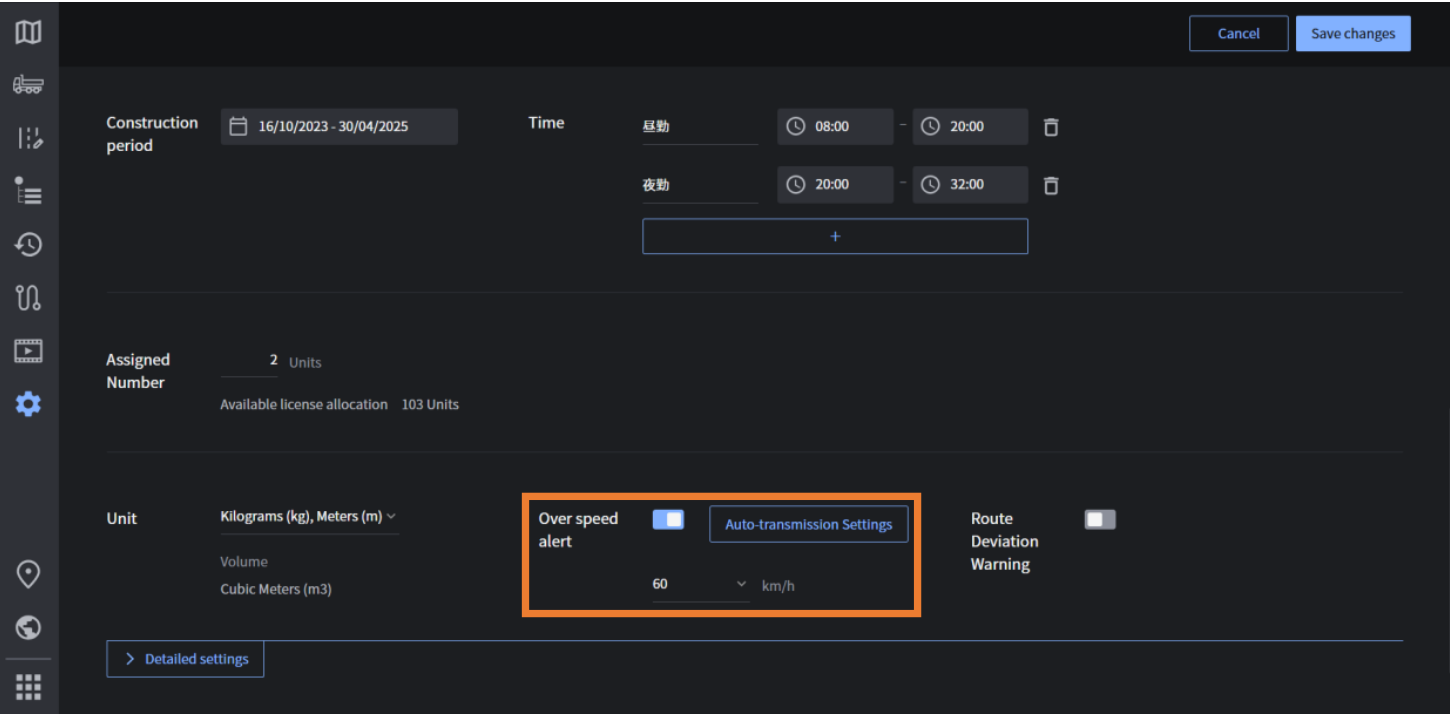
[After the Release] It will be possible to set speed limits by route and by segment. If a vehicle is traveling outside of any defined route, the speed limit set in the “Site Editing” menu will apply. Please make sure to enable the Over speed alert function in the “Site Editing” menu in advance
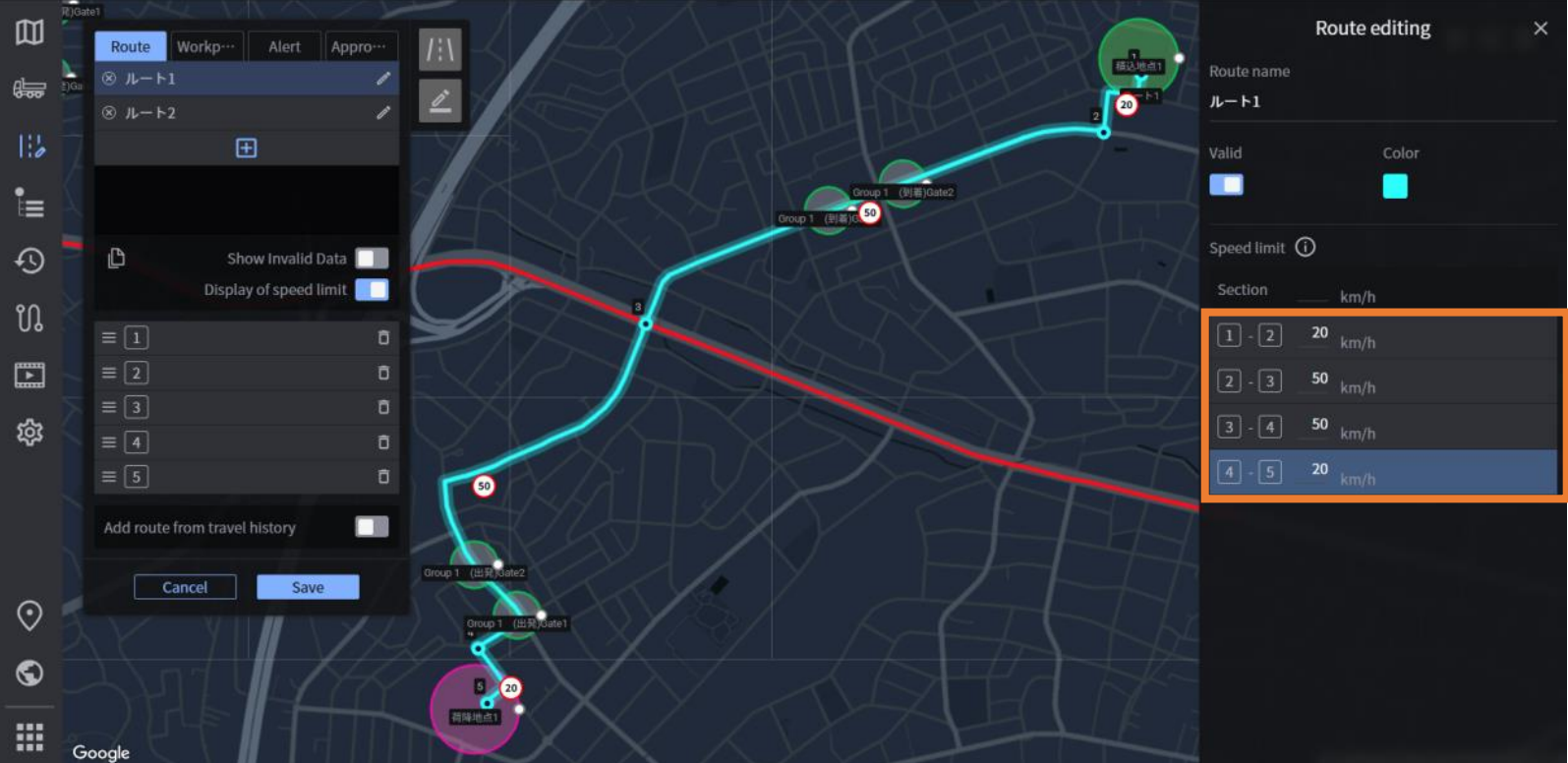
You can now set speed limits for each "Route" drawn in the "Map Settings" menu. It is also possible to set speed limits for specific segments within each route.
[Setup Procedure]
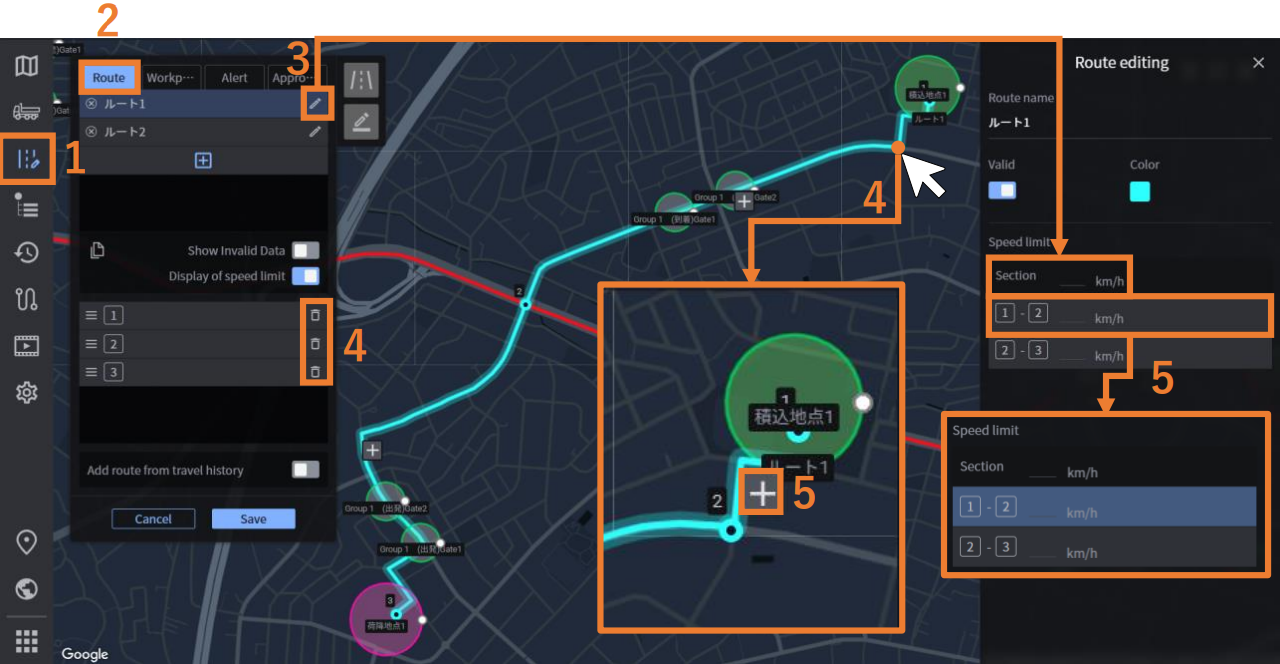
1. Click “Map Settings”
2. Click the “Routes” tab
3. Click the edit icon for the route where you want to set speed limits You can now enter speed limits per route and per segment. The value entered at the top will be applied to all segments.
4. Click anywhere on the route to add a point. To delete a point, click the trash can icon on the left side of the screen.
5. Click the “+” button to highlight the input field for that segment's speed limit.
-
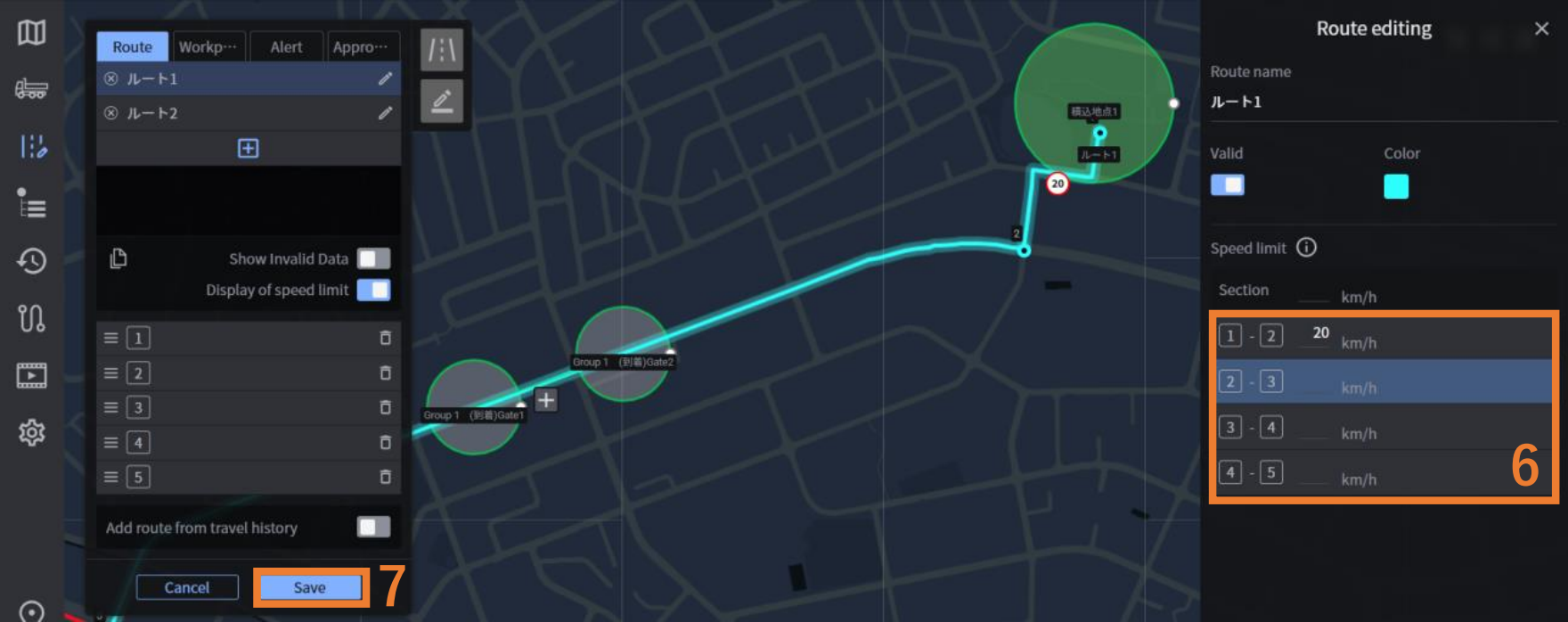
Enter the speed limit. After entering a value, press the Tab key to move to the next segment.
-
Once input is complete, click “Save.” For any segments where the speed limit field is left blank, the speed limit set in the “Site Editing” menu will apply.
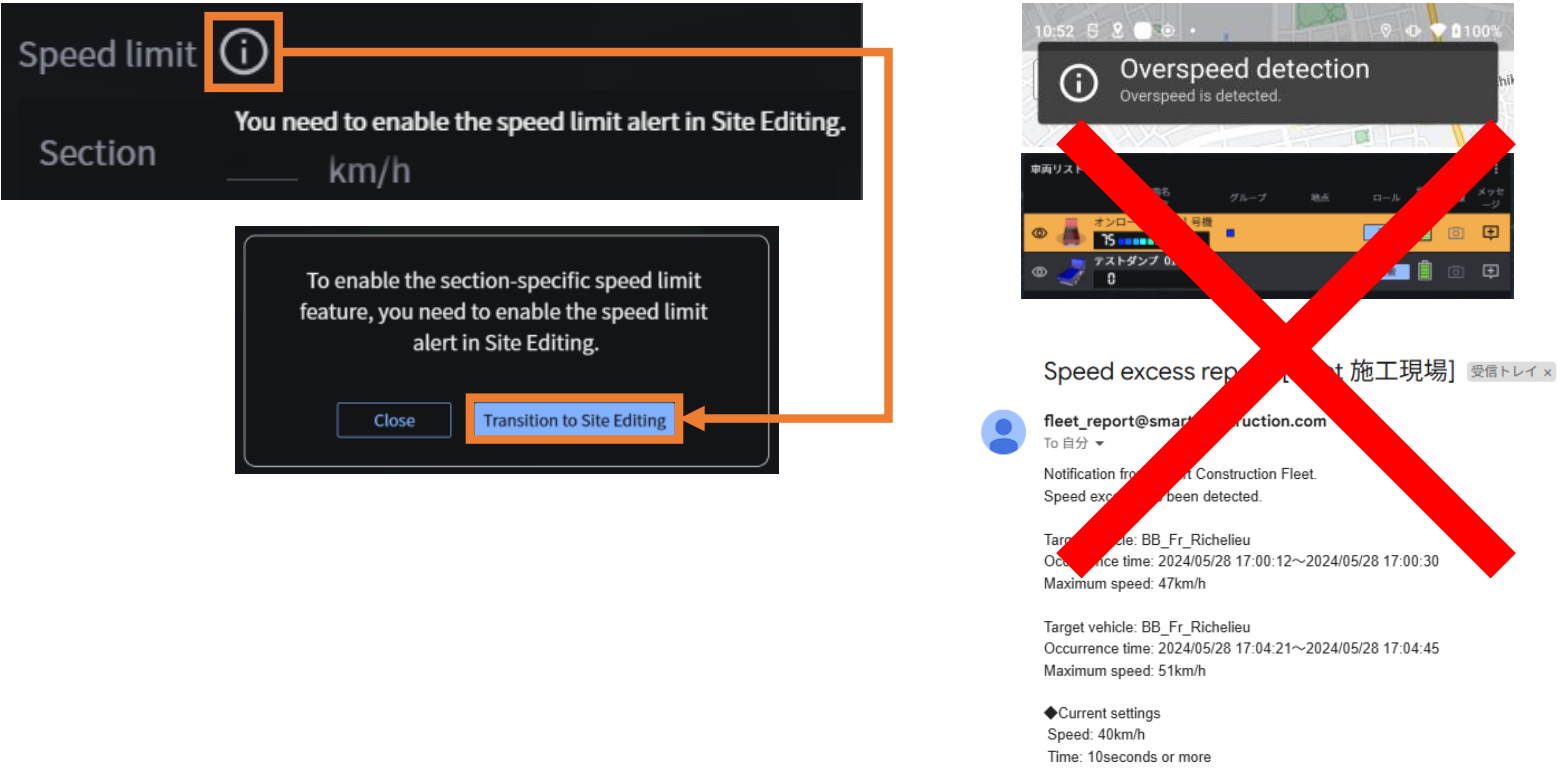
[Important Notes] Even if the “Speed Limit Alert” function is turned OFF in the “Site Editing” menu, you can still configure the settings in “Map Settings.” However, speed limit alerts in the Real-Time Viewer and mobile app, as well as speed reports to site personnel, will not function.
【Web】 Function to enable/disable speed limit alerts per vehicle
In the “Vehicle Settings” menu, it will be possible to turn speed limit alerts ON or OFF for each individual vehicle. You can also toggle the setting for all vehicles at once.
[Setup Procedure]
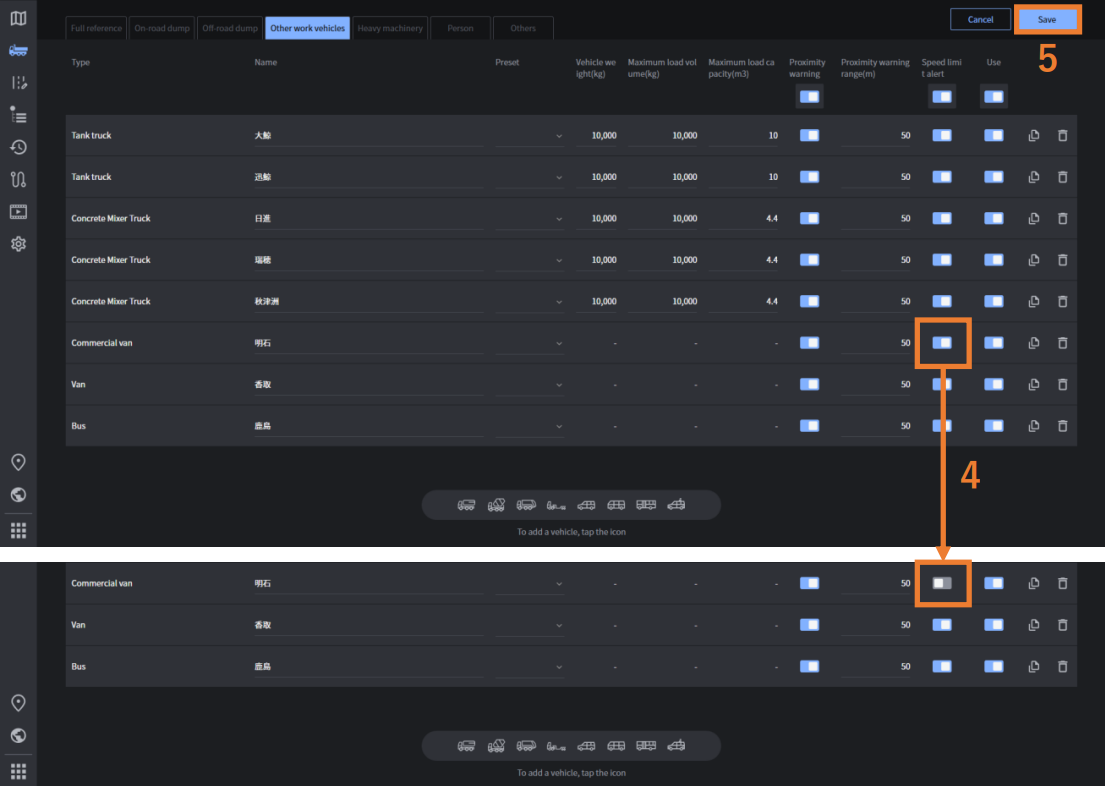
1. Click “Vehicle Settings”
2. Select the desired vehicle type tab
3. Click “Add or Edit”
4. Toggle the “Speed Limit Alert” ON or OFF as needed You can also use the top-level switch to apply the setting to all vehicles at once
5. After editing, click “Save”
If a vehicle is set to have speed limit alerts OFF, the alert will not trigger in the Real-Time Viewer or mobile app even if the vehicle exceeds the speed limit. Additionally, such vehicles will be excluded from speed violation reports sent to site personnel.